

Photos, notes and attachments
How to reply and react to Job Diary notes
Reply to Job Diary notes, mention staff and add emoji reactions in the Online Dashboard and ServiceM8 app.
Reply to a Job Diary note to keep the discussion with the original note, or add an emoji reaction for a quick acknowledgement. All replies stay in one thread under that note.
Online Dashboard
You can reply and react to notes on jobs you can access and whose notes you can view.
Reply to a note
-
From the Dispatch Board, open the Job card.
-
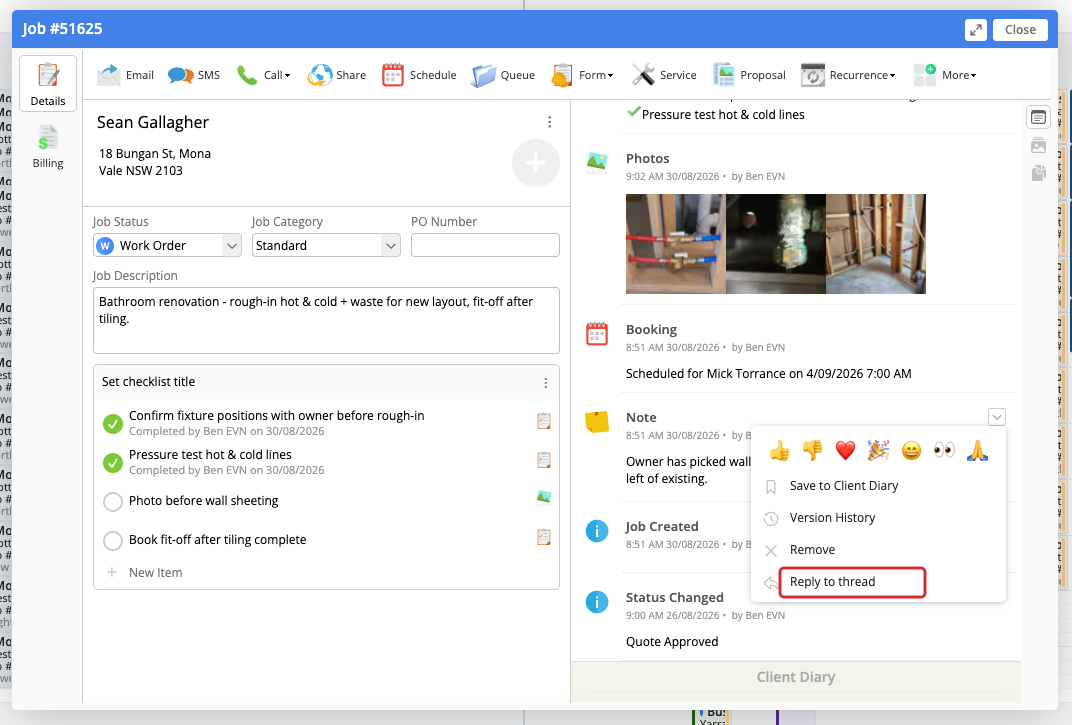
In the Job Diary, open the note’s action menu and click Reply to thread.
-
Enter your reply in Reply to this thread…. To mention a staff member, type
@and select their name. -
Click the send arrow (Reply in thread). Your reply appears below the original note.
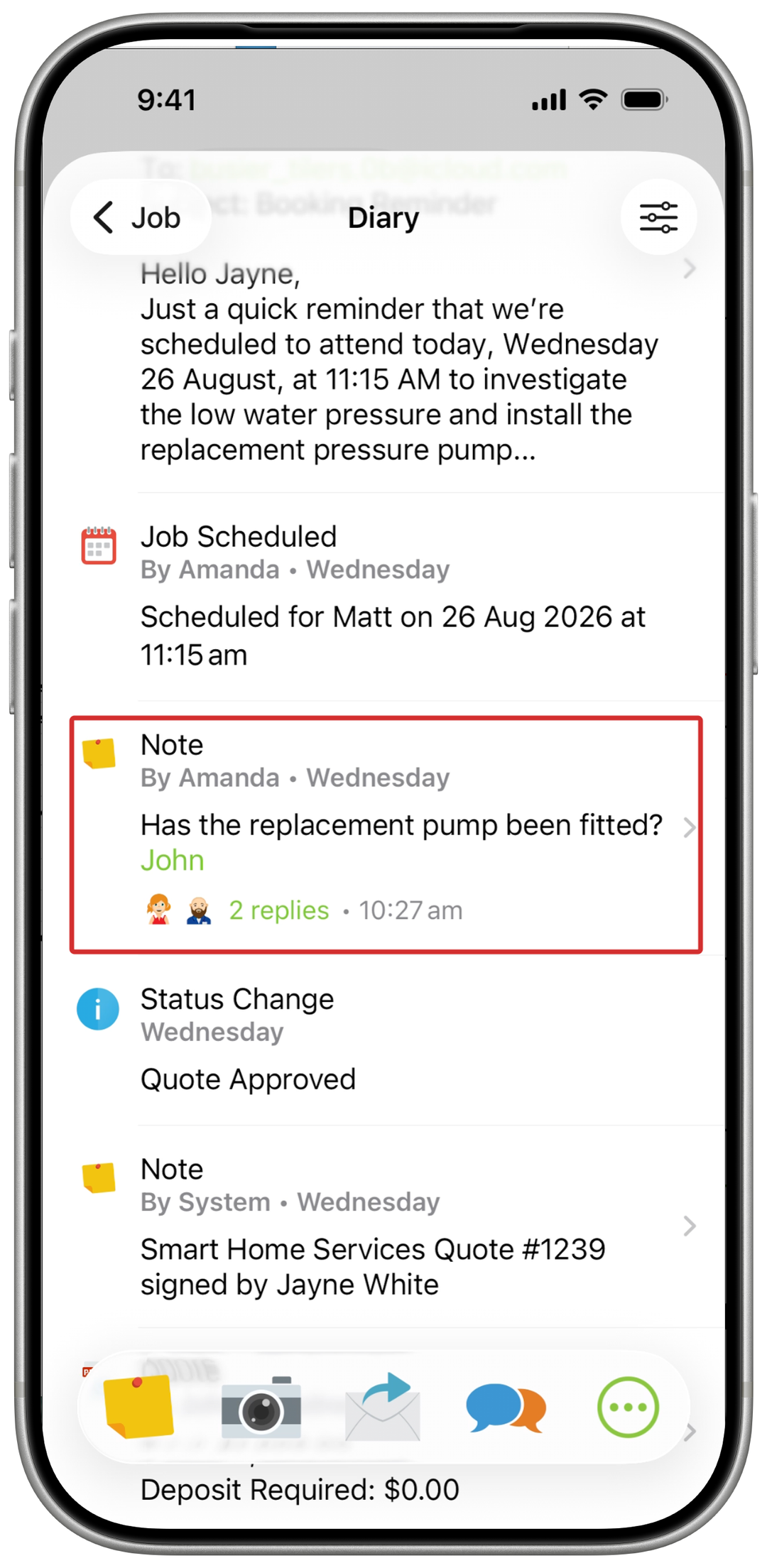
Click the back arrow to return to the Diary. The note shows its reply count, participating staff and latest reply time. Click this summary to reopen the thread, or click Show earlier replies inside the thread to read older replies.
React to a note or reply
Open the note or reply’s action menu and select an emoji. You can also click an existing reaction to add the same one.
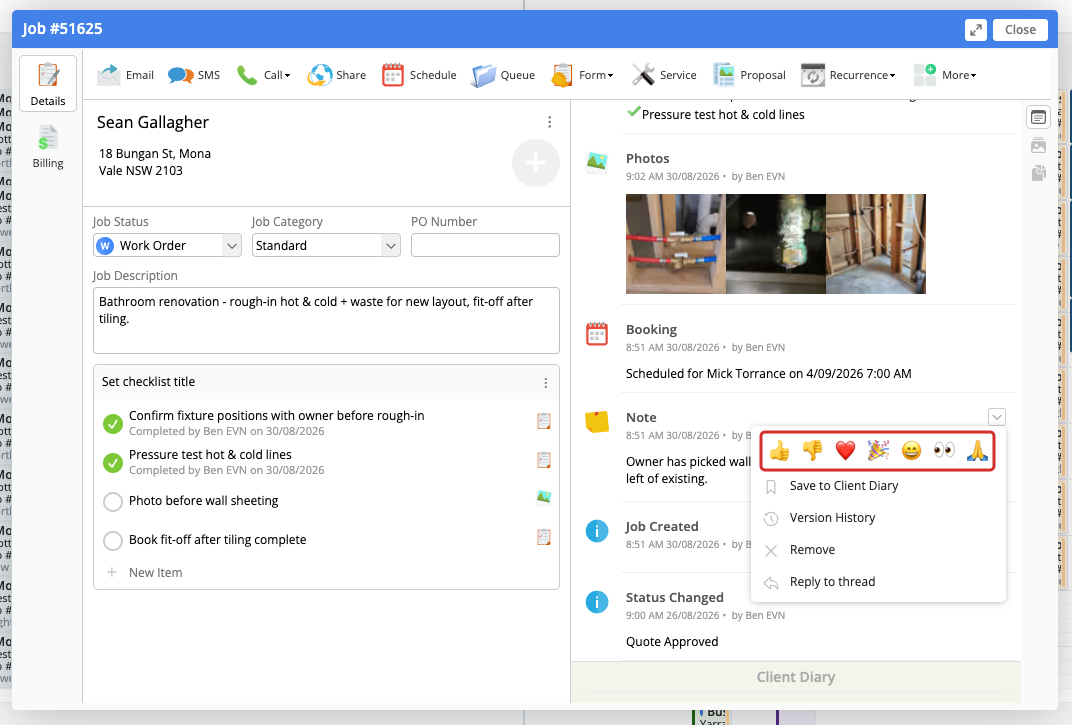
Click one of your reactions again to remove it. You can add several different reactions to the same note or reply.
Remove a reply
Open the reply’s action menu, click Remove, then confirm. You can remove your own replies; the Account Owner can also remove replies. Replies cannot be edited after posting.
Reply and mention notifications
Replies notify the note author and staff who previously replied, subject to their access and notification preferences. You do not receive a notification for your own reply. Mentioned staff receive a mention notification instead of a duplicate thread notification.
Select a reply or mention notification in the Online Dashboard to open the relevant thread. Reactions do not send notifications.
In the app
If you can’t see replies and reactions, make sure you have the latest version of the ServiceM8 app.
Reply to a note
-
Open the job’s Diary and tap the note you want to reply to.
-
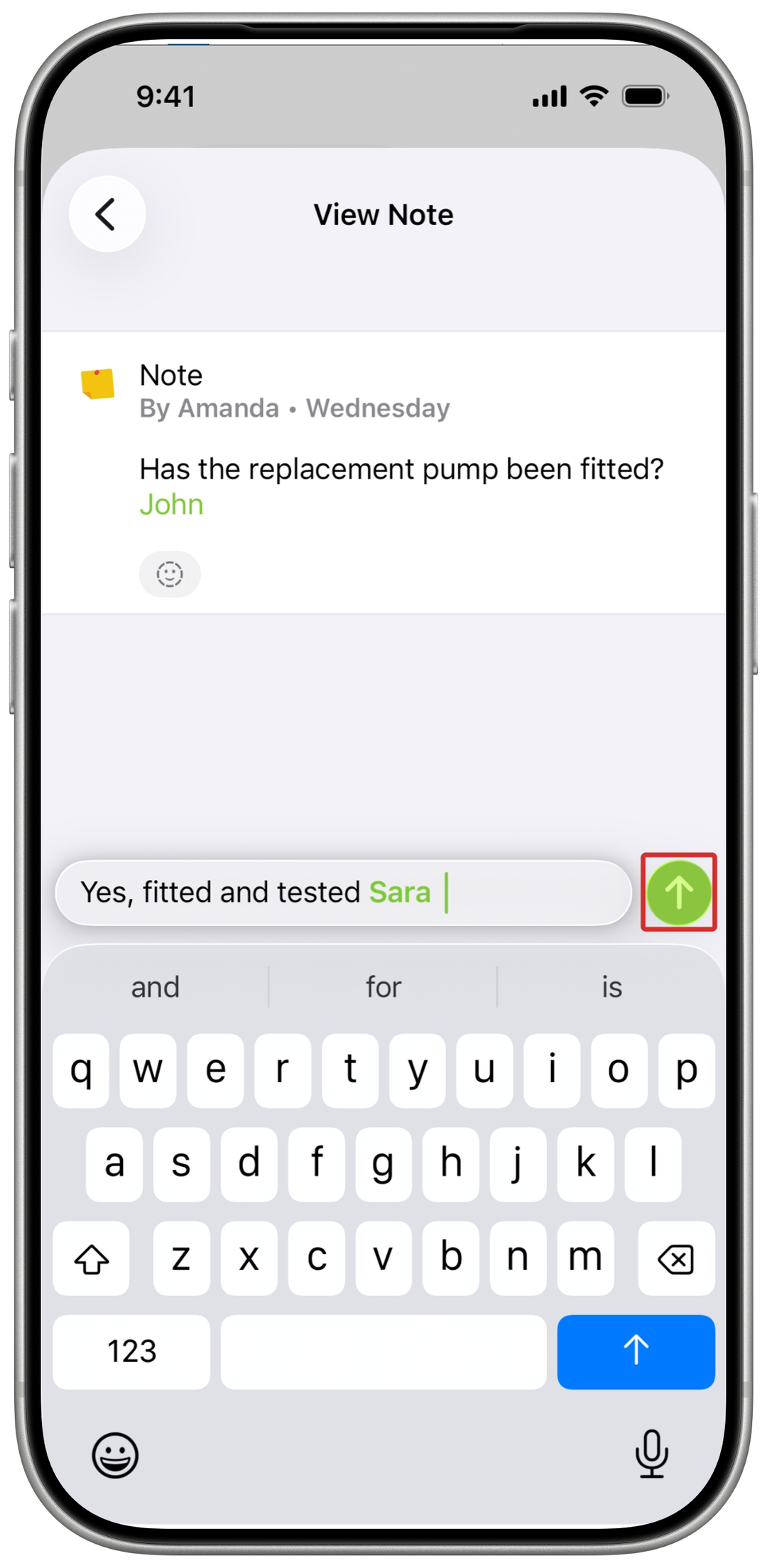
On View Note, tap Reply to this thread… and type your reply.
-
To mention a staff member, type
@and select their name. -
Tap the send arrow. Your reply appears under Replies, beneath the original note.
Return to the Diary to see the note’s reply count, participating staff and latest reply time. Tap the note to reopen the discussion.
React to a note or reply
-
On View Note, tap the add-reaction icon beneath the note or reply.
-
Choose an emoji.
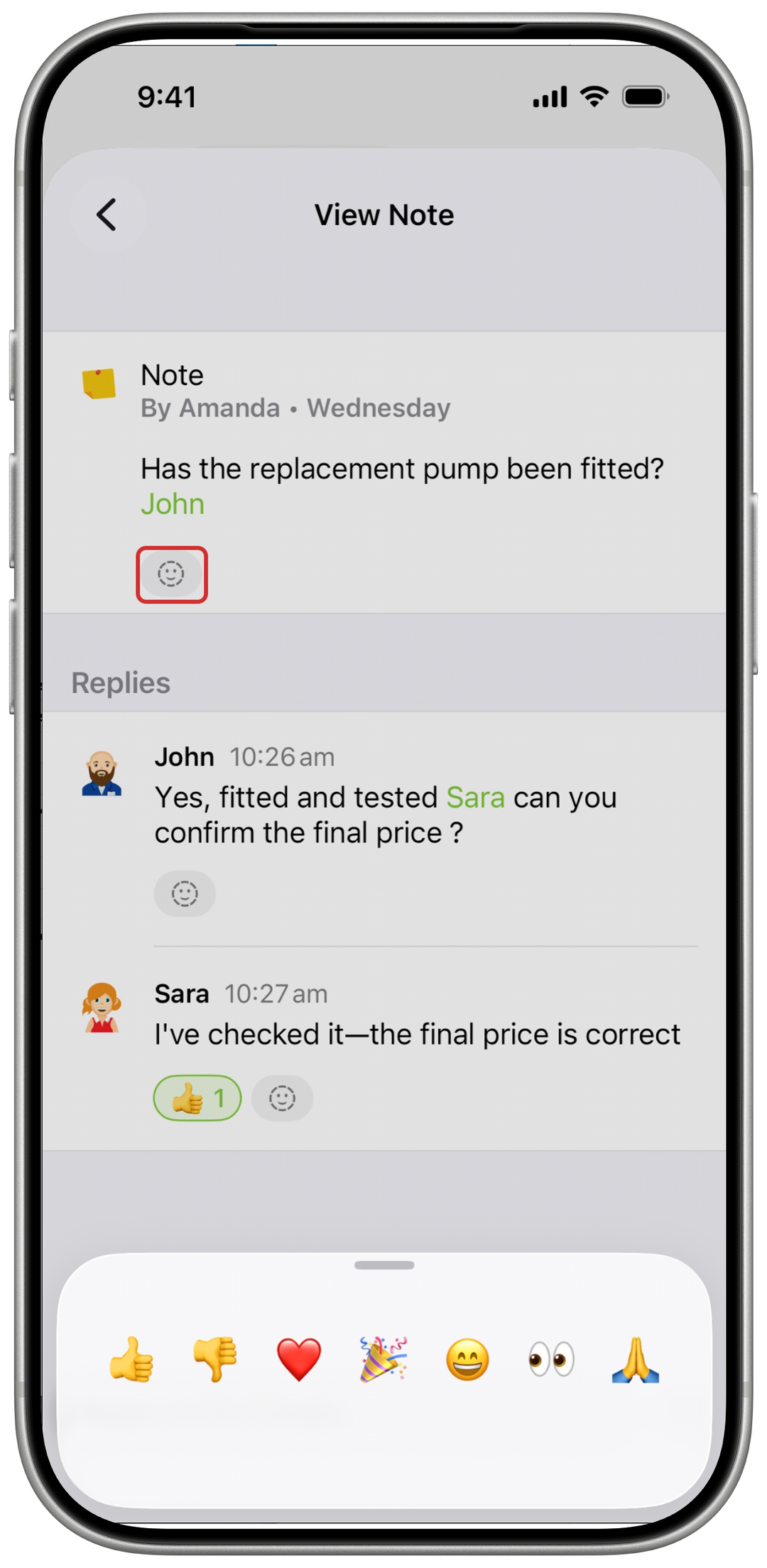
The reaction appears with a count. Tap one of your reactions again to remove it, or choose another emoji to add a different reaction alongside it.
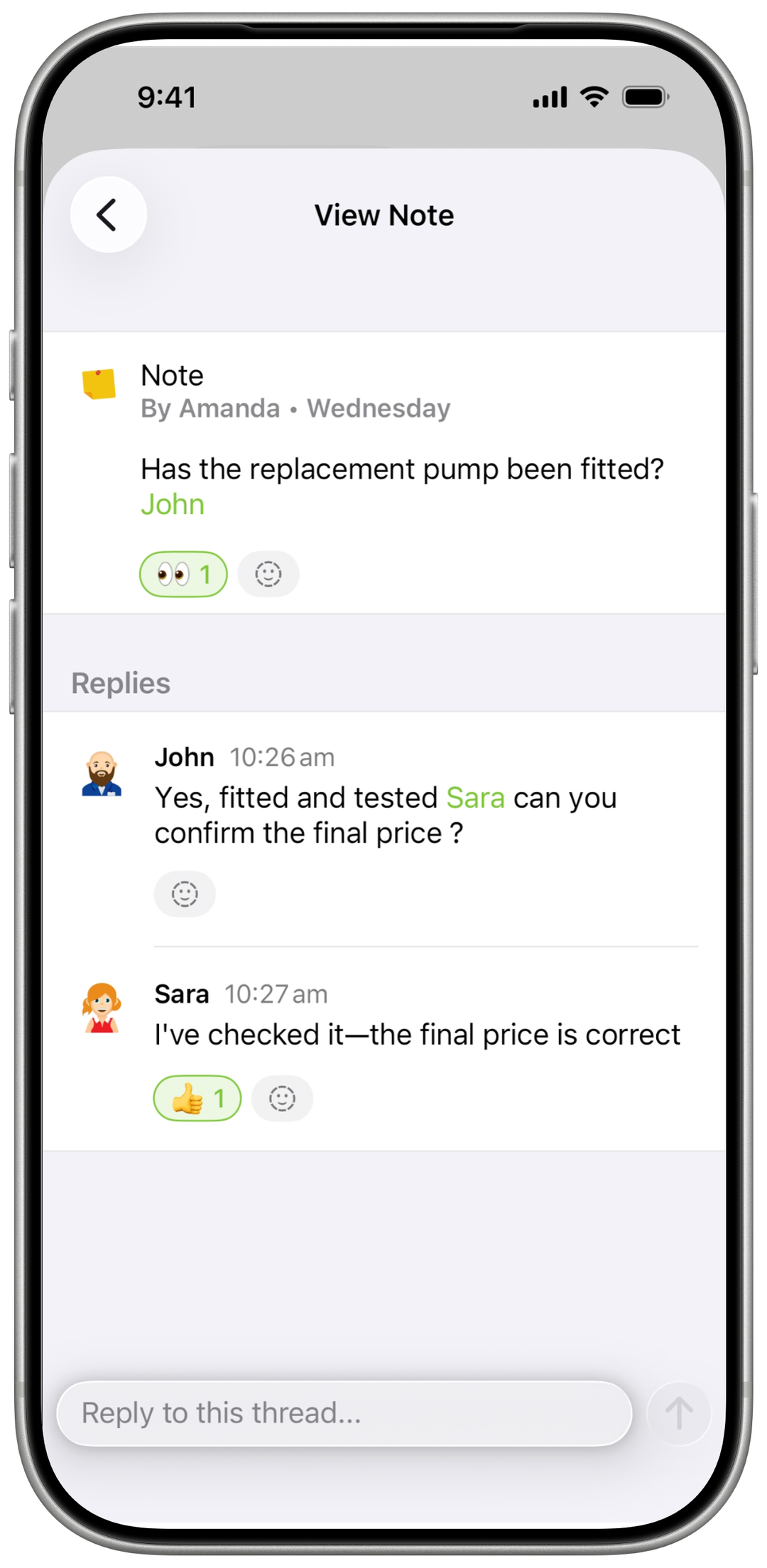
To see who reacted, tap the add-reaction icon on a note or reply that already has reactions. The reaction sheet lists staff names beneath the emoji choices.