

The mobile app
How to use ServiceM8 on Apple Watch
View your current job, record voice notes, check out and clock on or off from your Apple Watch.
Use ServiceM8 on your Apple Watch to view your current job and record notes while you work. With an internet connection, your Watch can sync with ServiceM8 even when your iPhone is out of reach.
Before you start
- Install ServiceM8 on your Apple Watch and sign in to ServiceM8 on your paired iPhone to share your sign-in with the Watch.
- Use an Apple Watch running watchOS 10 or later and an iPhone running iOS 18 or later, with the latest ServiceM8 app available to you. See Apple’s Watch and iPhone compatibility guide.
View your job and record a voice note
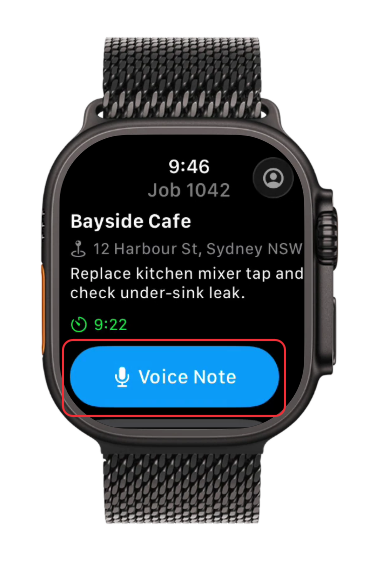
Check in to a job on your iPhone. Your Watch shows that job’s details and elapsed check-in time. Clock and check-in changes on your paired iPhone update the open Watch app when the devices can communicate.
-
Open ServiceM8 on your Apple Watch, then tap Voice Note on your current job.
-
Tap the microphone button to start recording, then speak your note.
-
Tap the stop button (the white square) to save the recording.
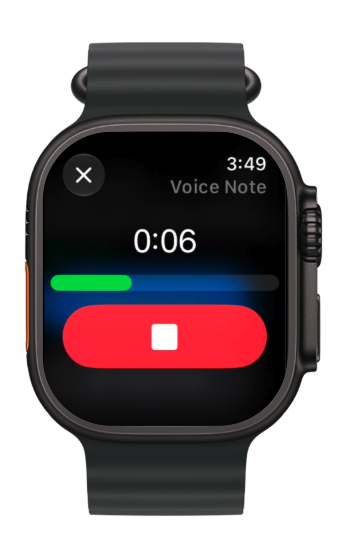
The recording is saved on your Watch and added to the job diary once synced.
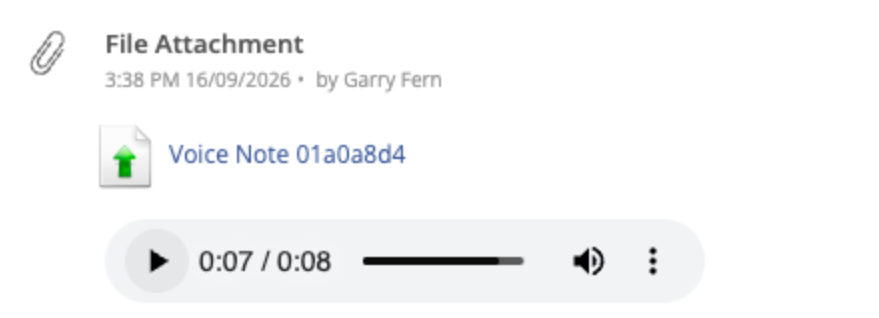
Voice note in the Online Dashboard job diary.
Check out of a job
-
On your Watch’s current-job screen, scroll down and tap Check Out.
Your check-in ends and you remain clocked on.
Clock on and off
-
To start your shift, open ServiceM8 on your Watch and tap Clock On.
-
To finish your shift, check out of your current job if needed, then tap Clock Off.
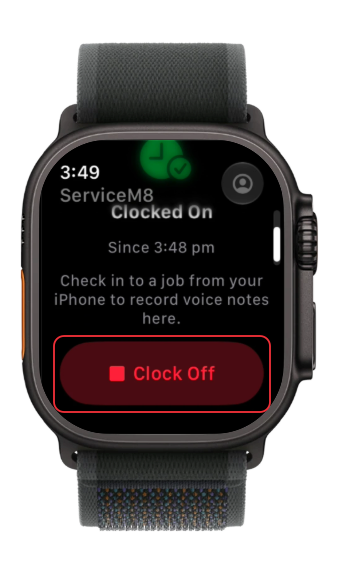
Your Watch shows Clocked Off.