Quotes and invoicing
How to accept mobile payments in person using Scan & Pay
Learn how to accept mobile payments in person using Scan & Pay in ServiceM8.
When you’re at a job, selecting Scan & Pay as the payment method lets your clients pay immediately in person on their mobile device, using Apple Pay, Google Pay, or their credit card.
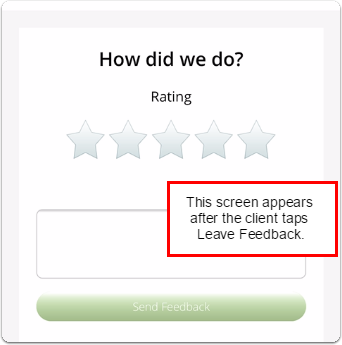
With Scan & Pay, your ServiceM8 app generates a QR code, which your client scans with their mobile device. A screen will then appear on their device prompting them to make a payment. They can also leave feedback and email themselves a copy of the paid invoice - right from their phone or tablet!
This article discusses:
Note that you must have the ServiceM8 Stripe add-on activated for the Scan & Pay feature to work. To learn more about Stripe, go to this article.
To generate a QR code for a mobile payment:
- From your ServiceM8 app, tab Jobs.
- Tap the job you want.
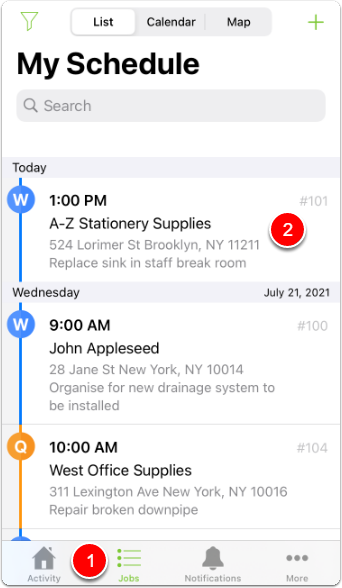

- Tap Billing.
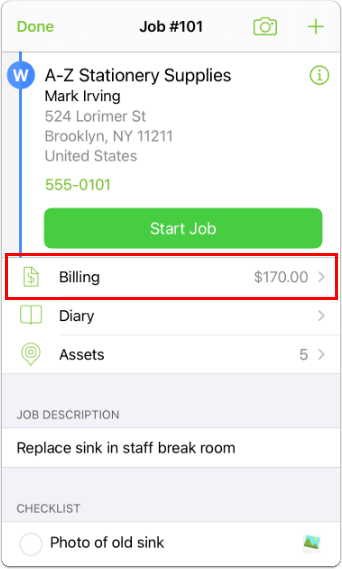

- Tap Amount Paid.
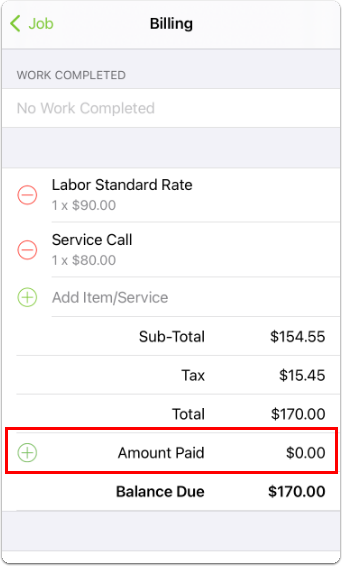

- Tap Scan & Pay.
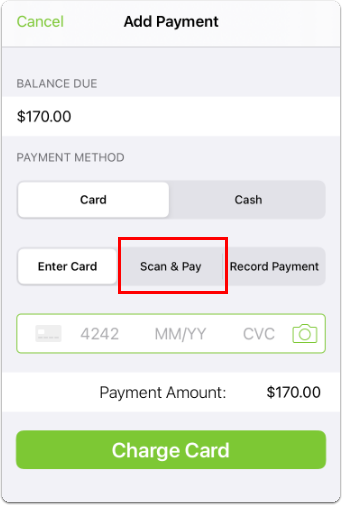

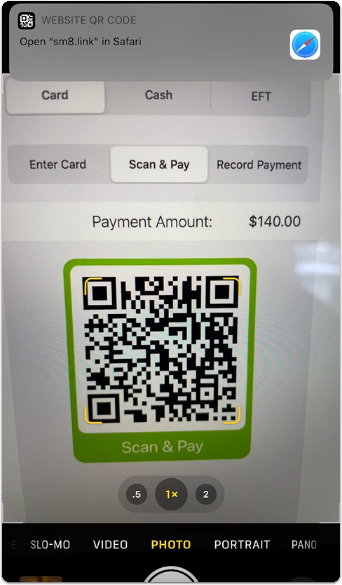
- A QR code will appear. You can now hold your device up for your client to scan the code with the camera on their mobile device.
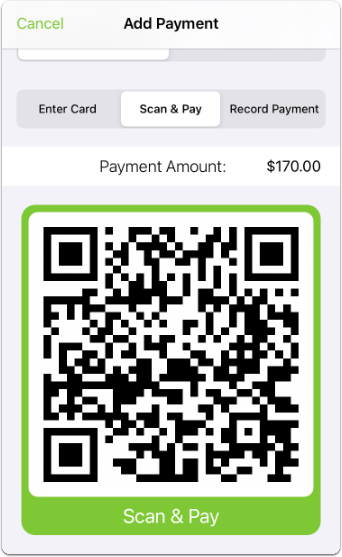

Once your client has paid, the screen with the QR code on your device will close and the payment will automatically be marked as received in ServiceM8.
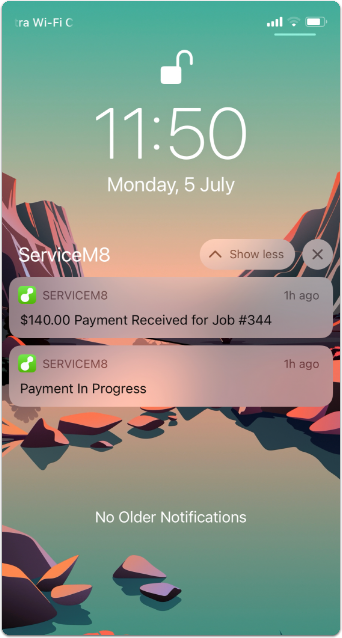
If you close your screen before your client has paid, you will receive push notifications letting you know the customer is viewing the payment page and again when the payment has been received.

What your client sees when using Scan & Pay
When your client scans the QR code with their camera, their mobile device will give them a prompt to open sm8.link in their browser. The client should tap this prompt.

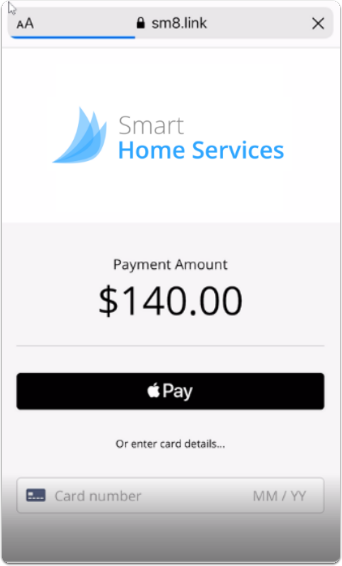
The client will see a payment amount and a payment mechanism (Apple Pay or Google Pay, depending on their mobile device). They can either tap the Pay button or they can enter their credit card details manually. Their mobile payment will process based on their preferences.

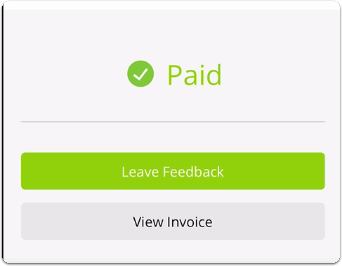
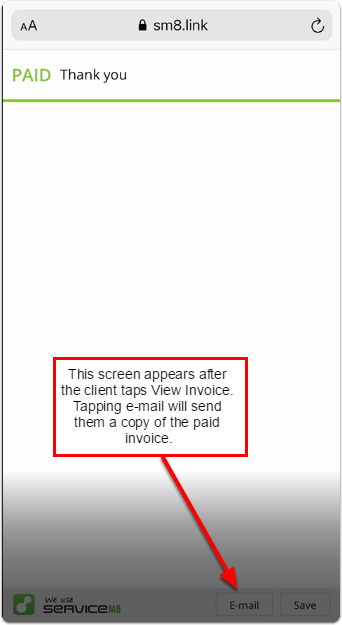
Once their payment has been processed, the client will see a Paid message. They will then have the opportunity to leave feedback and view the invoice. If they would like an emailed copy of the paid invoice, they can tap View Invoice > E-mail.