

Staff and security
How to change your staff avatar in the ServiceM8 app
Choose a ServiceM8 avatar or create a custom avatar from a photo in the ServiceM8 app.
Your staff avatar helps identify you throughout ServiceM8. Choose a standard icon or create a custom avatar from a selfie for the staff profile you’re signed in to.
Before you start
- If you can’t see Change, update the ServiceM8 app and your device’s operating system to the latest available versions.
- Connect to the internet to load, create and apply avatars.
Choose a ServiceM8 avatar
-
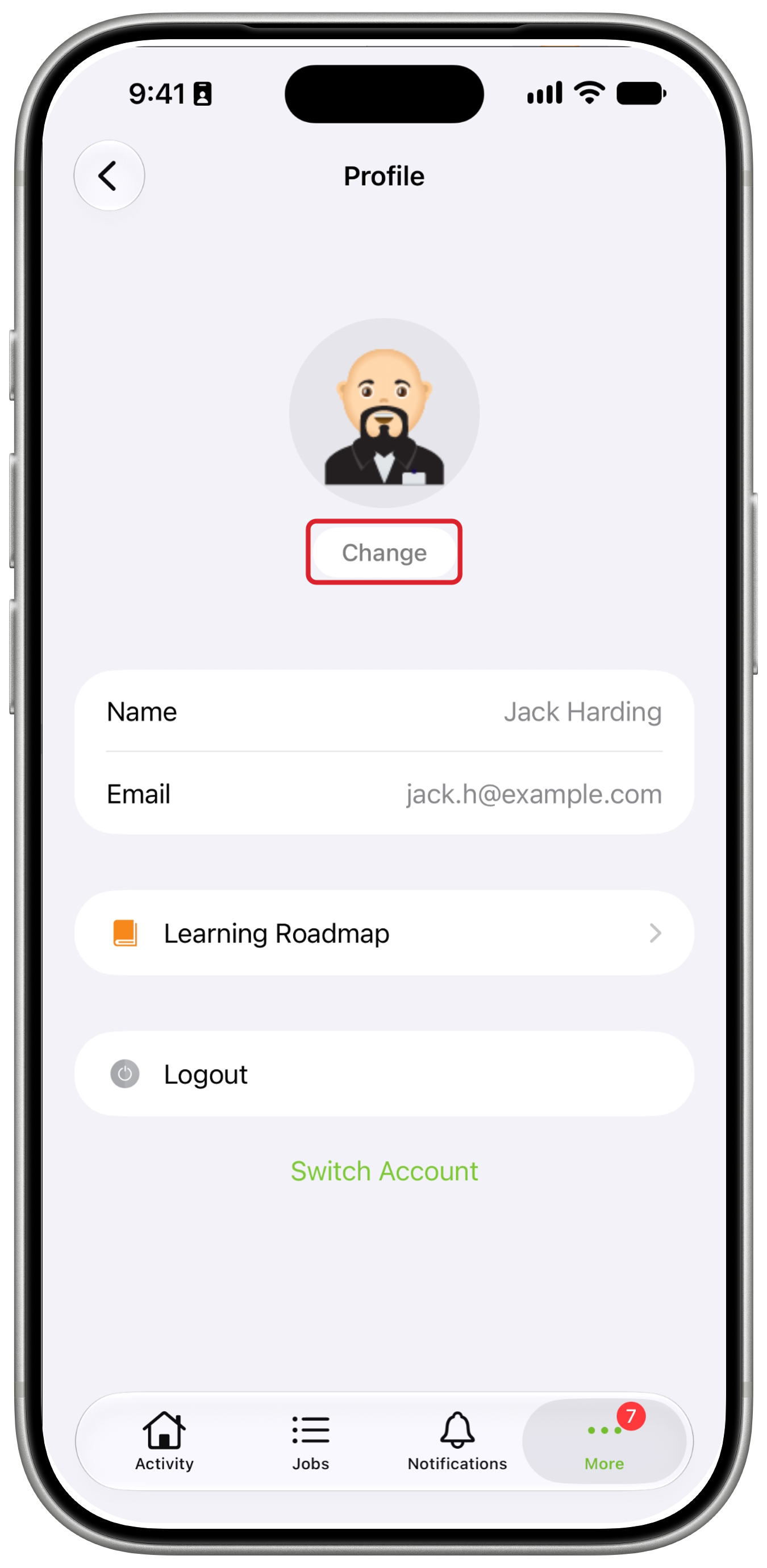
Tap More, open your profile at the top of the screen, then tap Change below your avatar.
-
Under Standard, tap the icon you want, then tap the checkmark (Use Avatar).
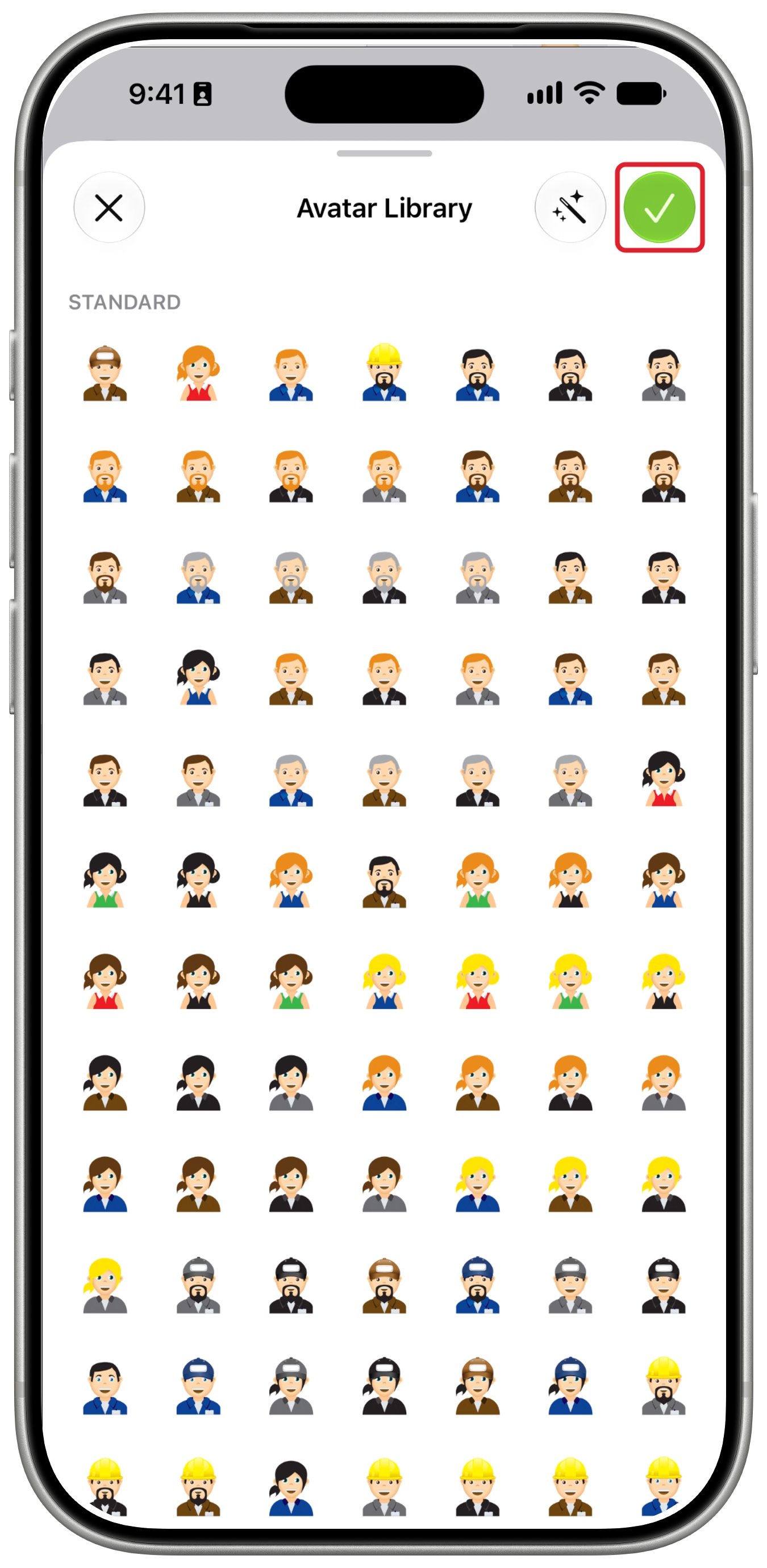
Your selected avatar is applied to your staff profile.
Create a custom avatar from a photo
-
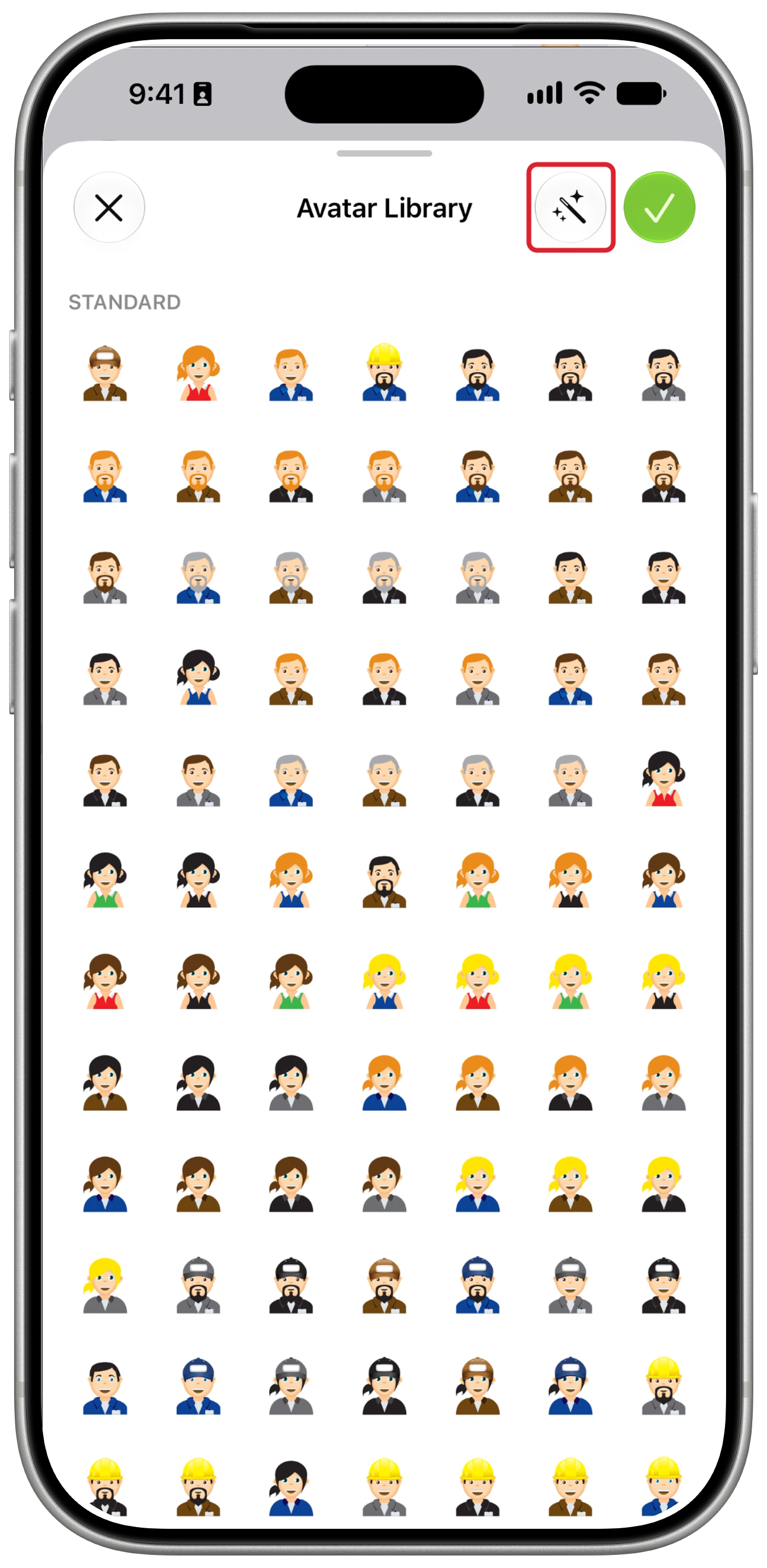
Open your profile, tap Change, then tap the wand button (Create Avatar) in the Avatar Library.
-
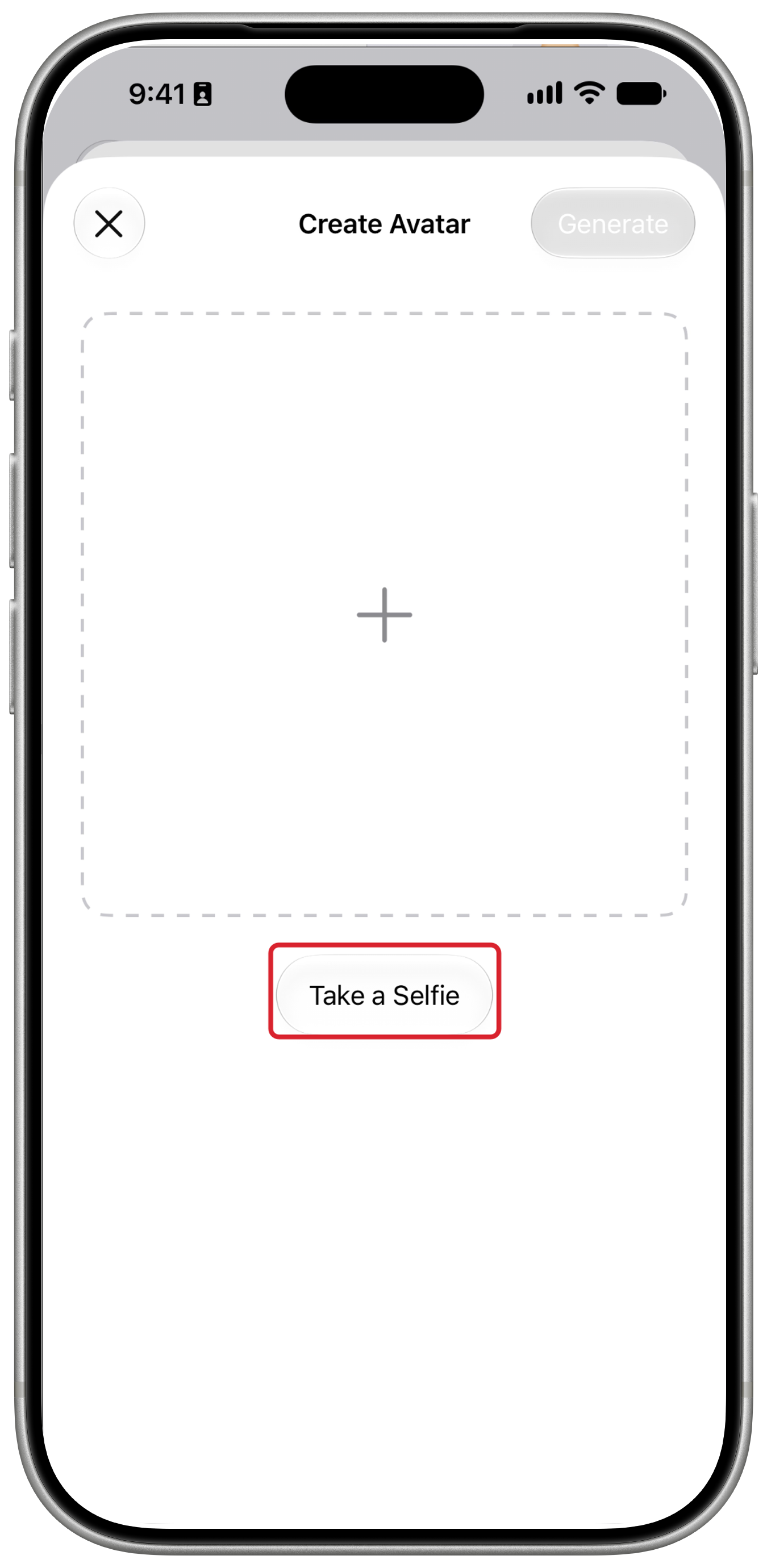
Tap Take a Selfie and take your photo.
-
Check your photo, then tap Generate. To take another photo first, tap Retake Selfie.
-
Drag the divider to compare your photo with the generated avatar. Tap the wand button (Regenerate) for another result, or tap the checkmark (Save) to apply it.
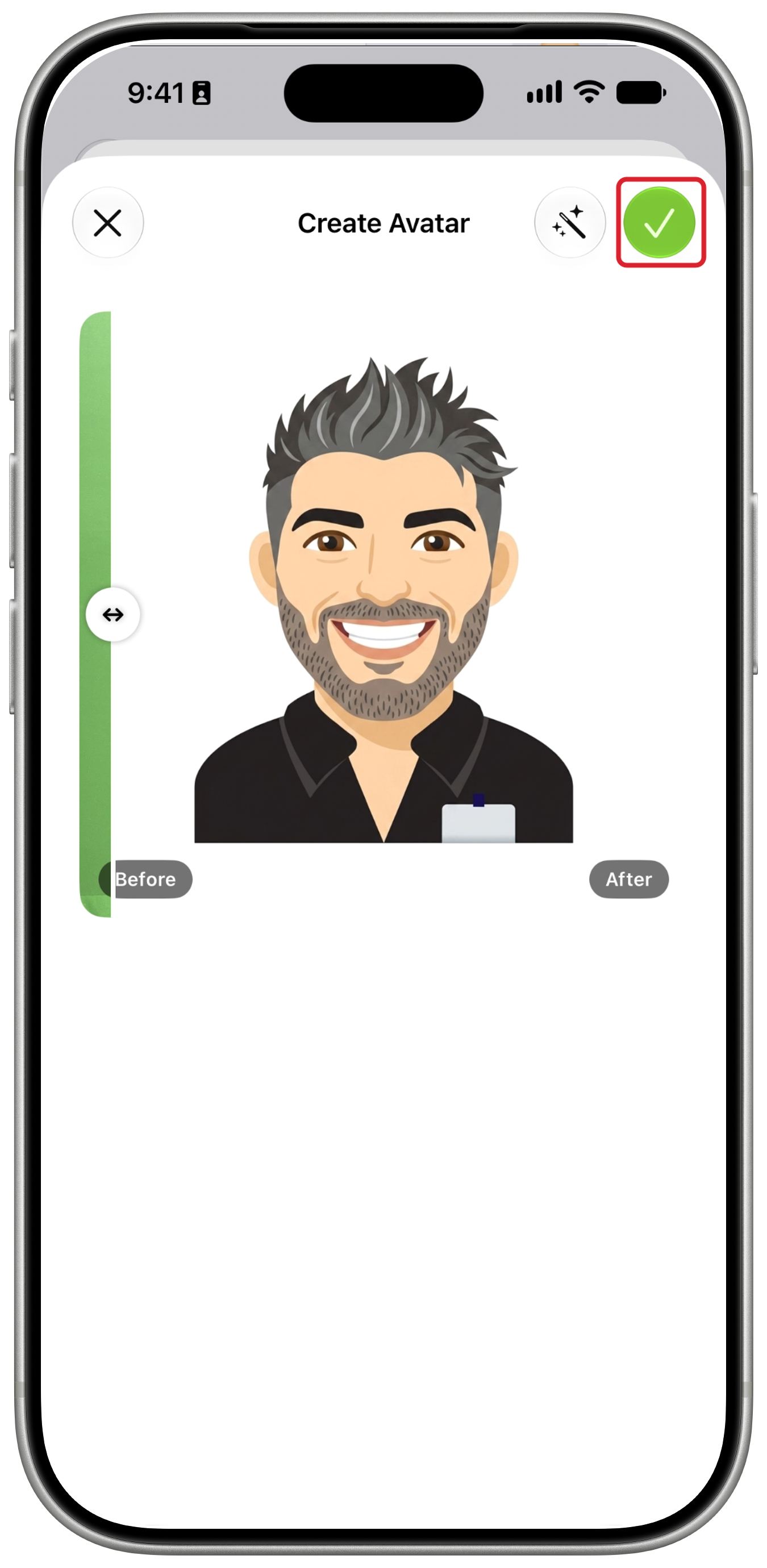
-
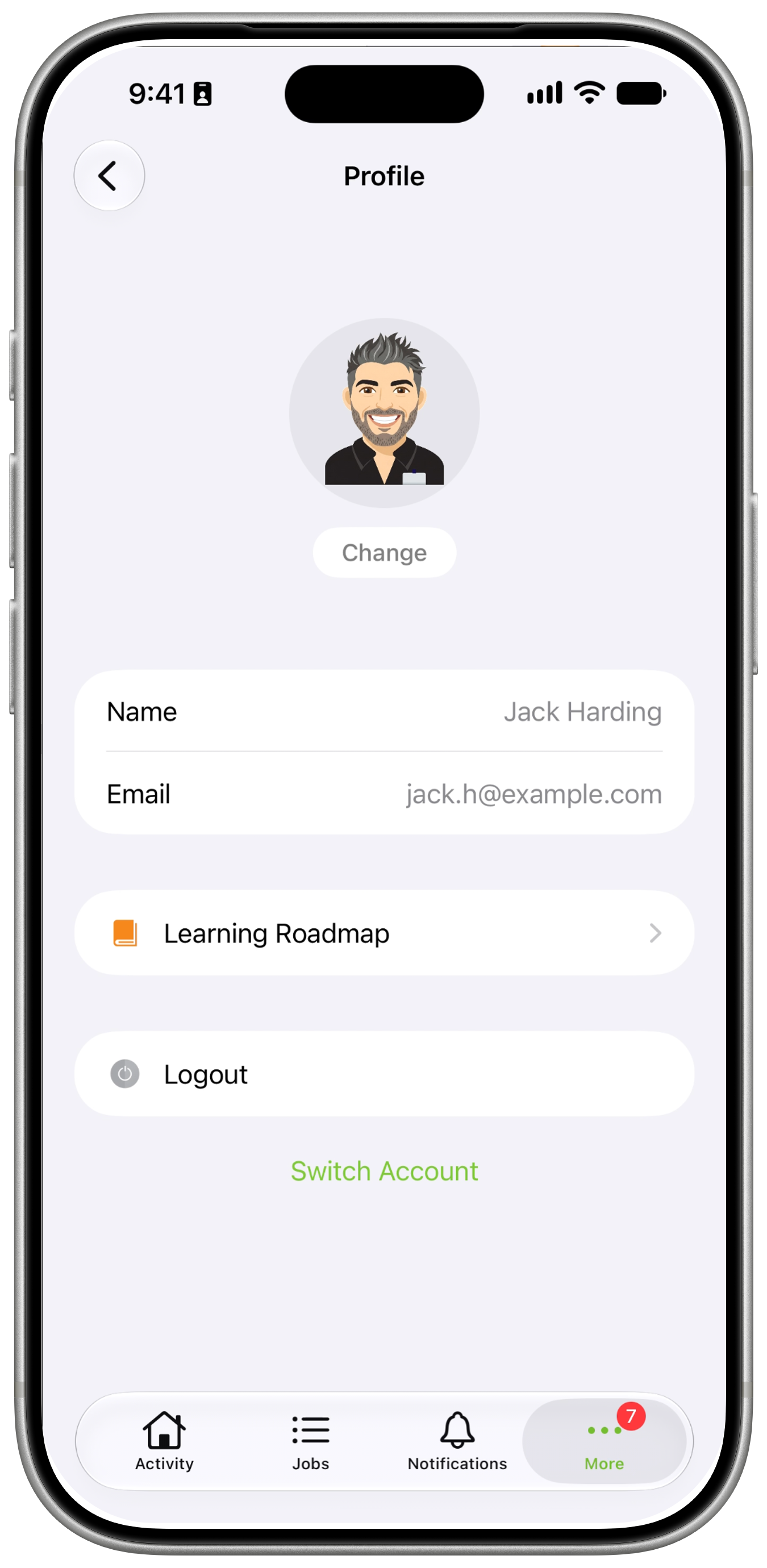
You return to Profile with your updated avatar. It is also saved under Your Avatars on this device.
Reuse a custom avatar
- Open your profile and tap Change.
- Scroll to Your Avatars and tap a saved avatar.
- Tap the checkmark (Use Avatar).
Your Avatars can also show your currently applied avatar from another device. Your other saved avatars remain on the device where you created them.