Dispatch Board
How to View Staff Status
Learn how to view Staff Status in ServiceM8.
The Dispatch Board provides you with the ability to see where your Staff are and what they’re doing.
Viewing Clocked-on/Clocked-off Status
Staff are displayed in the toolbar at the top of the Dispatch Board. The icon of each Staff member in the toolbar shows their current status:
- Normal, colour icon: Staff member is Clocked On
- Colour icon with Hamburger: Staff member is On Break
- Greyed-out icon: Staff member is Clocked Off

Staff members can Clock On, Clock Off, and start and end a Break using the ServiceM8 mobile app. To do so, tap the “My Shift” link at the top of the Activity Feed.
Staff members who have installed the ServiceM8 mobile app and allowed GPS access will be visible on the Dispatch Map whenever they are Clocked On. Staff members will not be shown on the Dispatch Map while they are Clocked Off or On Break.
If you have a lot of Staff but you don’t need to be aware of the current status of all Staff members, you can customise which Staff are visible in the toolbar in Settings > Staff > Edit > Options > “Show Staff Member on Dispatch Board”.
Viewing Checked-in and Navigation Status
When a Staff member is navigating to a Job or is Checked In to a job, this information is shown in the Staff Schedules and Dispatch Map views.
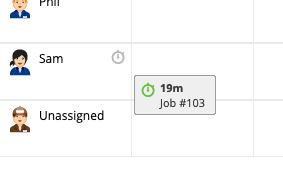
While Checked-in or Navigating, an icon will be displayed at the top right of the Staff member’s details on the Staff Schedule. Hover your mouse over the icon to see the details of the job to which they are navigating or checked-in. When navigating, the Staff member’s Estimated Time of Arrival at the job site will be shown. When checked-in, the check-in timer will be shown.
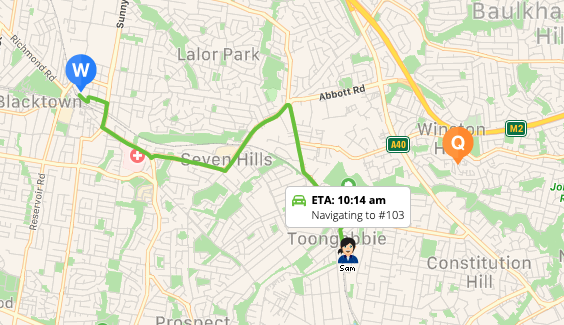
On the Dispatch Map, the same information is shown above the staff member’s icon whenever they are checked-in or navigating to a job. Additionally, a green navigation line will be displayed from the Staff member’s location to the Job location while they are navigating.
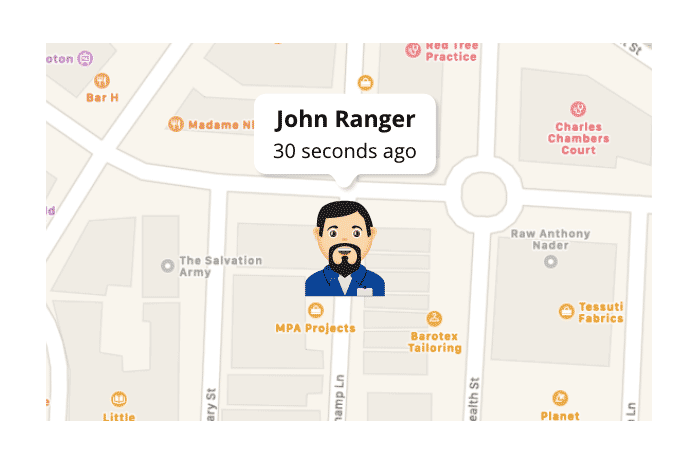
If a staff member is neither Navigating or Checked In to a job, you can click on their staff icon in the Dispatch Map for more information: