Jobs and scheduling
What are Saved Searches?
Understand what Saved Searches are and how it works in ServiceM8.
Saved Searches (formerly known as QuickPicks) are a very handy feature of the ServiceM8 Mobile app - designed to save you time when creating invoices and quotes on the go.
Saved Searches allow individual staff to add ‘shortcut’ buttons to their job’s billing screen by saving a material/service search query for future use.
By tapping a Saved Search keyword you will immediately be taken to a list of matching items from your inventory to choose from.
E.g. For locksmiths, use a saved search for ‘Lockwood’ to bring up all Lockwood products.
For a mechanic, use a saved search of a product type ‘Hose’ to bring up all matching inventory products.
Here’s how to create a Saved Search:
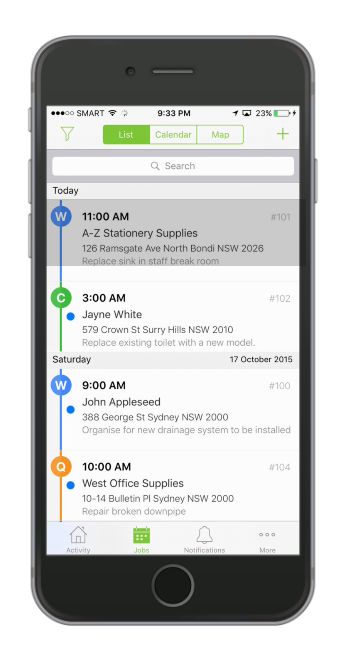
Open a job from the app
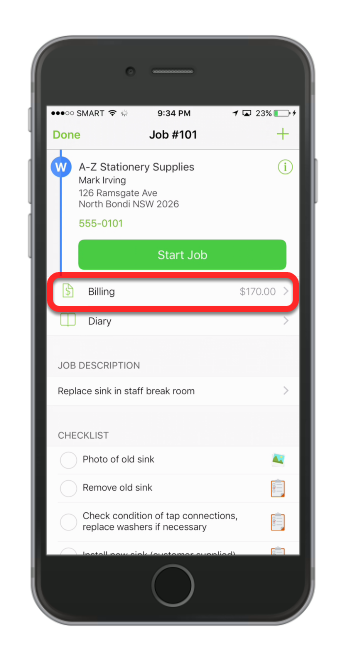
Tap Billing
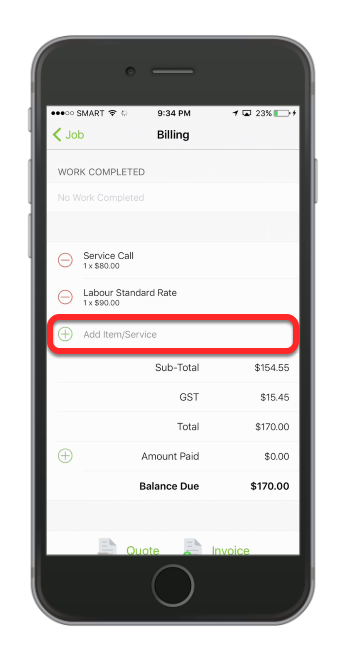
Tap Add Item/Service
Enter any keyword in the Search bar
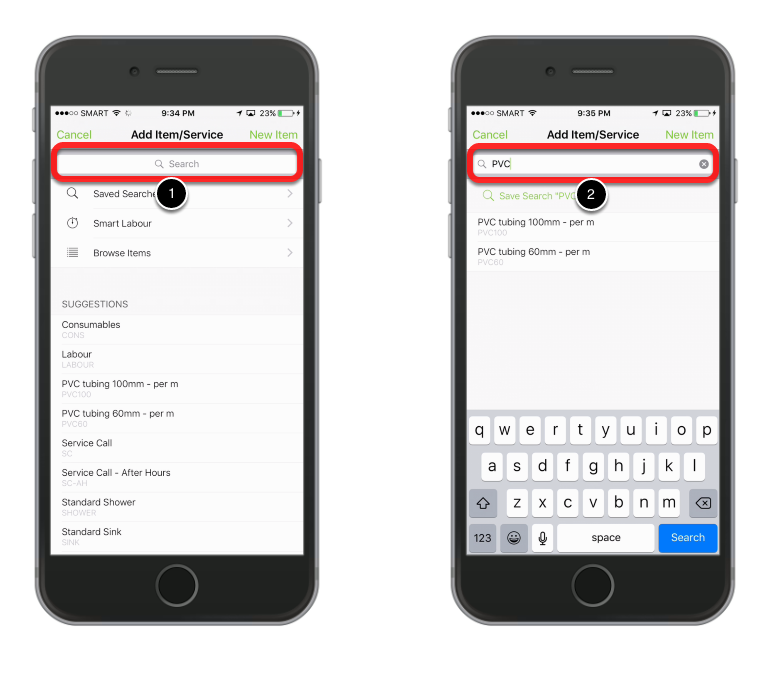
For this example, create a search term “PVC”.
Tip: If you decide you do not want to create a Saved Search, simply tap Cancel
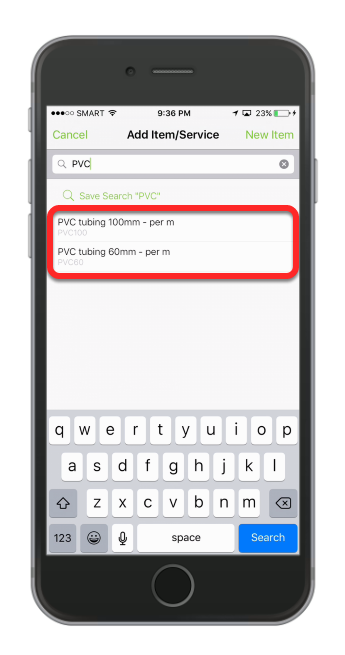
See the result.
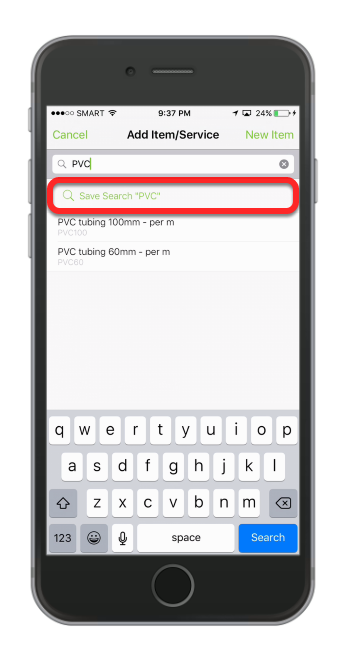
Now hit Save Search icon
The new search term is now saved.
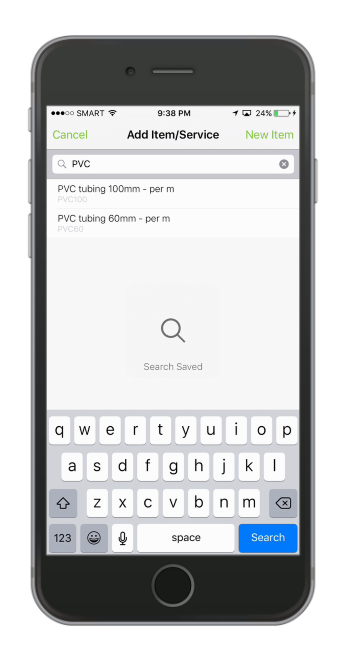
It will be listed in the Saved Searches.
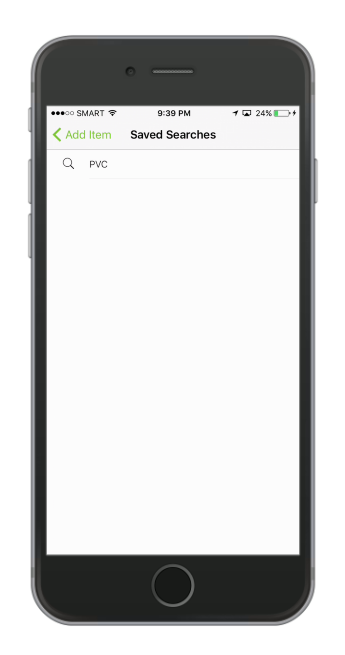
You now have a ‘PVC’ quicksearch available for all future jobs. Note this feature is per device, so staff with different roles in your business can setup their own Saved Searches.
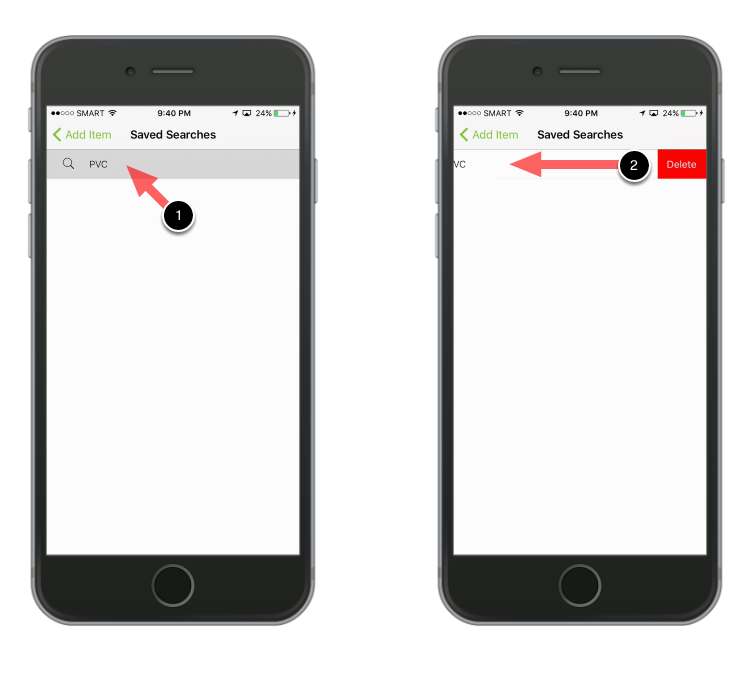
To Remove a Saved Search, hold your finger down on the search icon with the keyword and swipe to the left then tap Delete