

Accounting integrations
Resolving Xero invoice synchronization issues
Learn about resolving Xero invoice synchronization issues in ServiceM8.
If you approve an invoice but it is not synced to Xero, one of two things has likely happened:
- The approved invoice has a value of 0.00, or
- (If you have multiple organizations) The approved invoice may have synced to a different organization within Xero. Check your other organizations for the invoice and skip to this section if so.
If your approved invoice has a value of 0.00
An invoice cannot be processed unless it contains line items of some value.
To add line items:
- Go to Dispatch Board > Jobs. Open the job that didn’t sync.

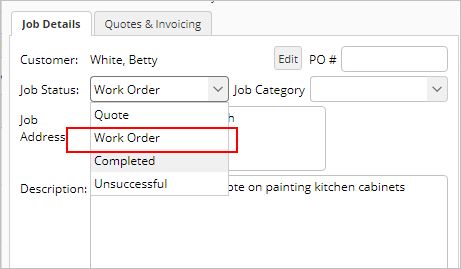
- In the Job Status field, select Work Order.
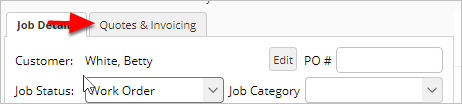
- Go to Quotes & Invoicing.
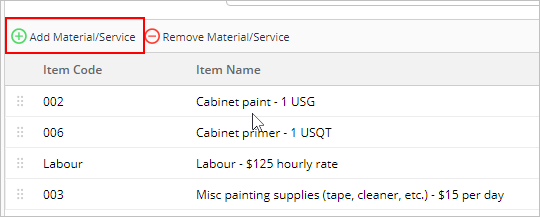
- Click Add Material/Service. Enter all missing line items and prices.
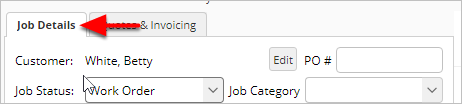
- Once all line items are added, click Job Details.
- In the Job Status field, select Completed.
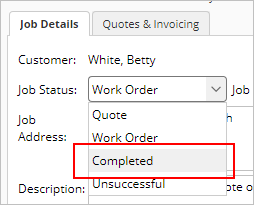
- Click Save.

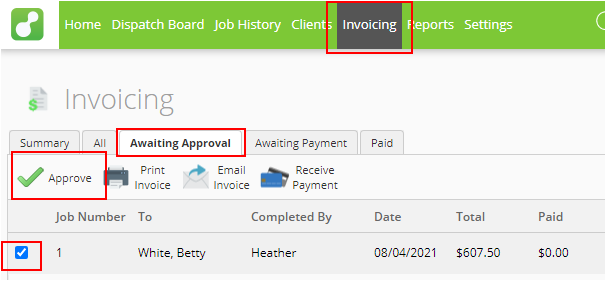
- Go to Invoicing > Awaiting Approval.
- Select the job and click Approve.
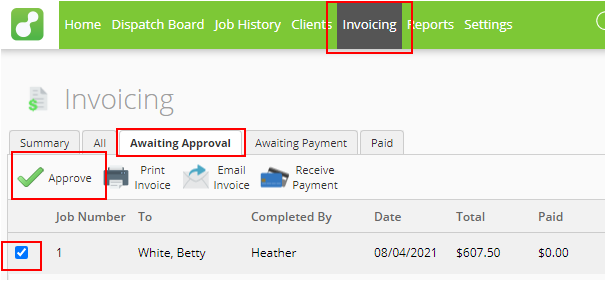
Your invoice should now sync to Xero.
If your approved invoice synced to the wrong organization
You will need to re-integrate service with Xero to the correct organization. See this help article for more information.
Once your organization is integrated, to sync the invoice to Xero:
- Go to Dispatch Board > Jobs. Open the job that didn’t sync.

- In the Job Status field, select Work Order.
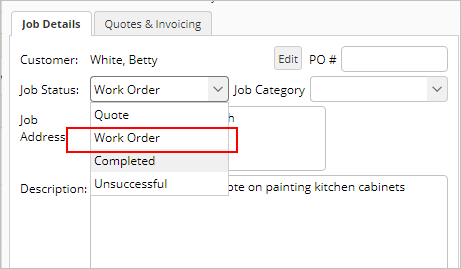
- Click Save.

- In the Job Status field, select Completed.
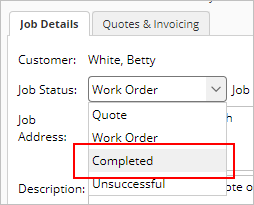
- Click Save.

- Go to Invoicing > Awaiting Approval.
- Select the job and click Approve.
Your invoice should now sync to Xero.