

Clients and contacts
How to import an iOS contact as a client
Learn how to create a ServiceM8 client from an iOS Contacts entry in the ServiceM8 app.
Import a contact from your iPhone or iPad to create a new ServiceM8 client with details ready to review and save.
Before you start
- Save the contact in your device’s Contacts app before importing it.
Import an iOS contact
-
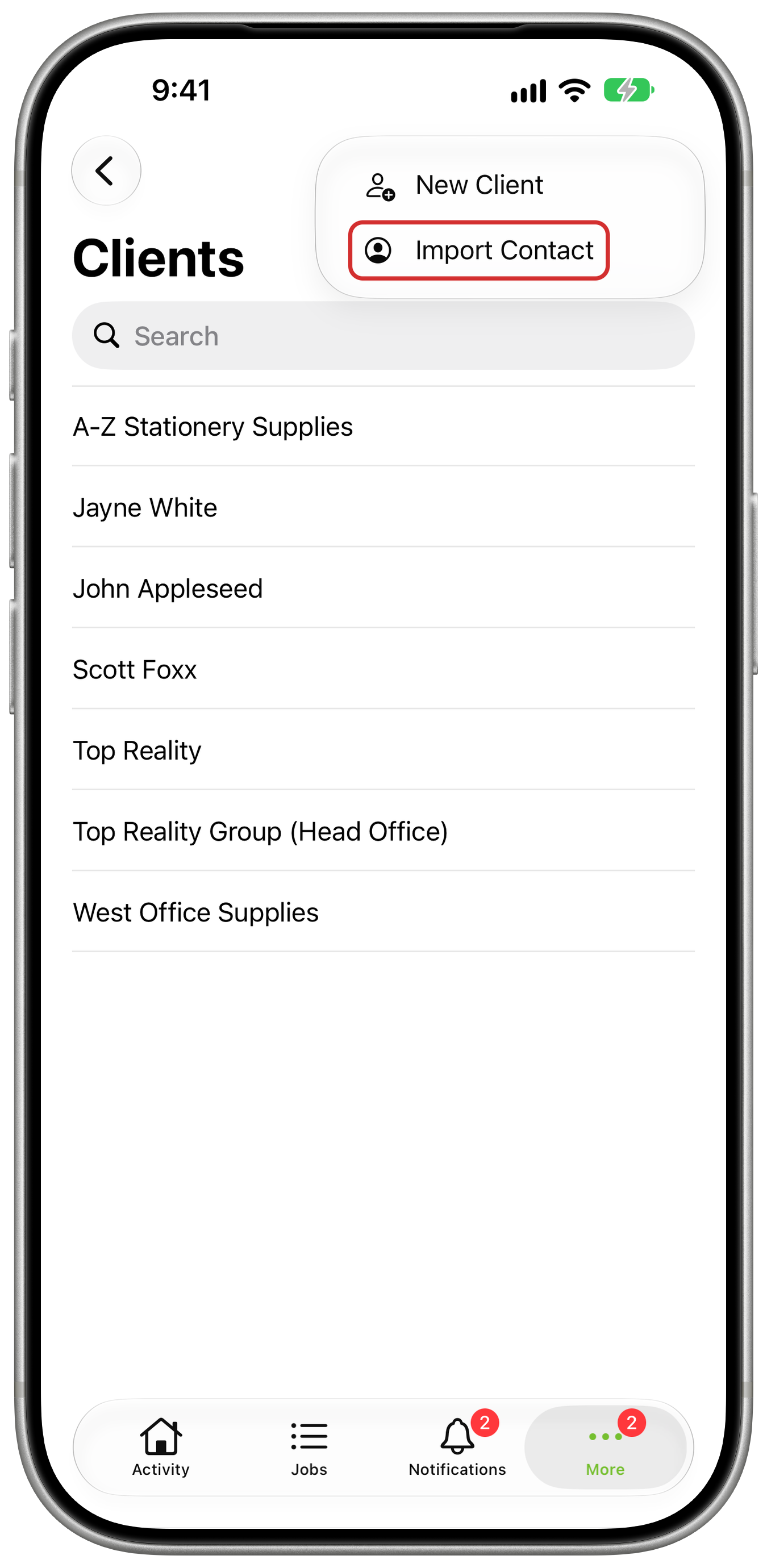
In the ServiceM8 app, tap More, then Clients. Tap +, then Import Contact.
-
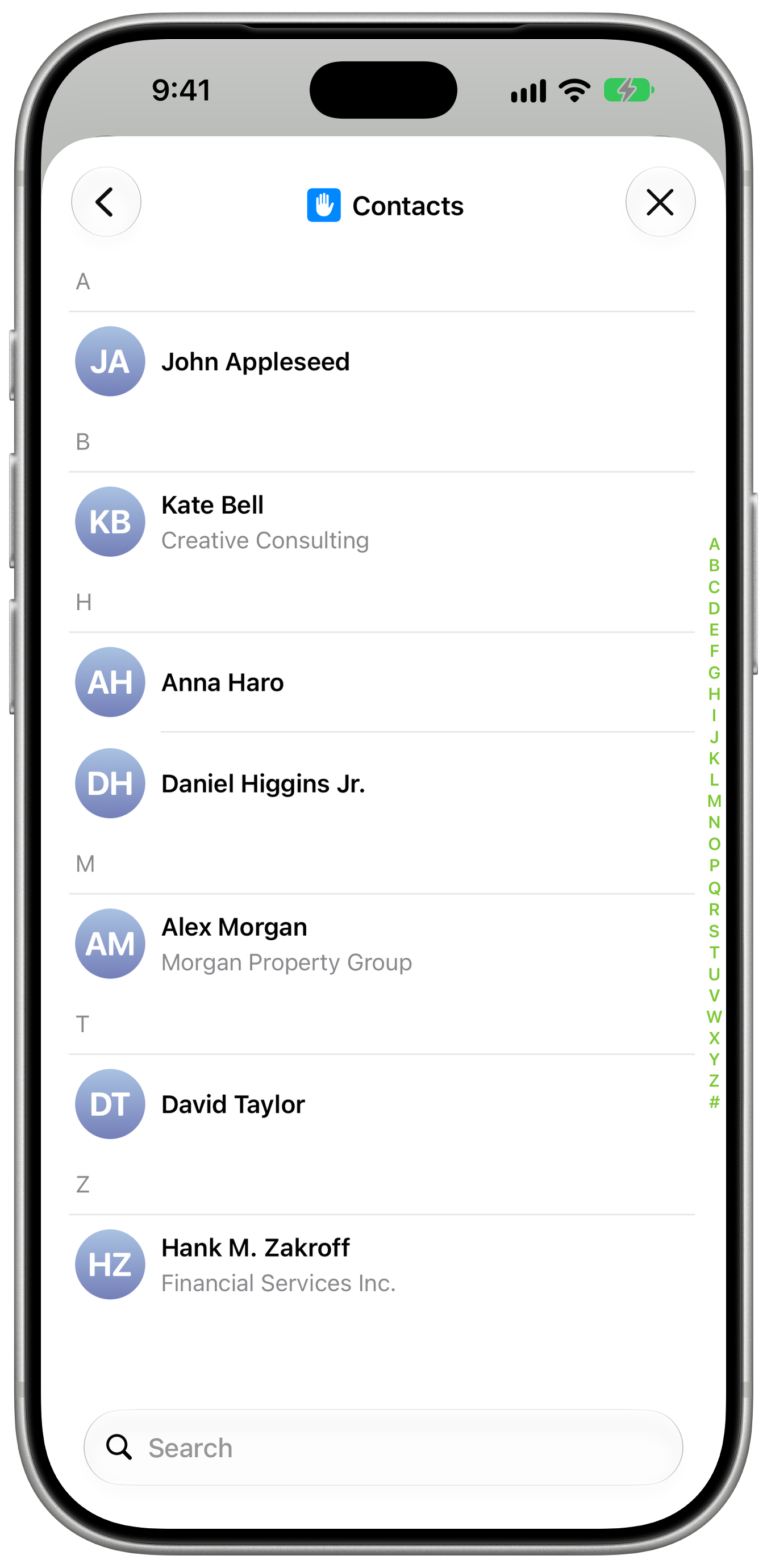
Select the contact you want to import.
-
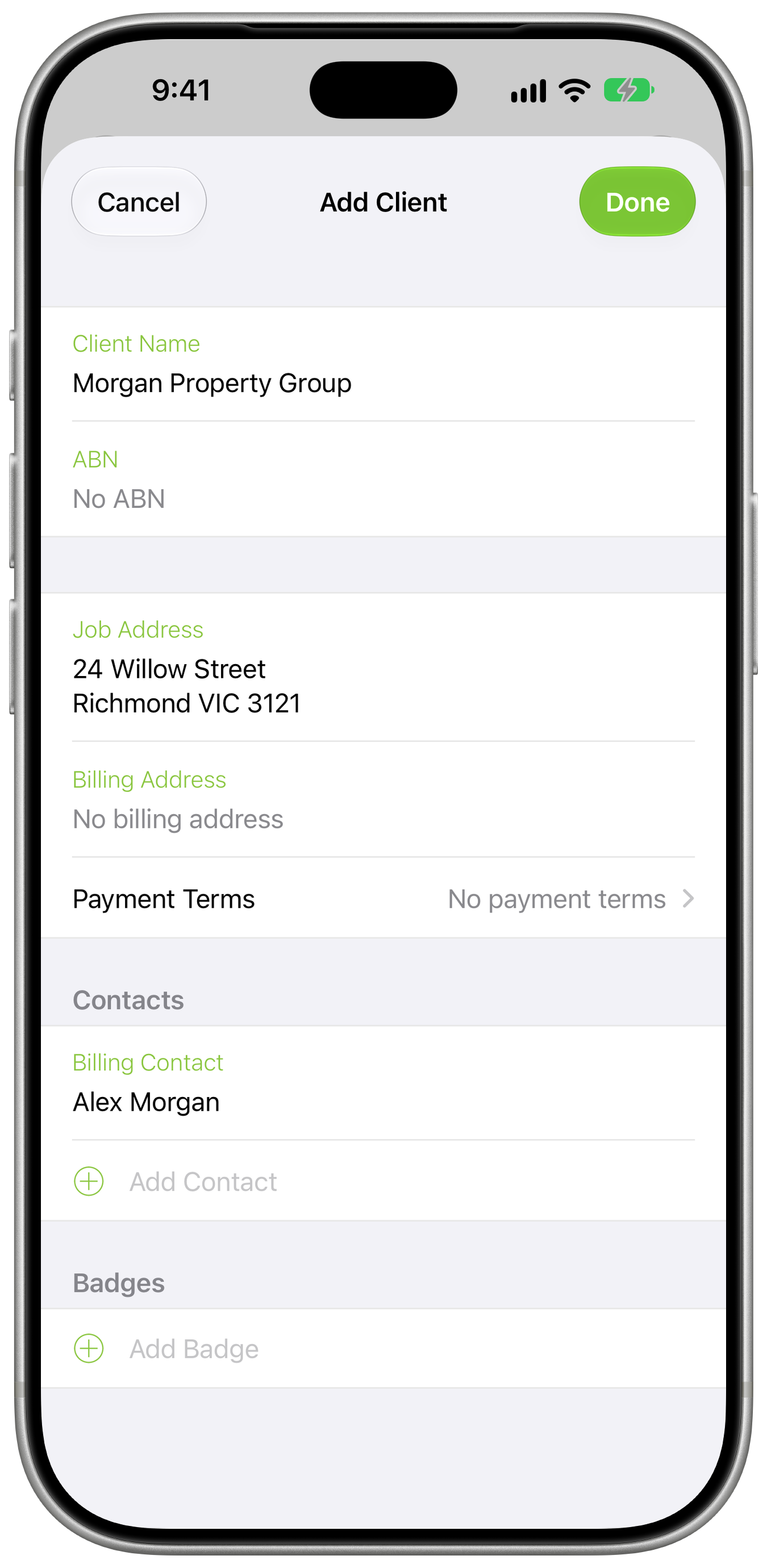
Review the pre-filled Client Card and edit any details if needed.
-
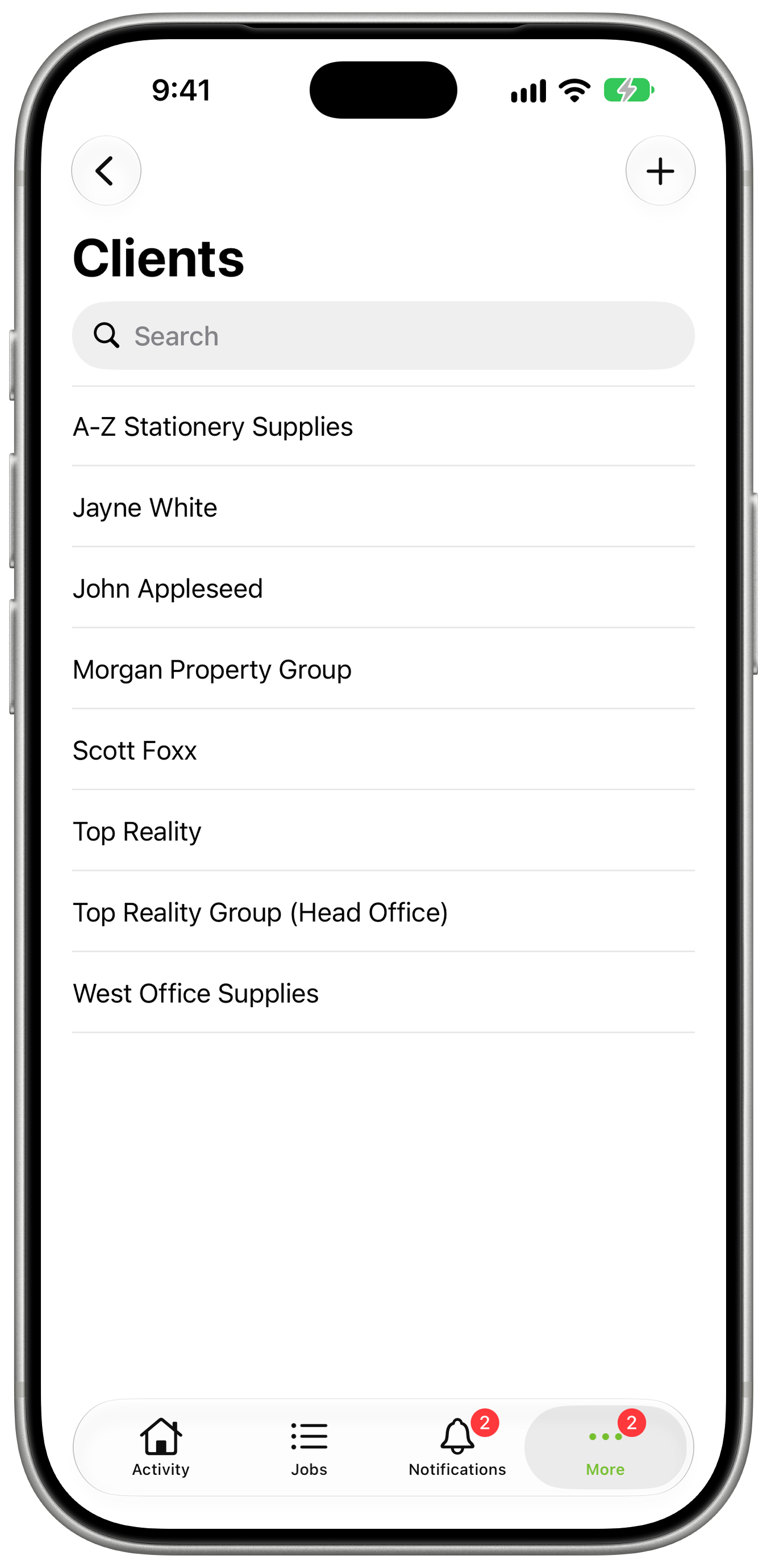
Tap Done to save the new client.
What details are imported
ServiceM8 uses the selected contact’s organisation name as the client name when available. If there is no organisation name, ServiceM8 uses the contact’s first and last name.
ServiceM8 imports the first postal address, phone number and email address. Available personal and contact details are added as the client’s primary billing contact.