Photos, notes and attachments
How to add fields to photos using Advanced Photo Branding
Learn how to add fields to photos using Advanced Photo Branding in ServiceM8.
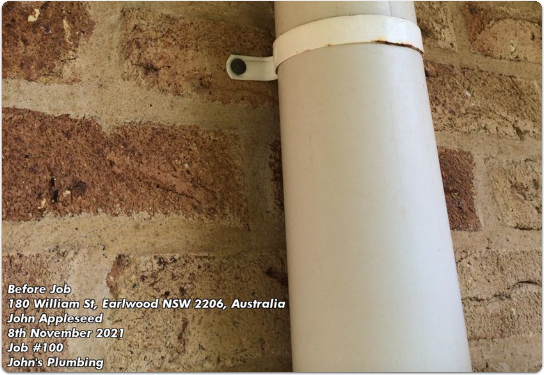
Whenever you add a photo to a Job Diary, ServiceM8 automatically records the date it was saved. By default, when you email a photo from the Job Diary to a client, it is branded with your business name, job number, and date saved, providing a helpful, professional record for both you and your client.
You can customise that branding even more using Advanced Photo Branding. This free ServiceM8 add-on gives you access to additional fields that can be added to a photo, helping you meet your specific business or industry requirements.
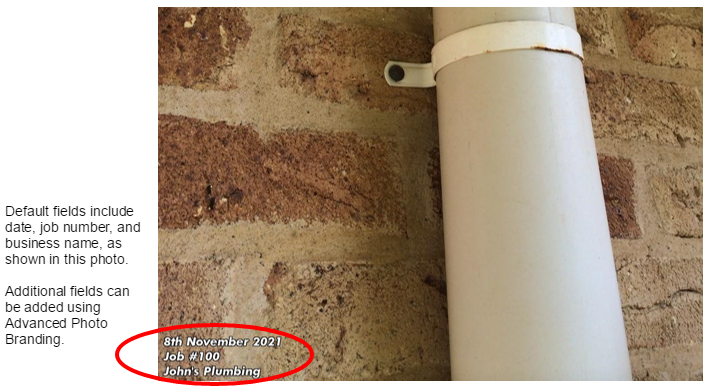
To activate Advanced Photo Branding:
- From the Online Dashboard, go to Settings > ServiceM8 Add-ons.
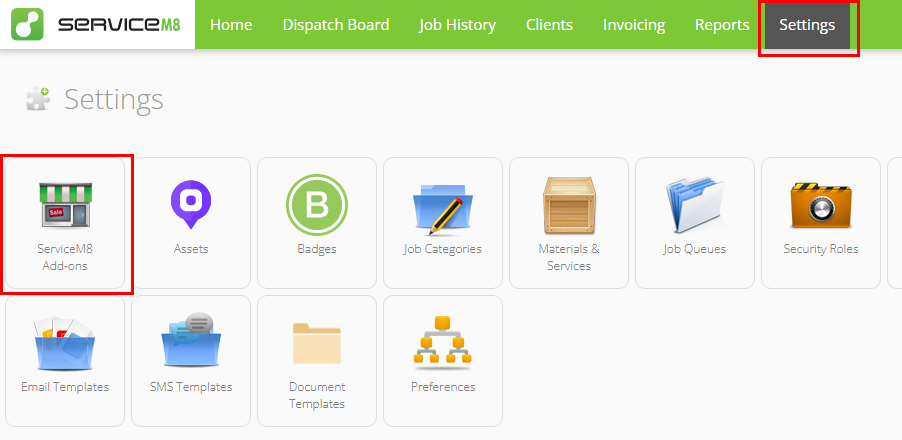
- Find and click Advanced Photo Branding.
- Click the switch to toggle ON.

To customise Advanced Photo Branding:
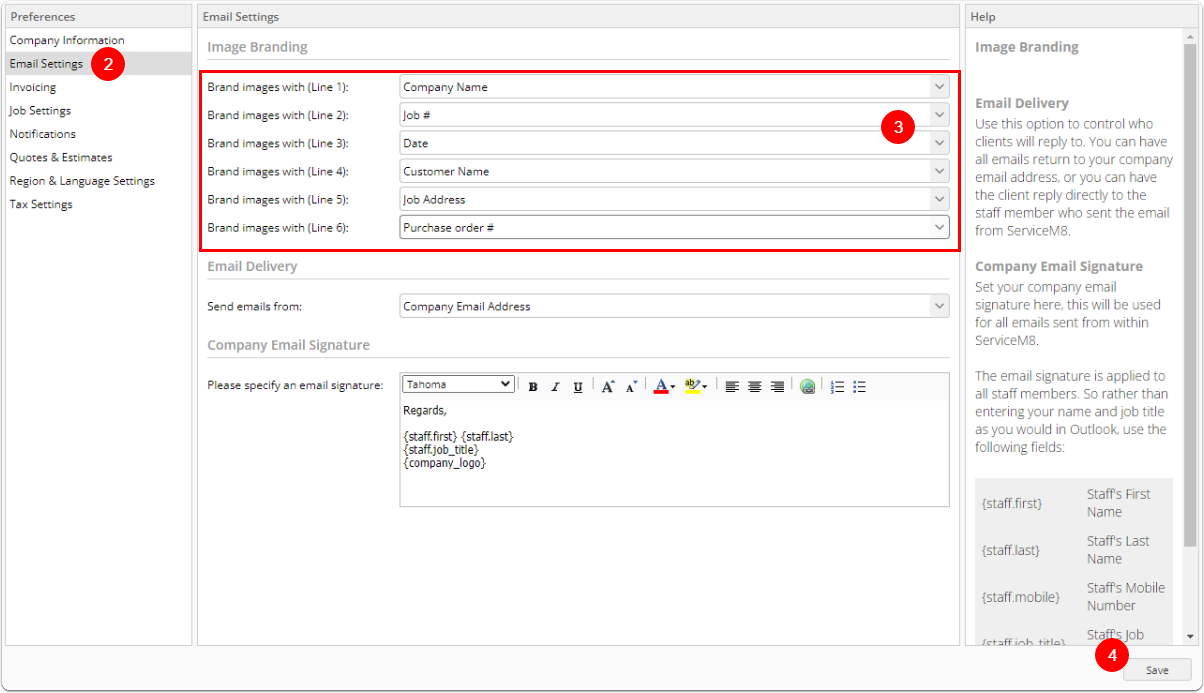
- Go to Settings > Preferences.
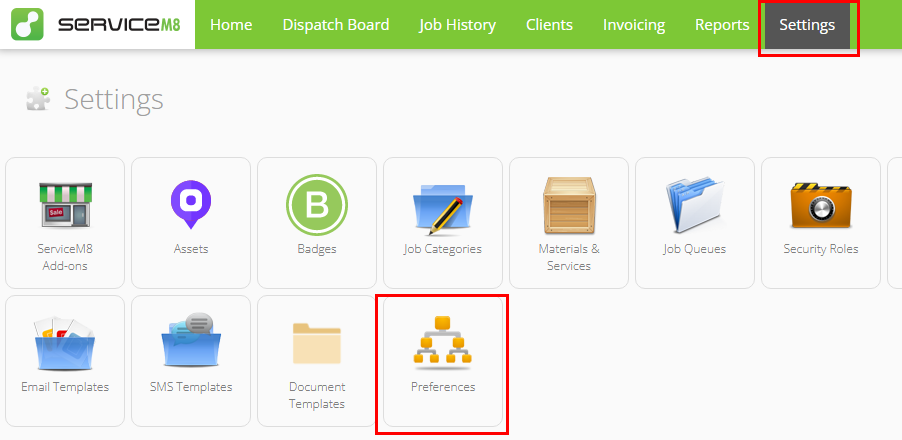
-
Click Email Settings.
-
Under Image Branding, use the drop-down arrow next to each line item to select the details you would like branded on your photos. Options include:
- Customer Name
- Company Name
- Date
- Date & Time
- GPS Location
- Purchase Order #
- Photo Tags
- Job Address
- Job #
- N/A (to leave blank)
-
Click Save.
The next time you email a photo to a client, it will display your custom branding options.