Photos, notes and attachments
How to record and save videos to a job
Learn how to record and save videos to a job in ServiceM8.
Recording a short video is an easy, powerful way to capture issues in the field and share information with your client or your team members. This article reviews how to record videos using the ServiceM8 App and save them directly to a Job Diary.
If you need to save videos to a Job Diary that were not taken from the ServiceM8 App, see this article.
To record a video from the ServiceM8 App:
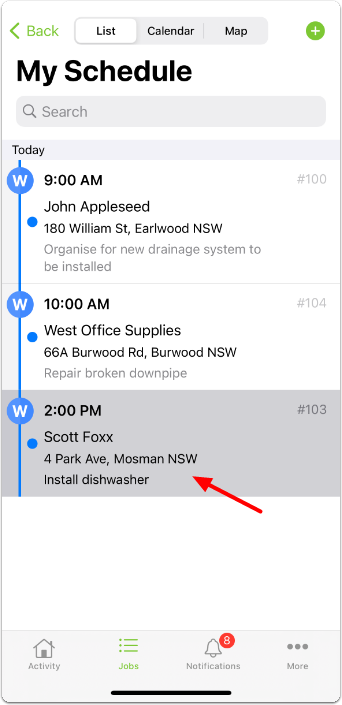
- From the Jobs view in the ServiceM8 App, tap the relevant job.
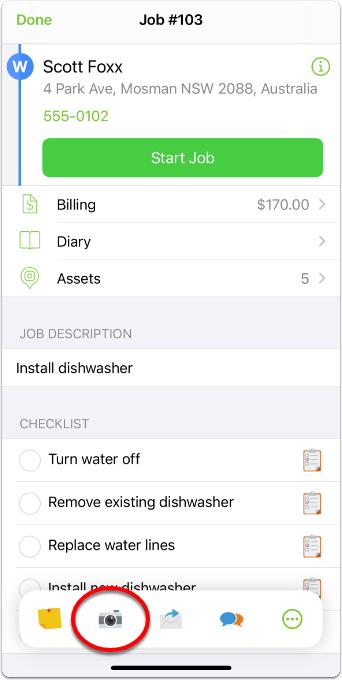
- From the Job Actions bar, tap Camera.
- If Camera is not a one-tap icon on the Job Actions bar, tap More (…), then tap Camera.
- If Camera is not an available option when you tap More (…), tap Edit Actions and add it. See this article for more information.
- If Camera is not a one-tap icon on the Job Actions bar, tap More (…), then tap Camera.
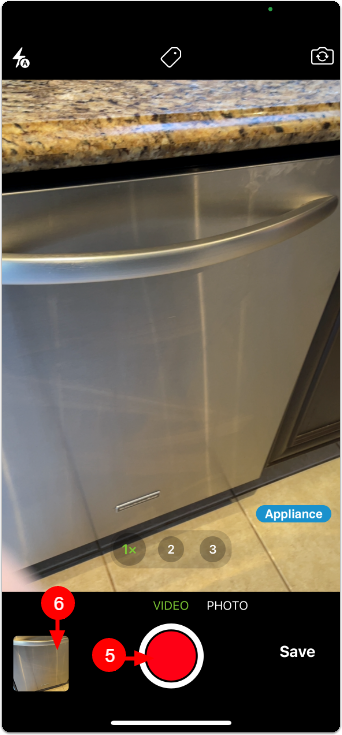
- Tap Video.
- Tap the Record button to start your video.
- Videos recorded in ServiceM8 cannot be longer than 2 minutes. If you need more time, create multiple videos.
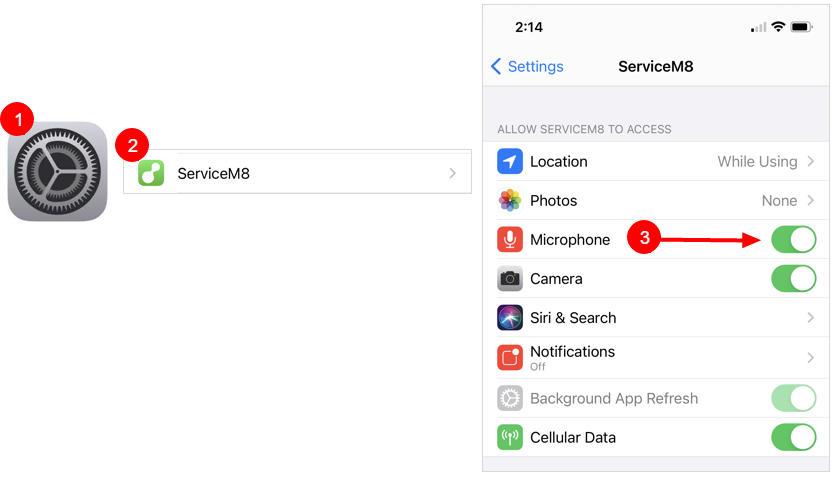
- If you have previously disabled microphone access and you want to include audio with your video, you need to allow microphone access (see bottom of page for more information).
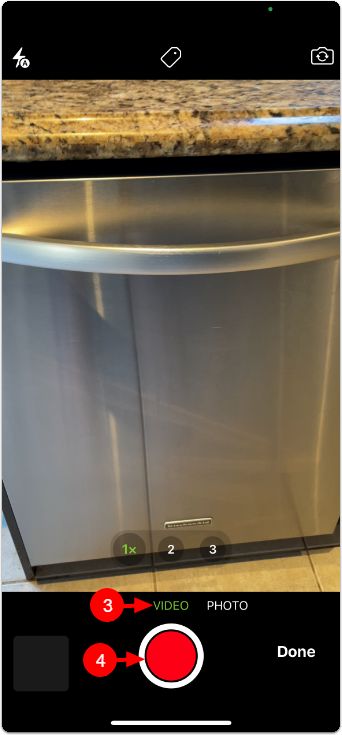
- Tap Record again to stop recording.
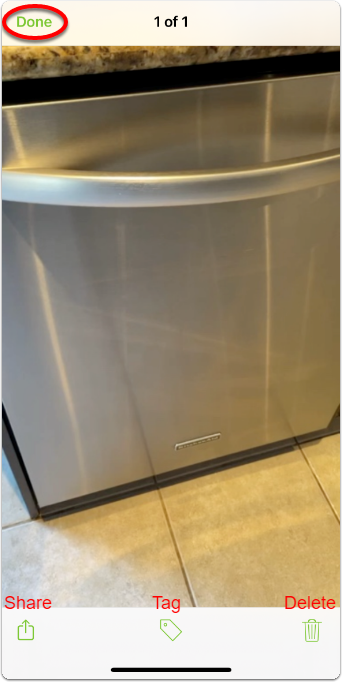
- Tap the thumbnail to review your video.
- Share, tag, or delete videos directly from the review pane. When you are satisfied with your videos, tap Done.
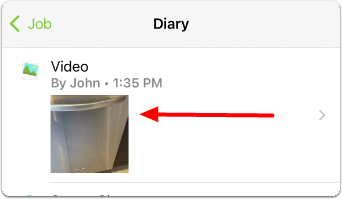
- Tap Save.

Saved videos will be saved to the Job Diary.
Adjusting microphone settings
To include audio in your video, allow ServiceM8 to use your device’s microphone. You can manage this permission in your device settings.
You can toggle microphone access on or off by going to Settings > ServiceM8 on your mobile device.