

Jobs and scheduling
How to create a job in the ServiceM8 app
Create a job, add client details and save it in the ServiceM8 app.
1. Create a new job.
From the ServiceM8 mobile app, tap Jobs, then tap +.
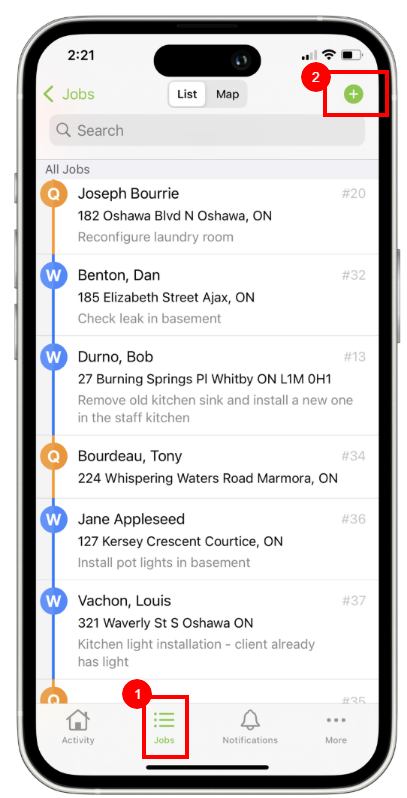
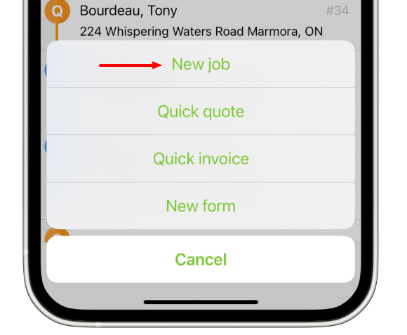
Tap New job.
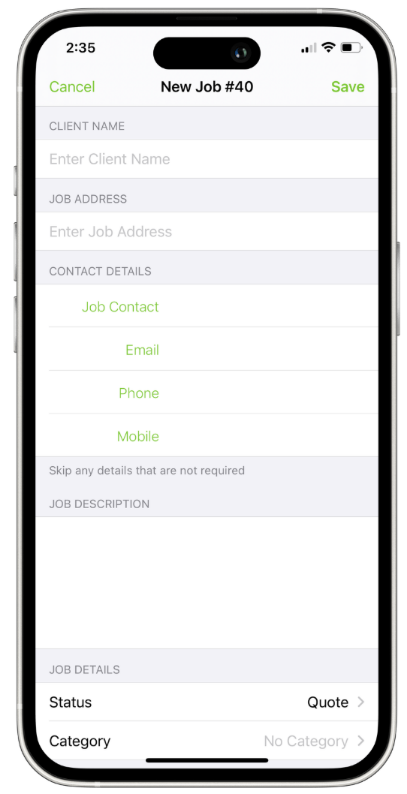
2. Complete the job card fields.
-
Client Name: Use to search for existing customers, or to enter a new customer name. This can be an individual’s name (for example, the home owner), or a company name.
-
Job Address: Enter the job address. If the customer is already in the system, the address will automatically populate. If you are creating a new customer, ServiceM8 will suggest addresses as you type.
-
Contact Details: Enter the Job Contact information.
-
Job Description: Enter the scope of work so that your team knows what needs to be done.
-
Job Status: New jobs should start as a Quote (if the customer needs to see and accept a quote first) or Work Order (if the job’s confirmed to go straight ahead).
-
Category (optional): This field lets you organize your jobs any way you’d like. Default categories are After-Hours, Standard, VIP, and Warranty, but you can customize categories to meet your needs.
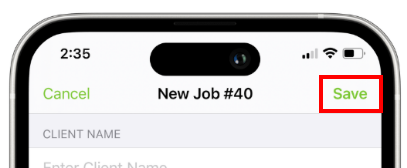
3. Tap Save.
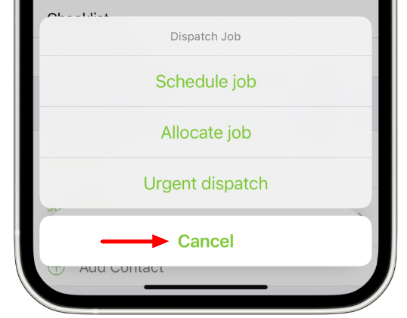
You will be prompted to dispatch the job to a staff member. Tap Cancel to continue to add more information to the job card before scheduling.
4. Complete any additional fields.
-
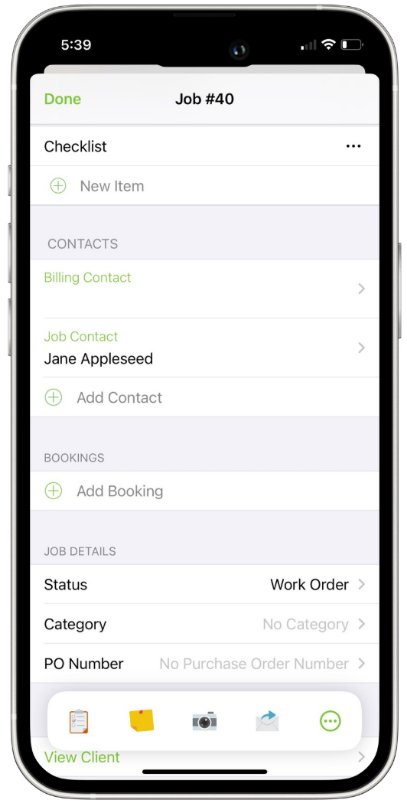
Checklist (optional): To ensure a job is done properly, add a list job requirements or tasks for field technicians to check off in the app while onsite. Under Checklist, tap New Item to add a new task. If you include the word “Photo” in a checklist item, such as “Take a photo of the installation”, the camera in the app will automatically open when the technician taps the checklist item, then save the photo to the Job Diary.
-
Billing Contact (optional): Complete if the job’s billing contact is different than the job contact (for example, if you are billing a landlord but the tenant is the job contact)
-
PO Number (optional): Enter the customer’s purchase order information here, if applicable.
-
Job Notes / Attachments (optional): Use the Job Actions bar at the bottom to add any notes about the job that don’t belong under the Job Description or Checklist fields.
3. Close the job card.
At any point, you can tap Done to close the job card.
That’s it, you have created a new job! The new job card automatically syncs with your Online Desktop. When you are ready, you can either schedule the job or build a quote.