

Jobs and scheduling
How to schedule a job
Learn how to schedule a job in ServiceM8.
There are many ways to schedule jobs in ServiceM8. This article reviews:
- How to schedule jobs using the Online Dashboard
- How to schedule jobs using the ServiceM8 app
- Links to other relevant articles, including how to dispatch urgent jobs or allocate jobs for completion with a specific timeframe
Scheduling jobs using the Online Dashboard
ServiceM8 booking suggestions make it easy to schedule a job directly from the job card at any time. However, you can also schedule jobs from the Dispatch Board using the Staff Schedules view and the Calendar view.
To schedule a job from the job card:
-
Create a new job, or open an existing job.
-
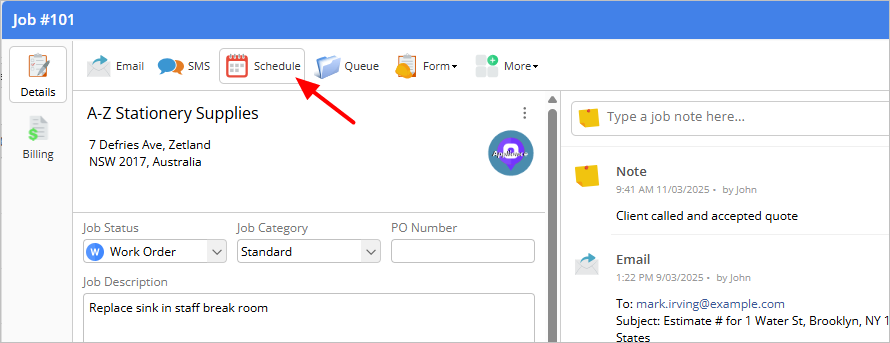
Click Schedule.
-
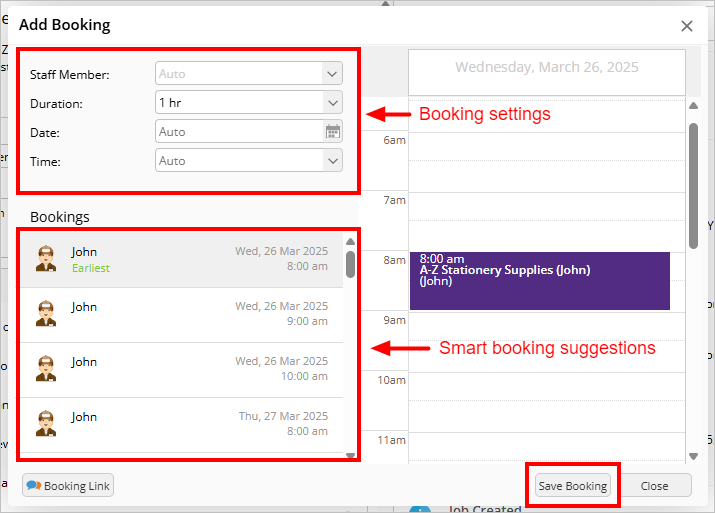
In the Add Booking window, adjust the booking settings (staff member, duration, date, and time) as needed. As you adjust the settings, the smart booking suggestions will update with possible times.
-
Choose if you want to schedule the job yourself, or if you want to send the client a Booking Link to let them choose an available time.
- If you want to schedule the job yourself:
- Click the first suggested booking. You will see the staff member’s calendar in the pane on the right. If it’s not suitable, click bookings until you find one that works.
- Click Save Booking.
- If you want the client to choose an available time:
- Once you have adjusted the booking settings, click Booking Link.

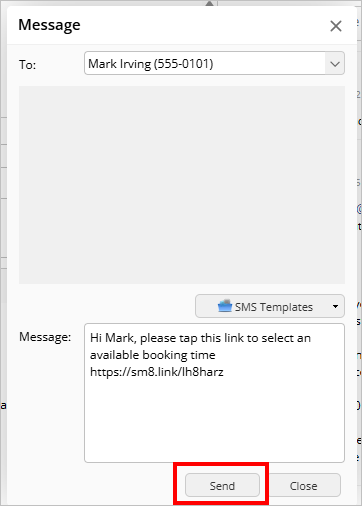
- An SMS message containing a link that lets a client choose a time will open. Click Send.
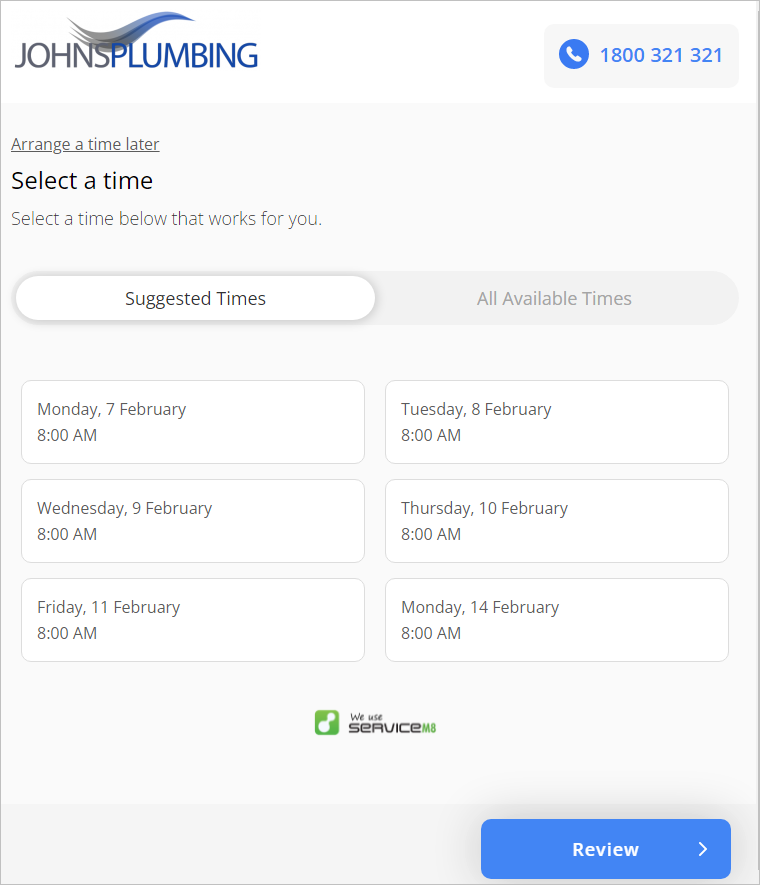
Upon opening the link, the client can choose a time that meets your booking settings. ServiceM8 will update the job diary and staff member’s lists accordingly.
To schedule a job from the Staff Schedules view:
- From the Dispatch Board, click Staff Schedules. You can display schedules by day, week, 2 weeks, or month.

-
Find the job you want to schedule in the Jobs list.
-
Drag it to the desired staff member and time slot.
-
To adjust the duration of the appointment, drag the edge to lengthen or shorten as needed. (You can also double-click the job to edit the booking settings.)
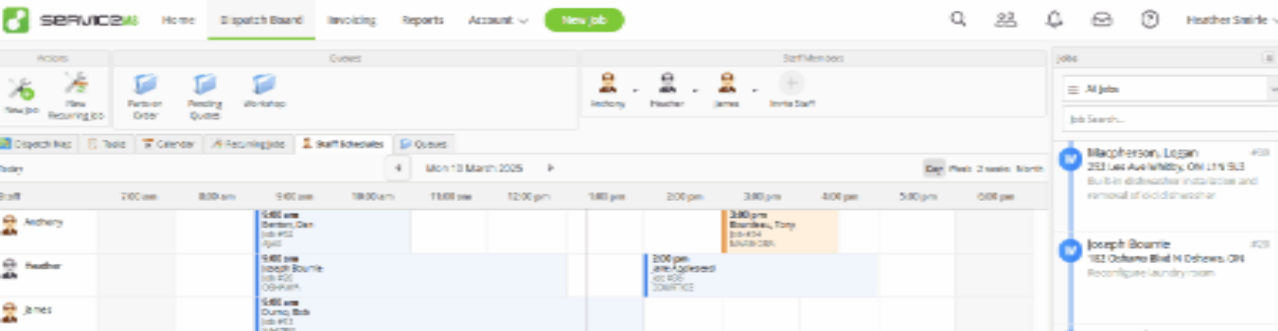
TIP: Rather than drag a job over, you can also click and drag on a staff member’s available time slot to schedule a job (existing or new).
To schedule a job from the Calendar view:
- From the Dispatch Board, click Calendar. You can display schedules by day, week, 2 weeks, or month.

-
Find the job you want to schedule in the Jobs list.
-
Drag it to the desired day and time.
-
Select your desired staff member and job duration, then click Save Booking.
- Multiple bookings can happen in the same time slot. Each staff member will have their own colour on the calendar display.
TIP: In Calendar view, you can also click and drag down an available time slot to schedule a job and assign a staff member.
Scheduling jobs using the ServiceM8 mobile app
ServiceM8 booking suggestions make it easy to schedule a job directly from the Job card using the ServiceM8 app. You can also use the Schedule on a tablet. The Schedule steps below illustrate the iPad workflow.
To schedule a job from the job card:
-
Tap Jobs and find the job you would like to schedule. Tap the job to open its job card.
-
Scroll down and tap Add Booking.
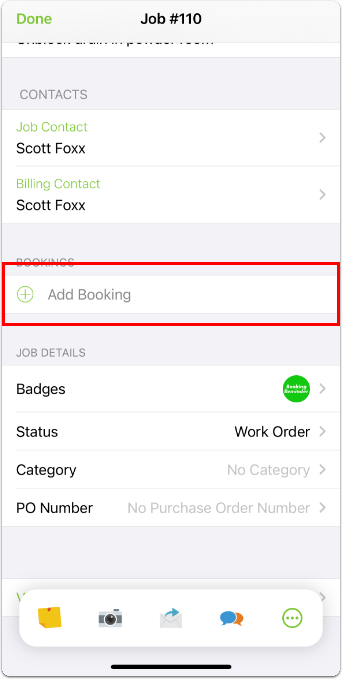
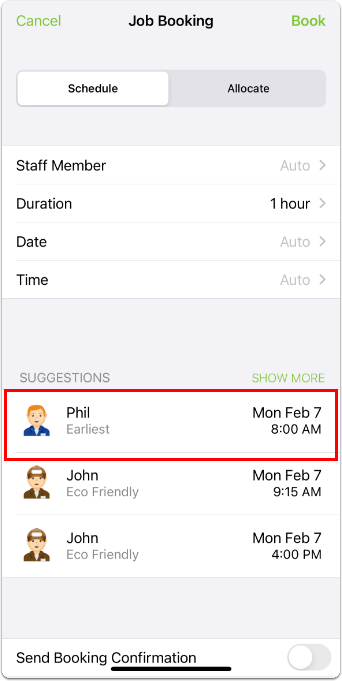
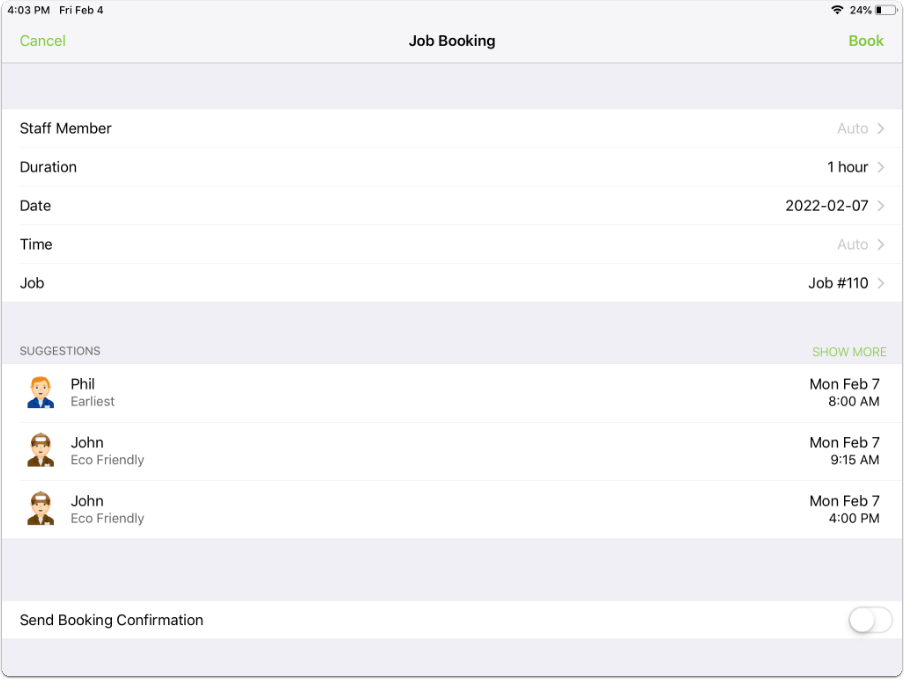
The Job Booking window will open. You can choose from the suggestions, or use the parameters to narrow suggestions to a specific staff member, time, or date.
To use a suggested time & staff member:
- Under Suggestions, tap your preference.
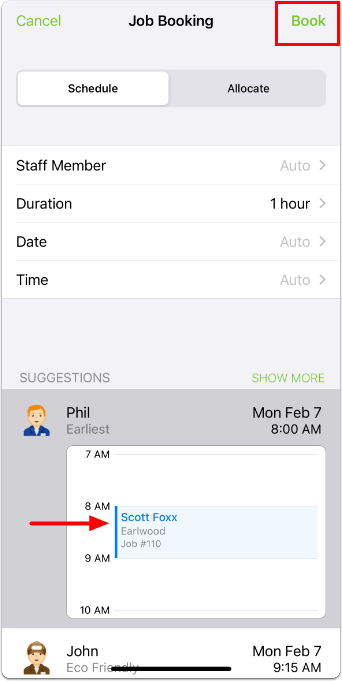
- You will see the job against the staff member’s calendar. (You can tap it again if you want to expand the calendar view.)
- If you are not satisfied, tap another suggestion.
- If you are satisfied, tap Book.
If you or your client have a preferred staff member, time, or date:
-
Tap Date or Time and populate accordingly.
-
Under Suggestions, tap your preferred opening for an appropriate staff member.
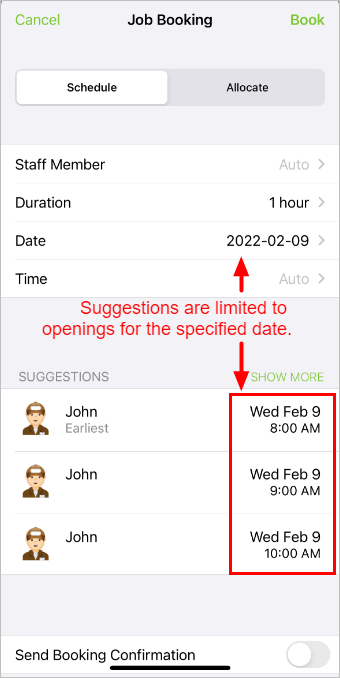
- You will see the job against the staff member’s calendar.
- If you are not satisfied, tap another suggestion.
- If you are satisfied, tap Book.
To schedule a job from the Schedule tab on iPad
-
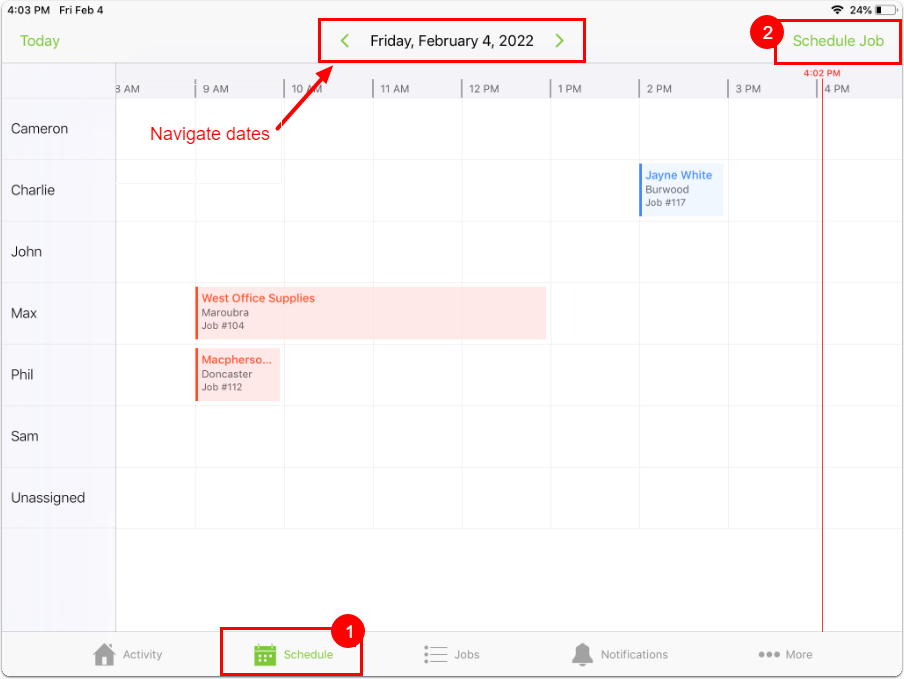
Tap Schedule.
- Navigate between days by swiping or by using the left and right arrows, or tap the date heading to bring up a calendar to jump to a date.
-
Tap Schedule Job.
-
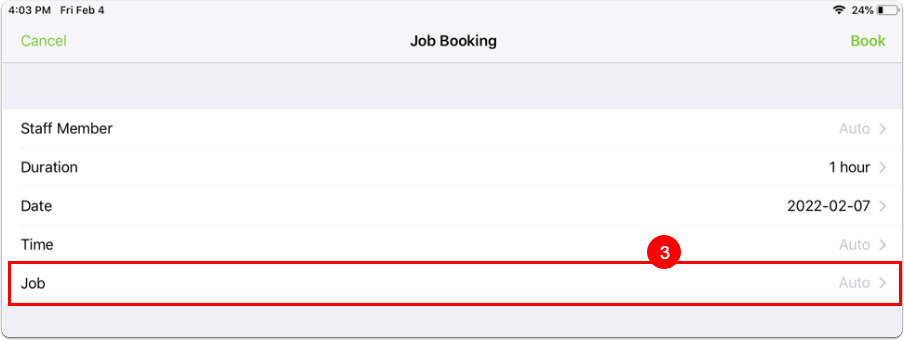
The Job Booking window will open. Tap Job.
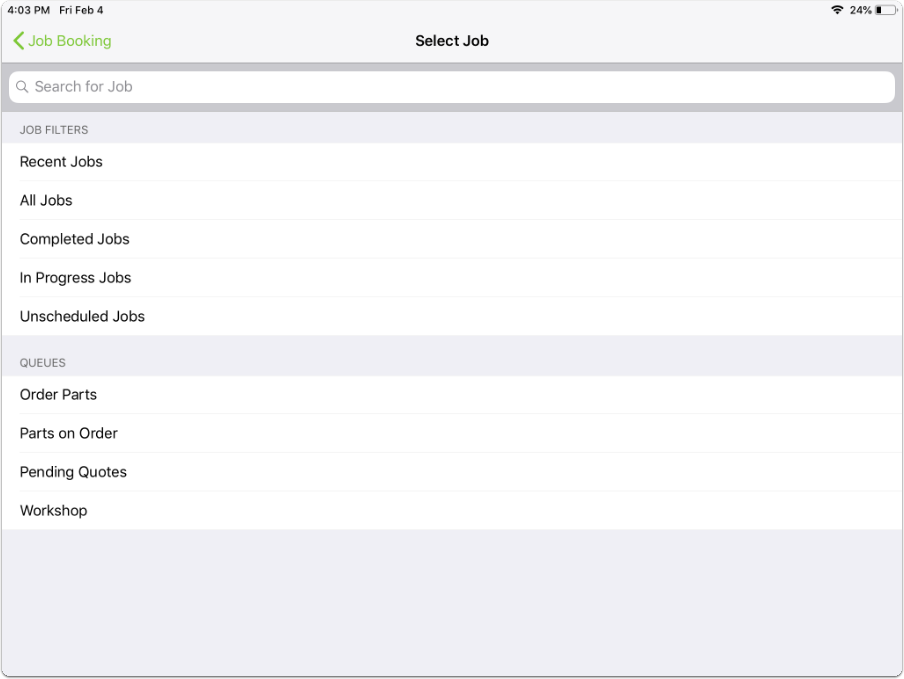
- You can search for a job, or select a job from a job filter or queue.
-
Find and tap the job you want to schedule.
- Use booking suggestions to book the job to the earliest available opening, or to a specific staff member, time, or date. When you are satisfied, tap a suggestion, then tap Book.
TIP: From the Schedules tab, you can also tap and hold on an available time for a staff member to open the Job Booking window for that time slot and staff member.
Other relevant links
Click the following links to learn more about:
- How to dispatch urgent jobs
- How to allocate jobs for completion within a certain timeframe
- How to create recurring jobs
- How to schedule a job to more than one staff member