

Quotes and invoicing
How to review item changes in a job's Edit History
Learn how to see who added, removed, restored, or changed a job's materials and services in ServiceM8.
Use a job’s Edit History to review changes to the materials and services in its Billing tab. Entries show the recorded author and time, followed by the item’s quantity, name, and price.
Review item changes
-
Open the Dispatch Board in the Online Dashboard.
-
Open the relevant Job card.
-
Click the Diary filter beside the job note field, then select Edit History.
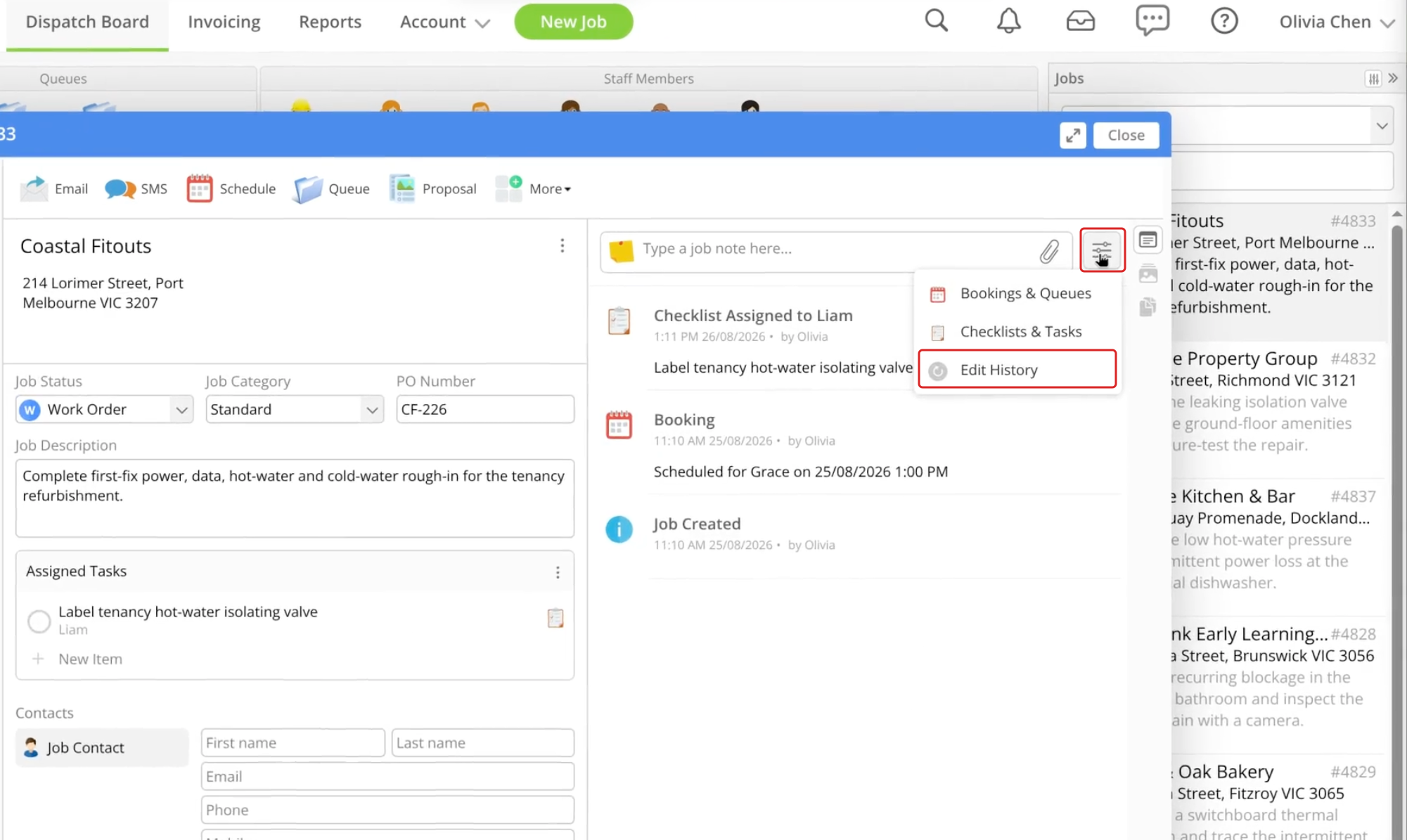
-
Review the item entries alongside the job’s other changes. Compare earlier entries to see previous quantities, names, and prices.
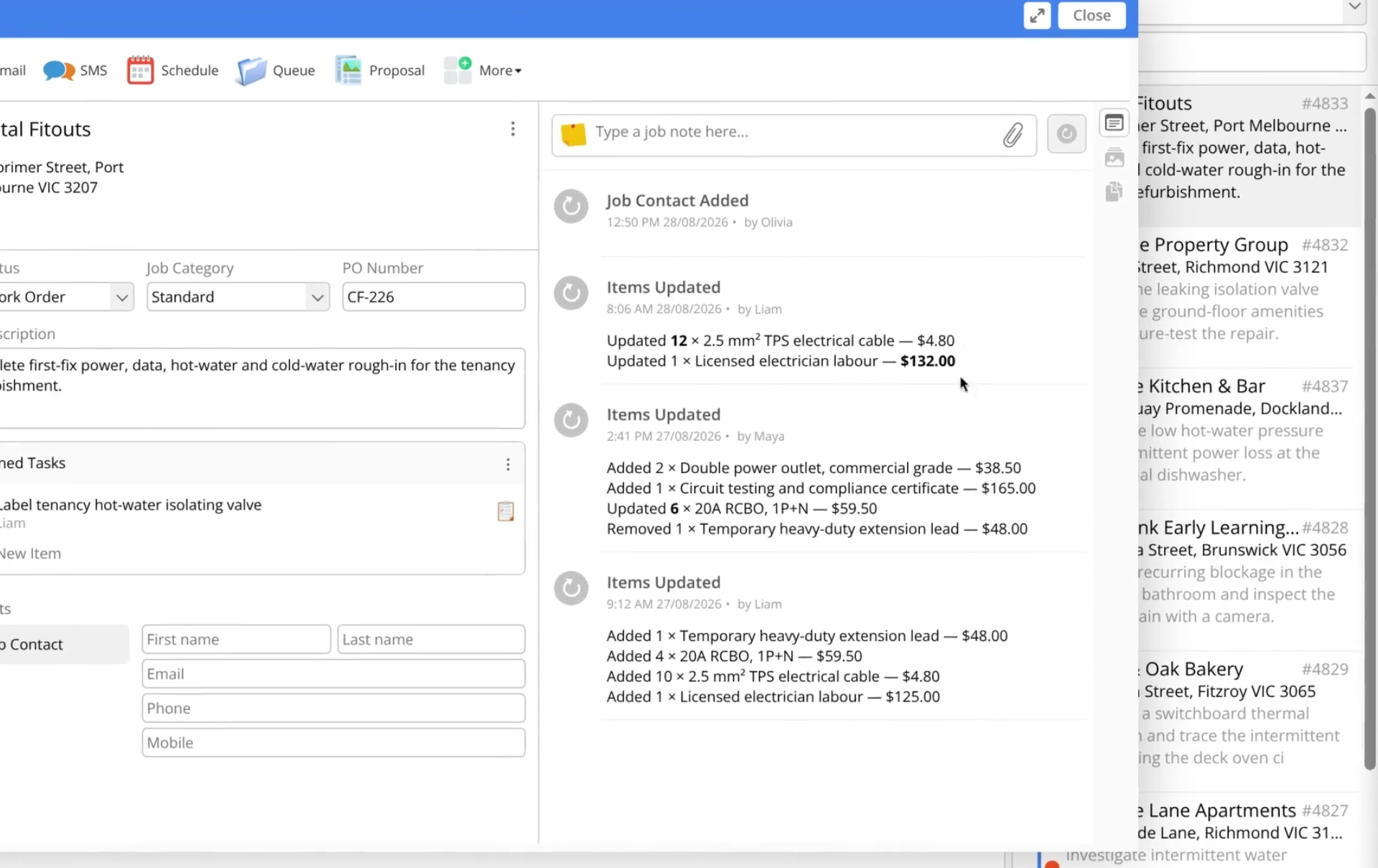
The entry title describes what happened:
- Item Added — an item was added to the job.
- Item Removed — an item was removed from the job.
- Item Restored — a previously removed item was restored.
- Item Updated — an item’s name, quantity, or price changed. The changed values appear in bold.
- Items Updated — several item changes were grouped into one entry.
How changes are grouped
Consecutive changes made by the same staff member are grouped into one entry when no more than 15 minutes separates each change. When the same item is changed several times within a group, Edit History shows the final result instead of every individual edit.
Removed-item entries show the item’s details before removal. Changes made by another staff member, or more than 15 minutes after the preceding change, appear in a separate entry.
What appears in Edit History
Edit History shows changes to an item’s name, quantity, and displayed price. The displayed price follows your account’s tax settings. Changes to cost, vendor, or tax-rate details do not appear.
Item changes made in the ServiceM8 app or through the API also appear in the Job card’s Edit History in the Online Dashboard.