

Jobs and scheduling
How to dispatch urgent jobs
Learn how to dispatch urgent jobs in ServiceM8.
A job that needs immediate attention doesn’t have to be scheduled in the calendar. Instead, you can mark it as urgent and allocate it to a staff member to complete as soon as possible.
NOTE: The Job Allocations add-on must be enabled to allocate jobs with an urgent booking window. For more information, see Job Allocations - overview.
You can dispatch an urgent job from the Online Dashboard or from the ServiceM8 mobile app.
To dispatch an urgent job from the Online Dashboard:
- From the Dispatch Board, drag and drop the job onto a staff member’s icon.
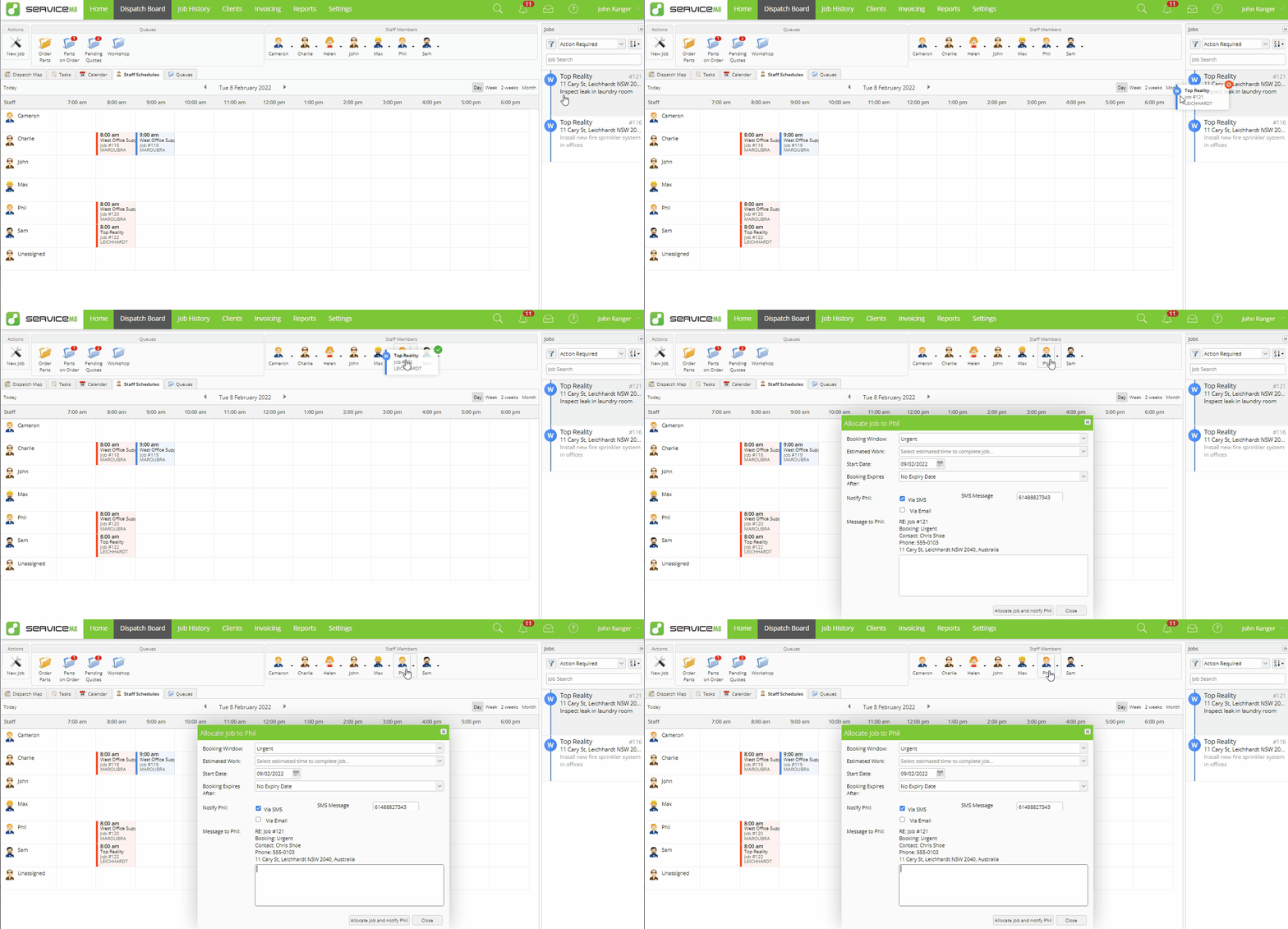
- A job allocation window will pop up, with the booking window defaulted to Urgent.
- If you want the job to expire within a certain timeframe (for example, if the staff member can’t get to it within two hours and you will need to reassign it), then set an expiry time or date.
- Add a message as required.
- A notification method only needs to be selected if the staff member does not use the ServiceM8 mobile app.
- Click Allocate job and notify
<name>.
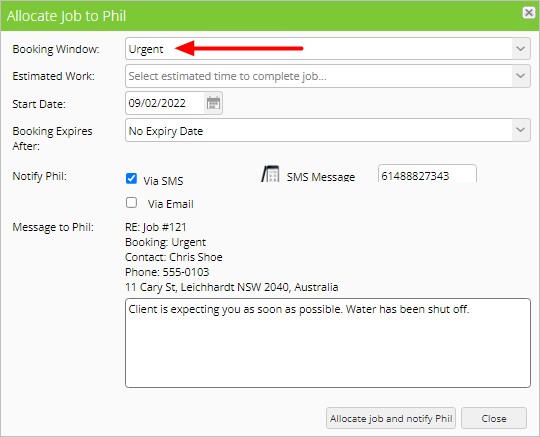
The staff member will receive an immediate notification with all job details on their mobile device, and the job will also be added to the top of their schedule as urgent.
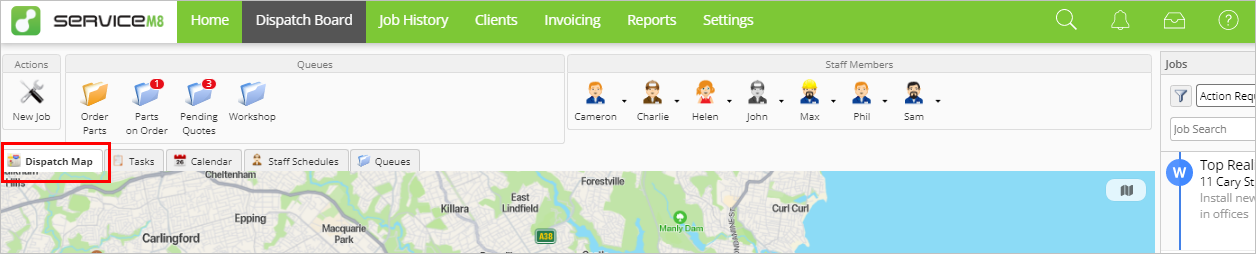
TIP: If your staff members have allowed GPS access when using the ServiceM8 mobile app, use the Dispatch Map view on the Dispatch Board when allocating urgent jobs to find staff members who are clocked on and near the job site.
To dispatch an urgent job from the ServiceM8 mobile app:
From the ServiceM8 mobile app, you can open an existing job and allocate it as urgent. You can also dispatch an urgent job to an available staff member immediately upon creation, which is particularly useful if your staff members have enabled GPS on their ServiceM8 mobile app.
In both cases, the staff member will receive an immediate notification with all job details on their mobile device, and the job will also be added to the top of their schedule as urgent.
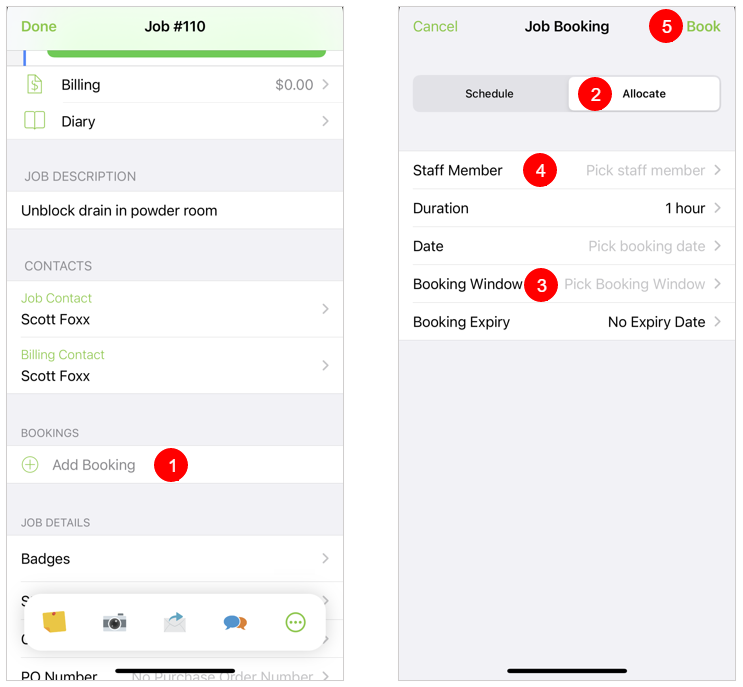
If the job has already been created:
- Open the job and tap Add Booking.
- Tap Allocate.
- Tap Booking Window and select Urgent.
- Tap Staff member and select a staff member.
- Tap Book.
If you have just created the job:
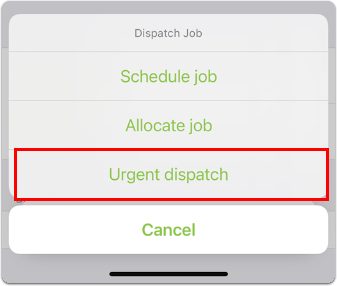
- Tap Urgent dispatch upon saving.
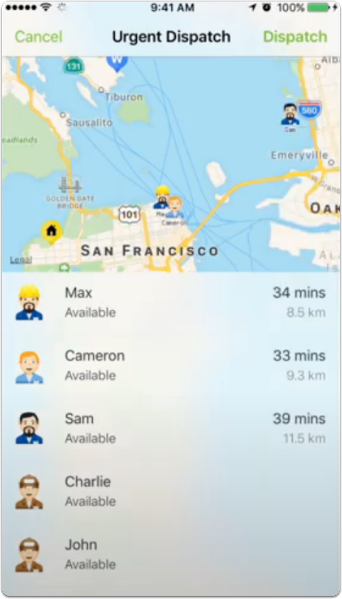
- Tap an available staff member. (If staff members are clocked in with GPS enabled, you will see their availability and their current distance from the urgent job site. Otherwise, you will just see if they are available.)
- Tap Dispatch.
See this video tutorial for more information about dispatching an urgent job immediately upon creation.