

Quotes and invoicing
How to complete and invoice a job
Learn how to complete and invoice a job in ServiceM8.
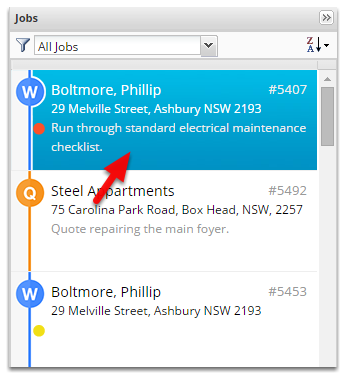
Open the job
Change the job status to Completed, click Save
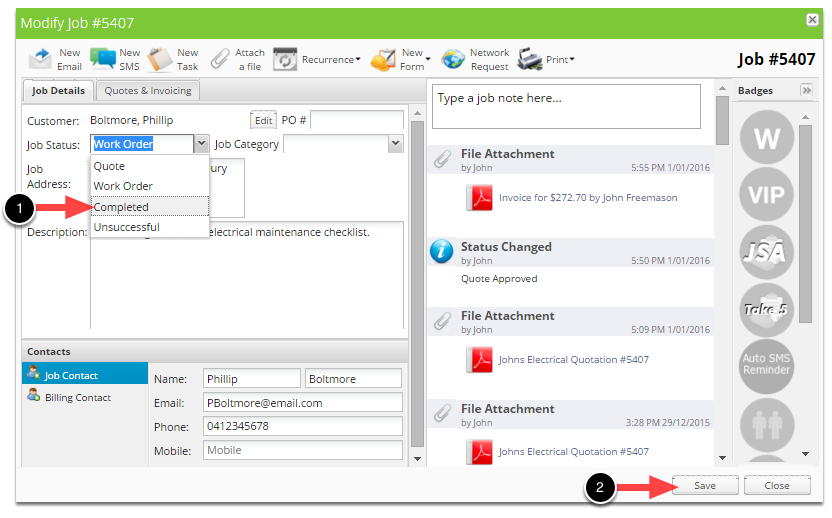
The job is now saved and will be available in the Invoicing page.
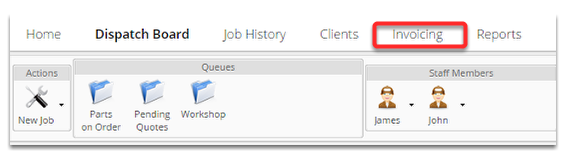
Click Invoicing
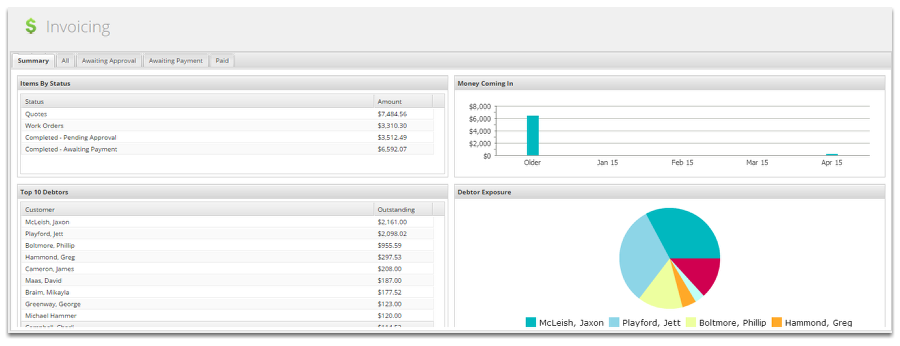
This is the Invoicing Summary page
The job we just completed will be inside the Awaiting Approval tab.
Click Awaiting Approval
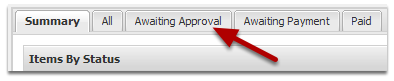
The job we completed is now Awaiting Approval
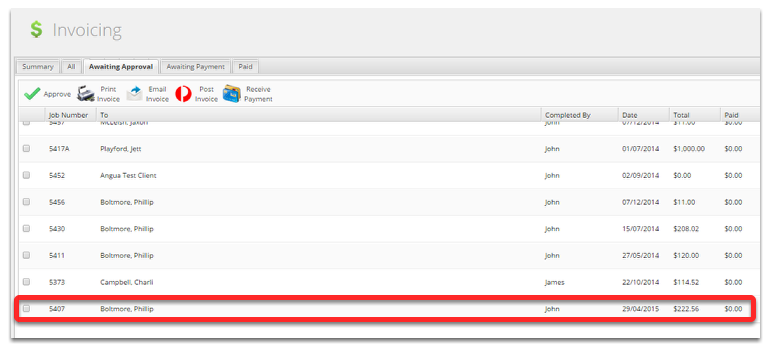
The Awaiting Approval stage can be used in multiple ways:
- If your field techs don’t add materials they can be added here.
- If your field techs add material but they need to be checked, it can be done here.
- A final check that your invoicing amount is correct.
- For marking invoices as transferred to a non-integrated accounting package. (Approve invoices once the information has been transferred)
- When integrated to an accounting package approving sends the invoice to the accounting package to be tracked.
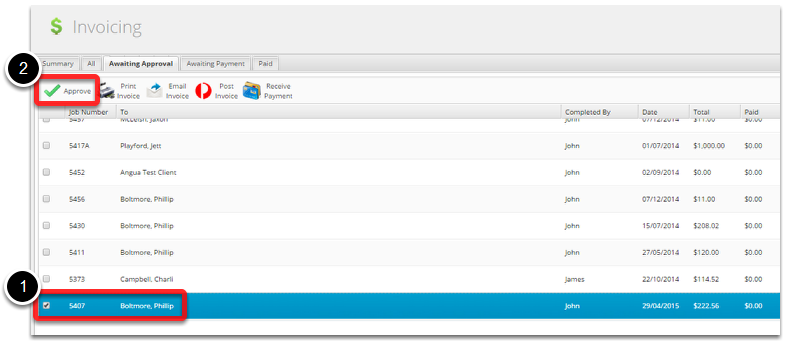
Approve the Job by ticking the tick box and clicking Approve
The job is now in the Awaiting Payment screen
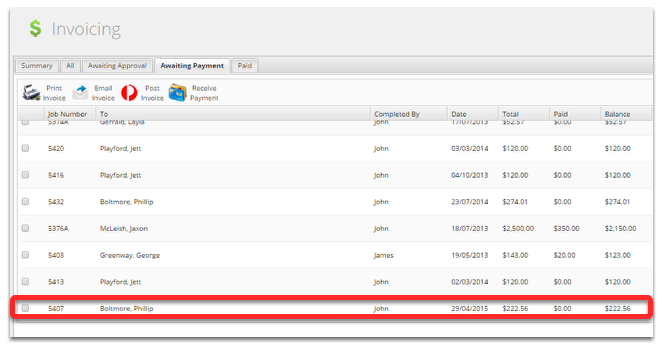
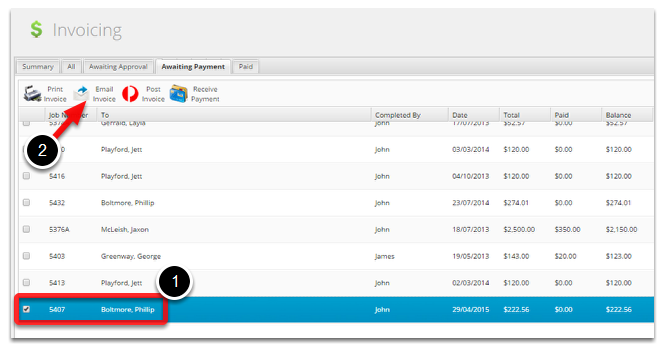
To email the invoice, tick the job and click Email Invoice
The email is auto filled with your email invoice template. Click Send once done.
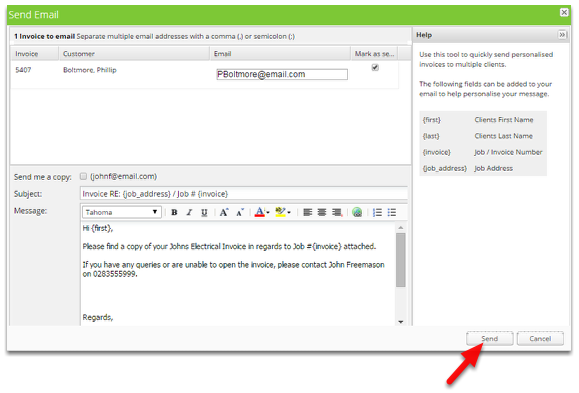
You can set the email template that is used in the invoicing section from Preferences.
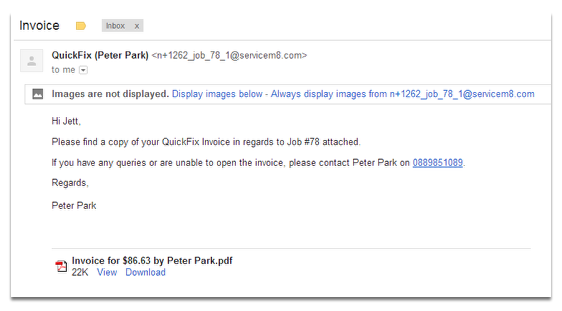
You’re Done! The email will now be sent with the invoice attached.
The job will stay on this tab for 2 weeks before disappearing.