

Jobs and scheduling
How to hide completed tasks and checklist items
Learn how to hide or show completed tasks in the Dispatch Board and completed checklist items in a Job card.
Hide completed tasks and checklist items when you want to focus on outstanding work in the Online Dashboard. Hiding completed entries only changes what you see. It does not delete them.
Hide completed tasks in the Dispatch Board
-
Open the Dispatch Board in the Online Dashboard, then click Tasks.
-
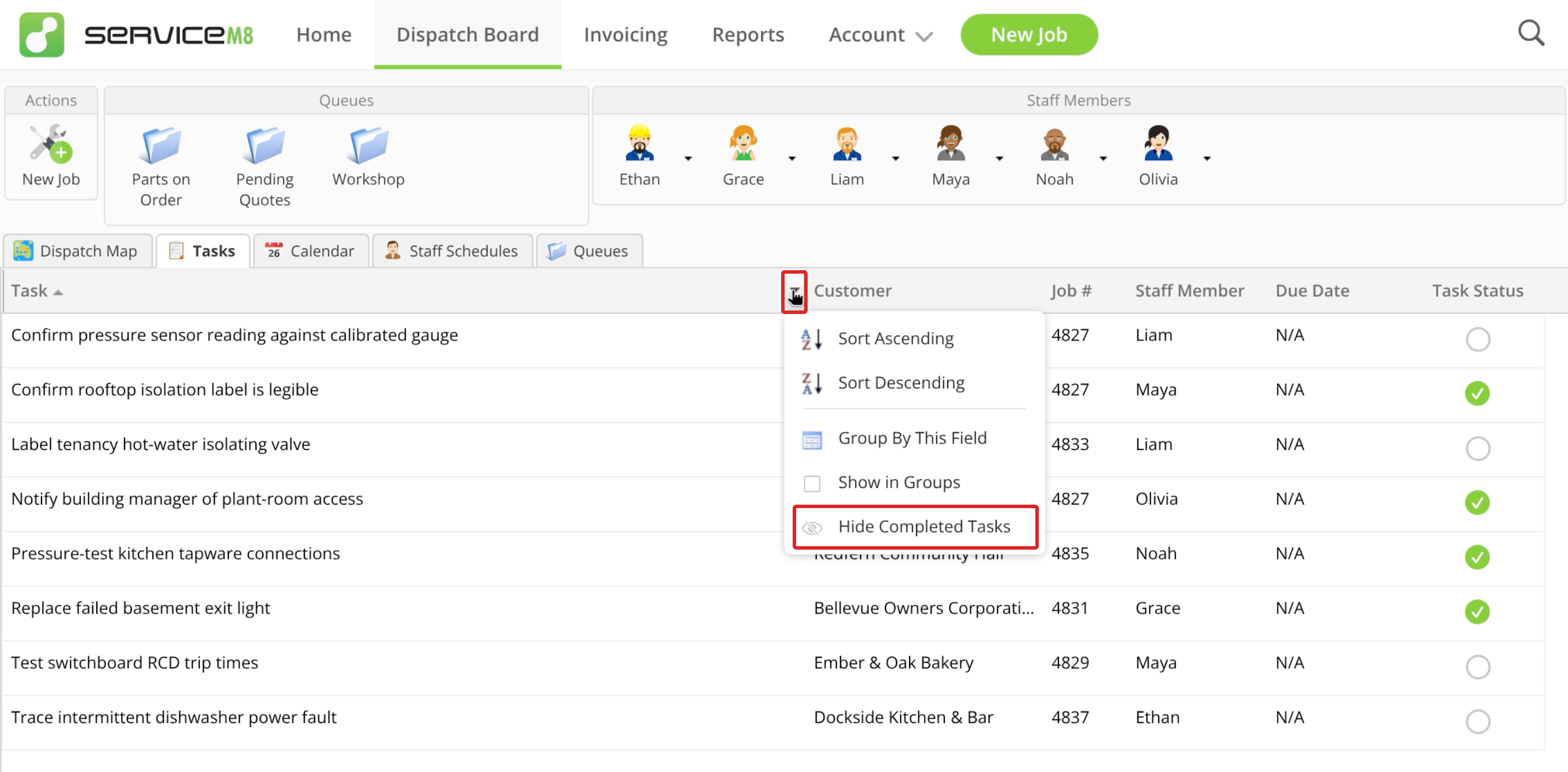
Hover over a column heading, click its arrow, then click Hide Completed Tasks.
Completed tasks are hidden, leaving outstanding tasks in view.
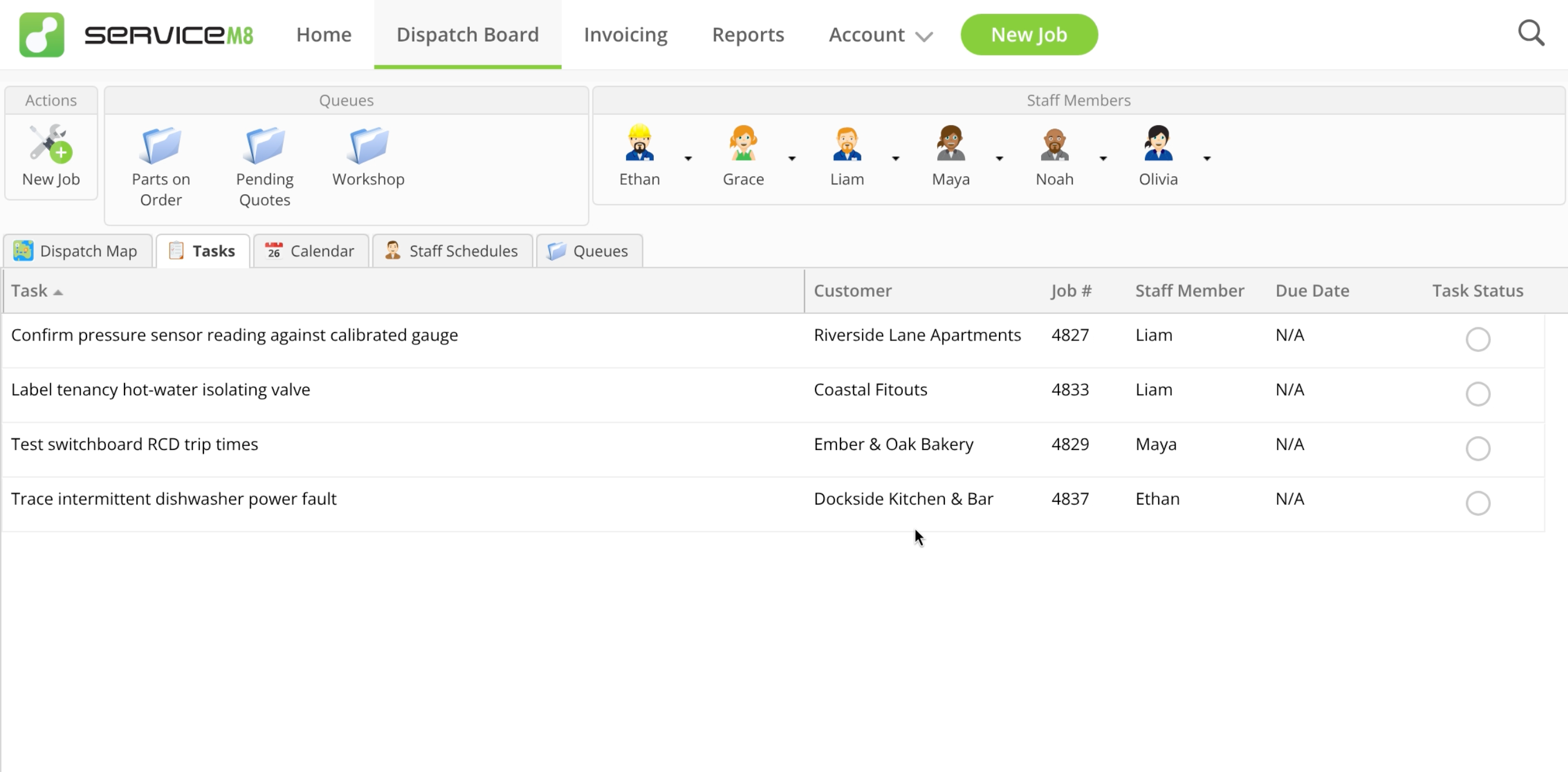
If you complete a task while completed tasks are hidden, it disappears from the list immediately.
To display completed tasks again, open a column menu and click Show Completed Tasks.
Hide completed items in Job card checklists
-
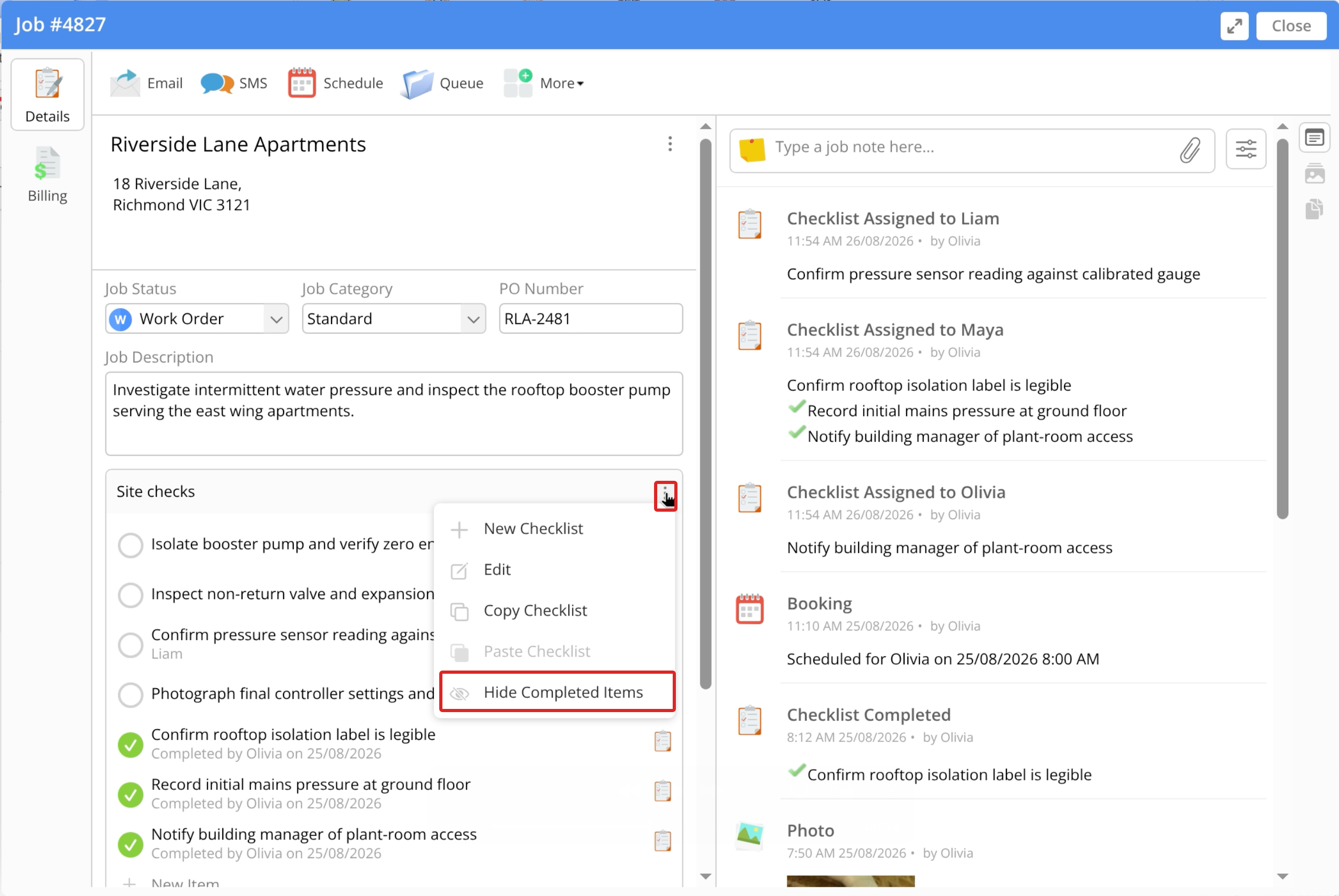
Open the relevant Job card in the Online Dashboard. Under Checklist, click the three-dot menu beside a checklist section.
-
Click Hide Completed Items.
Completed items are removed from view across all checklist sections in the Job card.
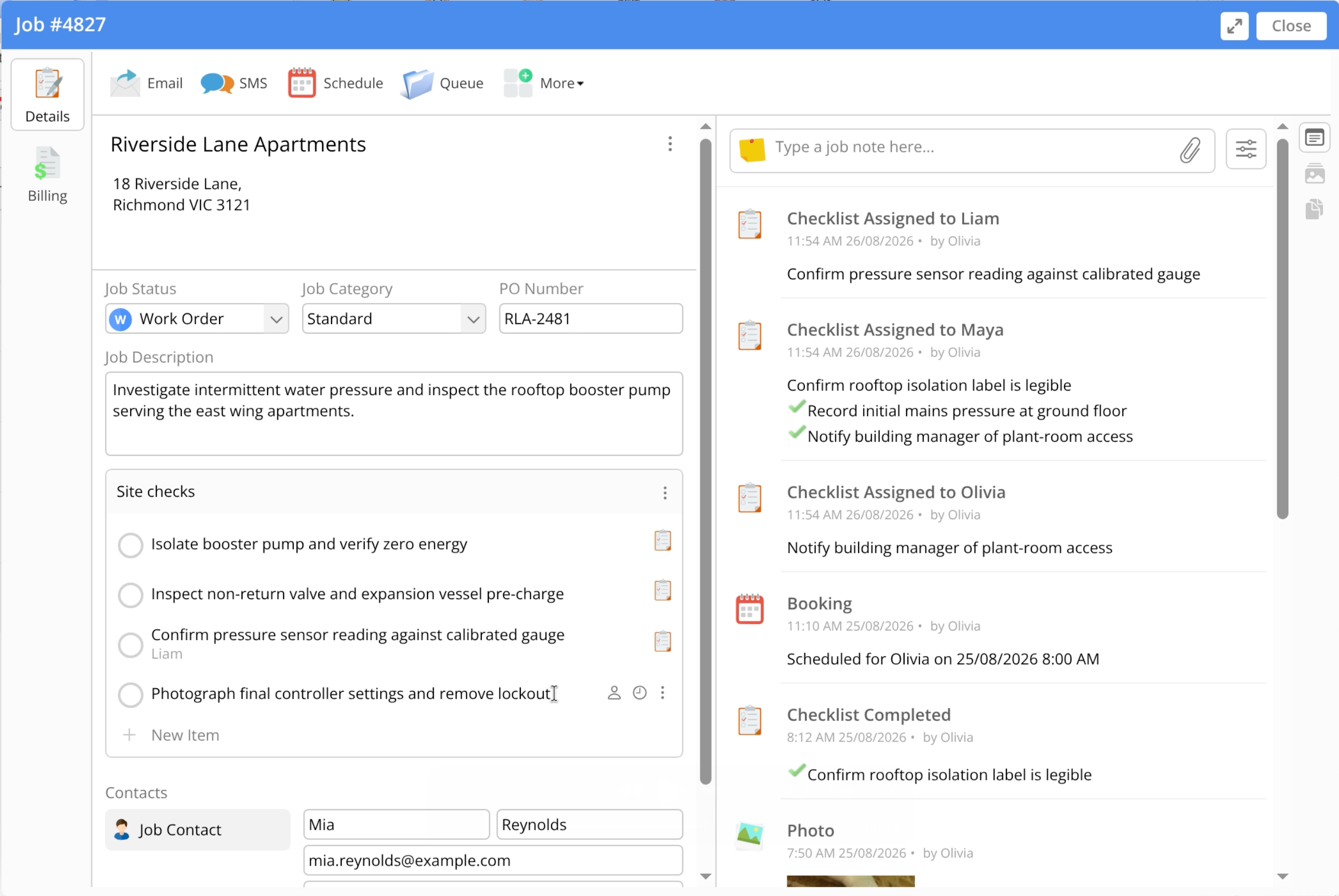
If you complete an item while completed items are hidden, it disappears immediately.
To display completed items again, open a checklist section menu and click Show Completed Items.
How your choices are remembered
Your choices are remembered for you across browsers and sessions. Each staff member has separate settings for the Tasks tab and Job card checklists. Changing one setting does not affect the other or another staff member’s choices.