Communication
Customising automated confirmation email templates
Learn about customising automated confirmation email templates in ServiceM8.
ServiceM8 has default email templates in place to send a professional confirmation when a customer books a service online. However, you may want to create your own custom templates to better suit your processes or brand.
As with other emails generated automatically by ServiceM8, if you create an email template named the same as the default email template, your customised template will be used.
To customise a customer confirmation email template:
- Go to Settings > Email Templates.
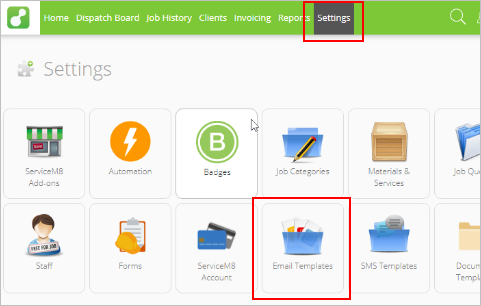
- Click Add Email Template.

- Complete the Template Name field.
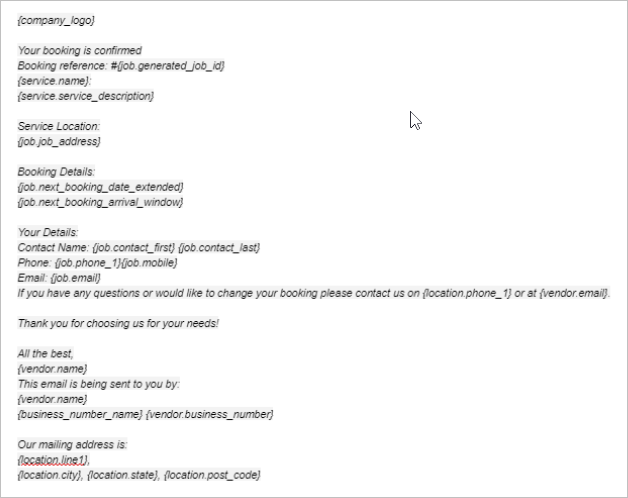
- To change the email for a customer-scheduled booking for onsite service, name your new email template On-Site Service Confirmation.
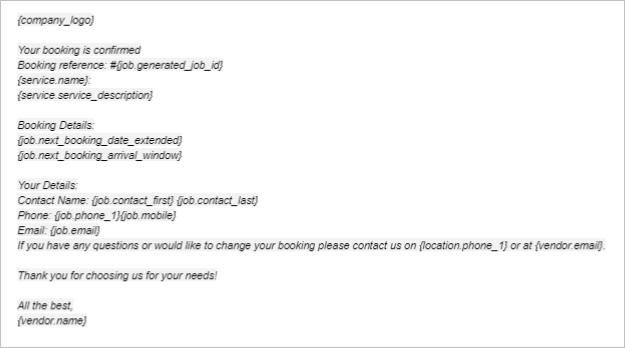
- To change the email for a customer-scheduled booking for in-shop service, name your new email template Workshop Service Confirmation.
- To change the email for a customer service request without a booked time, name your new email template Service Enquiry Confirmation.
- Complete the Subject and Message fields.
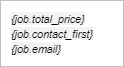
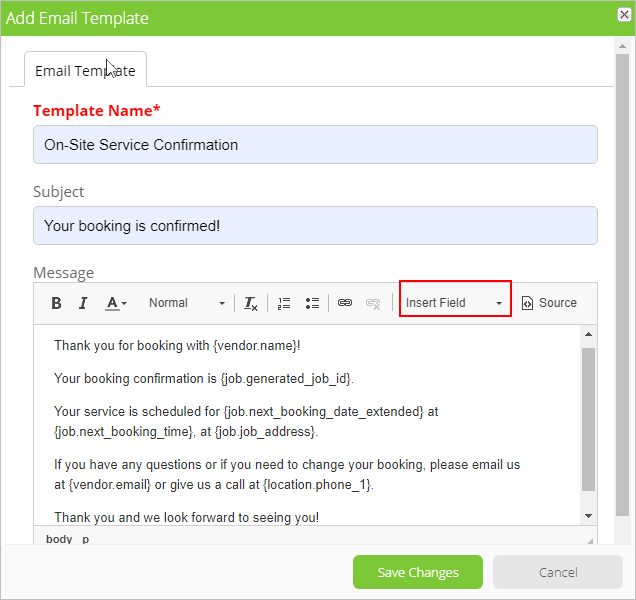
- Click Insert Field to select and include relevant dynamic references in the job confirmation email template. Dynamic references will populate based on the job information in ServiceM8. In the following example, fields in brackets were selected from the Insert Field drop-down list.
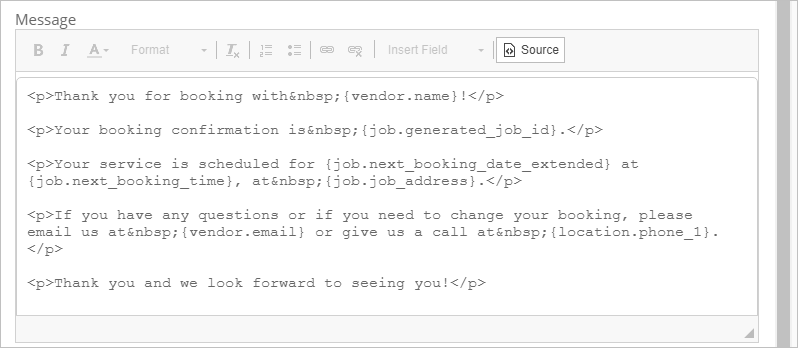
- Click Source if you would like to include your own HTML style attributes within your message. Here is that same example, but in Source view.
- When you are satisfied with your template, click Save Changes. Remember to proofread, proofread, and proofread again!
Existing confirmation email templates
For your reference, here are the default confirmation email templates.
- On-Site Service Confirmation
- Workshop Service Confirmation
- Service Enquiry Confirmation *
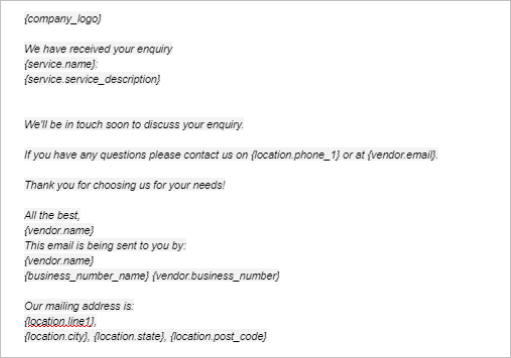
* Because service enquiries arrive in your inbox without being automatically converted to a job, the Service Enquiry Confirmation template will not support all merge fields found under Insert Field.
Along with the fields included in the default template, it will support: