

Communication
How to use ServiceM8's Two-Way SMS
Learn how to use ServiceM8's Two-Way SMS in ServiceM8.
ServiceM8’s Two-Way SMS is a mobile web portal that lets your clients reply directly to messages sent from within ServiceM8.
Unlike regular texts, the Two-Way SMS feature keeps all messages about a specific job in one organised thread and automatically saves them to the job’s Diary. Clients get a polished, branded messaging experience, while you get a complete communication record tied to the right job.
You can also send photos and attachments to clients using SMS, making it even easier to share job information.
Learn more about the kind of SMS you can send with ServiceM8.
To send a message via SMS
- From the job card, click SMS.
- A messaging window will open. You can:
- Select an SMS template to populate the message (you can still customise after applying a template)
- Type your message without a template
- Click Add Attachment to select photos or documents to attach (select from existing job files or upload new ones)
- Click Send when complete. Your message will be recorded to the job Diary and sent to the client.
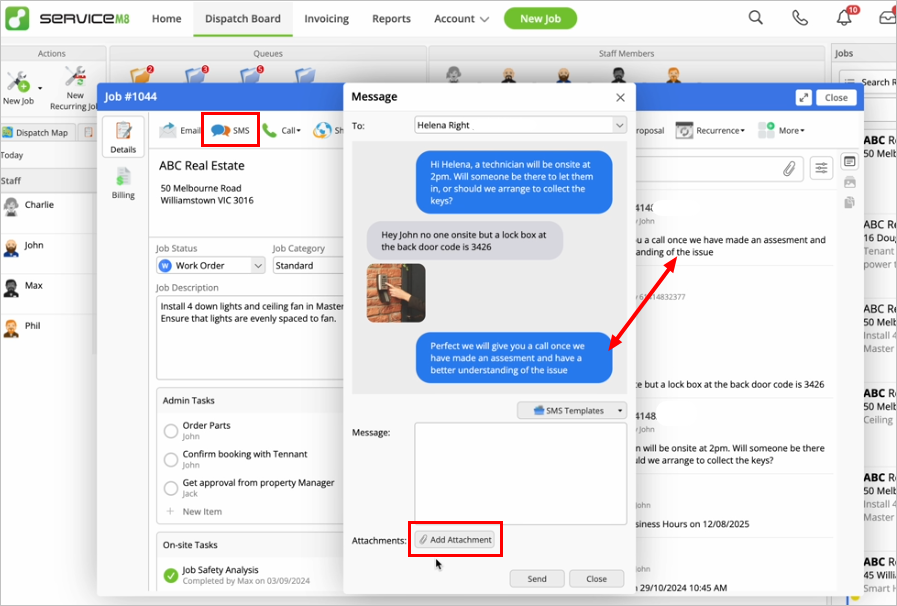
What the client sees, and how you both interact
By default, every message you send to a client from within ServiceM8 will have a “Reply here” link added to the end of the message that lets the client access the Two-Way SMS portal, in which they can reply, as well as view any photos & files. Note:
- If there is already a link in the body of the SMS (such as a link to view a quote or ‘Track My Arrival’), rather than inserting another “Reply here” link at the bottom, an instructive footer will be added, such as “To reply, tap the link above”.
- SMS sent in Australia may include additional content for spam compliance — see ‘SMS Header & Footer’ below.
When the client taps the link, the web portal opens and they can reply per usual, with the option of attaching photos using the Photo button.
This is similar to the Messages application on any smartphone, but has additional benefits such as:
- Highlighting of important links such as Invoices, Feedback and Track My Arrival
- Separation of conversations between different jobs
- Branding with your business logo, name and ABN/Business Number (as entered in Settings > Preferences > Company Information). Your business name & ABN/Business Number will appear at the top of the thread, beneath your logo.
- A speed-dial option to call your business
- An unsubscribe button, should the recipient no longer wish to receive your messages
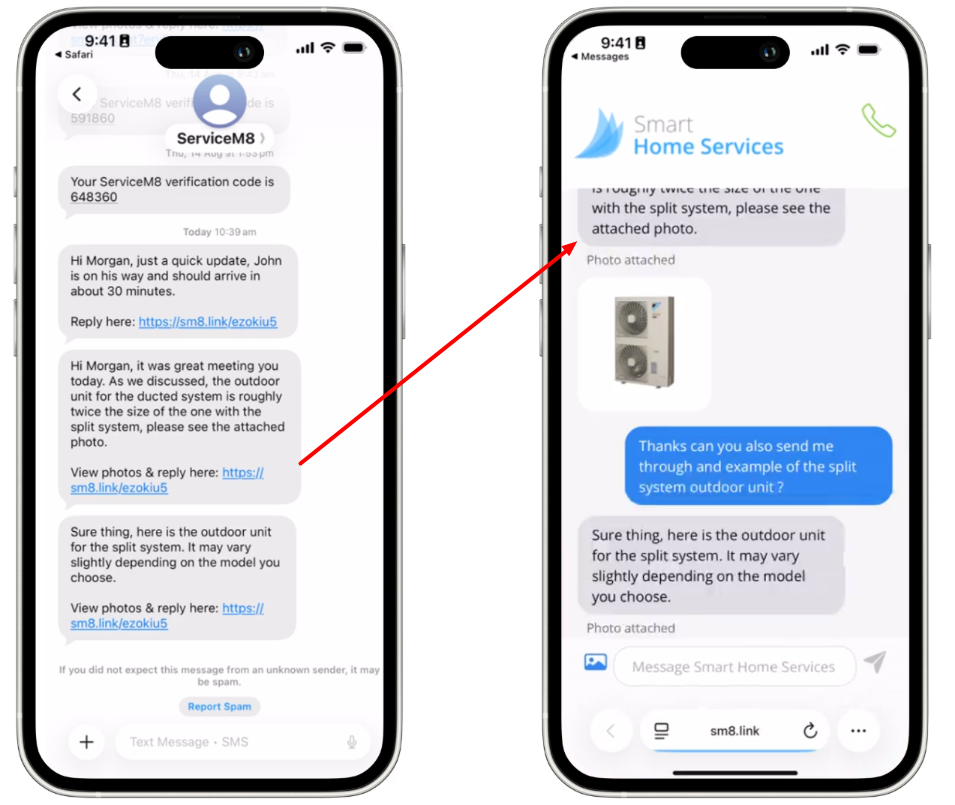
When a client replies, their message (and any attached photos) will be added to the Diary of the relevant job in ServiceM8. The staff member who last sent an SMS to the client will receive a notification both in ServiceM8 and as a push notification on their mobile device.
What happens if the customer replies months later, after the job is completed?
To prevent new messages from being lost in a job that has long since been completed and is no longer being viewed regularly, any replies that ServiceM8 receives for paid, completed jobs will be copied to your ServiceM8 Inbox, as well as in the Diary of the relevant job.
This ensures you don’t miss the message, and allows you to easily create a new job from the received message in case the customer was enquiring about follow-up work.
SMS Header & Footer (Australia Only)
In Australia, ServiceM8 adds a header and footer to some outgoing SMS for spam compliance. From July 2026, this applies to all SMS sent via ServiceM8 in Australia, including messages sent under the ServiceM8 Sender ID and messages sent using a custom Sender ID with Branded SMS, such as JohnsPlmbg.
Header:
From: Your Business Name (Your ABN)
Footer:
To reply or unsubscribe, tap the link above
For example:
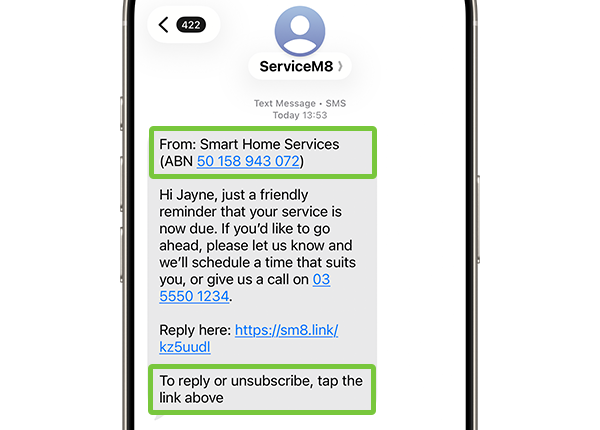
The header and footer are only added to the SMS body as seen by your client — like the “Reply here” link, they only appear in the recipient’s Messages app (example image above). These additions do not appear in the job’s Diary or the Two-Way SMS portal.
These additions help ensure:
- Clients can clearly see who the message is from; and
- It’s obvious they have the option to unsubscribe, via the existing Unsubscribe button in the Two-Way SMS portal.
The header and footer will not appear in every SMS you send — they are only added in certain situations, such as:
- It’s your first SMS ever to the recipient.
- It’s your first SMS to the recipient in the last 30 days.
- Another ServiceM8 user has messaged the recipient more recently.
- The SMS contains promotional or marketing content.
The header & footer do not count toward your SMS usage i.e. you don’t pay more when they’re added to your messages.