

Dispatch Board
Using Action Required to keep on top of jobs and scheduling
Learn how to use action Required to keep on top of jobs and scheduling in ServiceM8.
The Action Required list in the Jobs List gives you a business-wide view of jobs that require attention or action. This smart list helps you provide fast client communication, ensure jobs progress efficiently and don’t fall through the cracks, and stay in control of your operations.
You can access the Action Required list from both the Online Dashboard and the ServiceM8 mobile app.
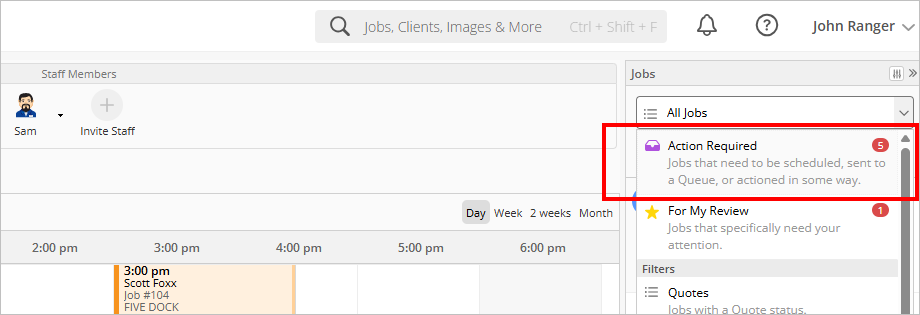
From the Online Dashboard, click Action Required from the Jobs List dropdown on the right of the Dispatch Board:
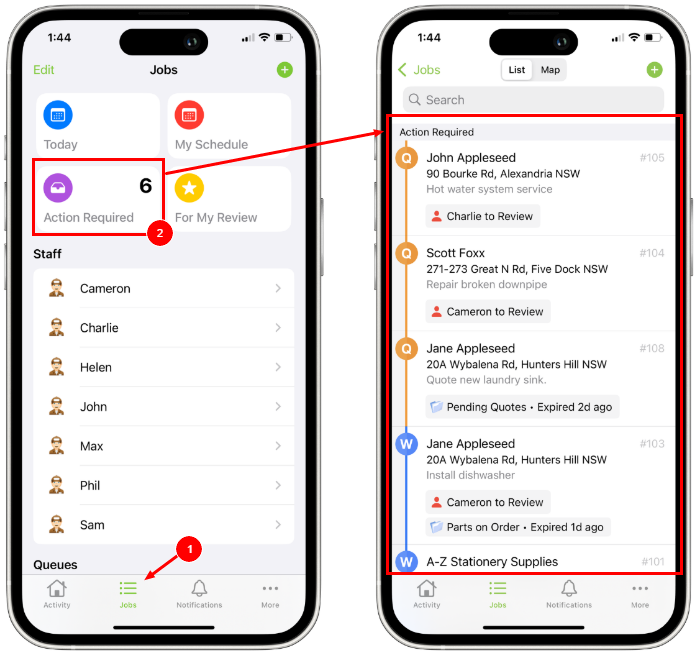
From the ServiceM8 app, double-tap Jobs, then tap Action Required.
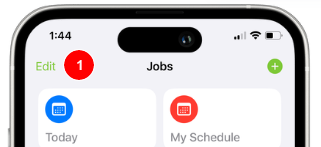
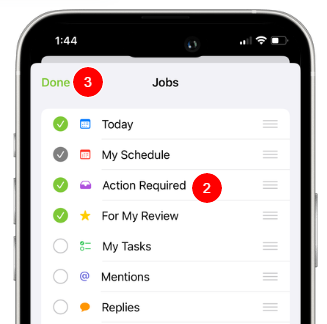
If you don’t see Action Required presented as an option when you double-tap Jobs:
- Tap Edit.
- Tap Action Required to activate it (the green checkmark indicates it’s activated).
- Tap Done.
How to use Action Required to keep jobs on track
A job appears in the Action Required list in any of the following scenarios:
- It has no future booking, or was booked to a team member in the past and hasn’t been managed since (for example, a team member checked out and they didn’t reschedule, change its Job Status to Complete, or put it in a Queue)
- It has expired from a Queue without further action
- It has an unanswered email or SMS from a client (Replying to the message will remove the job from Action Required. You can also right-click the job in the Action Required list on the Online Desktop to dismiss it.)
Your goal should be to keep the Action Required list empty, as this means all jobs have either been scheduled, are being managed in a Queue, or completed, and clients aren’t waiting on a reply from you.
To remove a job from the Action Required list, you may need to:
- Schedule or reschedule with the client so that the job can be completed
- Place the job in a Queue if it’s waiting for something to happen before work can continue (for example, parts need to be ordered or arrive, or client needs to approve)
- Update the Job Status to Completed or Unsuccessful
- Reply to any unanswered client communications (if no response is required, go the Online Dashboard and right-click the job in the Action Required list to dismiss it)
So, the Action Required list serves as a great ‘to-do’ list for keeping jobs on track, such as scheduling, completing jobs, following up with clients about quotes, calling suppliers about part orders, etc.