

Accounting integrations
Resolving Xero invoice number conflicts
Learn about resolving Xero invoice number conflicts in ServiceM8.
When you send an invoice for approval, the invoice number must be unique. If the invoice number already exists in Xero, you will get an error icon in Invoicing > Awaiting Approval alerting you that the invoice number must be unique.
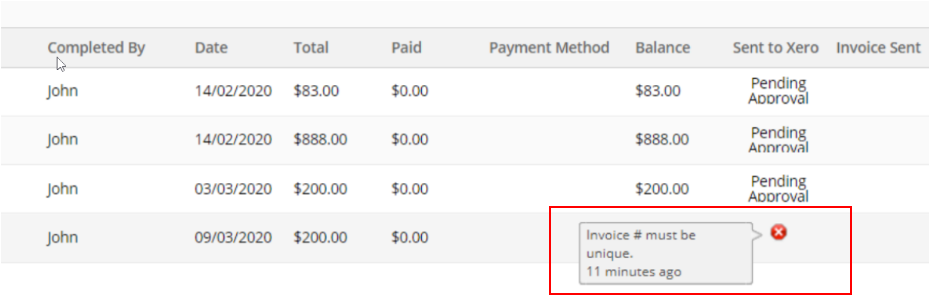
To find the conflicting invoice in Xero:
- Go to Xero Business > Invoices > All > Search.
- Select Include Deleted & Voided.
- Enter the invoice number under Enter Number, Reference, Contact or Amount.
- Click Search.
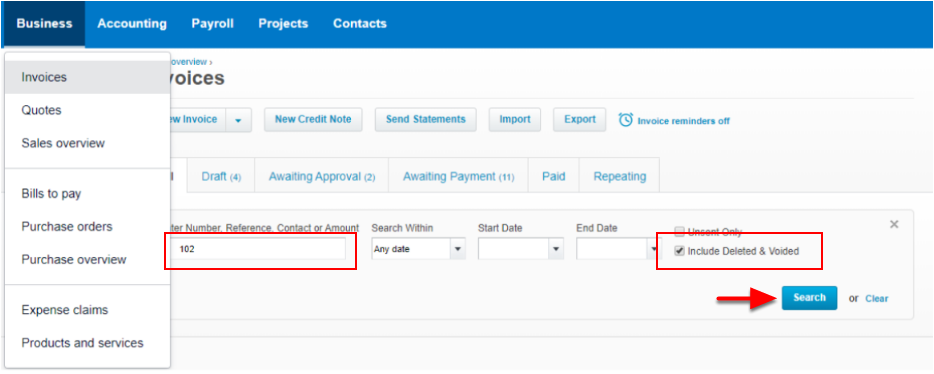
Once you find the invoice, verify the status on top. It could be Draft, Awaiting Approval, Awaiting Payment, Paid, Voided, or Deleted.
If the invoice status is Draft or Waiting Approval:
- Either delete the invoice by clicking Invoice Options > Delete, or change the invoice number and click Save.
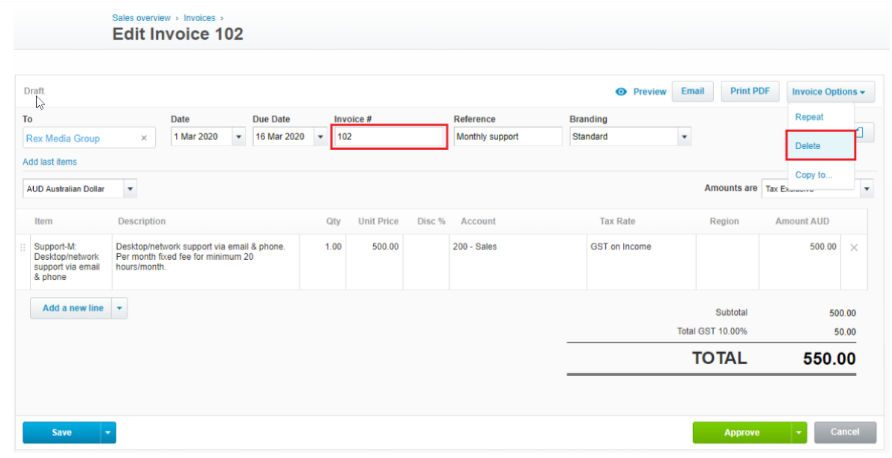
If the invoice status is Awaiting Payment or Paid:
- Edit the invoice number by clicking Invoice Options > Edit.
- Change the invoice number and click Save.
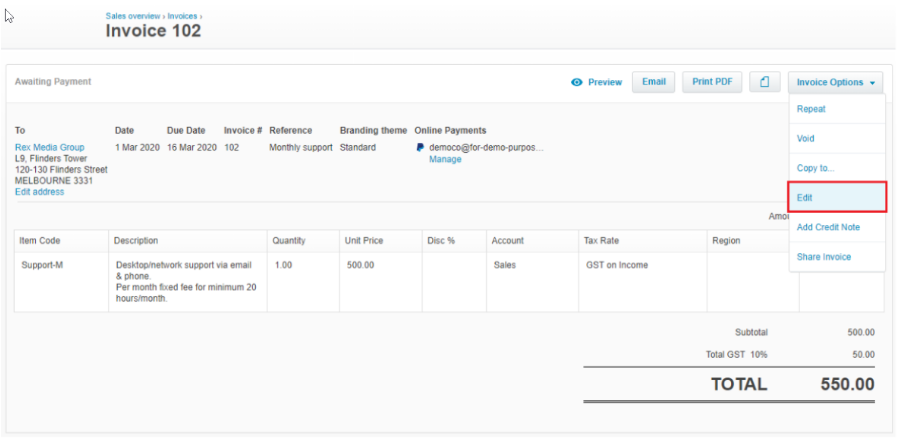
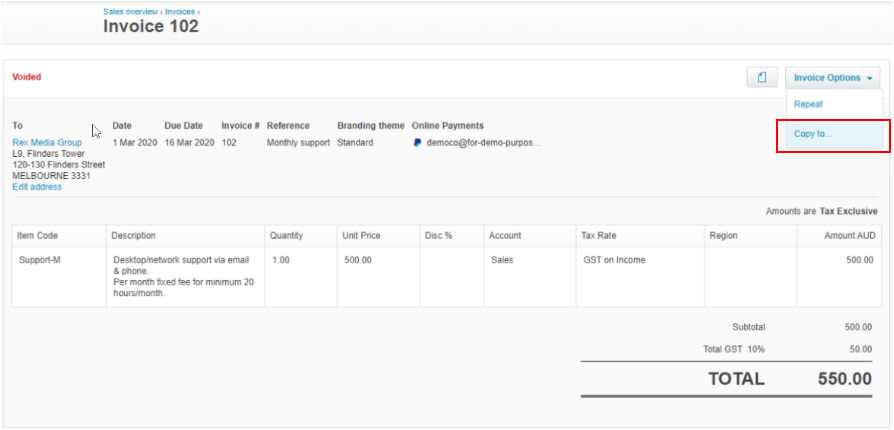
If the invoice status is Voided or Deleted:
- Click Invoice Options > Copy to copy it to a new invoice.
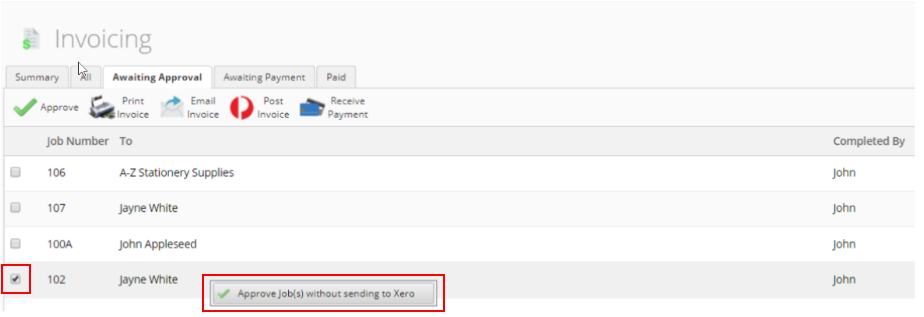
- Go to Invoicing > Awaiting Approval.
- Select the job, right-click, and click Approve job(s) without sending to Xero.
If, after trying the above options, you still need assistance:
Contact ServiceM8 Support at support@servicem8.com and request that the job number be changed so you can sync the invoice to Xero.
Avoiding future invoice number conflicts
Follow these best practices to avoid future conflicts:
- If you need to void or delete an invoice then re-sync it, edit the invoice number first (for example, “102void”).
- Creating an invoice in Xero rather than ServiceM8 can also cause an invoice number conflict. To resolve this issue, go to Settings > Preferences > Invoicing > Xero > Xero invoice number and select Let Xero issue invoice number.