

Communication
How to manage notifications in the Online Dashboard
Review, filter, search, and manage notifications in the ServiceM8 Online Dashboard.
Notifications help you keep track of job updates, messages, posts, and other activity in ServiceM8. Use the notification panel for a quick review, or open the full notifications page to search your history and manage read status.
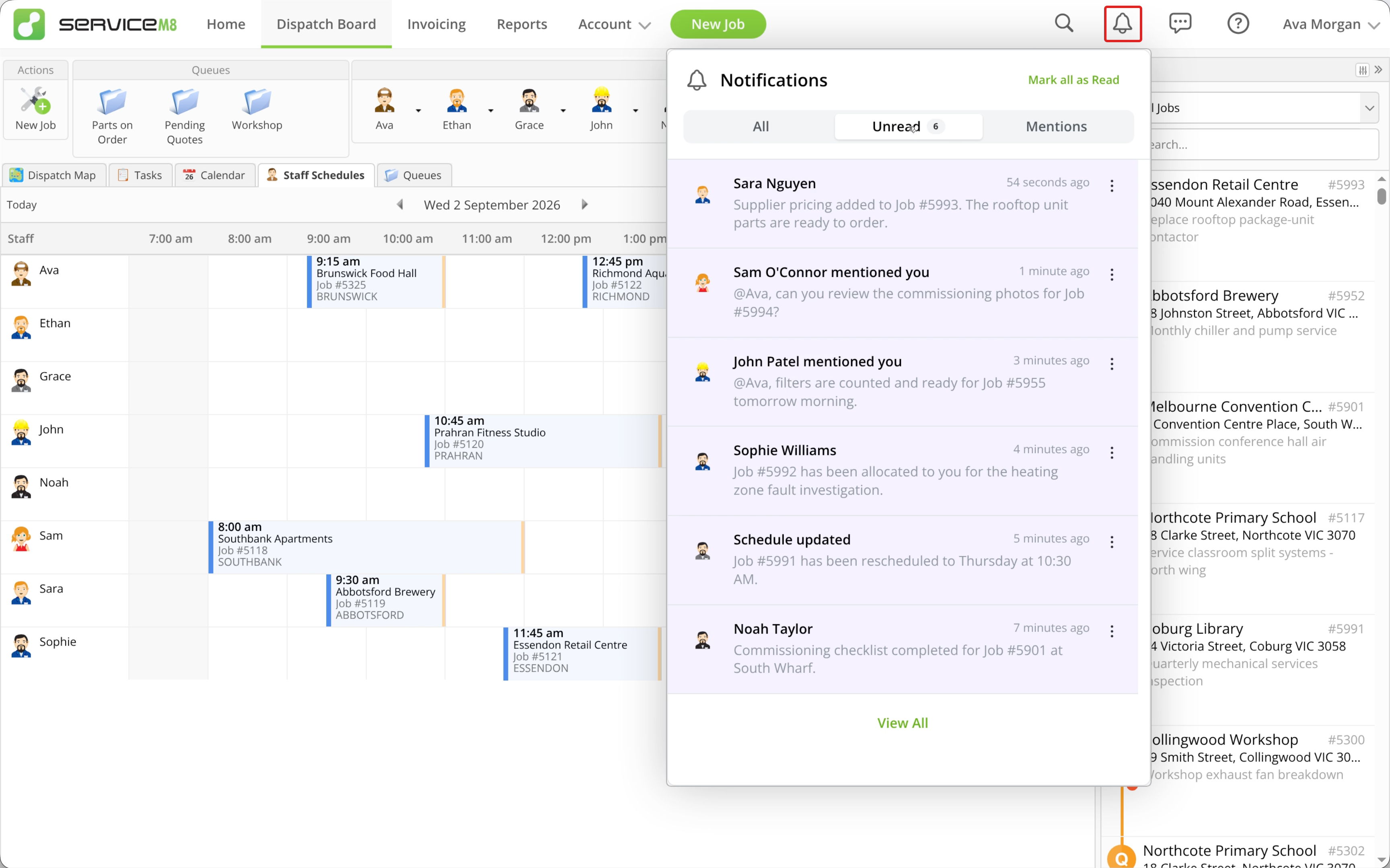
Opening the notification panel clears the bell’s new-notification badge. Unread notifications stay highlighted until you open them or mark them as read.
Open the notification panel
-
In the Online Dashboard, click the bell icon in the top-right corner.
-
Choose All to see the panel’s notifications, Unread for unread notifications, or Mentions for notifications where you have been mentioned or tagged.
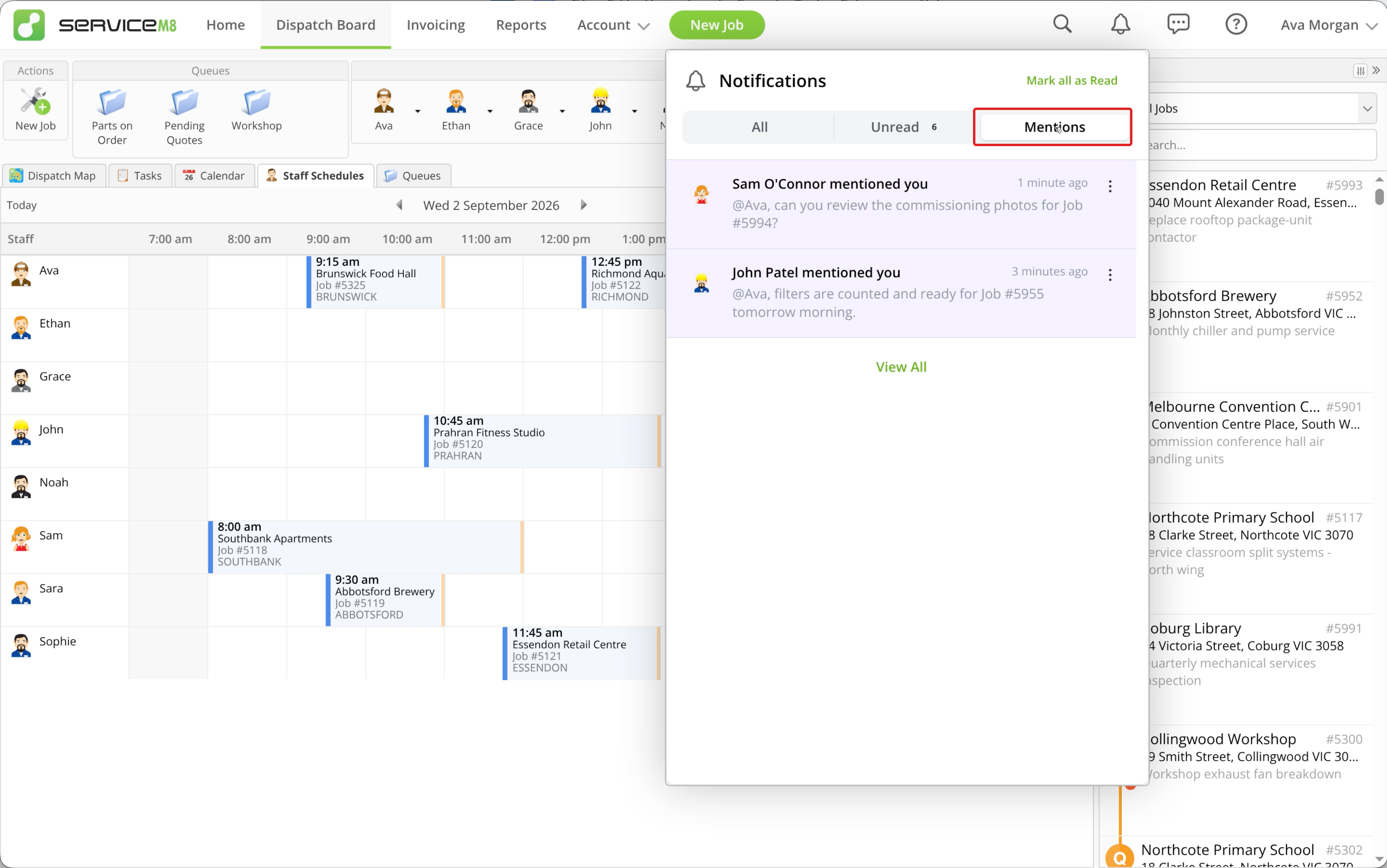
The panel shows notifications from the last 14 days. Older notifications you explicitly mark as unread can also appear. The number beside Unread counts unread notifications in the panel.
Click a notification with a linked item to open its Job card, thread or other destination and mark that notification as read.
Mark notifications as read or unread
To change one notification:
-
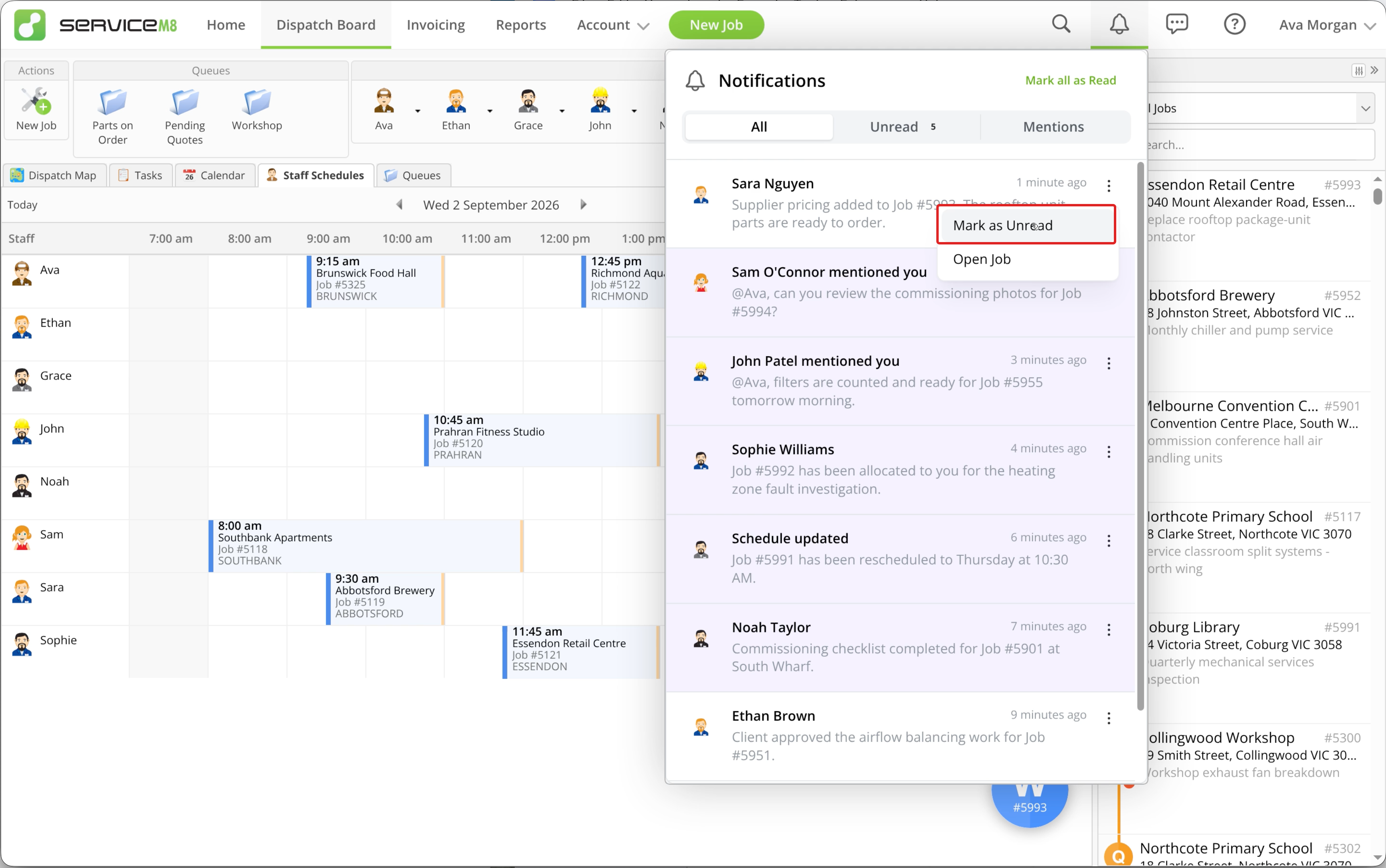
Click the three-dot menu beside the notification.
-
Choose Mark as Read or Mark as Unread.
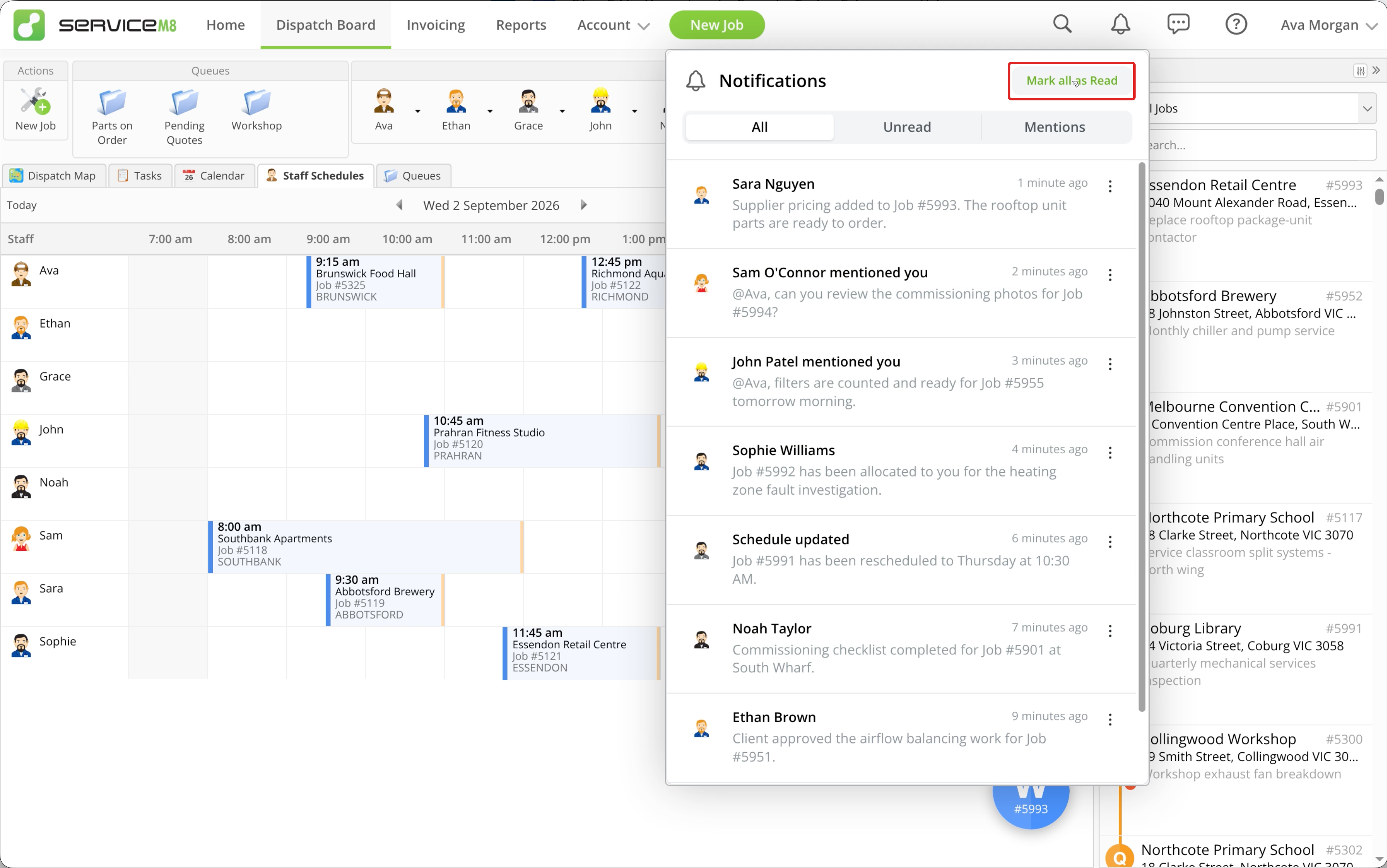
To mark the notifications in your current filter as read, click Mark all as Read at the top of the panel.
Read and unread changes apply only to your notifications. If the notification links to another area of ServiceM8, its three-dot menu also includes an option to open the related job, post, inbox message, or other item.
Search your notification history
-
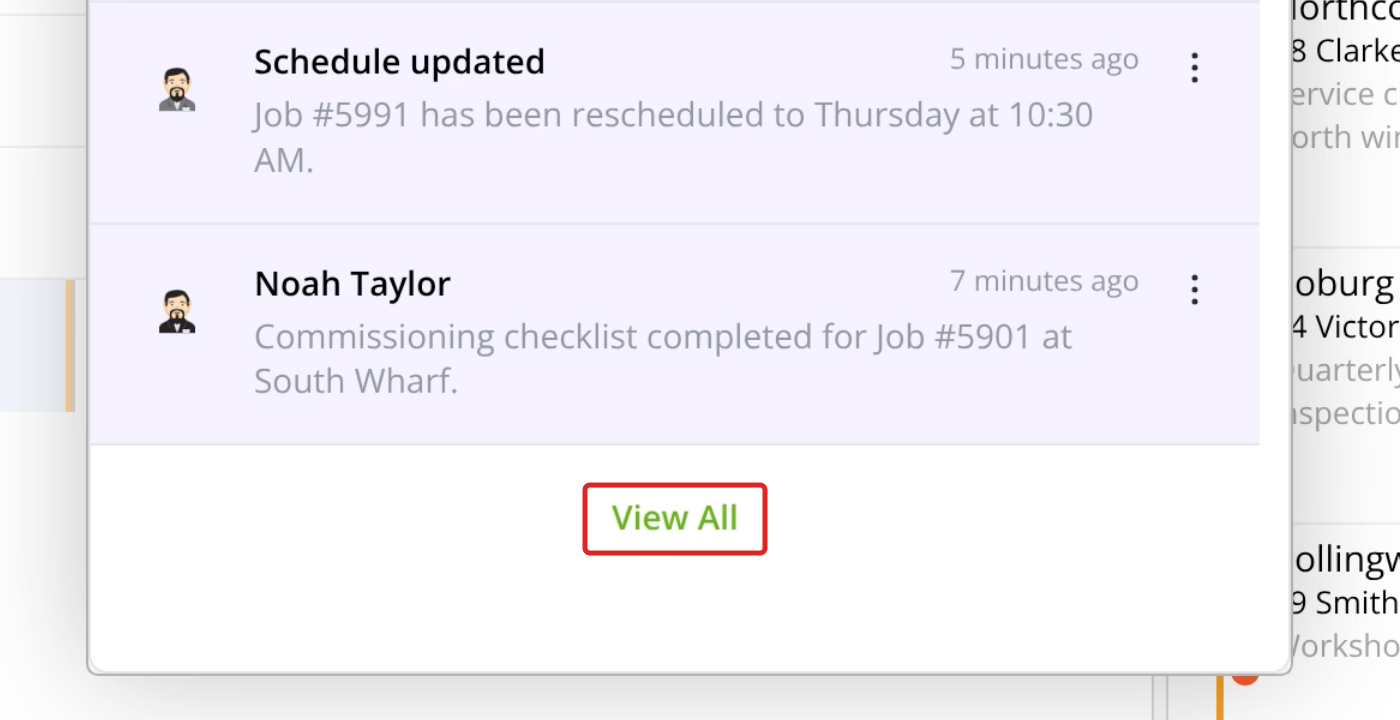
Open the notification panel and click View All at the bottom of the panel.
-
Enter a word or phrase in Search.
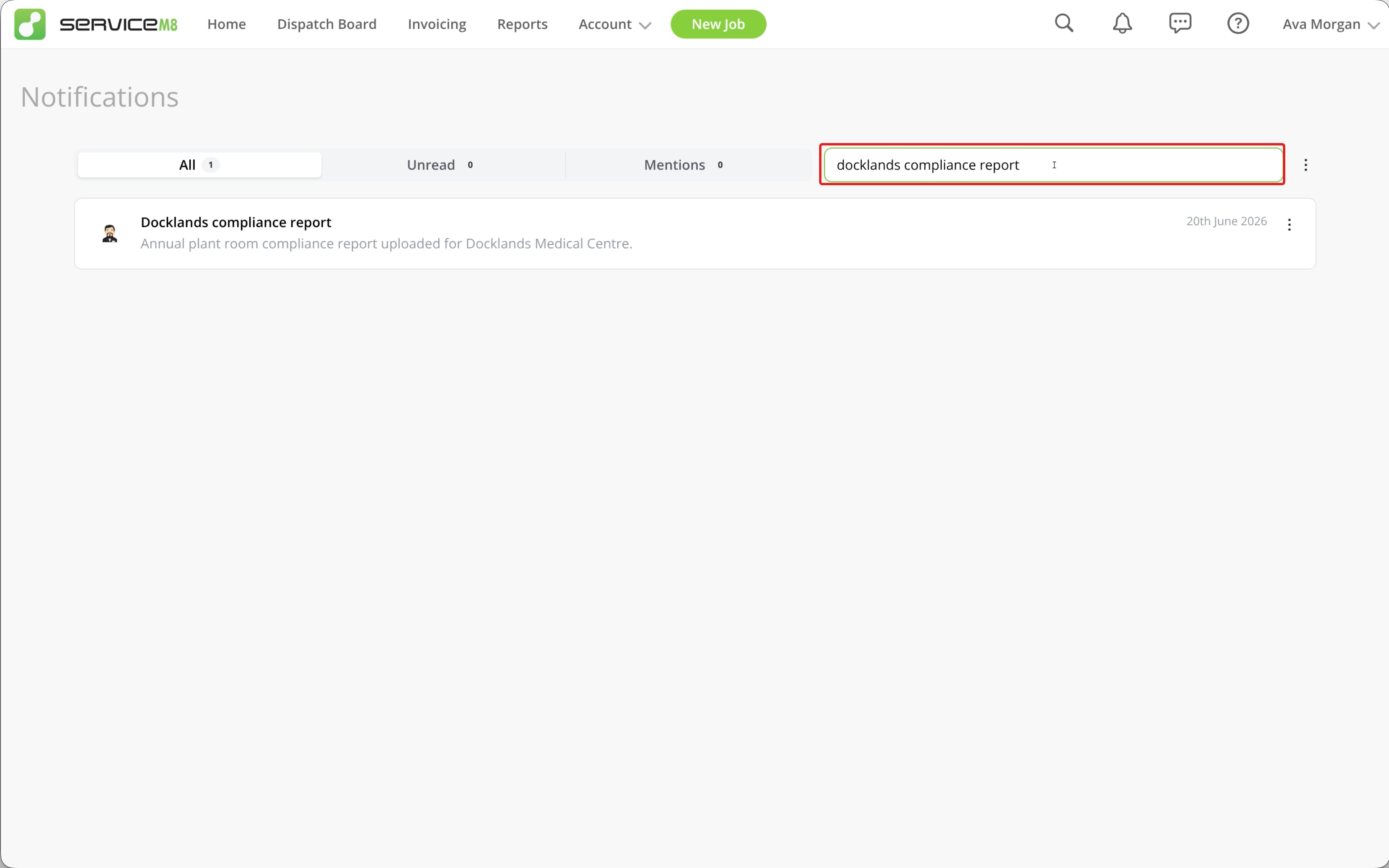
The full Notifications page includes up to 365 days of history. Use All, Unread or Mentions to filter the results. The counts beside these filters reflect your search.
Manage individual notifications from their three-dot menus. To mark notifications matching your current filter and search as read, open the three-dot menu beside Search and choose Mark all as Read.
Change notification settings
- Open the full notifications page.
- Click the three-dot menu to the right of Search.
- Click Settings.
This opens your existing ServiceM8 notification preferences.