

Quotes and invoicing
How to look up item price and stock with the Job camera
Use the ServiceM8 app camera to scan an item barcode and view its saved price and stock level.
Use the Job camera to scan a Material barcode and check its saved price and stock level. You can also scan a registered Asset label to open its details.
Before you start
- If camera lookup isn’t available, check that the ServiceM8 app and operating system are up to date.
- The barcode must match an active item’s saved barcode or item number.
Add a barcode to an item
-
In the app, open More > Materials, then search for and select the item.
-
Enter the barcode’s value in Barcode, or tap Scan Barcode and scan the item’s label.
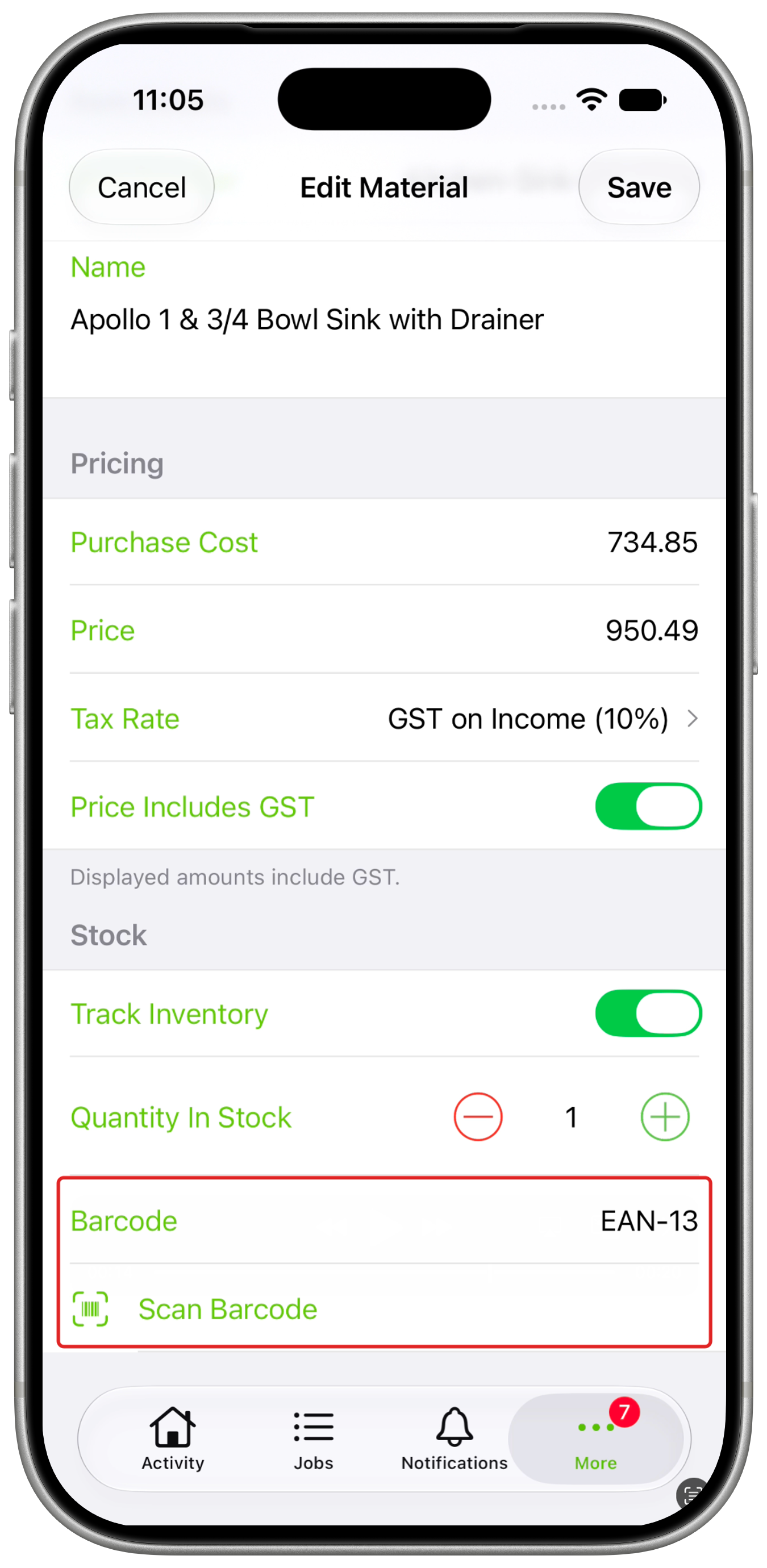
-
Tap Save to link the barcode to the item.
Look up an item from the Job camera
-
Open the Job card in the ServiceM8 app and tap Camera in the Job Actions bar. If it is not visible, tap More (…), then Camera.
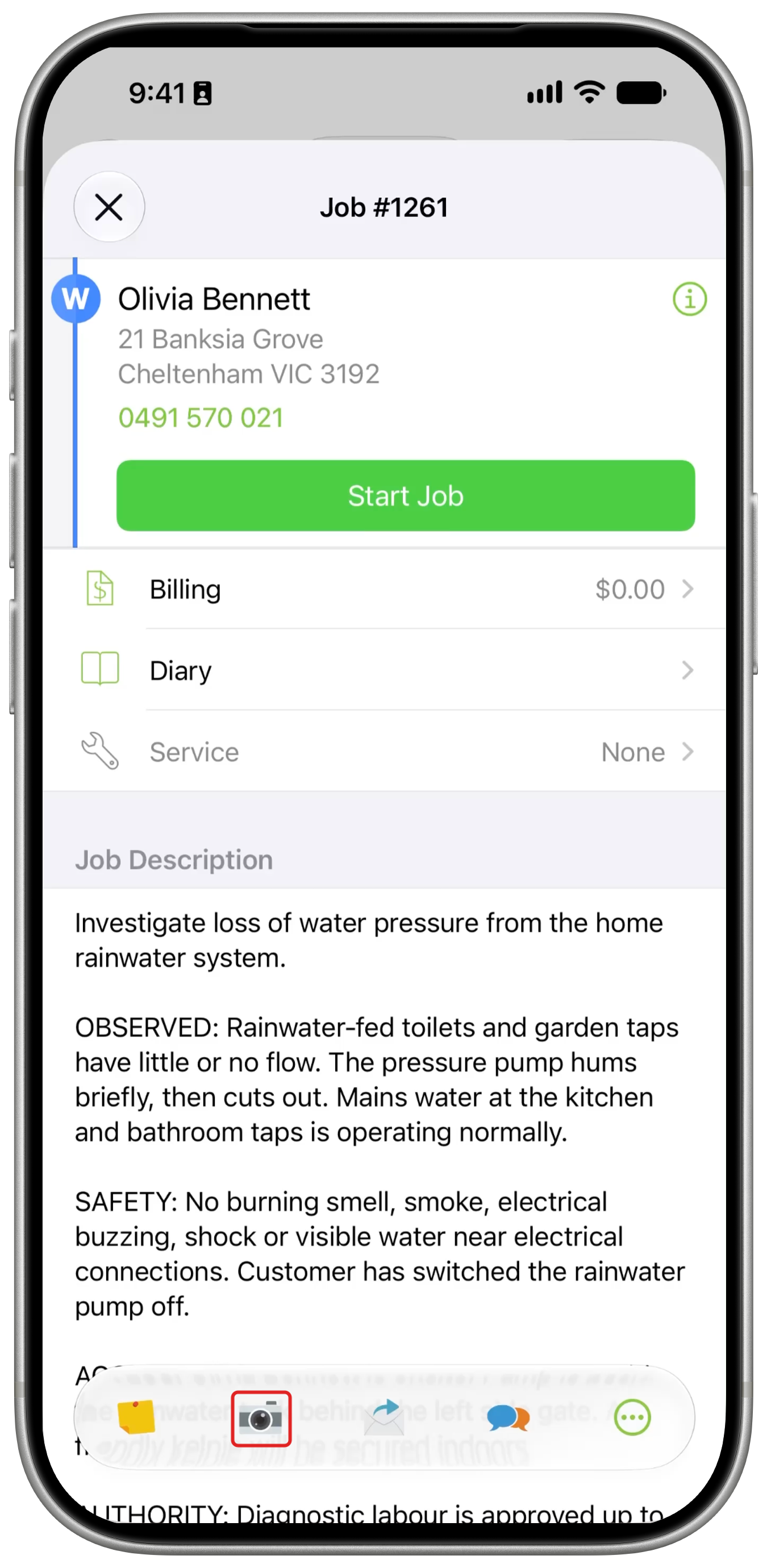
-
Point the camera at the item’s barcode.
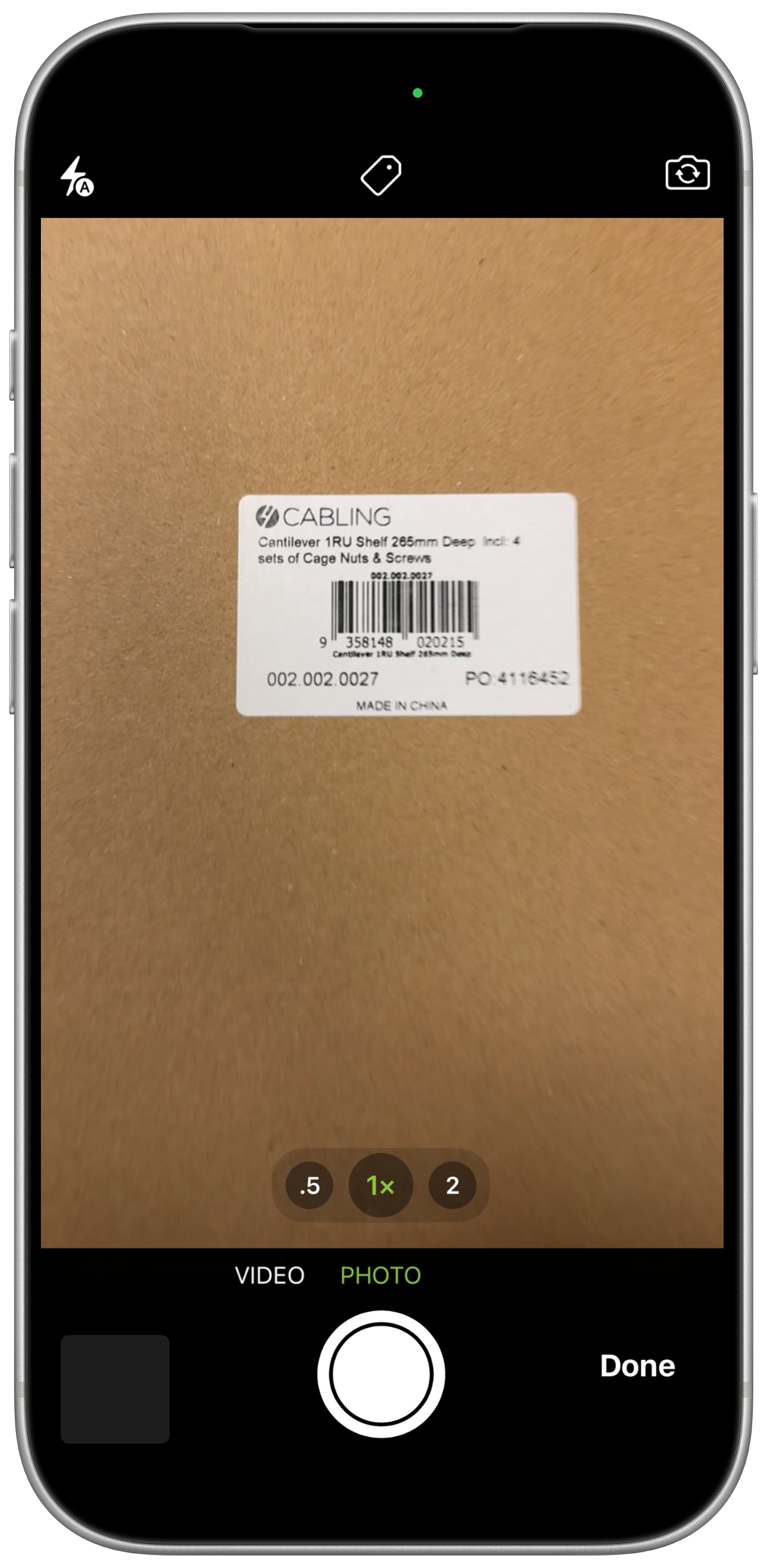
-
Read the matching item’s name, price and stock level in the result bubble at the top of the camera.
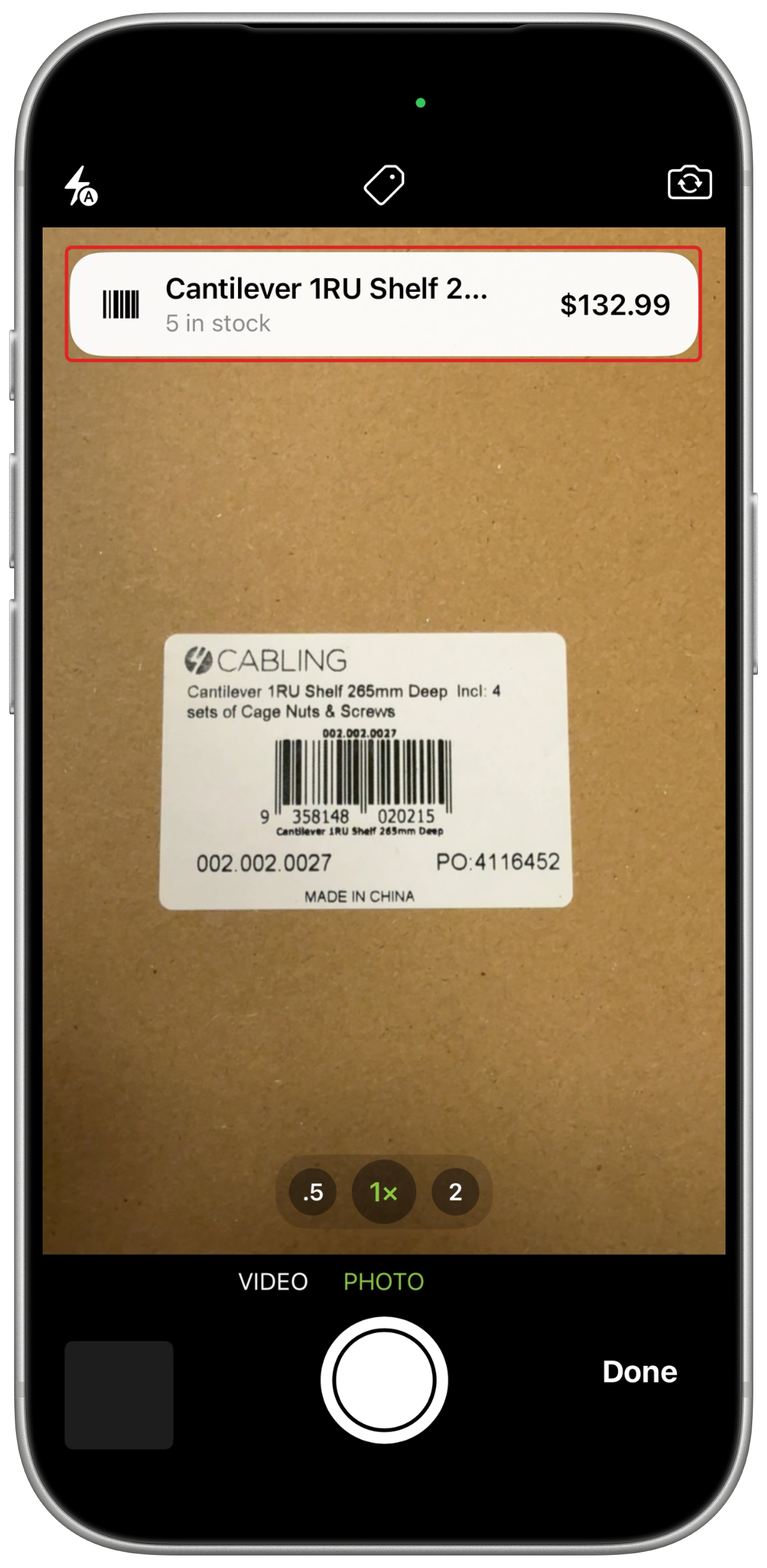
Price and stock appear where your account settings allow them. Stock levels appear for items with inventory tracking enabled.
The lookup is informational. To add an item to the job, use Billing > Add Item/Service > Barcode Scan.
Scan an Asset label from the Job camera
- With the Job camera open, point it at a registered ServiceM8 Asset label QR code. The result bubble identifies the Asset by its saved name and type, where available.
- Tap the bubble to open the Asset details for that job.