

Dispatch Board
How to change the order of Staff Members
Learn how to change the order of Staff Members in ServiceM8.
You can customise the order in which Staff Members show on the Dispatch Board online, in the top ‘Staff Members’ container, and in the Schedule.
In the Schedule
- Open the Dispatch Board, then click Schedule.
- Click the gear icon, then Staff Members.
- Drag the dotted handles beside staff names to change their order, then close the window.
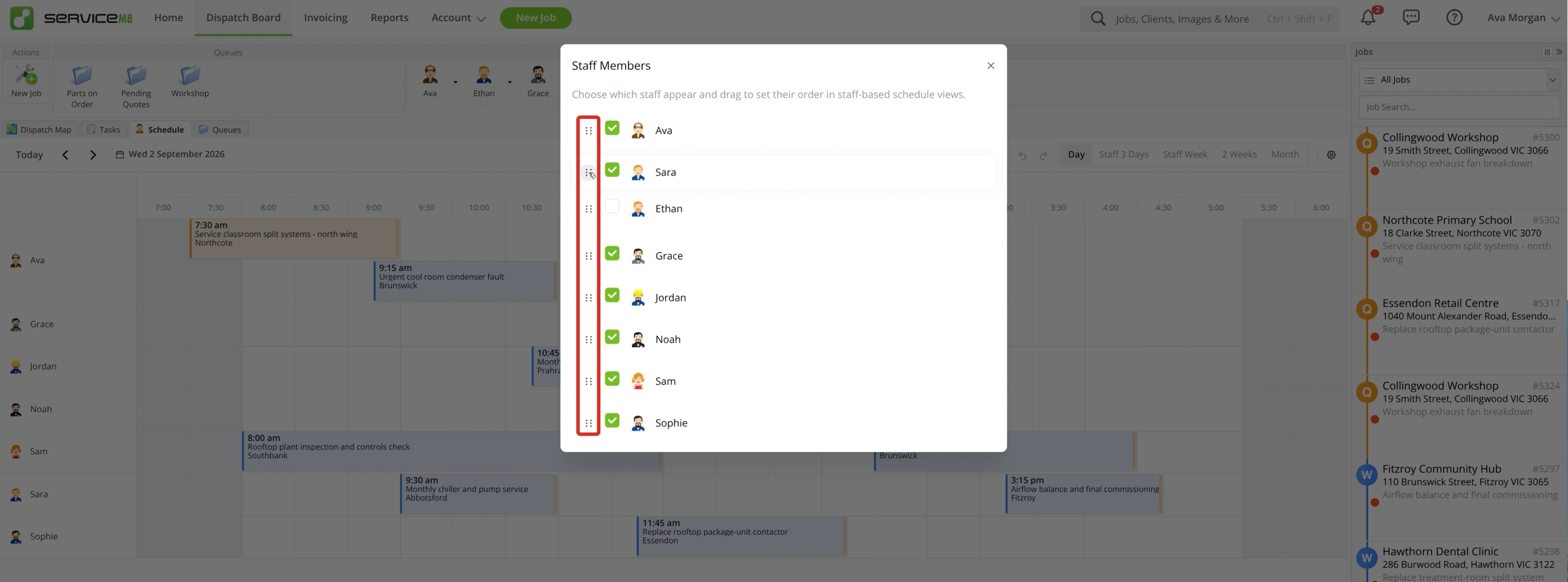
For more Schedule options, see Using the Staff Schedule in the Online Dashboard.
In the Staff Schedules tab
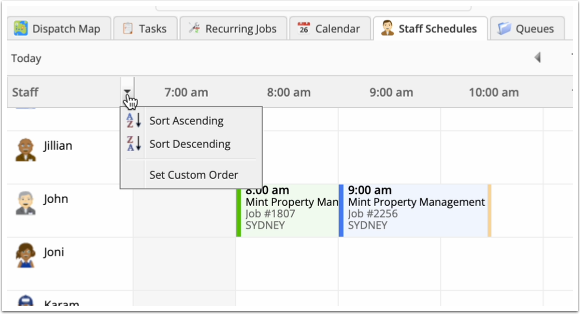
If ServiceM8 Launch 2026 isn’t activated, your Dispatch Board shows the Staff Schedules tab instead of Schedule. Click the drop-down at the top of the Staff column, then ‘Set Custom Order’.
Click and hold the grab bar next to a staff member, and drag up or down to reorder. Once done, click ‘Save’ to update the order of staff members in both the top container & Staff Schedules tab.
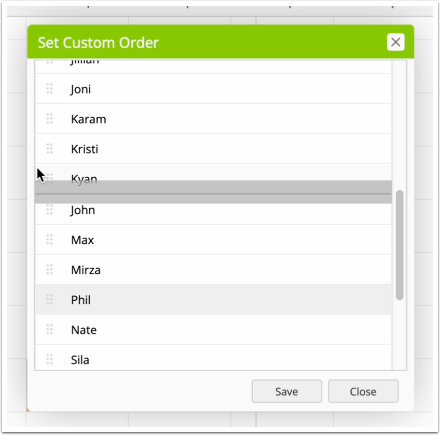
Note that this custom order is saved per user, so everyone in the business can customise the order in which staff show, to suit their role and preferences.