

Accounting integrations
How invoicing works with a non-integrated accounting package
Learn about how invoicing works with a non-integrated accounting package in ServiceM8.
If you won’t be connecting your ServiceM8 account with a supported accounting package, this article will explain how you can still use ServiceM8’s Invoicing tab in either the app or Online Dashboard to track invoices and develop a workflow around manually transferring them to a separate system.
This article will show the Invoicing view of the Online Dashboard, however the same process can be achieved through the ServiceM8 app by navigating to More > Invoicing.
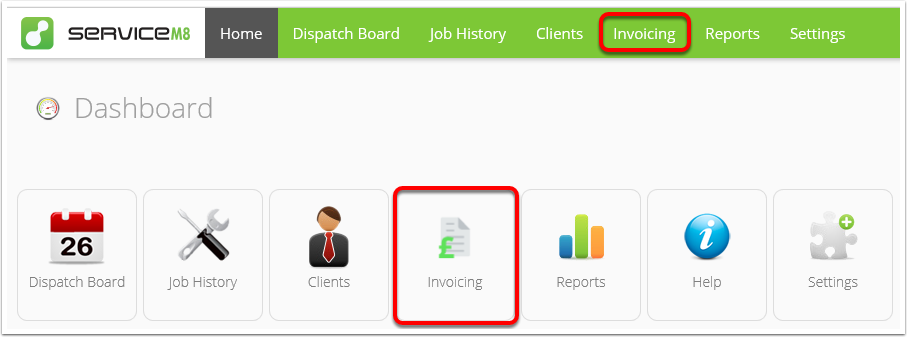
Go to the Invoicing view of the Online Dashboard
Awaiting Approval
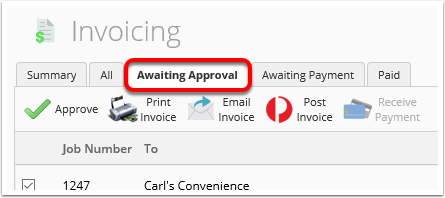
Once a job’s Job Status has been updated to ‘Completed’ in either the ServiceM8 app or Online Dashboard, it will appear in the Awaiting Approval tab of the Invoicing page, regardless of its payment status.
When you have not connected ServiceM8 to a supported accounting package, how you use the Awaiting Approval tab and the action of “Approving” individual invoices is up to your preferences and your business’s invoicing workflows.
For example, you could:
- Use the Check Out wizard on-site to update the Job Status to ‘Completed’, accept payment (if possible), generate the invoice, and issue it to the client via email or text (this is the recommended workflow for best efficiency & cash flow). As the job has been updated to ‘Completed’, it will now appear in the Invoicing view of the app or Online Dashboard; then
- You can create a workflow to “Approve” each individual invoice in the Awaiting Approval tab at the point you manually transfer the invoice details to a separate system or non-integrated accounting package.
Alternatively, if invoicing on site doesn’t suit your business:
- Your staff could add all billable items and details to the job, then update the Job Status to ‘Completed’. As the job has been updated to ‘Completed’, it will now appear in the Invoicing view of the app or Online Dashboard; then
- You can create a workflow around reviewing jobs in the Awaiting Approval tab, checking what’s being charged, generating the invoice, and issuing it to the client via email (this can all be done in the Invoicing view); then
- “Approve” each individual invoice in the Awaiting Approval tab at the point you have issued the invoice to the client AND manually transferred the invoice details to a separate system or non-integrated accounting package.
Or, you could use a mix of the above.
Some other important notes & tips:
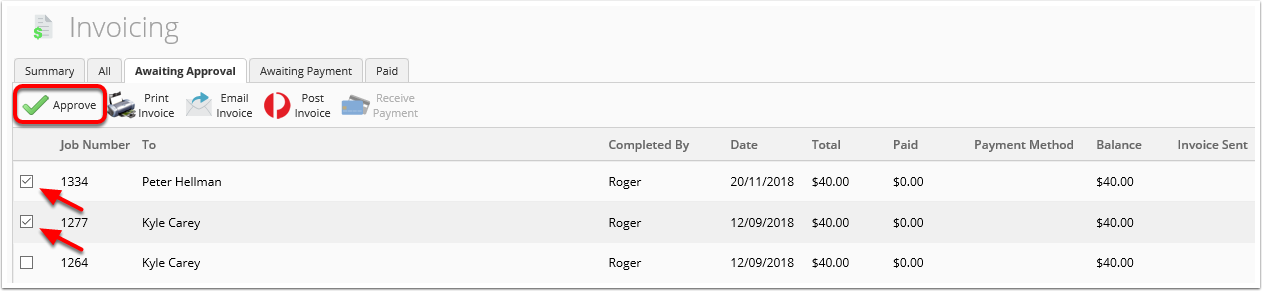
- To approve a job, check the tickbox next to the relevant job and click Approve.
- You can approve as many jobs at once as needed.
- You can open a job’s Job Card by double-clicking the relevant line item (e.g. if you want to check the billable items & Work Completed listed against the job).
- Once you Approve a job, depending on whether it has been paid, it will move to the ‘Awaiting Payment’ or ‘Paid’ tab.
- The only information you should need to transfer into a non-integrated accounting package is the invoice total and the customer, as you will still be able to invoice out of ServiceM8 with a fully itemised invoice.
Note that this information is only relevant when you haven’t connected ServiceM8 to a Xero, MYOB, or QuickBooks Online account. The act of “Approving” an invoice has different consequences when an accounting package is connected — more information here.
Awaiting Payment

Jobs in Awaiting Payment have been Approved but still have a balance due, including where there has only been a partial payment. Jobs will remain here until full payment has been received.
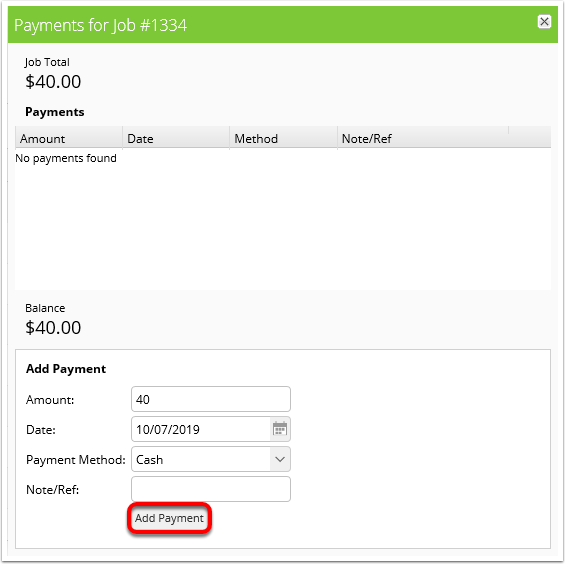
To record a payment check the tickbox next to the relevant job and clickReceive Payment. Alternatively, you can enter details of payments in the job card directly. Once the balance has been recorded as paid in full the job will move to the Paid tab.

Paid

This tab lists all jobs that have recently been paid in full. Jobs remain here for two weeks, after which they are automatically archived. Archived jobs can still be found via Global Search or in the Job History view online, or through the search field of the Jobs tab in the ServiceM8 app.