

Quotes and invoicing
How to manage Materials and Bundles in the app
Search and update your Materials catalogue, and create, edit or copy Bundles from the ServiceM8 app.
Manage your saved Materials and Bundles from the ServiceM8 app. To use them on a Job card, see How to add labour & materials to a job.
Before you start
- Activate the Bundles add-on if you want to manage Bundles.
- If you can’t see Materials, make sure you have the latest version of the ServiceM8 app.
Your security role controls access to the catalogue, creating items and viewing prices or purchase costs.
Open Materials
Tap More, then Materials.
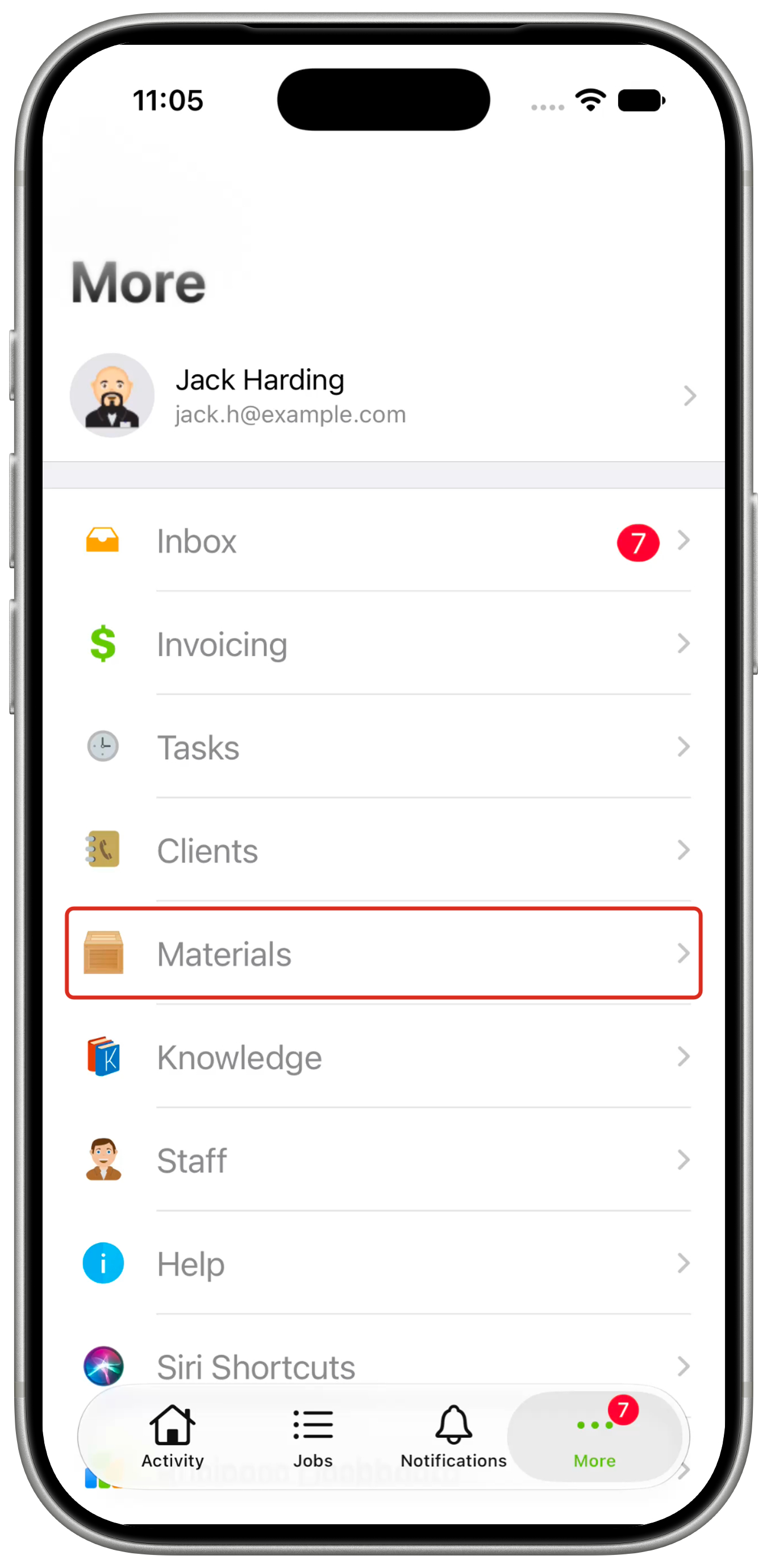
On iPad, tap Materials in the sidebar. Then follow the same steps below.
Find or update a Material
-
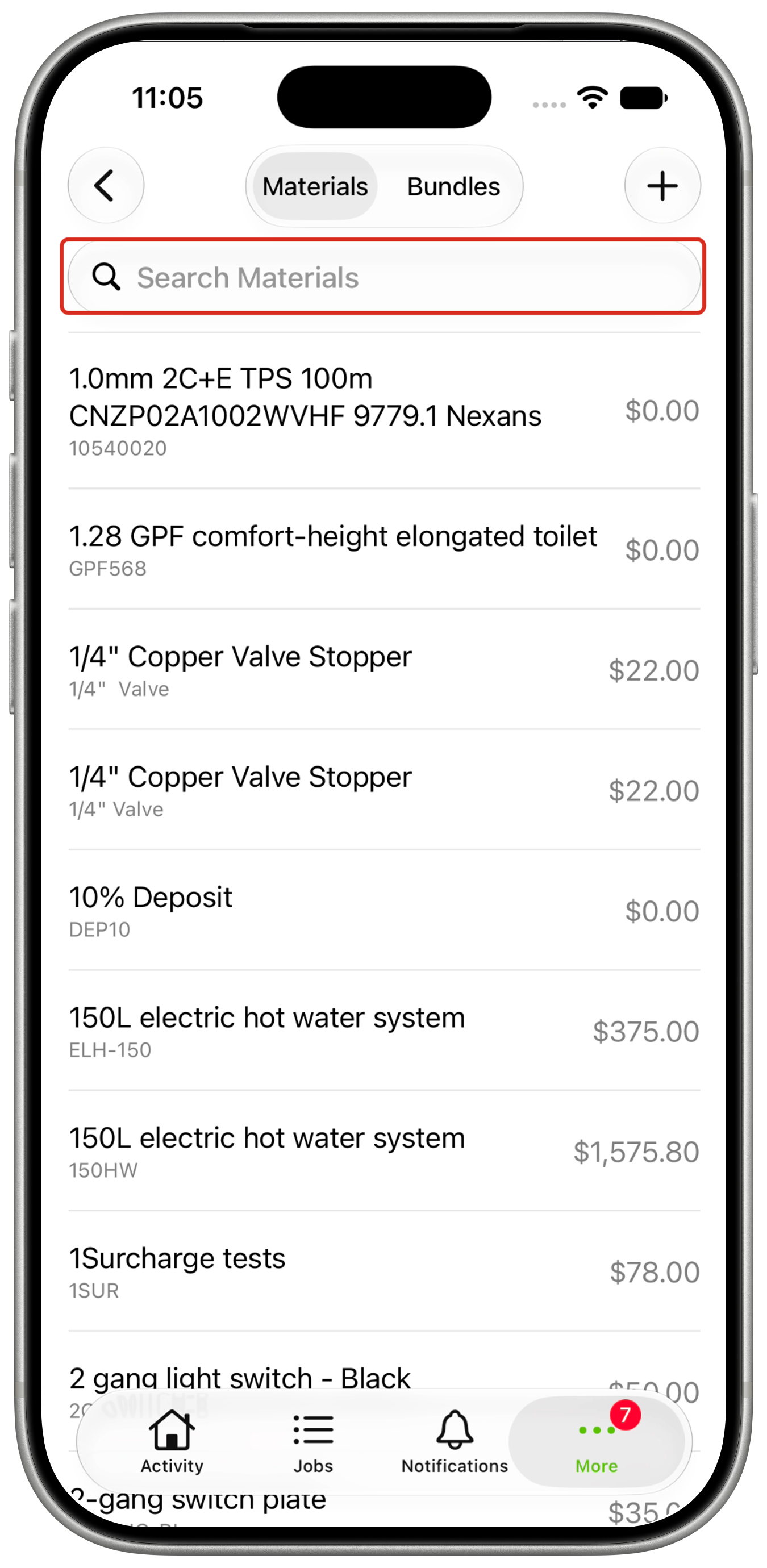
Select Materials at the top of the catalogue.
-
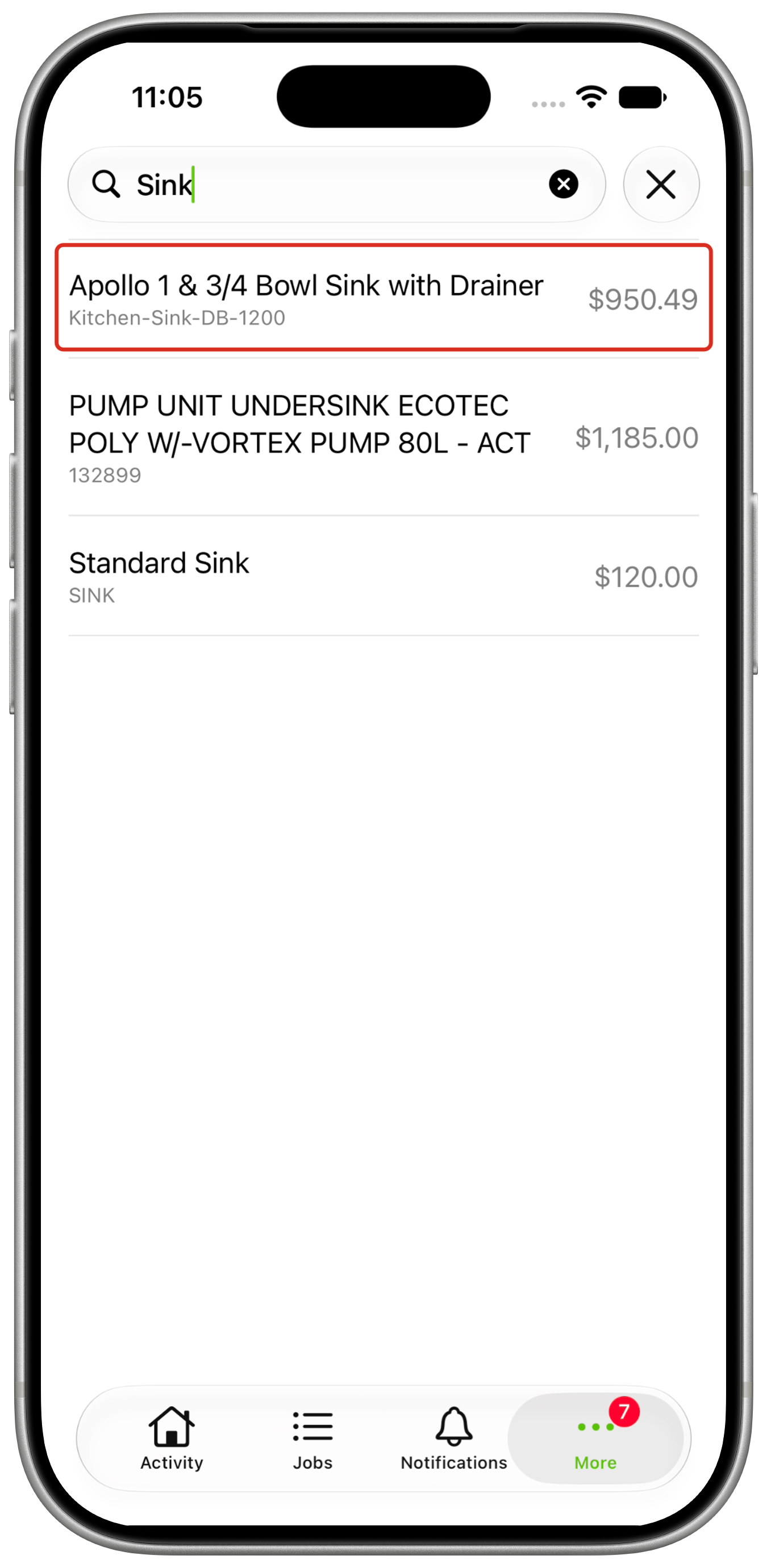
Search by name or item number, then tap the Material you want to update. Prices appear beside the results when your role allows you to see them.
-
Update the Item Number, Name and any relevant pricing fields. Enter a Barcode, or tap Scan Barcode when available. Tap Save.
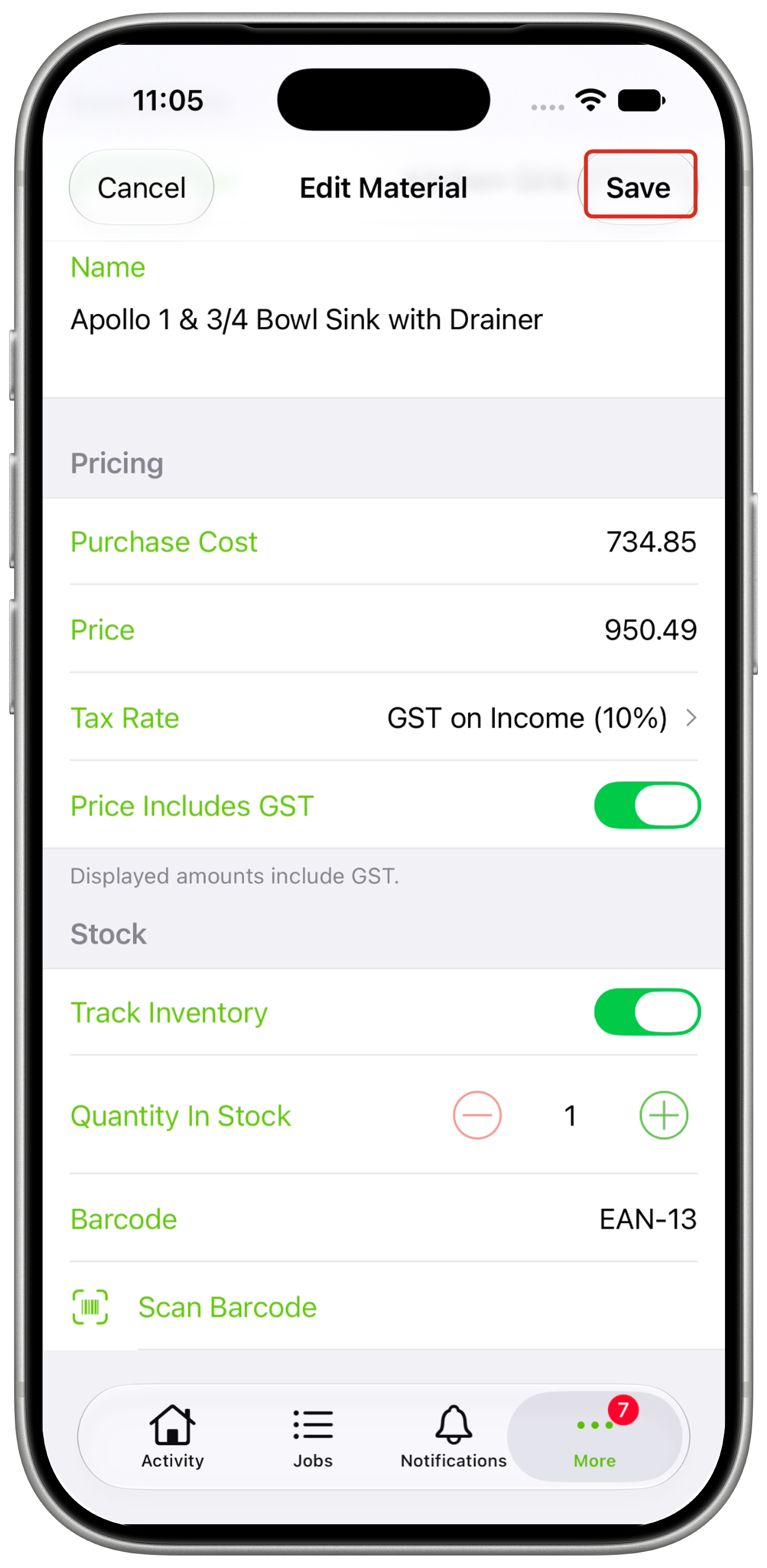
If you track stock through your accounting package, manage stock levels there. See How to view Stock Levels in the App & Online.
If a Material uses a Pricing Strategy, the strategy calculates its Price. You can update Purchase Cost when your role allows it. Manage the strategy in the Online Dashboard; see How to use Material Pricing Strategies.
Create a Material
- In the catalogue, tap +, then Add Material. If Bundles is not activated, + opens the Material editor directly.
- Enter a Name and an Item Number if your account requires one. Complete the relevant pricing fields described above.
- Tap Save to add the Material to your catalogue.
Create or edit a Bundle
-
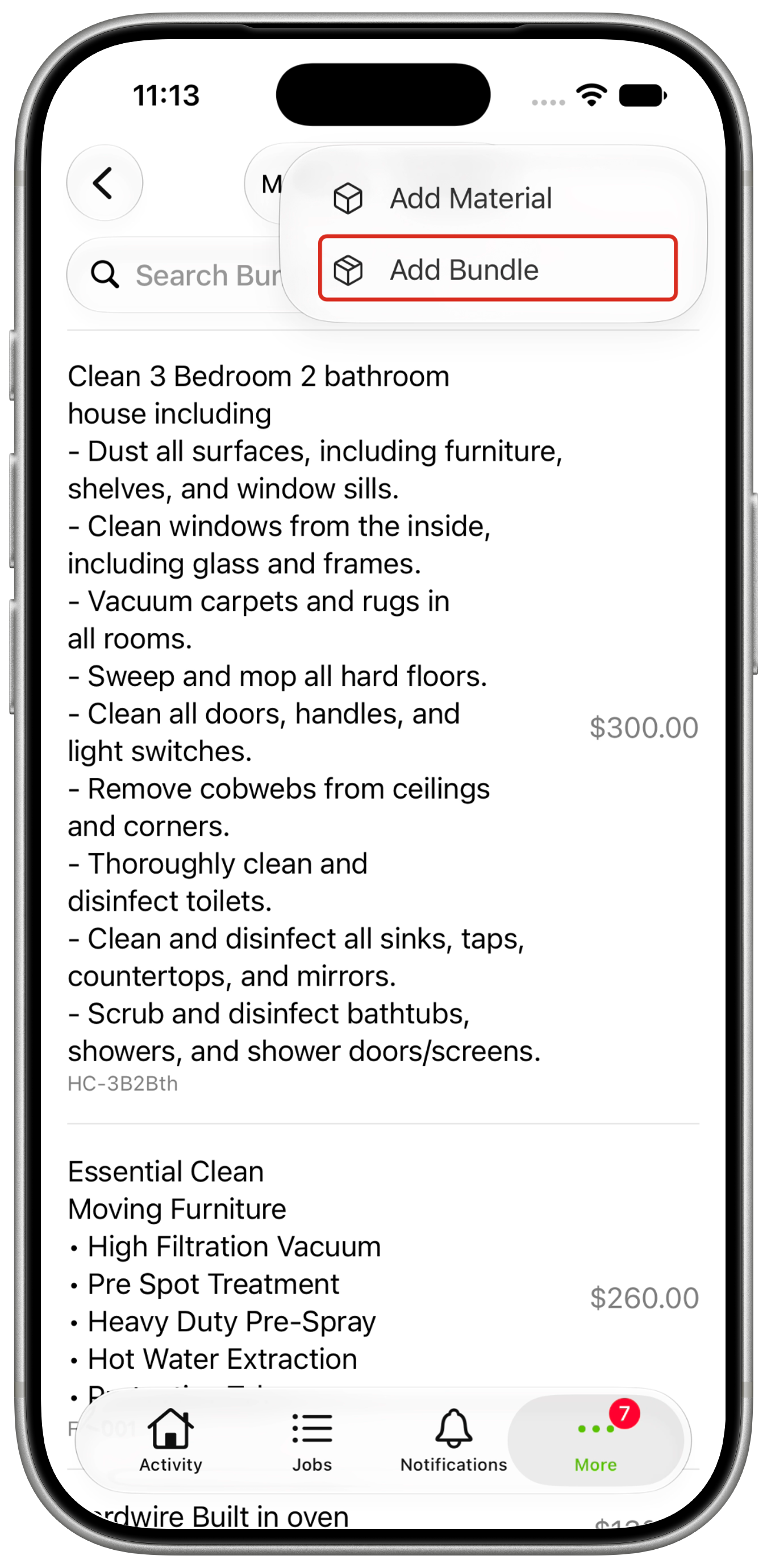
Select Bundles, then tap + > Add Bundle. To edit a saved Bundle, search for it and tap its name instead.
-
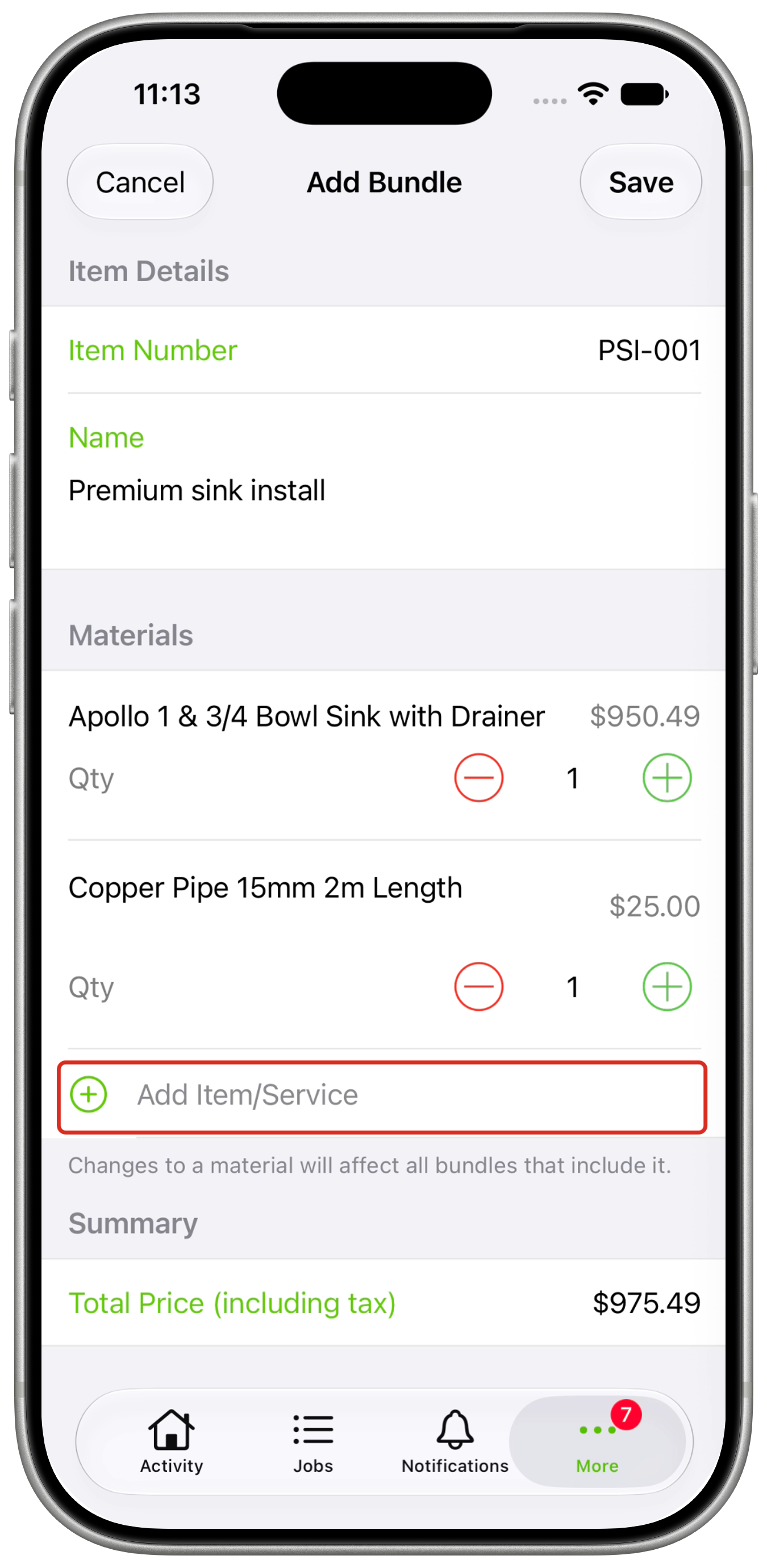
Enter the Bundle’s Name and an Item Number if required.
-
Tap Add Item/Service, then select a Material. Repeat for each component and enter its Qty, or use the − and + buttons. The Total Price updates as you change the components and quantities.
-
To remove a component, swipe its row to the left and delete it. To reorder components, touch and hold a row, then drag it into position.
-
Tap Save.
Tap a component’s name to edit the underlying Material. Saving changes to that Material also affects other Bundles containing it. Adjusting a component’s Qty changes that Bundle’s quantity.
Copy a Bundle
- Open a saved Bundle from the Bundles catalogue.
- Scroll down and tap Make a Copy. The copy opens for editing.
- Update its Item Number, Name or components as needed, then tap Save.