

General FAQ
How to create and use Checklists
Learn how to create and use Checklists in ServiceM8.
Checklists are an easy, effective way to clearly communicate the scope and requirements of a job to field staff, improving quality and consistency from start to finish.
Using the Online Dashboard or the ServiceM8 app, you can add one or more checklists of required tasks to the job card, assigning staff members and setting reminders as needed.
Field staff members can then mark each task as complete in the app as they methodically work through the list, ensuring no requirement is overlooked. The staff member who completed the checklist item, and the time at which it was completed, will be automatically recorded in the job’s Diary.
TIP: To automatically include checklists in your most common jobs and services, preset them in your Job Templates.
This article covers:
- How to create and manage Checklists in the Online Dashboard
- How to add a photo requirement to a checklist
- How to add a Form requirement to a checklist
- How to add an Asset Management-related requirement to a checklist
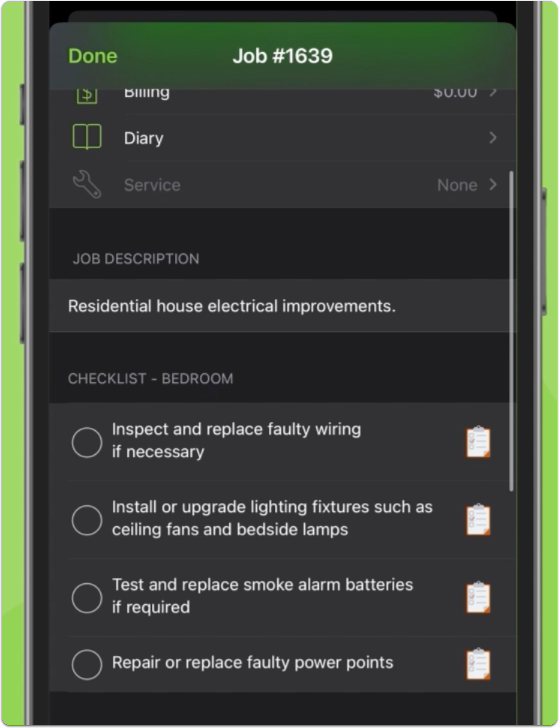
- How to create and manage Checklists in the ServiceM8 app

How to create and manage Checklists in the Online Dashboard
This section explores how to create a new checklist, set task assignments and reminders, create multiple checklists, copy and paste checklists between jobs, and remove checklists or checklist items from the Online Dashboard.
Creating a new checklist
- From the Details tab of an open job card, under Checklist, click New Item.
- Enter the first item. Each item will appear as a separate checklist item in the job card.
- To add another item, either hit your Return/Enter key, or click New Item.


Setting task assignments and reminders
You can assign specific checklist items to individual staff members, who will receive a notification and see the items in their Tasks menu (More > Tasks), My Tasks list and the For My Review jobs list in the app. You can also set reminders for specific checklist items, either to a specific person or to whoever checks into the job.
To set task assignments:
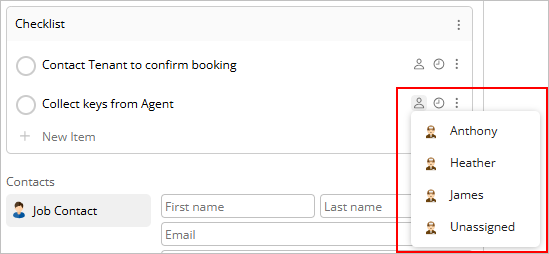
- As you type a task, hover and click the Assignee button.


- Select the appropriate staff member.

The assigned staff member will now appear below the task in the checklist.
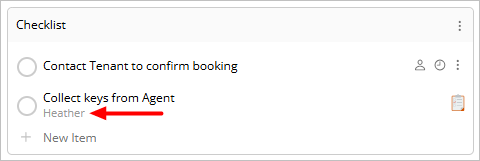

TIP: To remove the staff member assignment, hover and click Assignee again and select Unassigned.
To set task reminders:
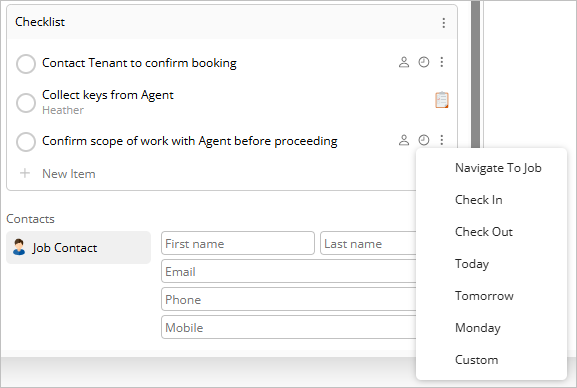
- As you type a task, hover and click the Reminder button.


- Select the desired reminder type. The types of reminder are:
- Navigate to Job: Reminder appears when technician checks into the job. Useful for tasks that should be done on the way to the site, but before arrival.
- Check In: Reminder appears when technician checks into the job. Useful for tasks that should be done before work begins.
- Check Out: Reminder appears when technical checks out of the job. Useful for tasks that should be done after the job’s done, but before leaving.
- Today: Reminder appears 1 hour before end of business day.
- Tomorrow: Reminder appears 1 hour after the start of the next business day.
- Monday: Reminder appears at the start of the next Monday.
- Custom: Set a specific date and time.

NOTE: Staff assignments and reminders are not dependent upon each other. You can assign a task to a staff member without a reminder, and you can set a reminder without assigning it to a specific staff member (in which case, it will appear to whomever checks into the job).
Creating multiple checklists
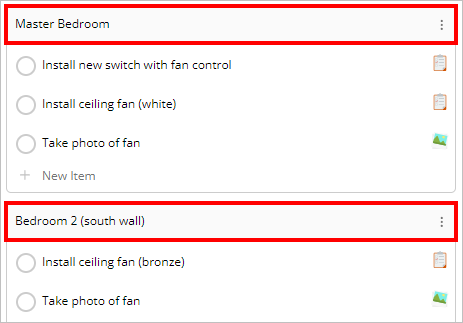
If you want to divide a job’s requirements by category, such as by room, stage, or staff member, you can create multiple checklists per job card. To create another checklist:
- On the right of the checklist beneath which you want to add a new checklist, click ⋮ .
- Click New Checklist.
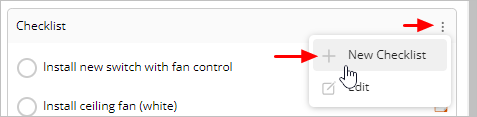

- A new checklist section will appear below. To rename each of your checklists, click and select the checklist name, and enter the new name.

Copying and pasting checklist items
You can copy a checklist from one job to another, and you can also create checklist tasks by pasting one or more rows of text from a document (such as a procedure in Word or PDF) right into a checklist.
To copy a checklist from one job to another:
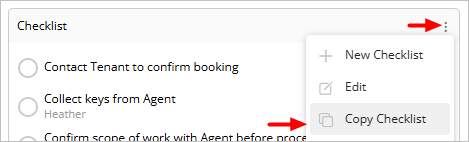
- Open the job card with the original checklist to be copied and, to the right of the checklist, click ⋮.
- Click Copy Checklist. The checklist will be copied to your virtual clipboard.

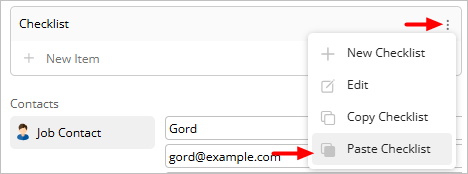
- Open the target job card and, to the right of the checklist, click ⋮.
- Click Paste Checklist. The checklist will appear as a new checklist.

To paste one or more rows of text from a document to a checklist:
- Copy the text from your original document.
- Open the job card and in the checklist, right-click on + New Item.
- Click Paste.
Note: When copying multiple rows of text at once, each row must begin with a hyphen (-) to register as a new checklist item. If you are copying from a file that can’t be edited (e.g. PDF), just paste the text at the bottom of the Job Description field first, add the - in front of each line, then cut and paste the modified text into the +New Item checklist field.

Deleting checklists and checklist items
To delete an entire checklist:
- On the right of the checklist you want to remove, click ⋮ .
- Click Edit.
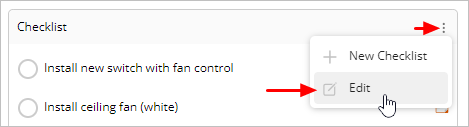

- Click Remove.
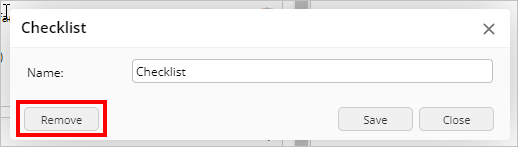

To edit a checklist item:
- Click into text field of the task, or hover over the task and click ⋮
To remove an item from a checklist:
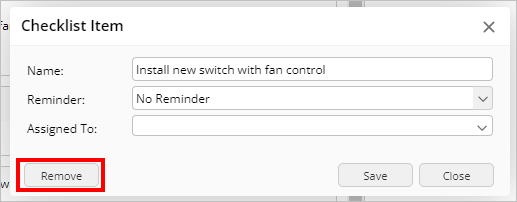
- Hover over the task and click ⋮ .
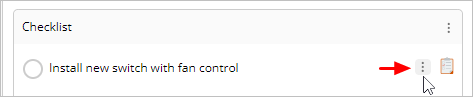

- Click Remove.

How to add a photo requirement to a checklist
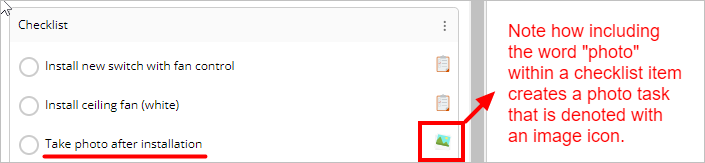
If you create a checklist item that has the word “photo” in it, ServiceM8 creates a photo task. When the field technician taps the checklist item within the ServiceM8 app, the camera will open automatically. Taking the photo will automatically mark the task as completed and save the photo to the Diary.

How to add a Form requirement to a checklist
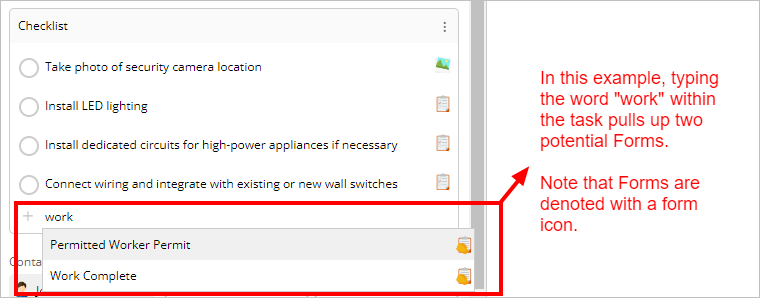
If you use the Forms Add-on to complete various reports, inspections and/or certificates digitally on site, you can set the completion of a specific Form as a checklist requirement.
To add a Form, search the name of the Form when creating your checklist tasks, and click the desired Form.

How to add an Asset Management-related requirement to a checklist
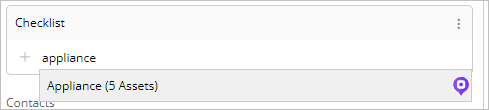
If you use the Asset Management Add-on to catalogue and manage client assets, equipment, installations, or appliances, you can set the inspection or servicing of Assets as a checklist requirement. You can add tasks related to individual Assets, or tasks related to all Assets of a specific type on site (for example, Fire Extinguishers, Appliances, Solar Panels, Smoke Alarms, etc.).
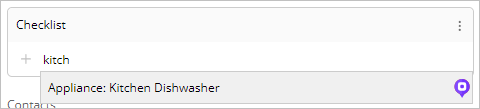
Note that all checklist tasks related to Assets are denoted by the Asset icon.
To add the inspection or service of an individual Asset:
- Search the name of the Asset when creating your checklist tasks, and click the desired Asset.

To add the inspection or service of all Assets of a specific type:
- Search the Asset type when creating your checklist tasks, and click the desired type.

How to create and manage Checklists in the ServiceM8 app
Note: You can create, edit and delete checklist items, manage multiple checklist sections, and set assignments and reminders in the ServiceM8 iOS and Android apps, subject to your account’s checklist permissions.
This section explores how to create a new checklist, set task assignments and reminders, create multiple checklists, and delete checklists and checklist items using the ServiceM8 app.
Creating a new checklist in the app
NOTE: Before creating a new checklist in a job card on the app, the job card must be saved.
To create a new checklist:
- From the job card, under Checklist, tap New Item.
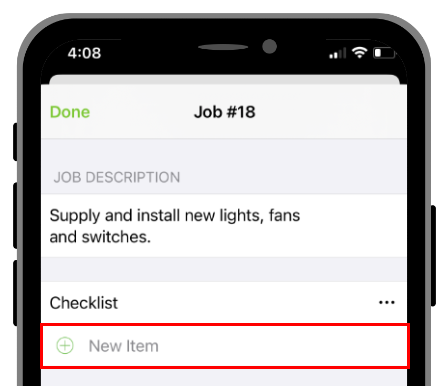

- In the Checklist name field, enter the checklist task.
- Tap Done.
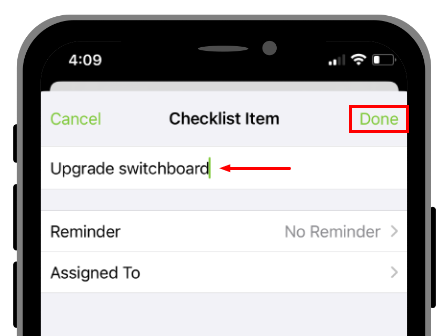

- To add another item, tap New Item. Each item will appear as a separate checklist item in the job card.
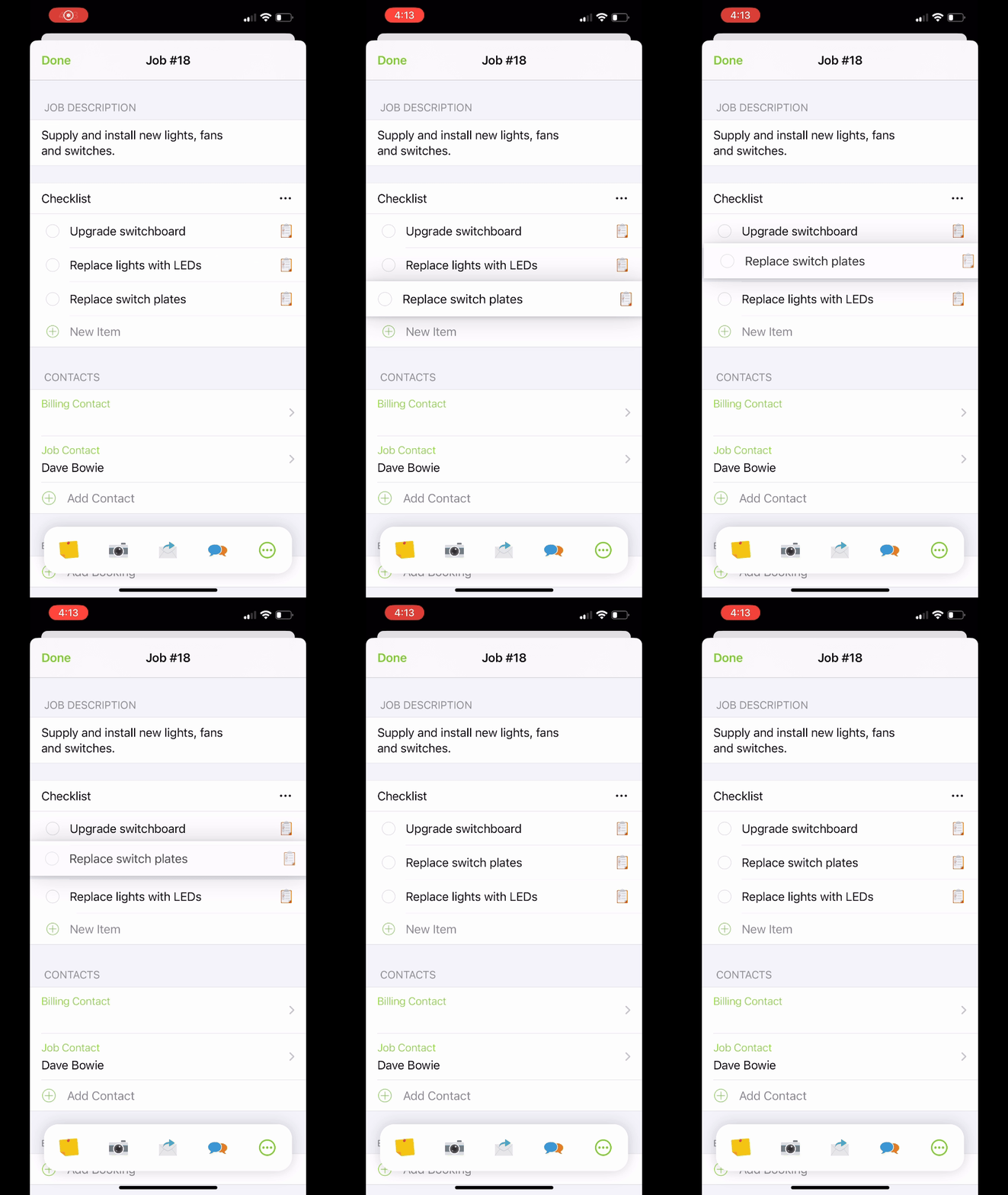
TIP: To change the order of your checklist items, hold down an item, then drag and drop it to the desired position within the checklist.

Setting task assignments and reminders in the app
When creating a new checklist item, you have the option of adding a task reminder or assigning a staff member, or both. (See Setting task assignments and reminders for more information.)
Tap on the Reminder or Assigned To field to open and tap your selection, then tap Done.
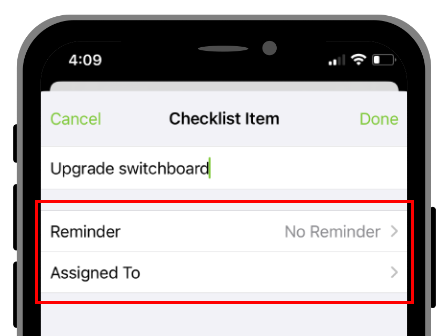

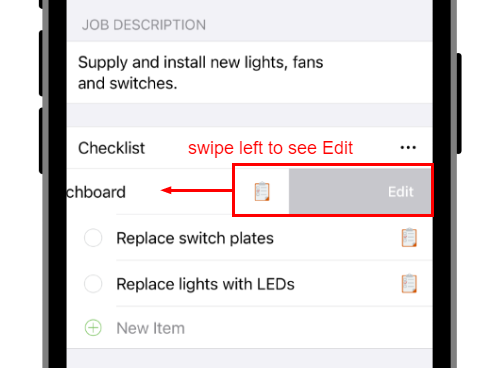
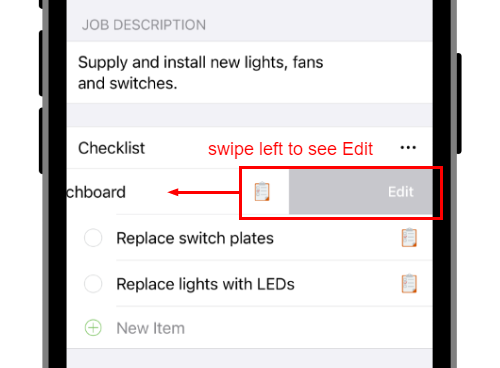
If you want to add a reminder or assignee from an existing checklist item, swipe left on the task and tap Edit.

Creating multiple checklists on the app
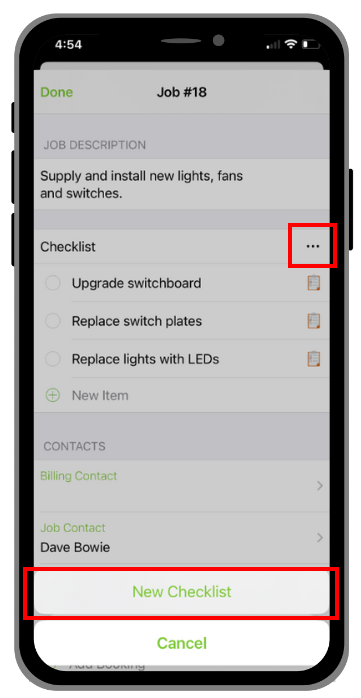
- On the right of the checklist beneath which you want to add a new checklist, tap ⋯ .
- Tap New Checklist.

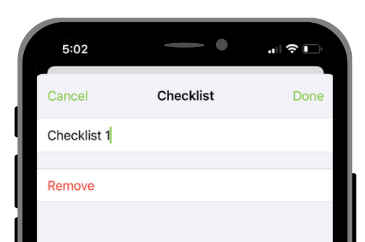
- To rename the Checklist, tap its name.
- Enter the new name and tap Done.

TIP: As with individual checklist items, you can drag and drop complete checklists in the order you’d like.
Deleting checklists or checklist items from the app
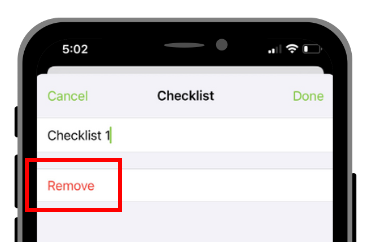
To delete an entire checklist:
- Tap the checklist name.
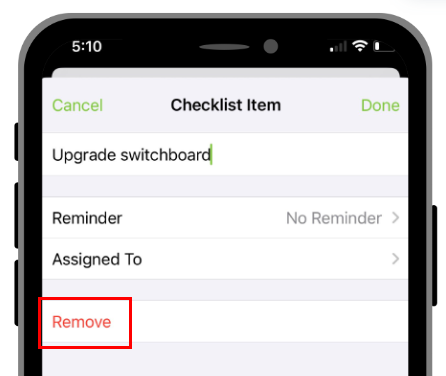
- Tap Remove.

To delete an item from a checklist:
- Swipe left on the item and tap Edit.

- Tap Remove.
Task Visibility in the App
In the ServiceM8 mobile app, the ability to see individual tasks within a Checklist is based on:
- Whether the Task has been assigned to someone;
- If it has been assigned, who the Task is assigned to (i.e. yourself, or someone else); and
- What your Security Role is.
Here is the visibility each default Security Role has over individual Tasks, in the ServiceM8 app:
- Business Owners = All Tasks
- Finance = All Tasks
- Staff = My Tasks & Unassigned Tasks
- Staff (No Pricing) = My Tasks & Unassigned Tasks
- Staff (No Material Creation) = My Tasks & Unassigned Tasks
- Contractor = My Tasks
- Strict Contractor = My Tasks
If this does not suit your needs, you can use a Custom Security Role — when modifying the Custom Security Role, go to Mobile Access, where you can set “Allow access to the following Tasks” to:
- All Tasks;
- My Tasks & Unassigned Tasks; or
- My Tasks