

Photos, notes and attachments
How to scan paper documents using the app
Learn how to scan paper documents using the app in ServiceM8.
Document Scanner is a job action in the ServiceM8 App that you can use to scan paper documents with your device’s camera. ServiceM8 will auto-detect and scan the document, and once saved, attach it as a .pdf file in the Job Diary as a Document.
Document scanning is available on Android, iPhone and iPad.
Scan a document on iPhone or iPad
The screenshots and scanner controls below show the iPhone and iPad workflow.
-
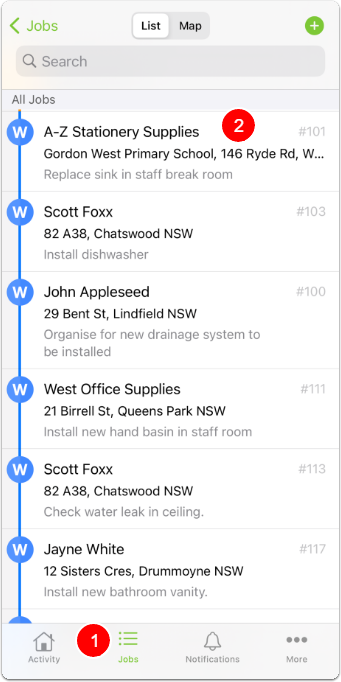
Tap Jobs.
-
Find and tap the job card related to the document(s) to be scanned.

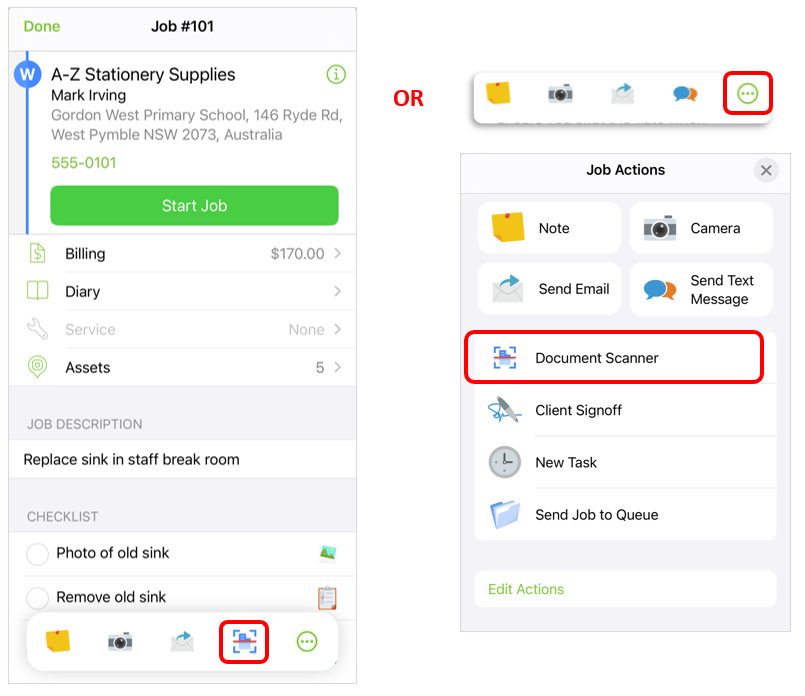
- From the Job Actions bar, depending on how you have ordered your favourite job actions, tap Document Scanner or More (…) > Document Scanner. (If you do not have Document Scanner set up as a favourite job action, see this article.)

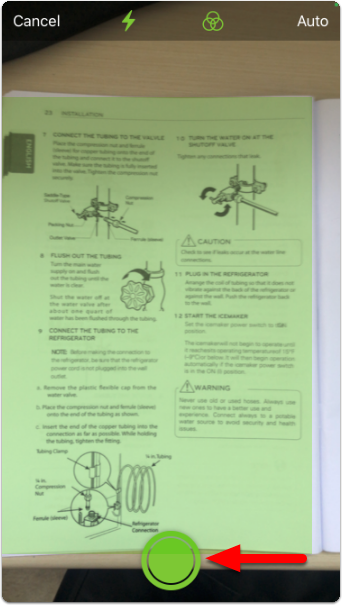
- Hover your camera over the document until it turns green, indicating the area to be scanned. Tap the green button.
TIP: A document scans easily if it stands out from its environment. Try placing the page on a bare surface (such as a floor or a clear counter), then scan.

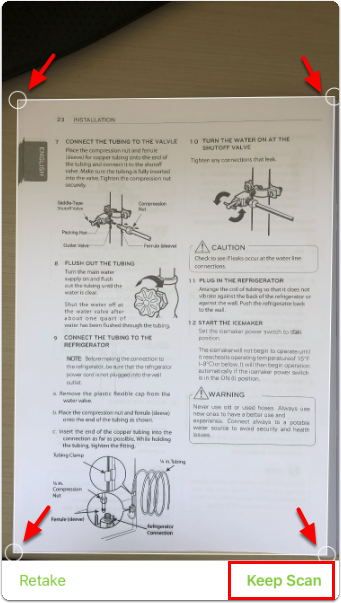
- If needed, adjust the corners by dragging the handles until the entire document is captured. When you are satisfied, tap Keep Scan. (To scan again, tap Retake.)

- You will see the scan preview in the bottom left. Either scan another page in the document, or click Save to finish scanning.
TIP: More than one document can be scanned at once. Progressively capture numerous documents, then tap the preview window in the bottom-left of the screen to review or delete documents.
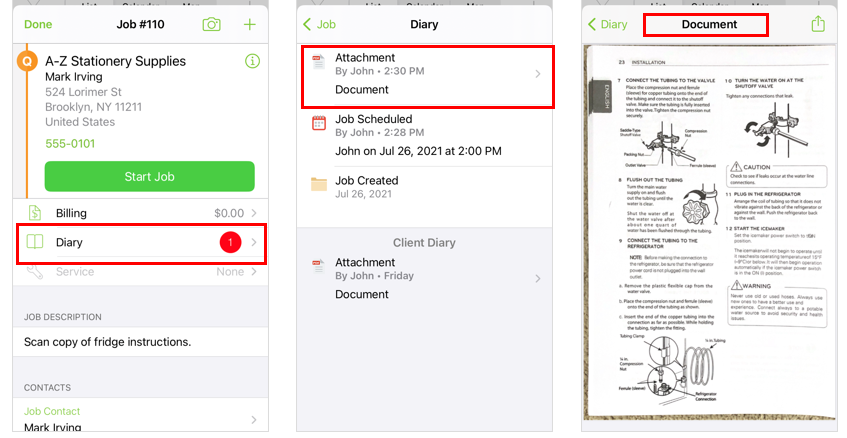
When you return to the job card, you will see a notification under Diary indicating a new job action has been completed. Upon opening the Job Diary, you will see your scanned document saved as a PDF attachment.

TIP: To learn how to delete the document from the job diary, read this article.