

Communication
How SMS Booking Links work
Send available times to your client and control which staff and duration their booking link uses.
Send your client an SMS booking link so they can choose an available time for an existing job. ServiceM8 uses your staff selection, booking duration and schedule to offer suitable times, then schedules the job when your client confirms.
Send a booking link
-
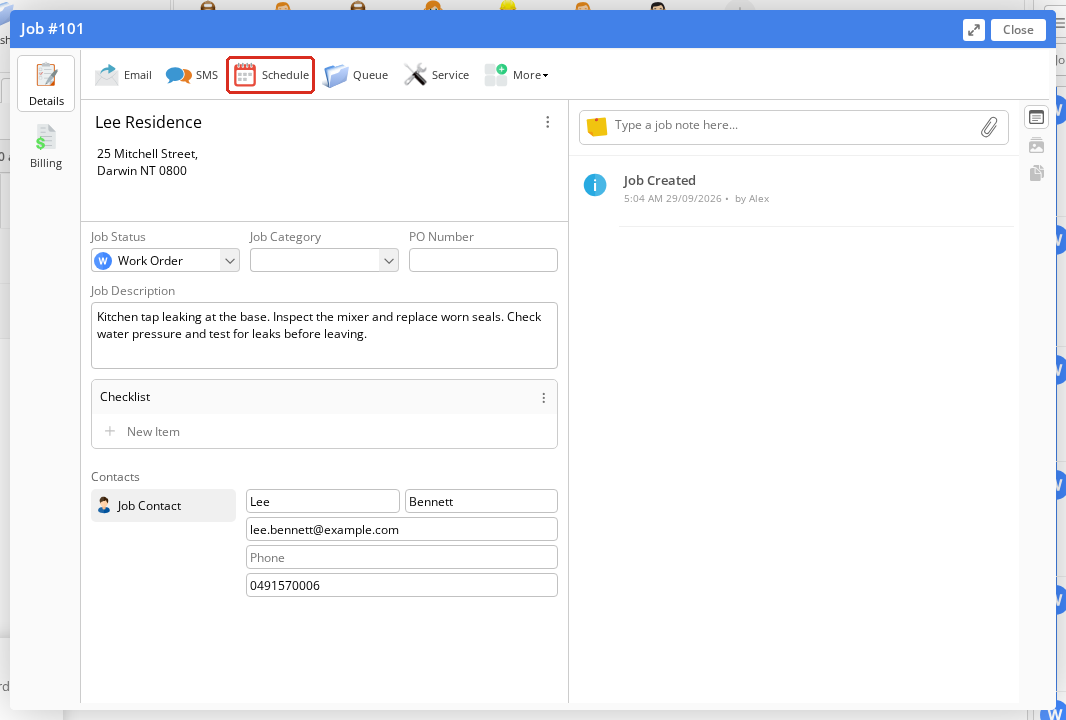
In the Online Dashboard, open the Dispatch Board, open the Job card, then click Schedule.
-
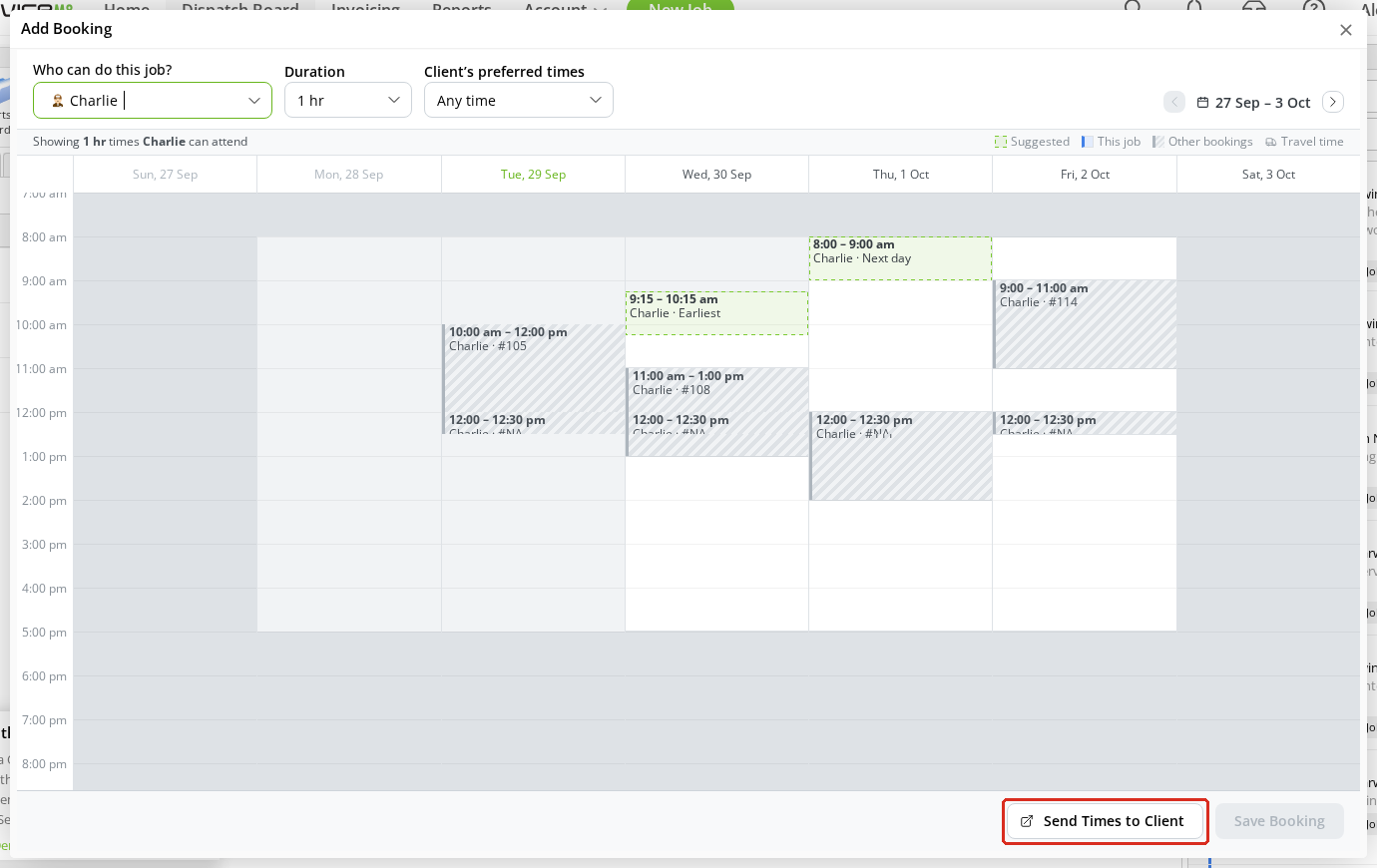
Under Who can do this job?, leave Any staff member selected or choose one person. Set the Duration, and leave Client’s preferred times set to Any time. If a Service sets the duration, the duration is locked.
-
Click Send Times to Client.
-
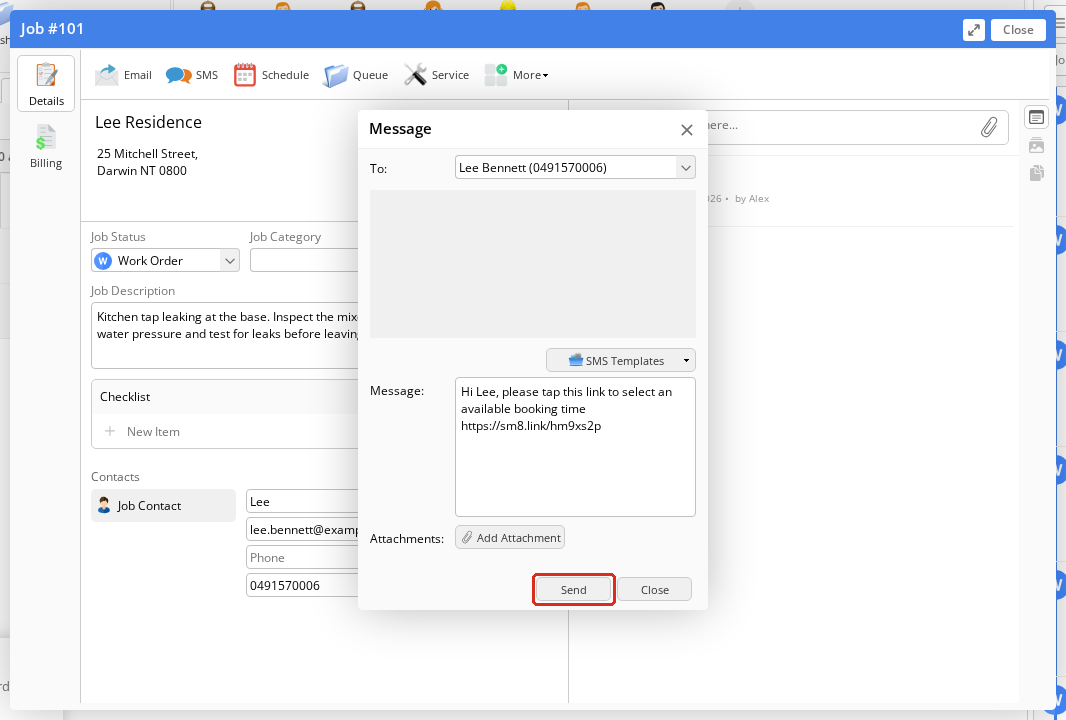
Check the recipient and message, then click Send. Keep the booking link in the message.
Booking links offer a single visit with one attending staff member. To send a link, select Any staff member or one person, choose a single-visit duration, and use Any time for client preferences.
The calendar week you are viewing and any proposed time you click do not restrict the link to those dates or that time.
What your client does
-
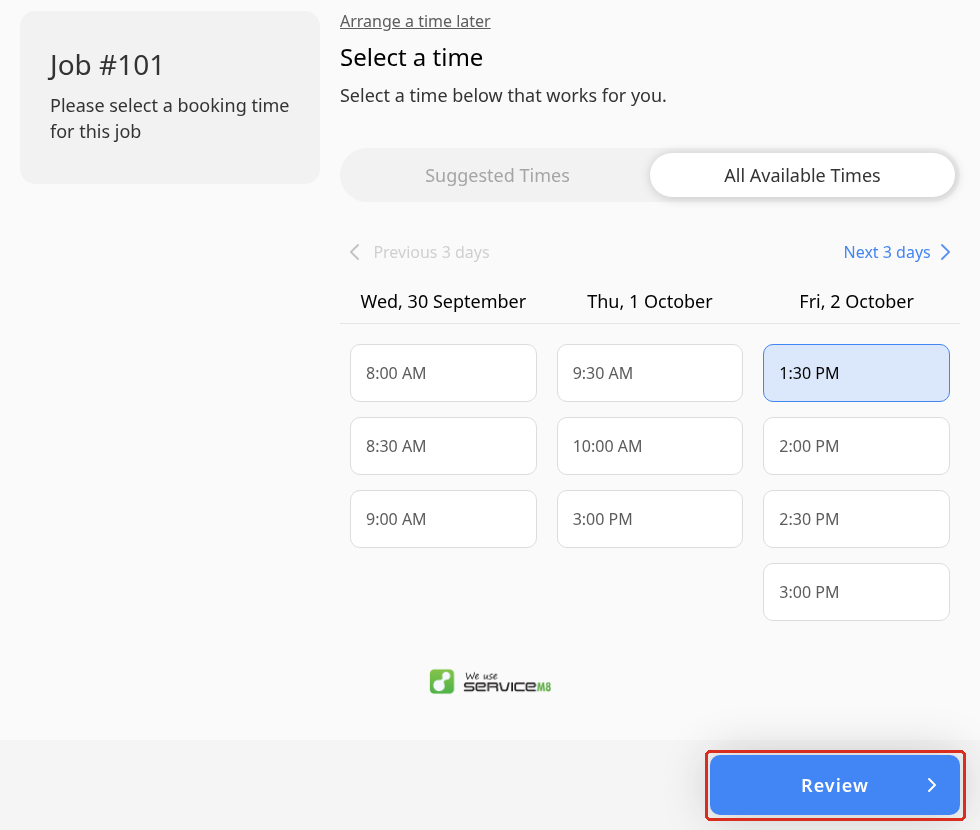
Your client opens the link and chooses a time. They can browse Suggested Times or All Available Times, then click Review.
-
Your client checks the booking and contact details, uses Edit if needed, then clicks Book Service to confirm.
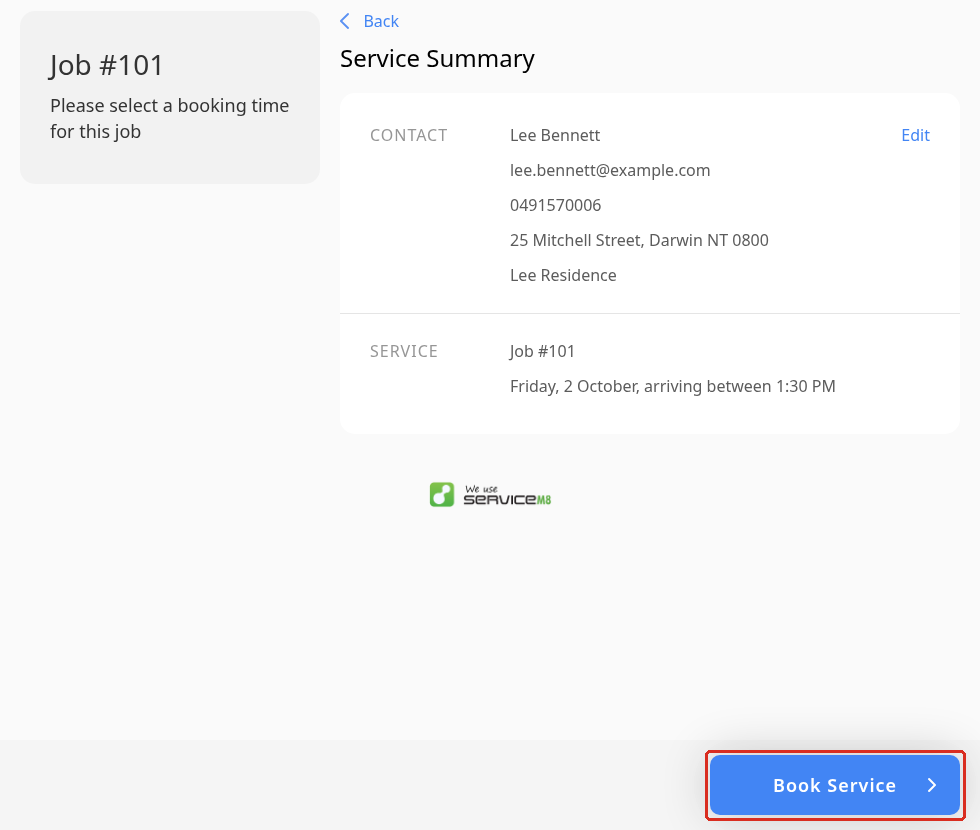
ServiceM8 automatically schedules the job to the staff member assigned to that available time.
Which staff and duration does the link use?
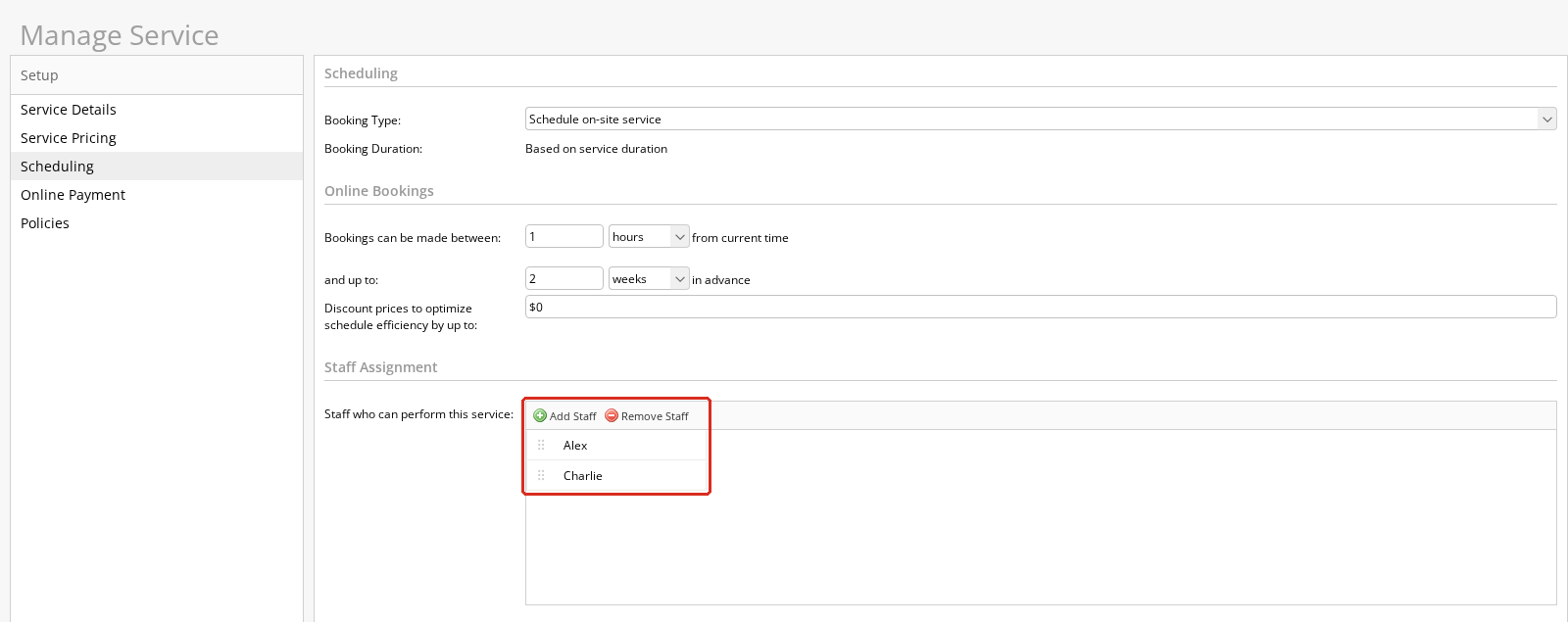
Without a Service applied, Any staff member uses staff shown on your Staff Schedule, excluding Unassigned. With a scheduled Service applied through the Services add-on, it uses the staff listed as capable of performing that Service.
| Job setup | Staff selected before sending | Times your client can choose | Duration |
|---|---|---|---|
| No Service | Any staff member | Times when any one staff member on the schedule can attend. | The duration you select. |
| No Service | One person | Only that person’s available times. | The duration you select. |
| Service with scheduling configured | Any staff member | Times when any one capable staff member can attend. | The Service duration recorded on the job. |
| Service with scheduling configured | One capable person | Only that person’s available times. | The Service duration recorded on the job. |
| Service with scheduling configured | One person not listed as capable | Only that person’s available times. Your explicit selection overrides the Service’s capable-staff list for this link. | The Service duration recorded on the job. |
Each offer needs one available person, not all eligible staff together. Selecting a person does not change the Service’s capable-staff list, and the link will not fall back to another person if your selection is unavailable.
How available times are calculated
ServiceM8 considers working hours, existing bookings and unavailability, along with travel time where required. A gap in the calendar may need to accommodate more than the job’s duration.
- Without a Service: times are offered from tomorrow over the following two weeks, within working hours and staff availability. Same-day times are not offered.
- With a scheduled Service: the Service’s earliest/latest booking limits and free time before and after the booking also apply, even when you select a particular person.
Your account’s Arrival Window setting controls the arrival time or range shown to your client. It is separate from the time needed to complete the job.
Important notes
- Each link is single-use and expires after 14 days.
- Availability is checked when the link is opened. The staff selection and duration are saved when you generate the link. Generate a new link if you need to change either; changing the booking-window controls does not update a link already sent.
- SMS booking links do not show pricing or collect payment, even if the Service has deposit or pre-payment settings. To collect payment as part of scheduling, see Self-serve customer scheduling & deposits with Services.
For direct bookings and the availability calendar, see How to schedule a job from the Job card.