

Photos, notes and attachments
How to import photos and videos from your device
Add existing photos and videos from your device to a Job Diary.
If you need to attach photos or videos to a Job Diary that were not taken from the ServiceM8 app, you can import them from your device’s photo library using the Job Actions bar in the relevant Job Card. The maximum file size is 50MB.
To import photos from your device’s photo library:
-
In the ServiceM8 App, open the job card to which you want to save the photos or videos.
-
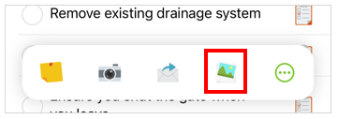
From the Job Actions bar, tap Import Photo/Video (applicable if you have customised it to be a one-tap icon on your Job Actions bar).
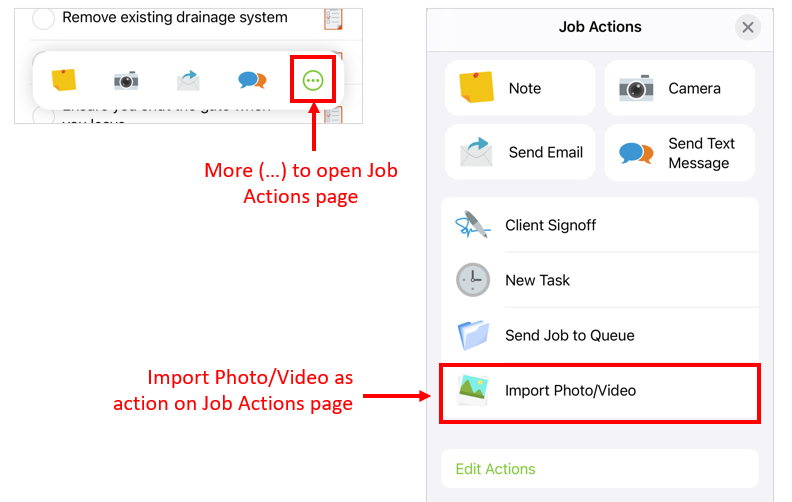
- If Import Photo/Video is not a one-tap icon on the Job Actions bar, tap More (…), then tap Import Photo/Video.
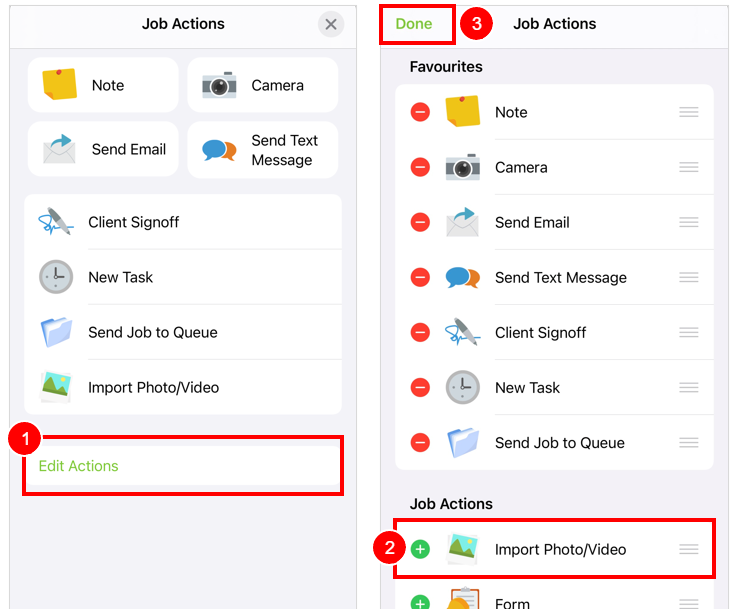
- If you do not see Import Photo/Video as an available action when you tap More (…), tap Edit Actions and add it. See this article for more information.
-
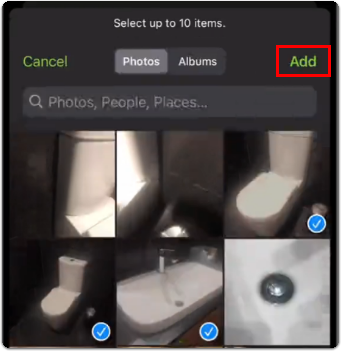
Tap the photos or videos you want to add to the Job Diary. You may select up to 10 items at once.
-
Tap Add.
Your photos will appear in the Job Diary.