Templates
How to add material line bookmarks to custom invoice or quote templates
Learn how to add material line bookmarks to custom invoice or quote templates in ServiceM8.
NOTE: This article only applies to users who are creating their own custom invoice or quote template in Word. If you want to simply change your current template to an existing template that itemises materials (or that doesn’t), please see this article.
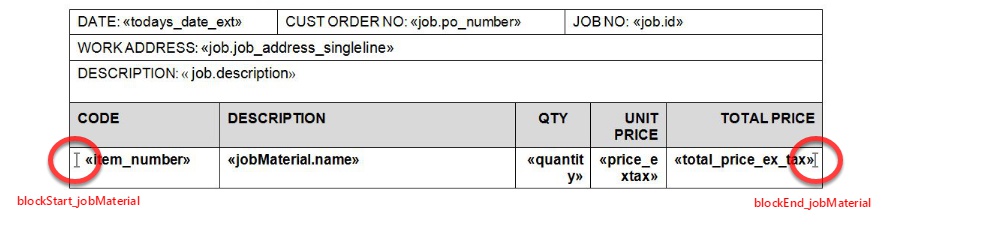
If you are creating your own template in Word and want to display itemised materials, you will need to add bookmarks on both sides of the row designated for materials in your table layout.
Displaying bookmarks in Word
To begin, you will need to display bookmarks in Word. From your opened template file:
- Go to File > Options.
- Click Advanced.
- Scroll down until you see the Show document content section, then tick Show bookmarks.
- Click OK to save the settings and close the window.
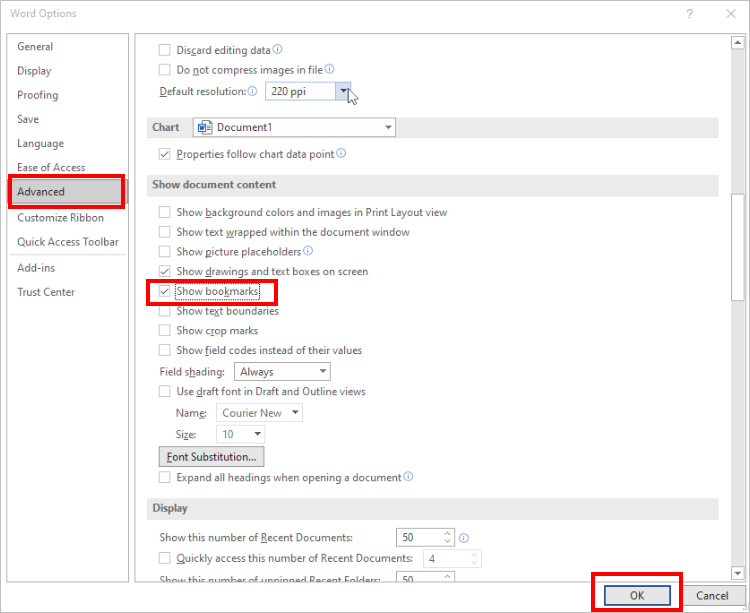

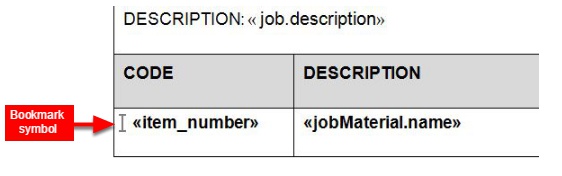
Now when you add bookmarks, which are non-printing characters, they will be displayed within your template as an upper case I.
Adding bookmarks for material lines
Per the best practices noted in Tips for designing your own invoice or quote template, you should always design your template layout within tables in Word. You will need to place your bookmarks on both sides of the table row where the material items will be located. If you do not add bookmarks, the entire row will appear blank.
Use the bookmark names blockStart_jobMaterial and blockEnd_jobMaterial.
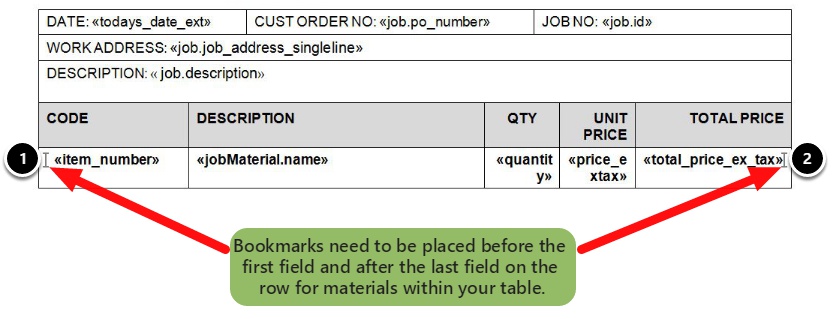

To add bookmarks:
- Place your cursor on the left of the first field of the material line to add the first bookmark.
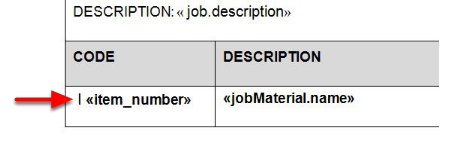

- From your toolbar, click Insert > Bookmark.


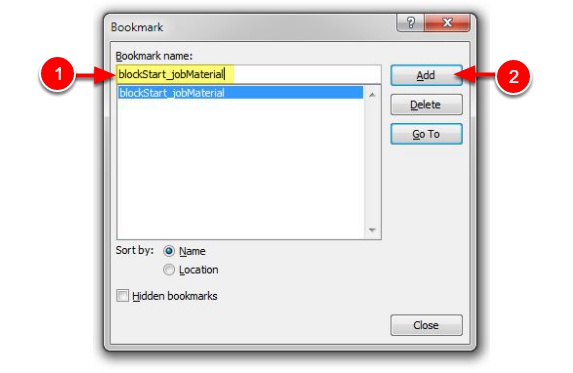
- Enter blockStart_jobMaterial as the Bookmark name. Note that bookmark names are case sensitive and must be exactly as written here.
- Click Add. The Bookmark window will close, and you should now see the bookmark symbol displayed on the left of the material line.

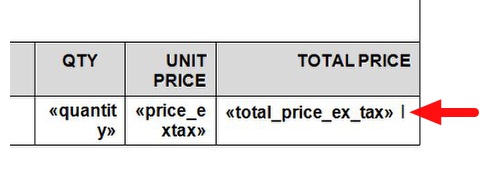
- Place your cursor on the right of the last field of the material line to add the second bookmark.

- From your toolbar, click Insert > Bookmark.
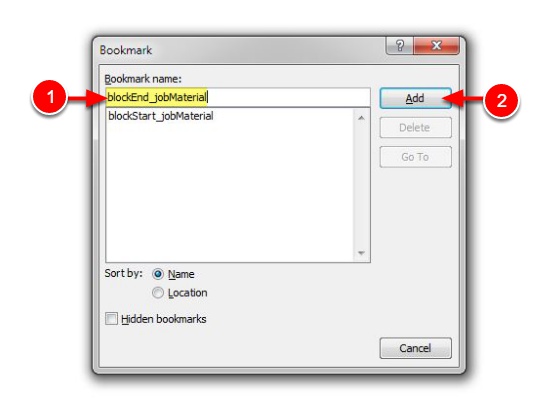
- Enter blockEnd_jobMaterial as the bookmark name. Again, bookmarks are case sensitive and must be exactly as written here.
- Click Add.

You have now added your bookmarks for your material line. You can continue to modify your template, or you can upload it to ServiceM8 to check your changes.