

Dispatch Board
How to use list pages in the Online Dashboard
Search, filter, sort, and manage records in ServiceM8 list pages.
List pages in the Online Dashboard help you find and manage records such as Jobs, Clients, Materials, Suppliers, and Bundles. Each page uses the same controls for searching, filtering, opening records, and working with multiple records where these options are available.
Open a list page
Open Account in the Online Dashboard, then choose a page such as History, Clients, or Materials & Services.
Some list pages and actions are available only when you have the required security role permissions or add-on. For example, Suppliers and Bundles appear only when their add-ons are active.
Search, filter, and sort records
- Enter a name, number, or other detail in Search to narrow the list.
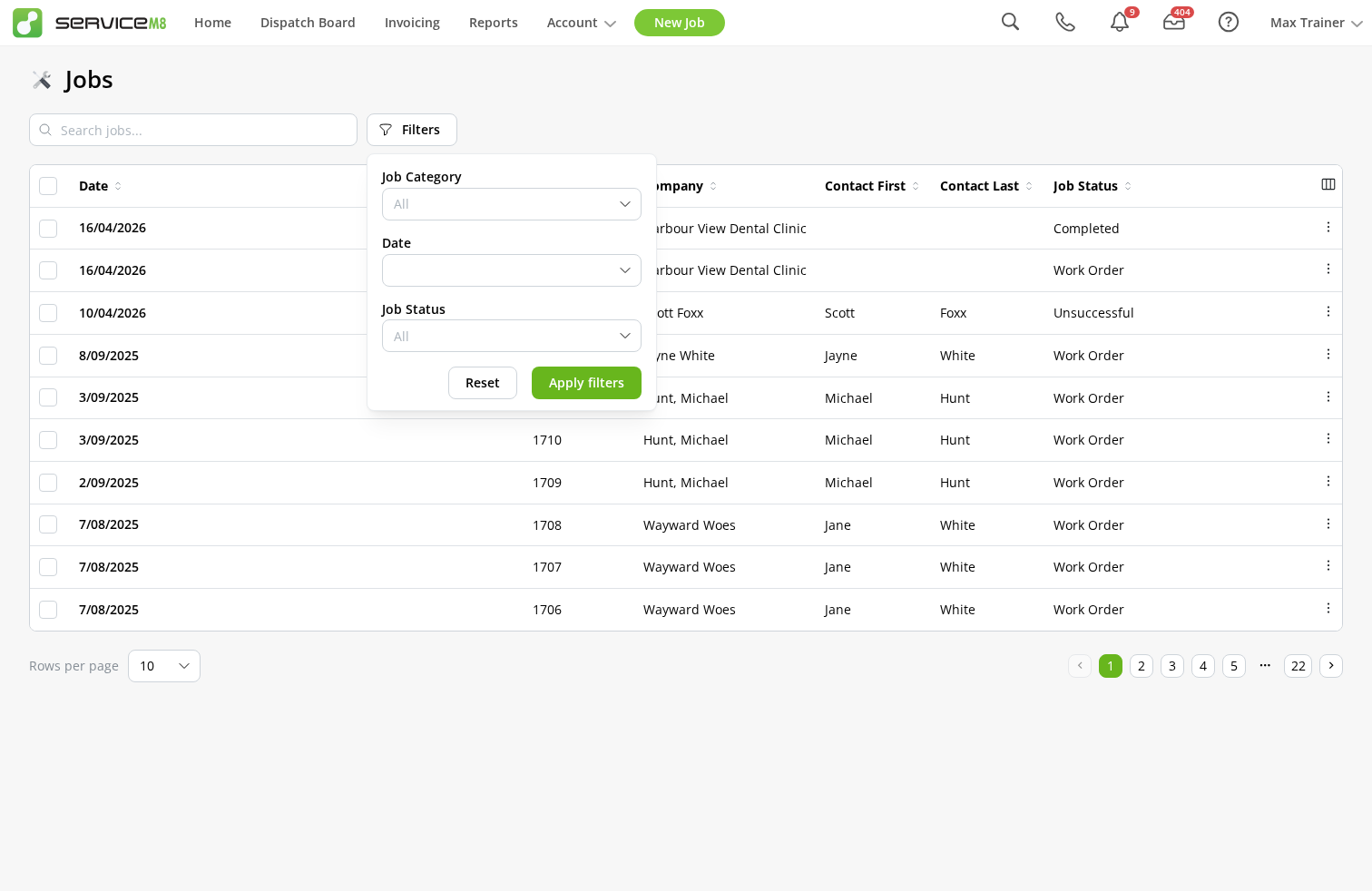
- Click Filters, choose one or more options, then click Apply filters. The button shows the number of active filters. Click Reset in the Filters panel to clear them.
- Click a column heading to sort by that column. Click it again to reverse the order.
- If Column settings appears at the right of the headings, use it to choose which columns are visible. Your column and sort choices are saved for your login.
Not every list page has filters or adjustable columns.
Use page actions and open related pages
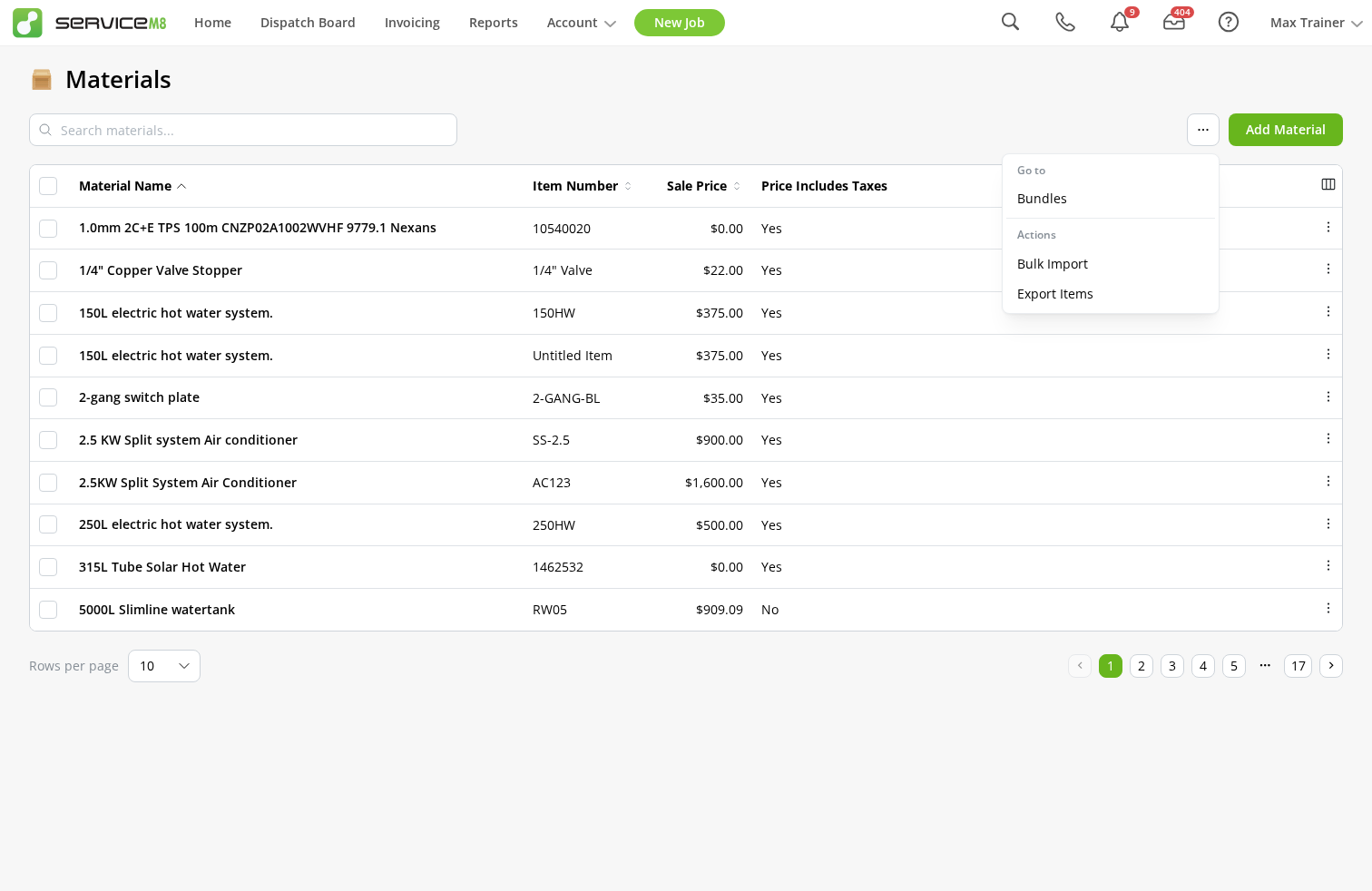
The main action for the page, such as Add Material or Add Client, appears in the top-right corner.
Click the More actions (…) button for other page actions and links to related pages. When both types are available, the menu separates them under Go to and Actions. For example, the Materials page can link to Bundles, Suppliers, or Pricing Strategies, and can include actions such as Bulk Import or Export Items.
The options you see depend on your permissions and the add-ons active in your account.
Open or manage one record
Click the main value in a row, such as a Material name, Job date, or Client name, to open its card or editor.
Click the vertical three-dot button at the end of a row for other available actions. Depending on the page and your permissions, these can include editing or removing the record.
Work with multiple records
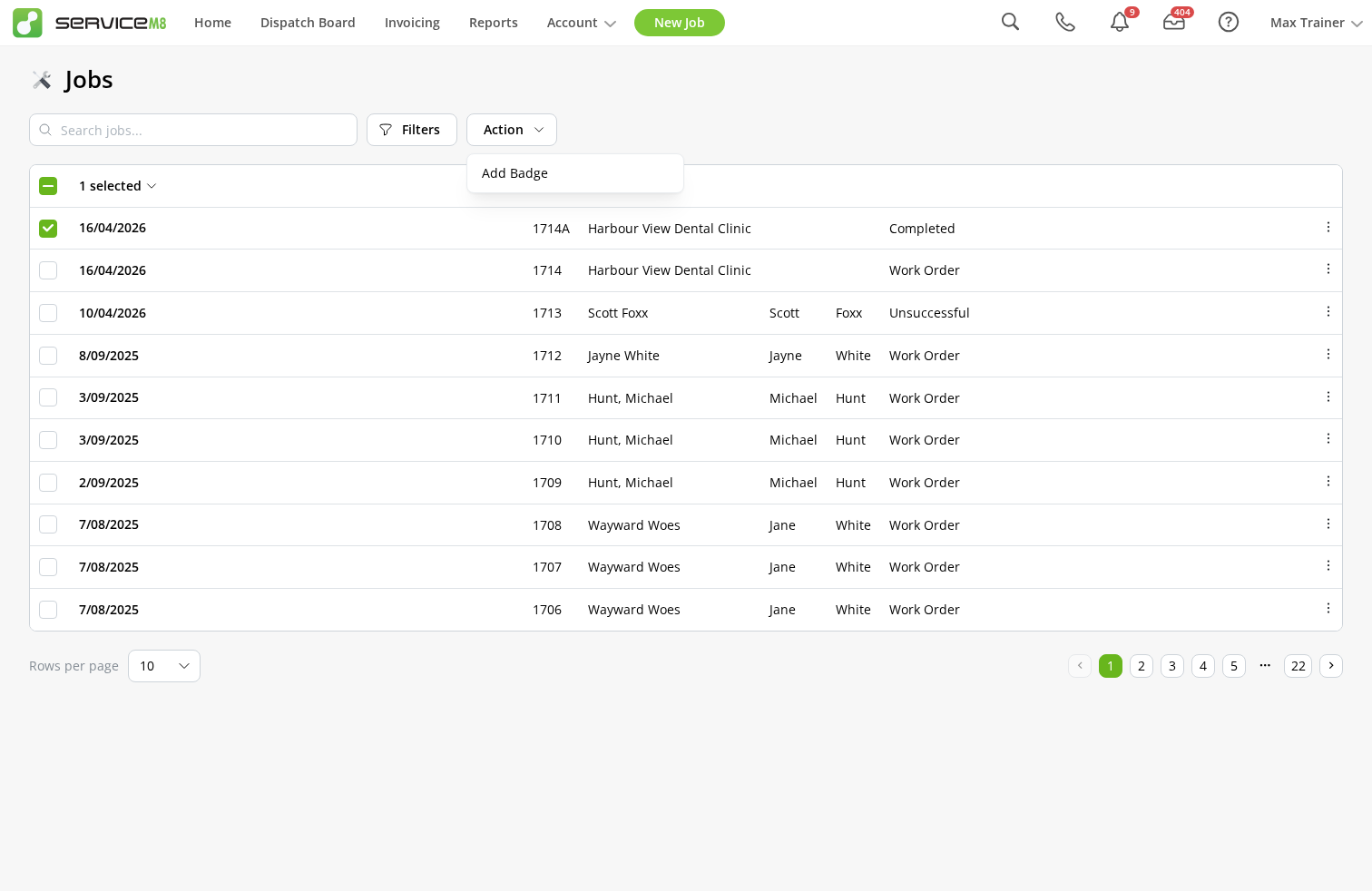
- Select the checkbox beside each record you want to manage. Use the checkbox in the heading row to select every visible record on the page.
- Click Action, then choose an operation. The available operations depend on the page, your permissions, and active add-ons.
- Click the selected-record count to review the selection, clear it, or select all matching records when that option is available.
Move between pages
Use Rows per page at the bottom-left to change how many records appear. Use the page controls at the bottom-right to move through the list.
Use list pages on smaller screens
On smaller screens, search, filters, and page actions may wrap onto separate lines. The Filters panel opens from the bottom of the screen, and less important columns may be hidden. Scroll the table sideways to see columns that extend beyond the screen.