General FAQ
Using the Staff Schedule on the iPad
Learn how to use the Staff Schedule on the iPad in ServiceM8.
Using the ServiceM8 app on iPad provides you a way to manage bookings on the go. Now you can view all your bookings across a day in this single view. Swipe between days, pinch the screen to zoom in and out, drag and drop bookings and press and hold to create new bookings.
Tap Schedule to see all your staff members’ bookings
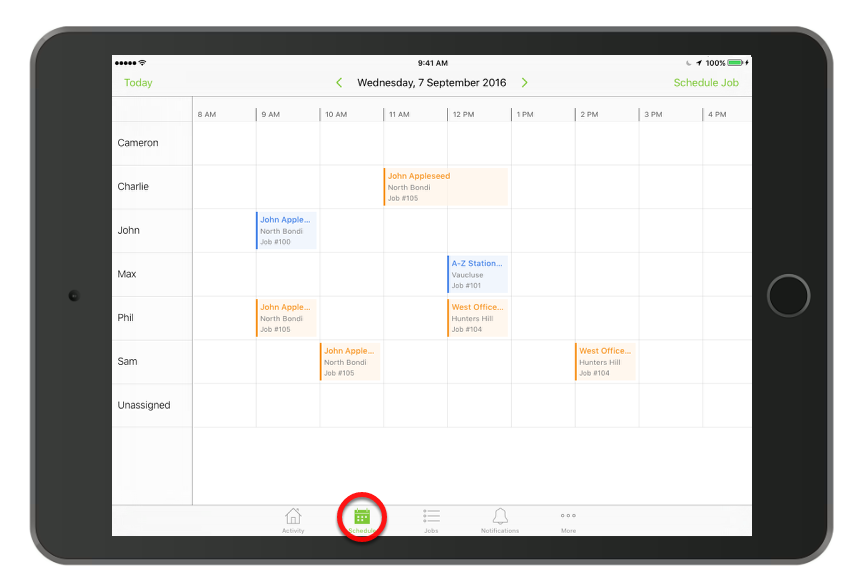
Tip: You can pinch the screen to zoom in and out
Navigate between days using the left and right arrows
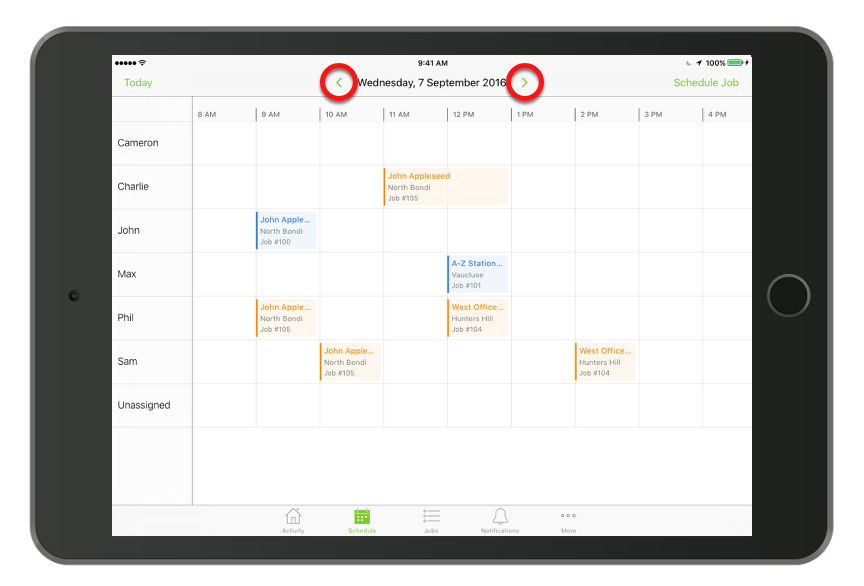
Tip: You swipe the screen with two fingers to quickly jump forward or back a day.
Tip: Tap the date heading to bring up the calendar to easily navigate to a particular date.
Tap any booking to see a preview of the job
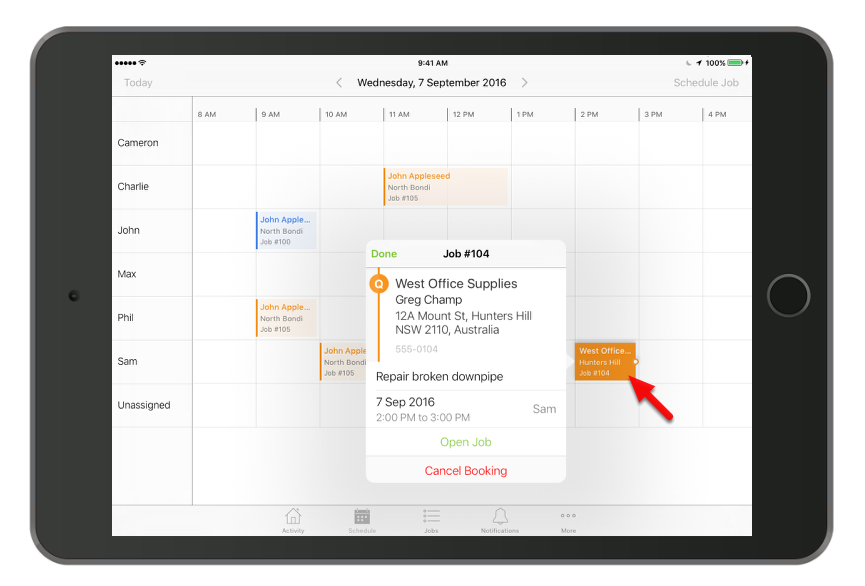
From here, you can either open the job or cancel the booking.
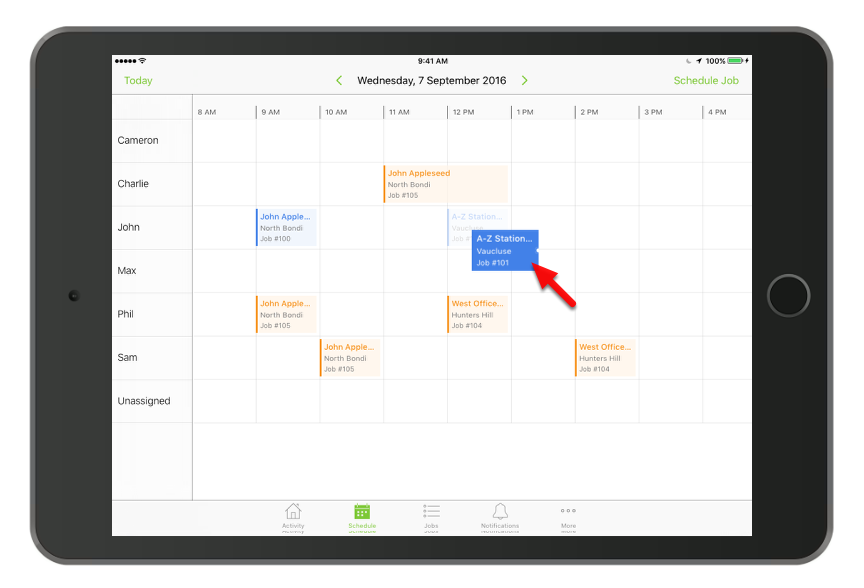
You can reassign or reschedule bookings by dragging and dropping
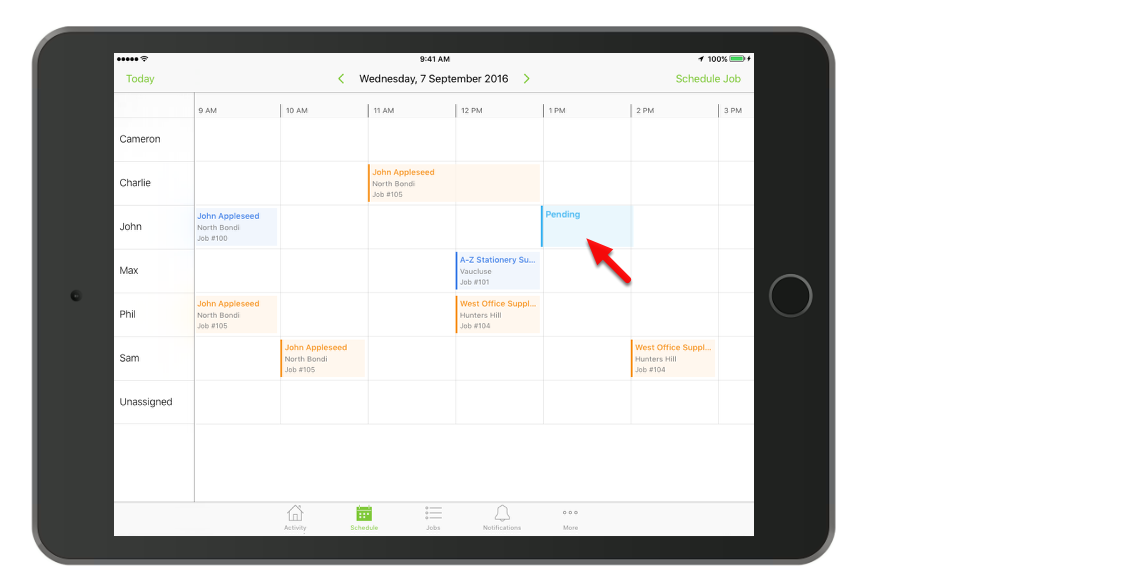
To quickly schedule a job, tap and hold on an available date/time slot for a staff member
Choose the job that you would like to assign to the staff member
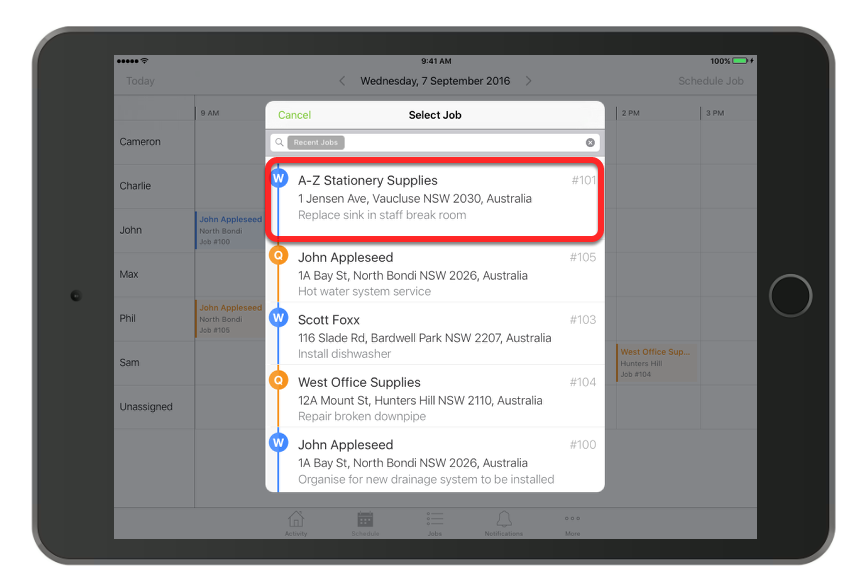
Tip: You can search for a job inside the job list, or select jobs from any job filter or queue.
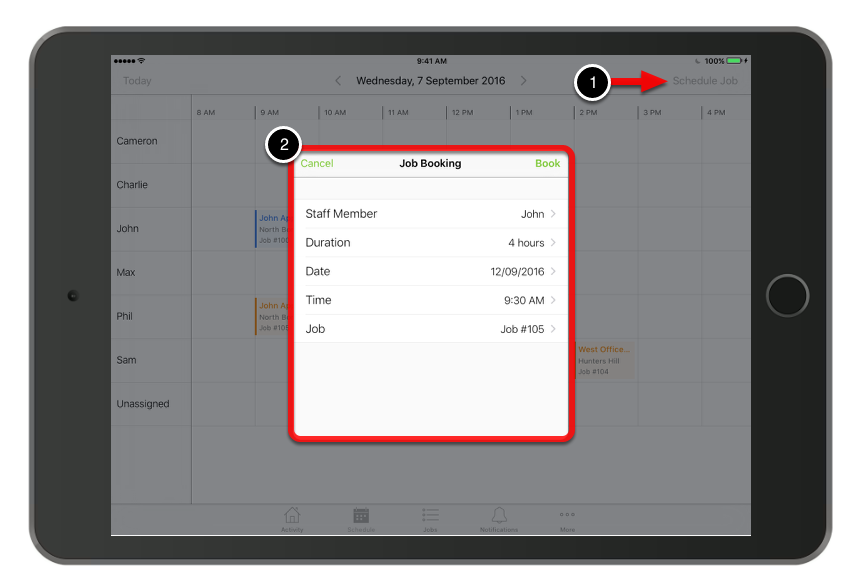
Alternatively, you can tap Schedule Job and enter the job booking details.