Photos, notes and attachments
How to take and save photos to a job
Learn how to take and save photos to a job in ServiceM8.
This article reviews how to take photos using the ServiceM8 App and save them directly to a Job Diary.
If you need to save photos to a Job Diary that were not taken from the ServiceM8 App, see this article.
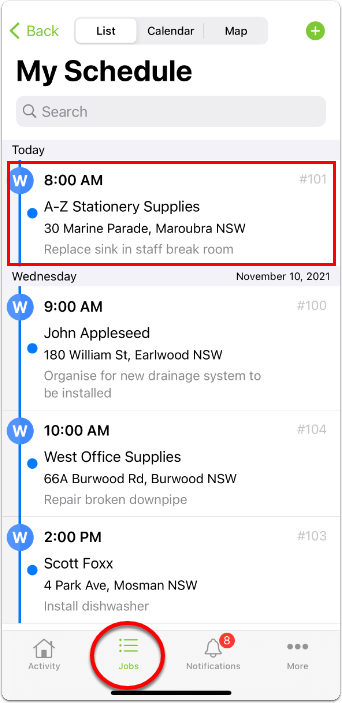
- From the Jobs view in the ServiceM8 App, tap the relevant job.
- If you are completing a checklist task with the word “photo” in it (for example, “Photo of old sink”), tap the task and go to step 4.
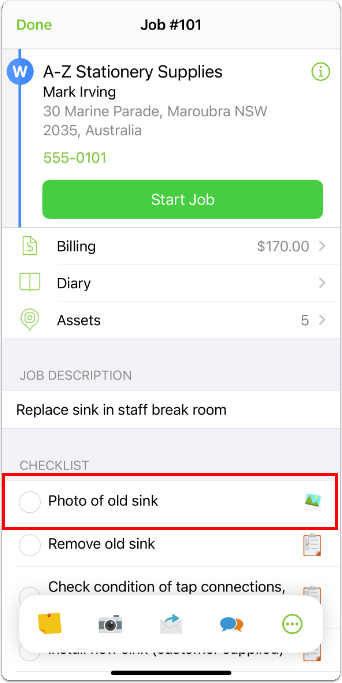
- If the photos are not part of a checklist, from the Job Actions bar, tap Camera.
- If Camera is not a one-tap icon on the Job Actions bar, tap More (…), then tap Camera.
- If you do not see Camera as an available action when you tap More (…), tap Edit Actions and add it. See this article for more information.

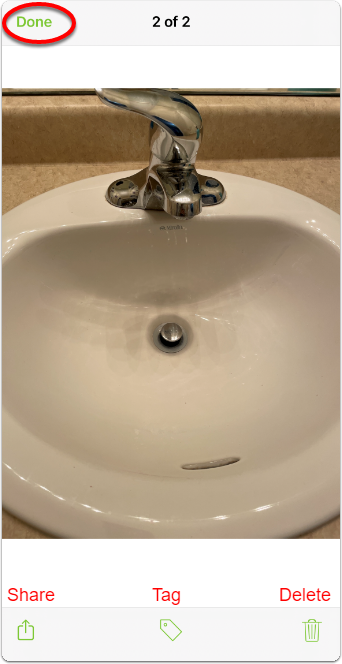
- Take one or more photos at once. Review photos by tapping the thumbnail.
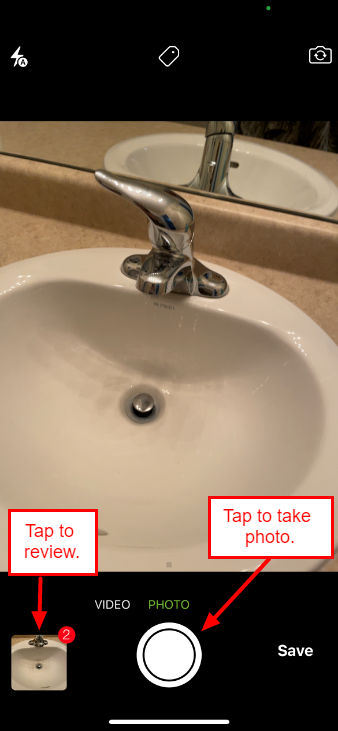
- Share, tag, or delete photos directly from the review pane. When you are satisfied with your photos, tap Done.
- Tap Save.
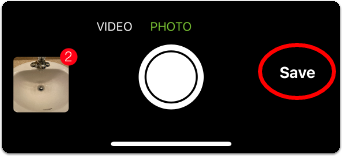
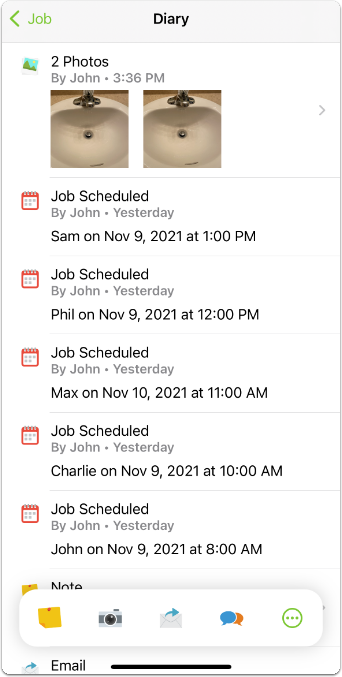
Saved photos will be saved to the Job Diary.