

Quotes and invoicing
How to use Material Pricing Strategies
Create pricing rules, apply them to Materials and choose a default strategy.
Material Pricing Strategies calculate a Material’s sell price from its purchase cost. Use them to apply consistent markup rules across your Materials & Services list in the Online Dashboard.
Before you start
- Activate Markup Billing from Account > Features & Integrations.
- Your security role must have Can see items/services cost and profit enabled.
Pricing strategy types
- Fixed Markup applies the same markup percentage to every Material using the strategy.
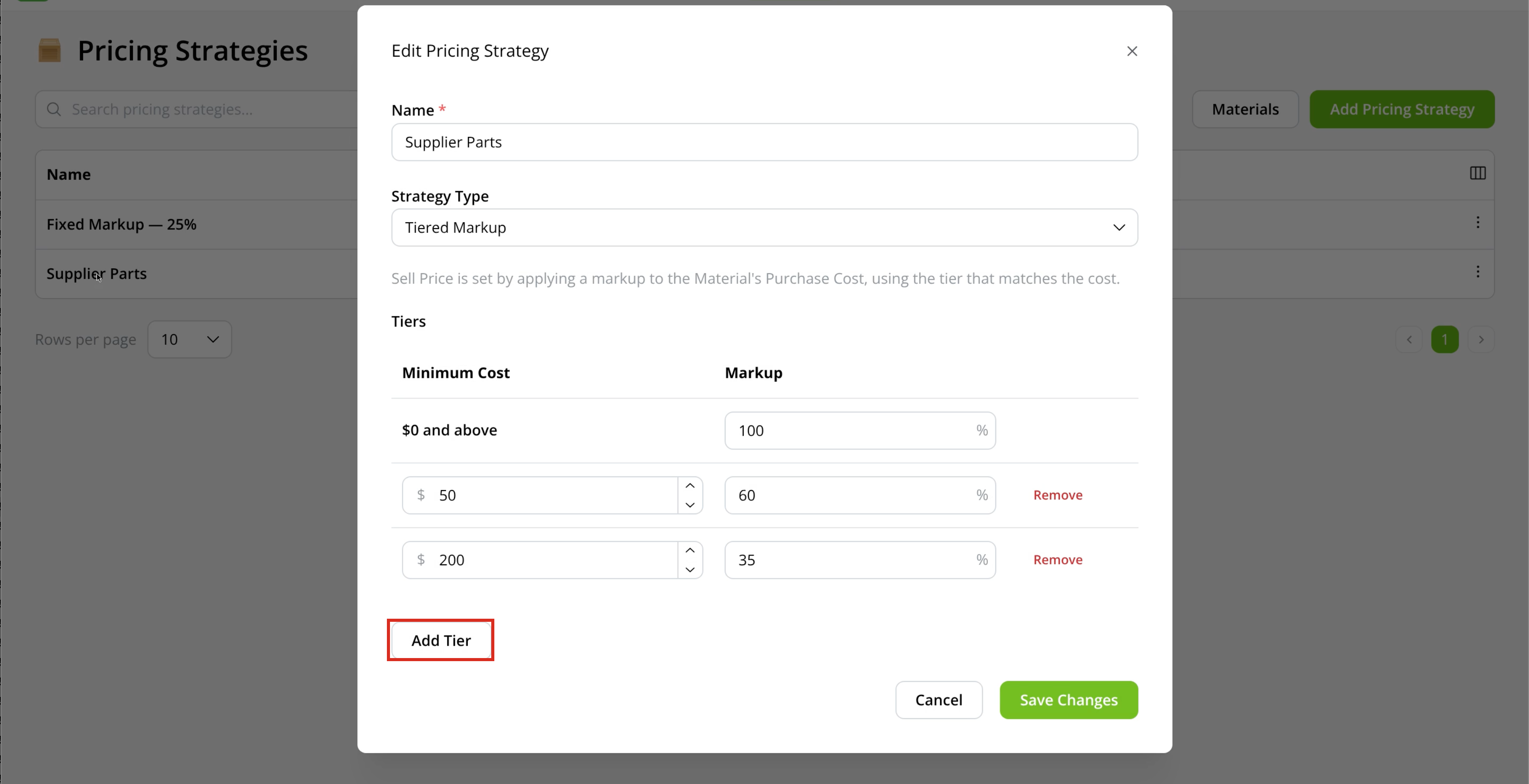
- Tiered Markup applies a different percentage depending on the Material’s purchase cost. Each tier starts at its Minimum Cost and continues up to the next tier.
Create or edit a Pricing Strategy
-
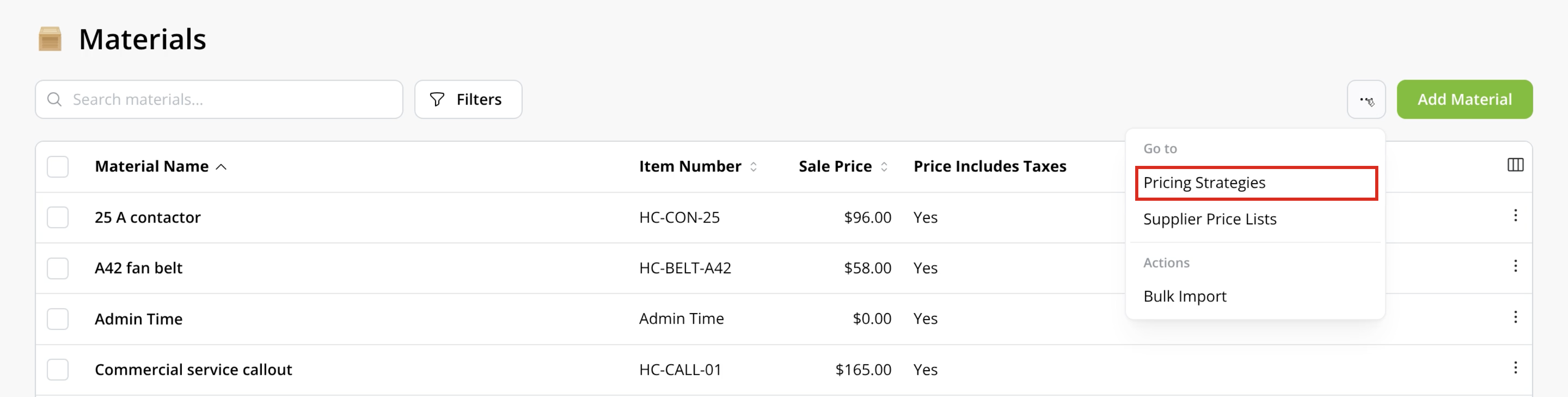
Go to Account > Materials & Services, then click More actions (…) > Pricing Strategies.
-
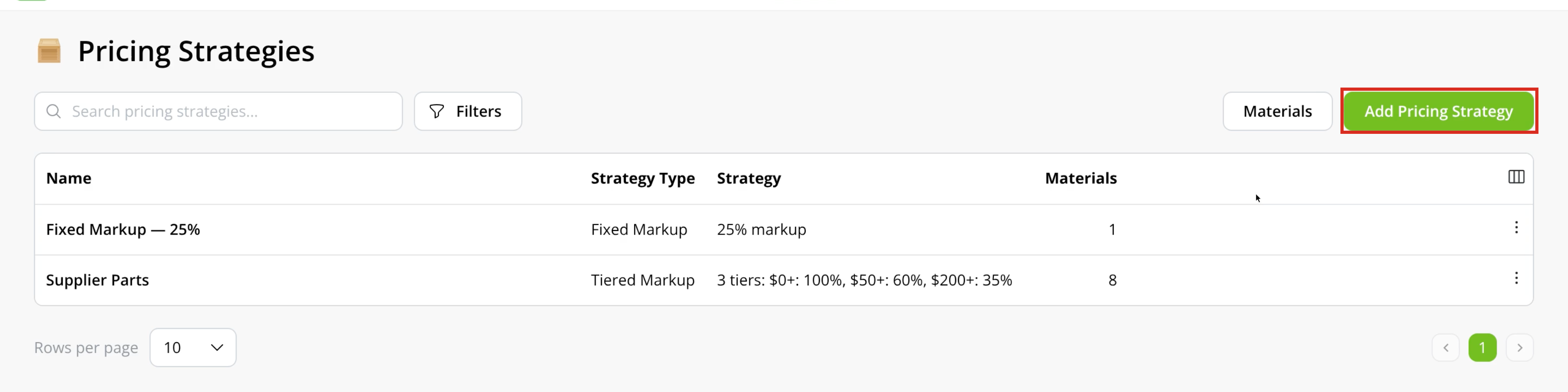
Click Add Pricing Strategy, or click a strategy’s name to edit it.
-
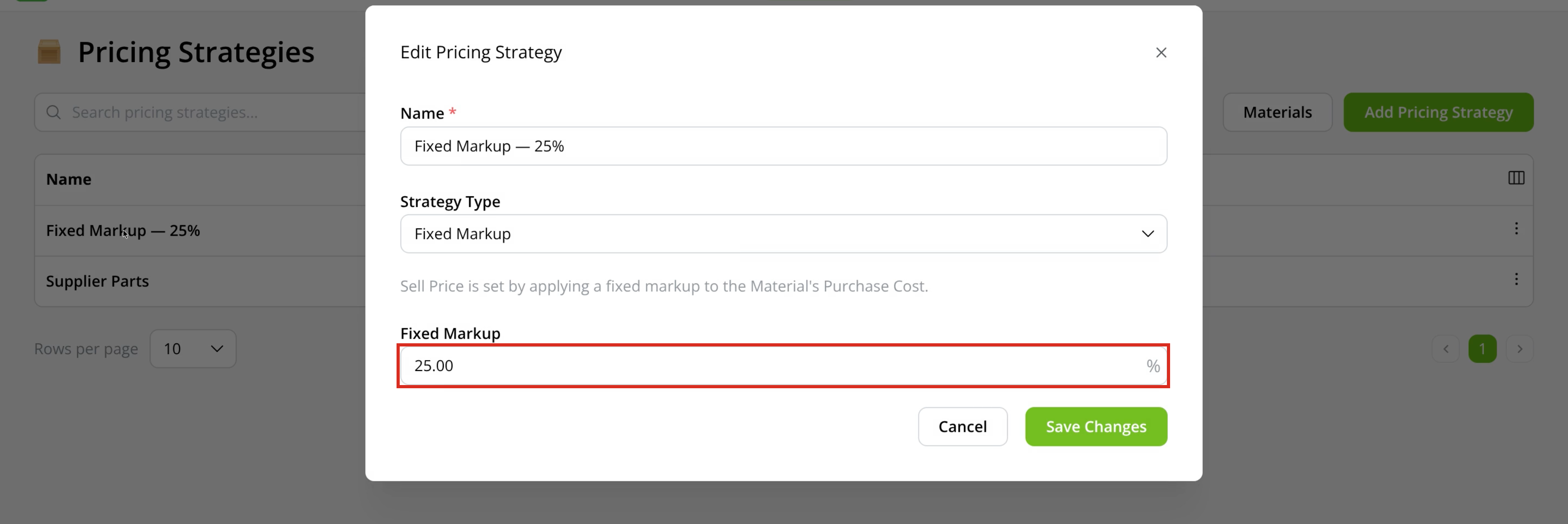
Enter a Name, then choose the Strategy Type and its markup rule:
For Fixed Markup, enter the percentage in Fixed Markup.
For Tiered Markup, enter the Markup for the first tier. Click Add Tier to add further minimum costs and percentages in increasing cost order.
-
Click Save Changes. If a pricing change affects existing Materials, review the number affected and click Confirm & Save.
Apply a Pricing Strategy to a Material
-
Go to Account > Materials & Services, then add a Material or click its name to edit it.
-
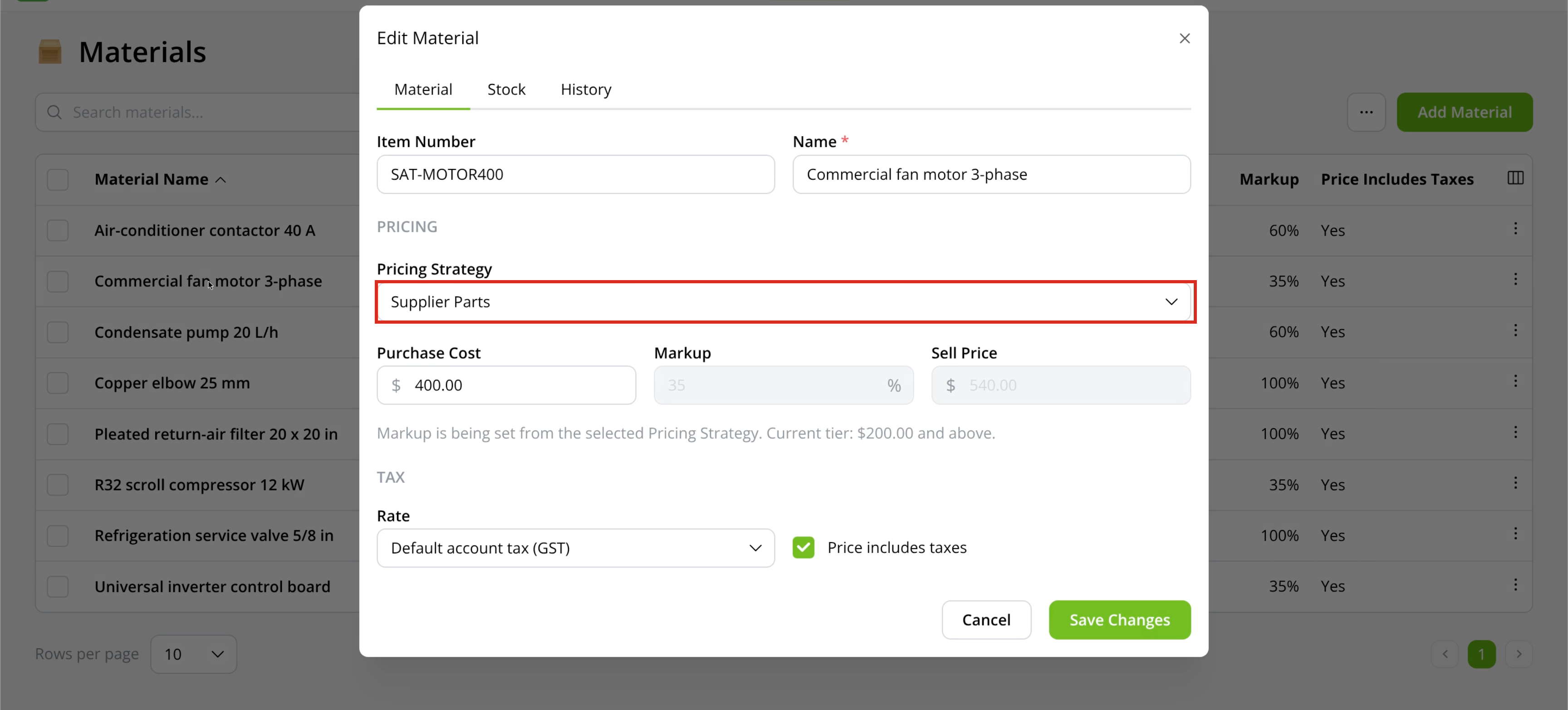
Select a Pricing Strategy and enter the Purchase Cost. ServiceM8 calculates the Markup and Sell Price.
-
Click Save Changes.
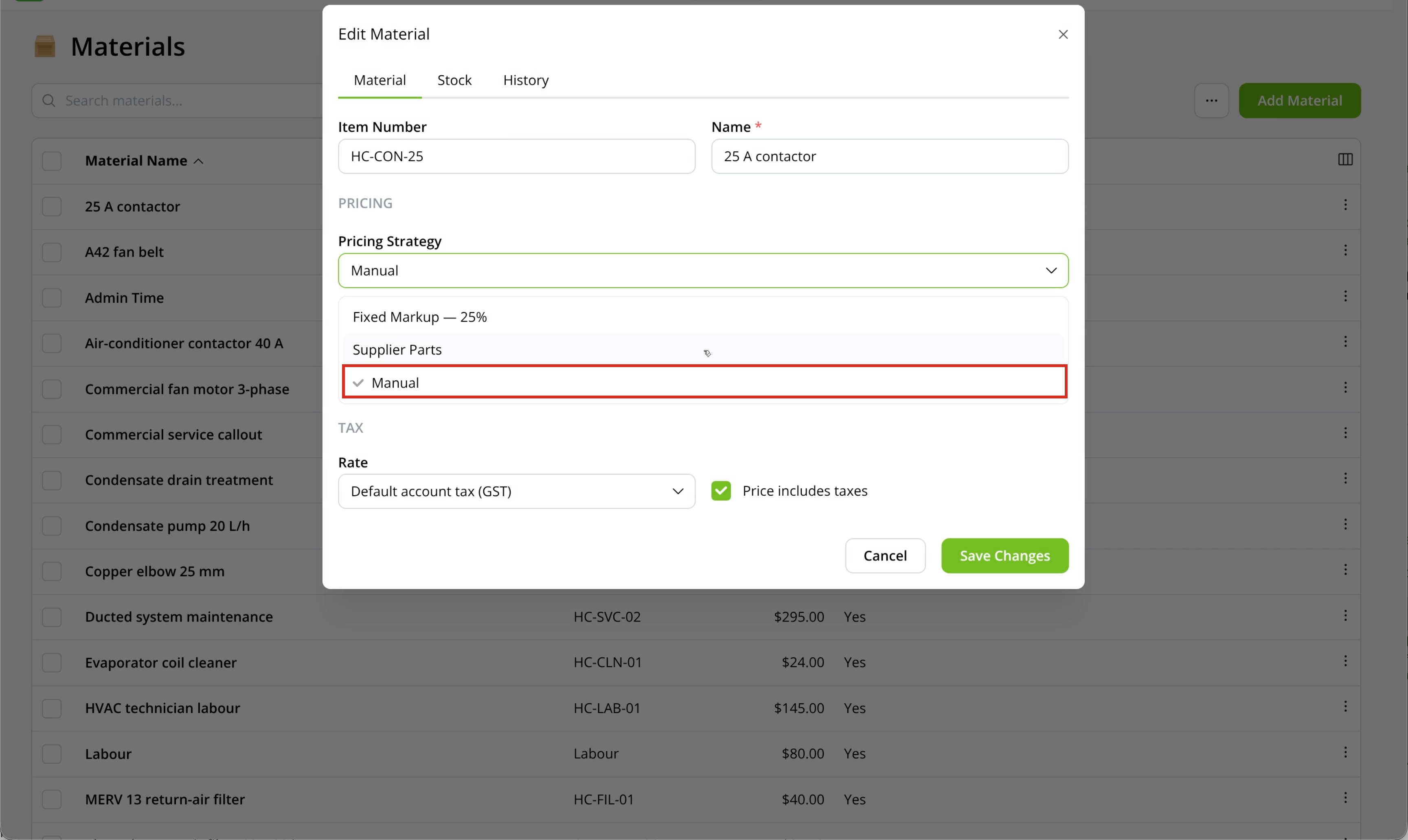
To remove a strategy from a Material, select Manual, then click Save Changes. You can set its purchase cost, markup and sell price directly.
Apply a Pricing Strategy to multiple Materials
-
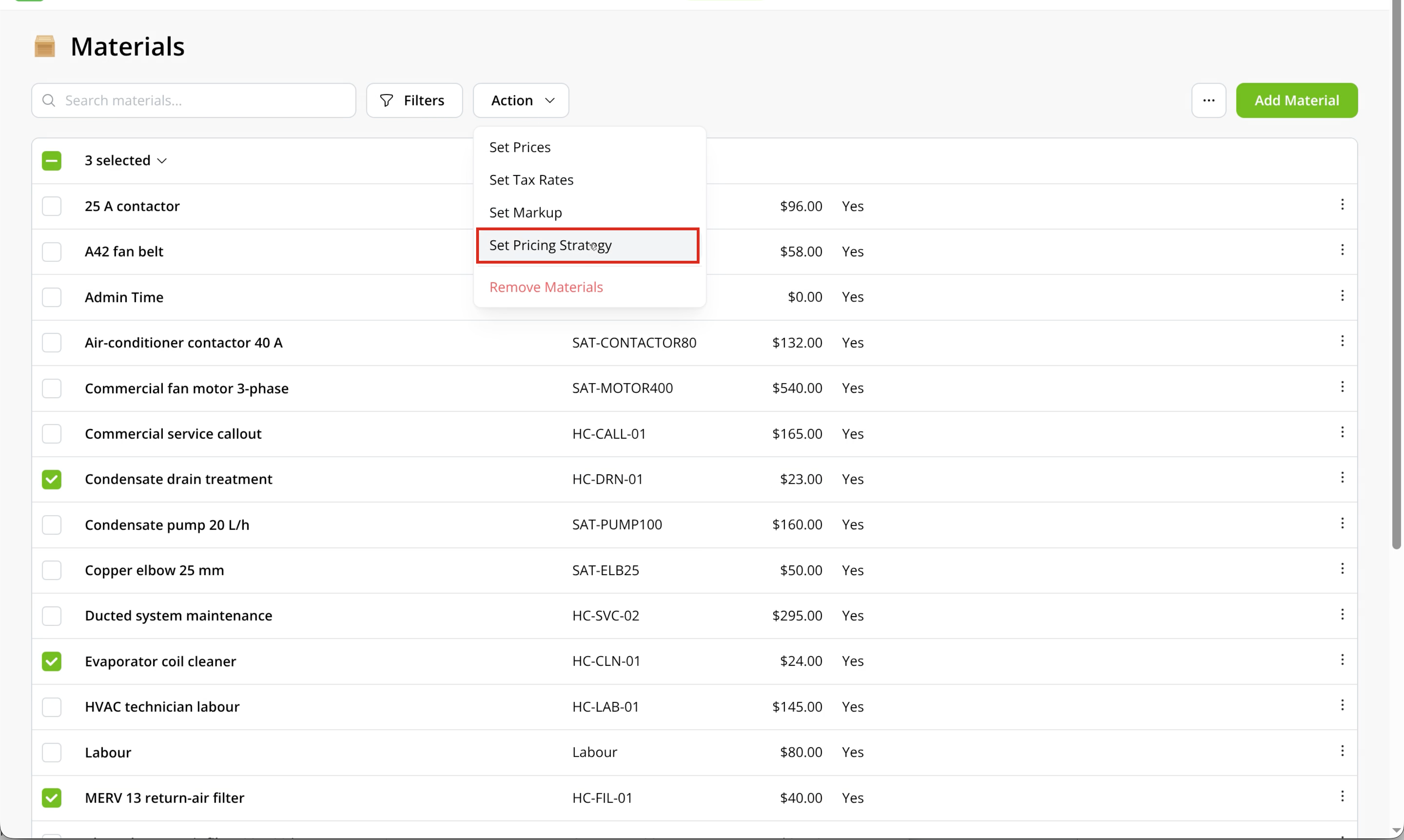
In Materials & Services, select the checkbox beside each Material you want to update.
-
Click Action > Set Pricing Strategy.
-
Choose a Pricing Strategy, then click Update.
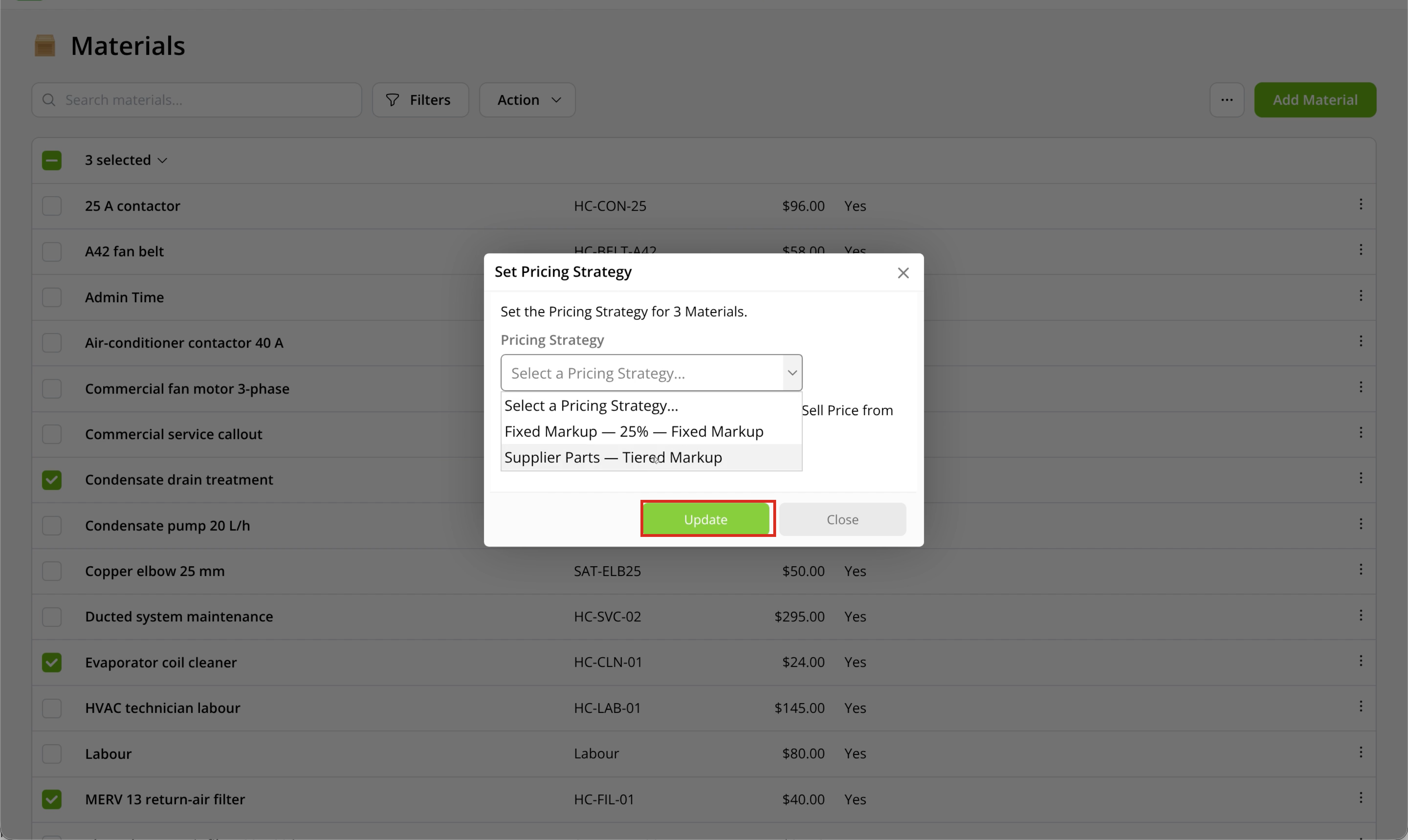
The Materials use the selected strategy to calculate their sell prices from purchase costs.
Choose a default Pricing Strategy
Create at least one strategy before choosing a default.
-
Go to Settings > Preferences > Material Settings.
-
Choose the Default Pricing Strategy, then click Save.
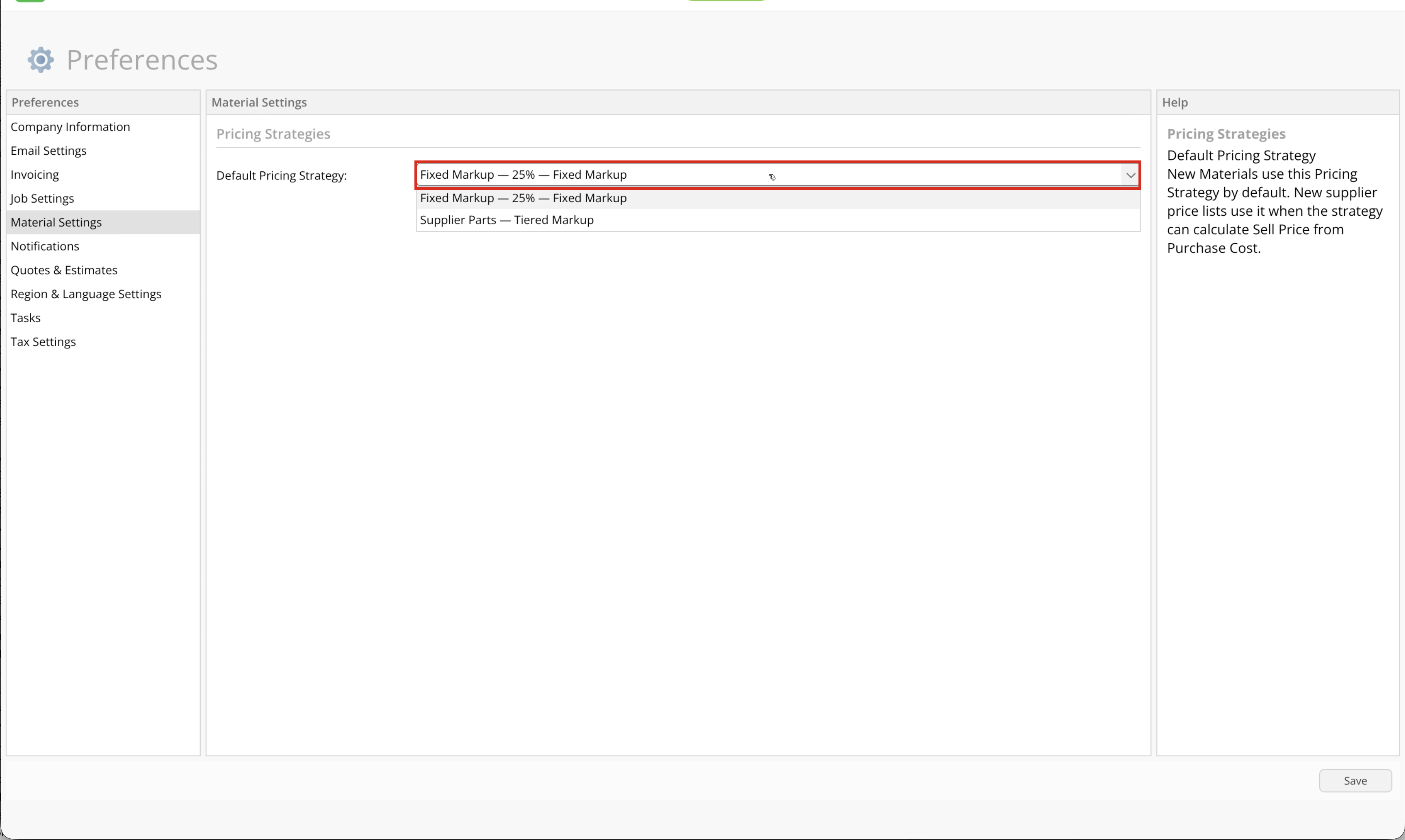
New Materials use this strategy by default. Changing the default does not reassign existing Materials. Supported new supplier price-list setups also preselect it; existing supplier setups keep their saved pricing rule.
View and filter Materials by Pricing Strategy
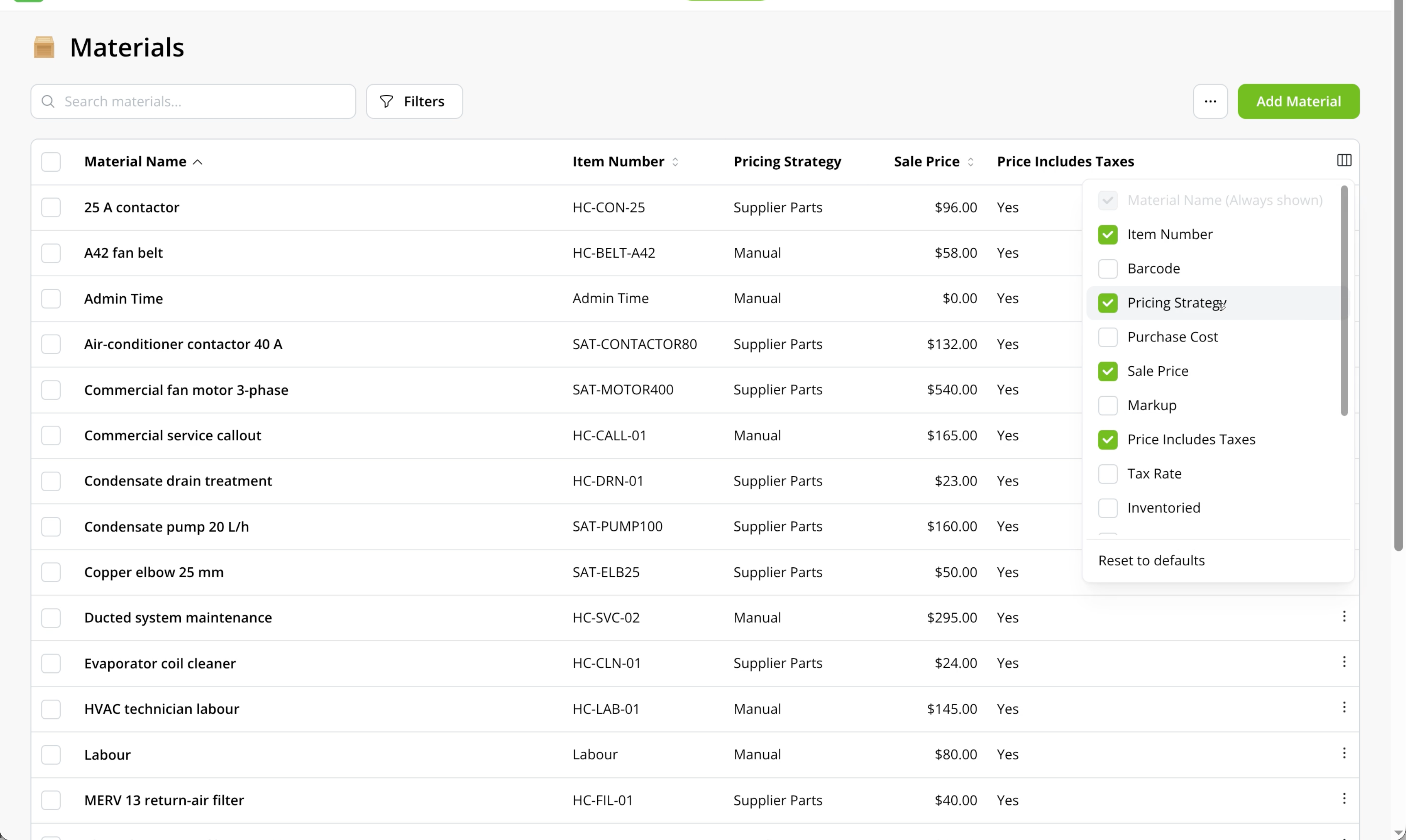
On the Pricing Strategies page, click a number in the Materials column to open the active Materials using that strategy.
You can also filter from Account > Materials & Services:
- Click Filters.
- Under Pricing Strategy, select a strategy or Manual for Materials without a strategy.
- Click Apply filters.
When you change a strategy
Saving changes to a strategy’s type or markup rules recalculates the sell prices of its Materials in the background. You can view update progress on the Materials page.
While the update runs, further changes to the strategy and its Materials are temporarily restricted. Changing only the strategy’s name does not recalculate prices.
Before removing a Pricing Strategy, reassign its Materials to another strategy or to Manual.