

Jobs and scheduling
How to schedule a job from the Job card in the Online Dashboard
Choose staff and available times, book separate work dates, or send times to your client from the Job card.
Use the availability calendar to choose staff and a suitable time before saving a booking. You can also book separate visits for the same job or let your client choose a time.
Schedule a booking
-
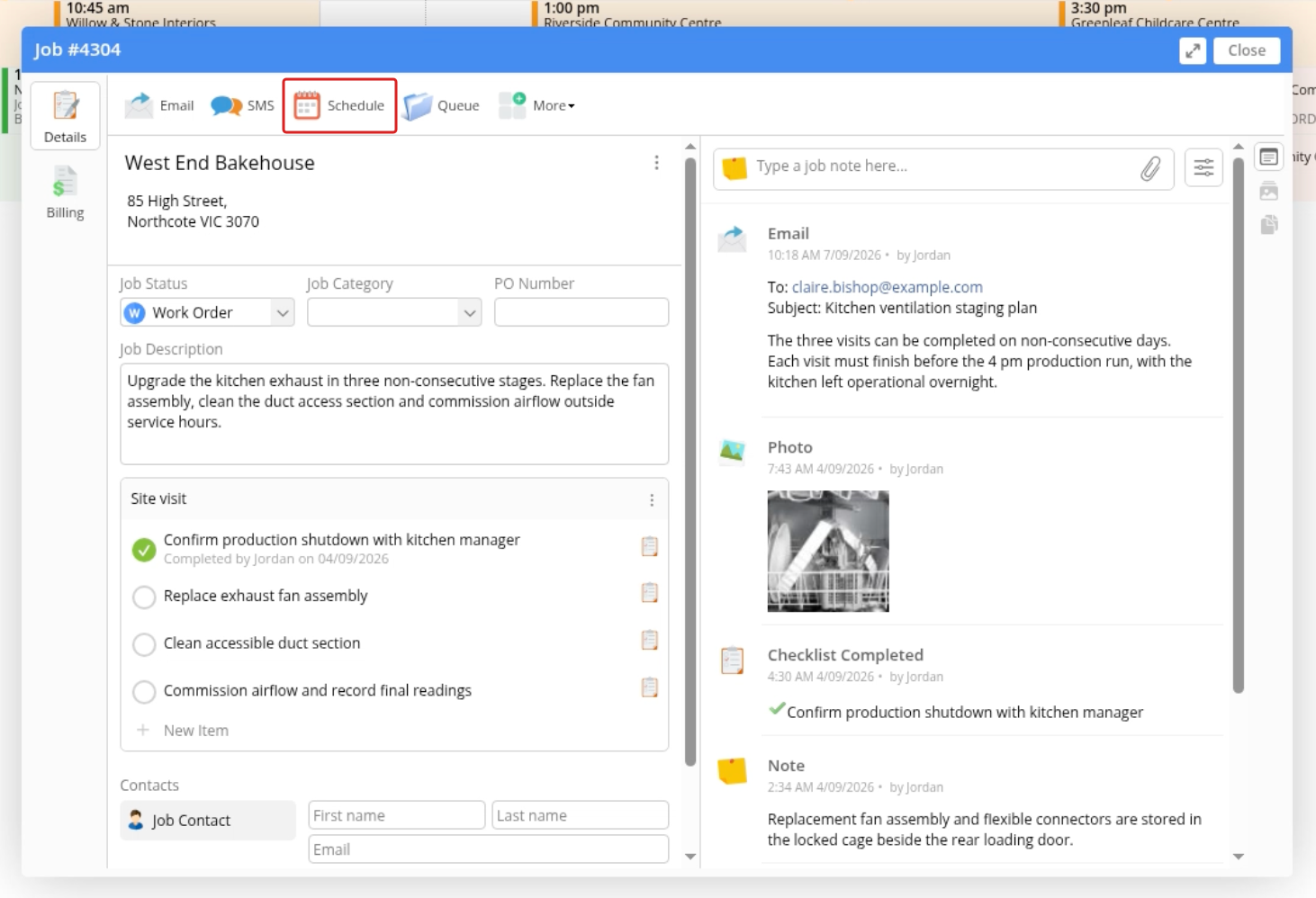
Open the Dispatch Board, open the Job card, then click Schedule.
-
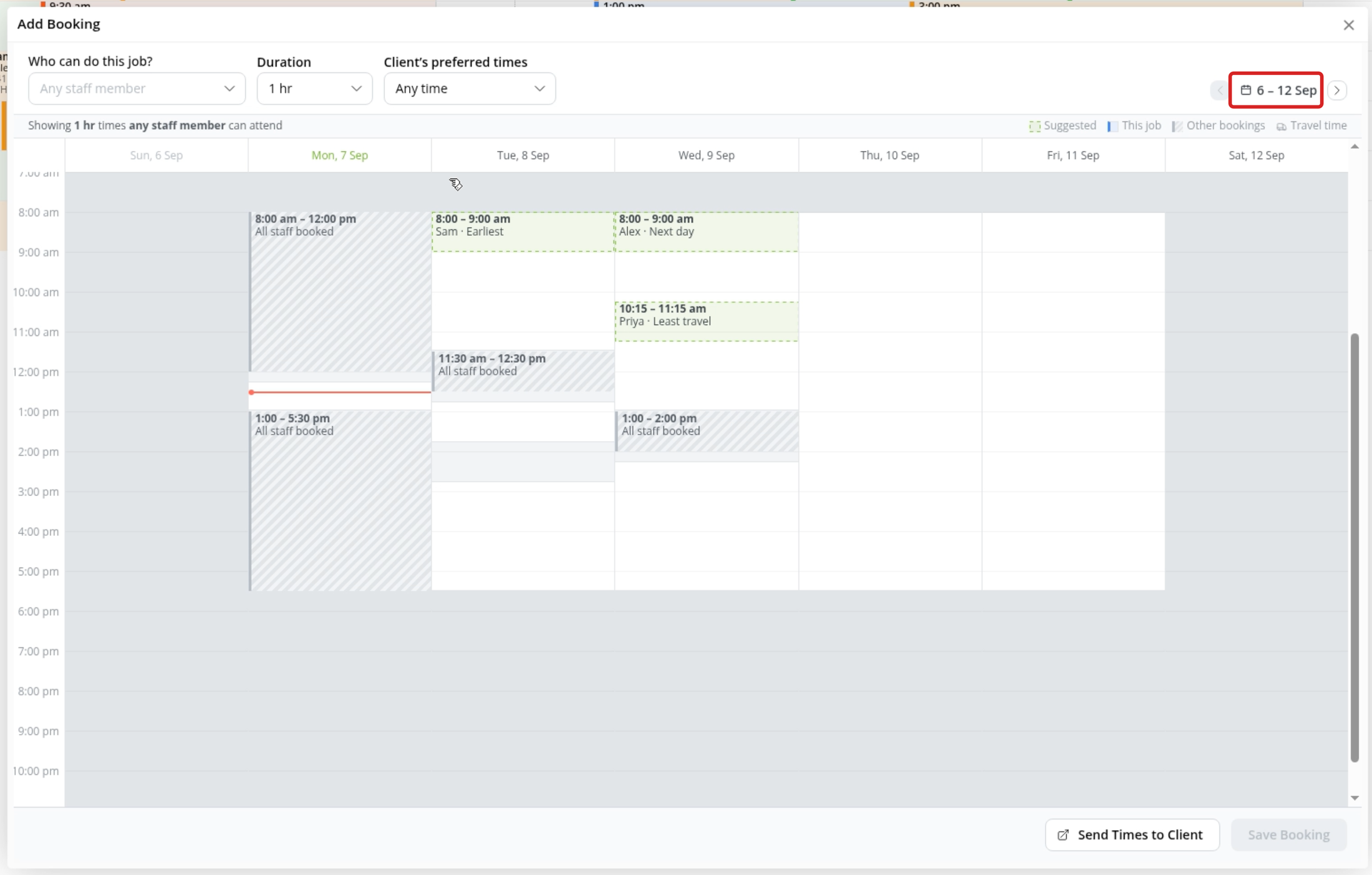
Under Who can do this job?, choose the eligible staff or leave Any staff member selected. Choose the Duration. If a Service sets the booking duration, it is locked.
-
Use the arrows above the calendar to browse weeks, or click the week heading and choose a date. Review the suggested times and available spaces. Shaded areas show unavailable time.
-
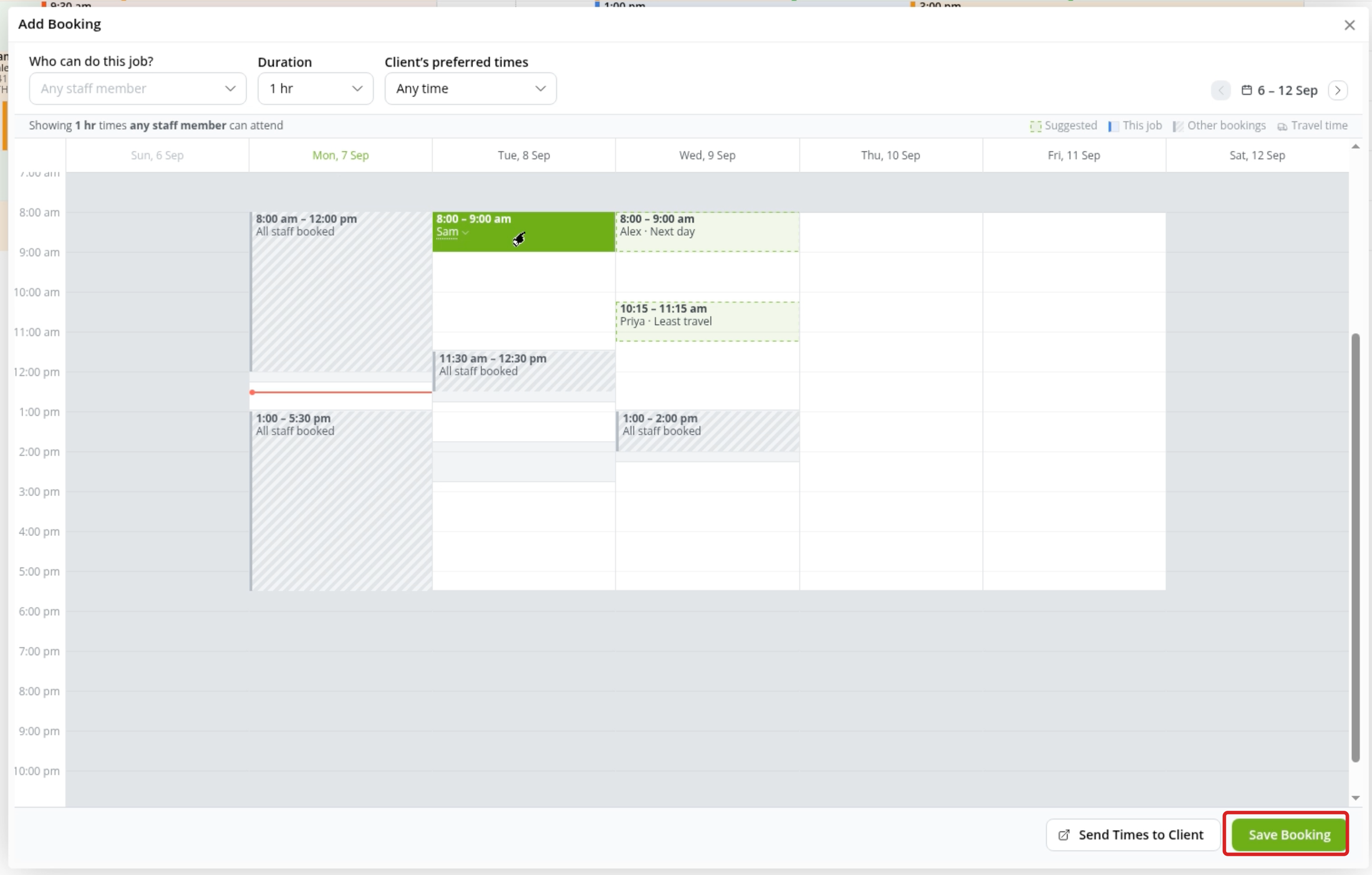
Click a suggested time, or click an available space to place the booking. The solid block shows your proposed time and staff.
-
Check the proposed booking, then click Save Booking.
Adjust staff, time and duration
-
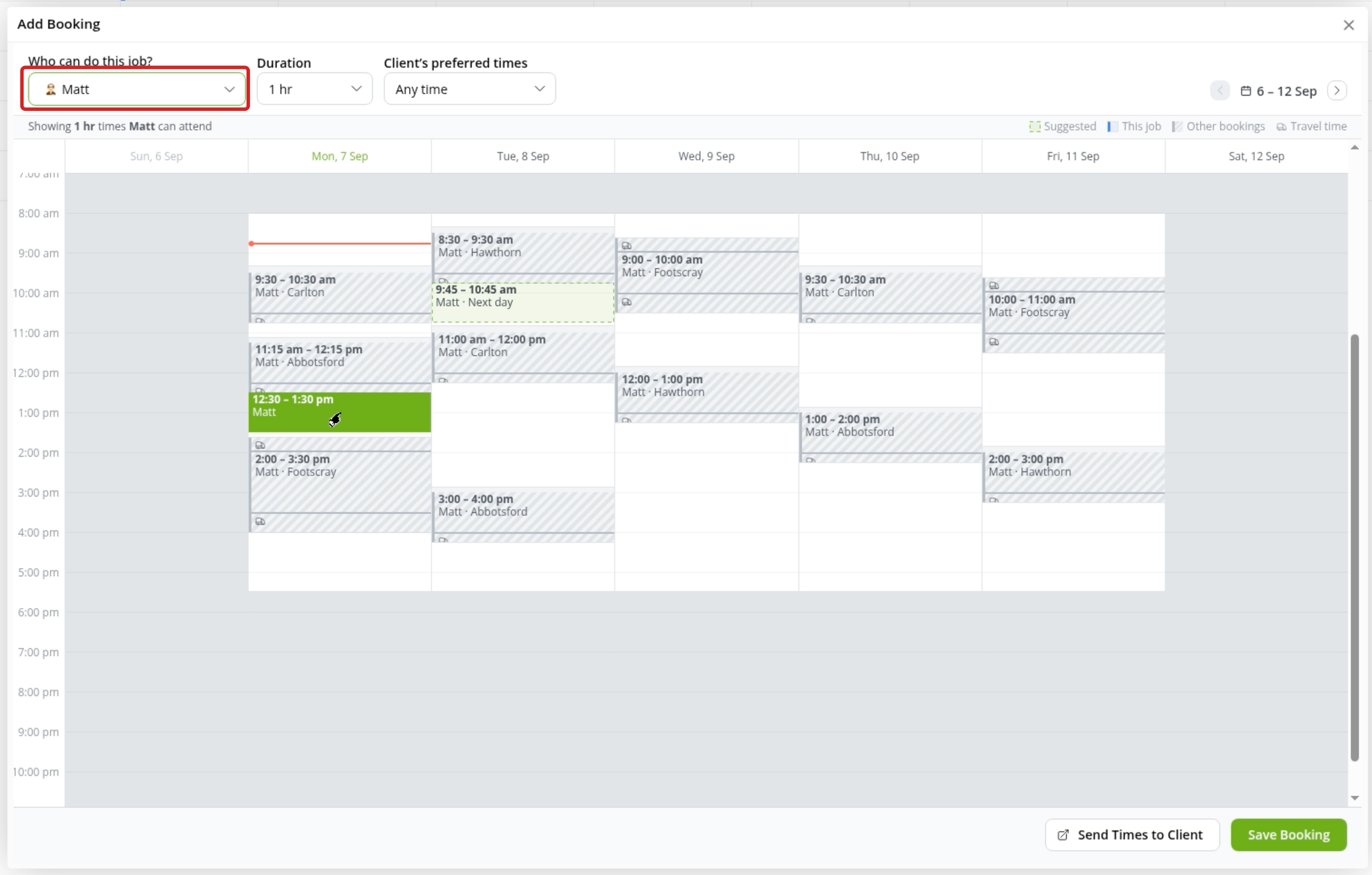
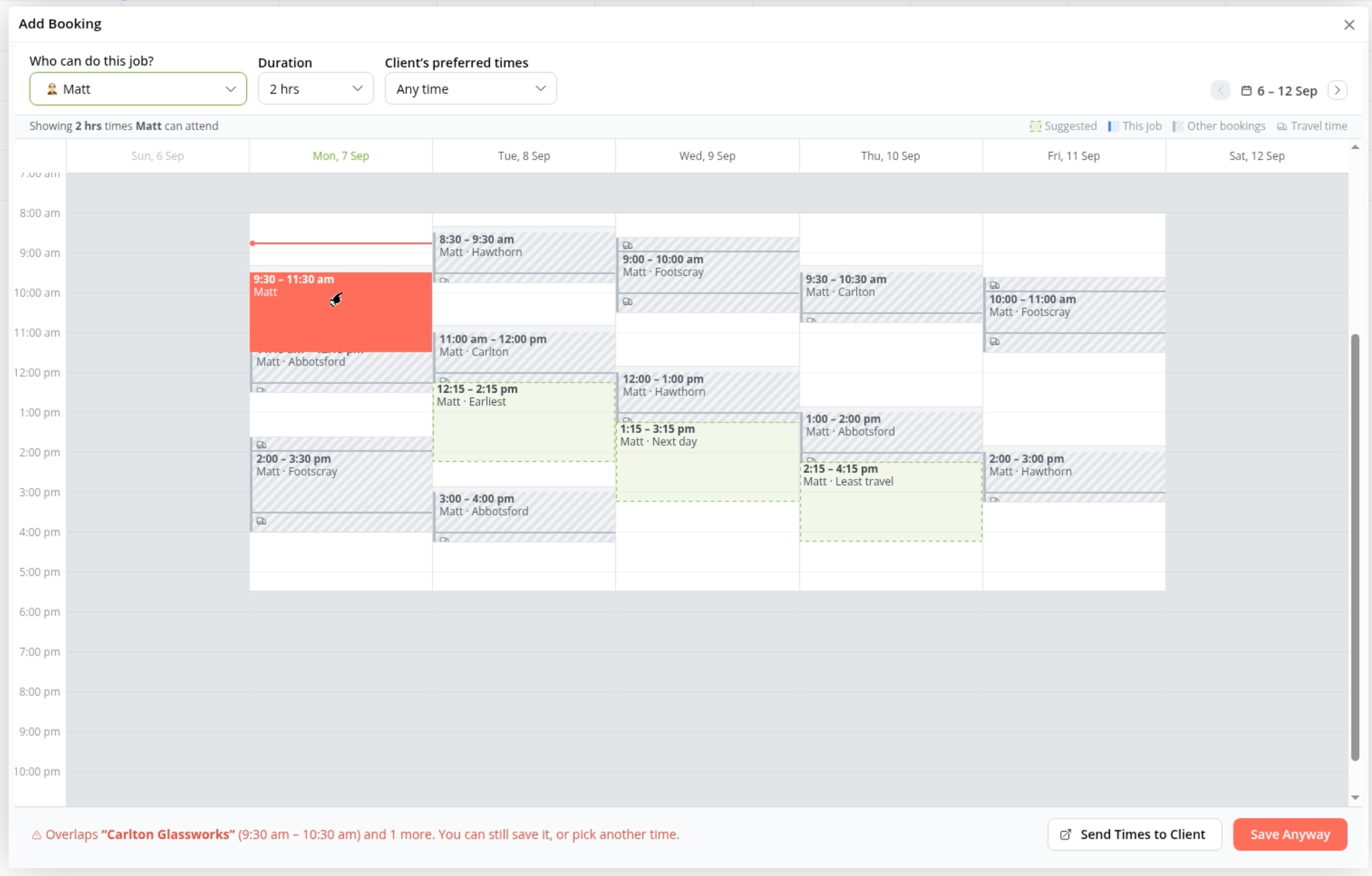
Select one person under Who can do this job? to see their bookings, travel time and gaps. Choose a suitable space.
-
Drag the proposed booking to move it. Drag its lower edge to change the duration, or drag across an available space to set a start time and duration. A Service-locked duration cannot be resized.
-
Review any warnings before saving. An overlap changes the action to Save Anyway; use it only if you intend to book the conflicting time. The window also warns about bookings outside staff availability or your client’s preferred times.
Choose who attends
-
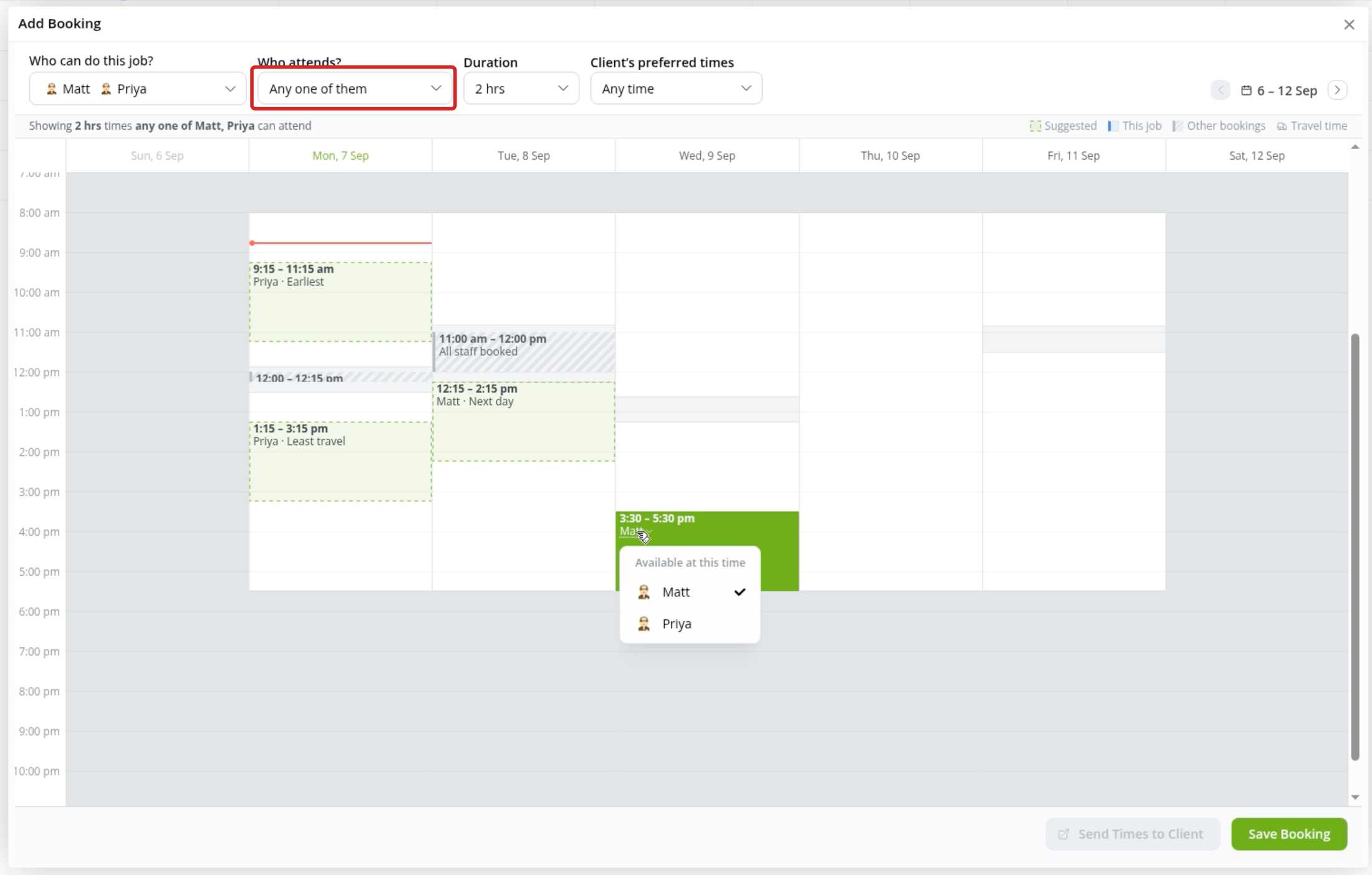
Under Who can do this job?, select the eligible people. You can also choose a suggested team when one is offered.
-
Under Who attends?, choose Any one of them or All of them together. With three or more eligible people, you can also choose Any two together. The calendar updates for that requirement. For a booking needing one person, click the name on the proposed block to choose another person available at that time.
-
Select a suitable time, check the attending staff, then click Save Booking.
Use your client’s preferred times
Under Client’s preferred times, select Mornings, Afternoons, or After 3pm. For other preferences, select Custom, describe the available times, then press Enter.
If ServiceM8 recognises availability in Job Notes you can view, select that suggested preference to apply it. A custom or recognised preference opens the relevant week. Check staff availability there, then select a booking time.
Schedule work over multiple days
-
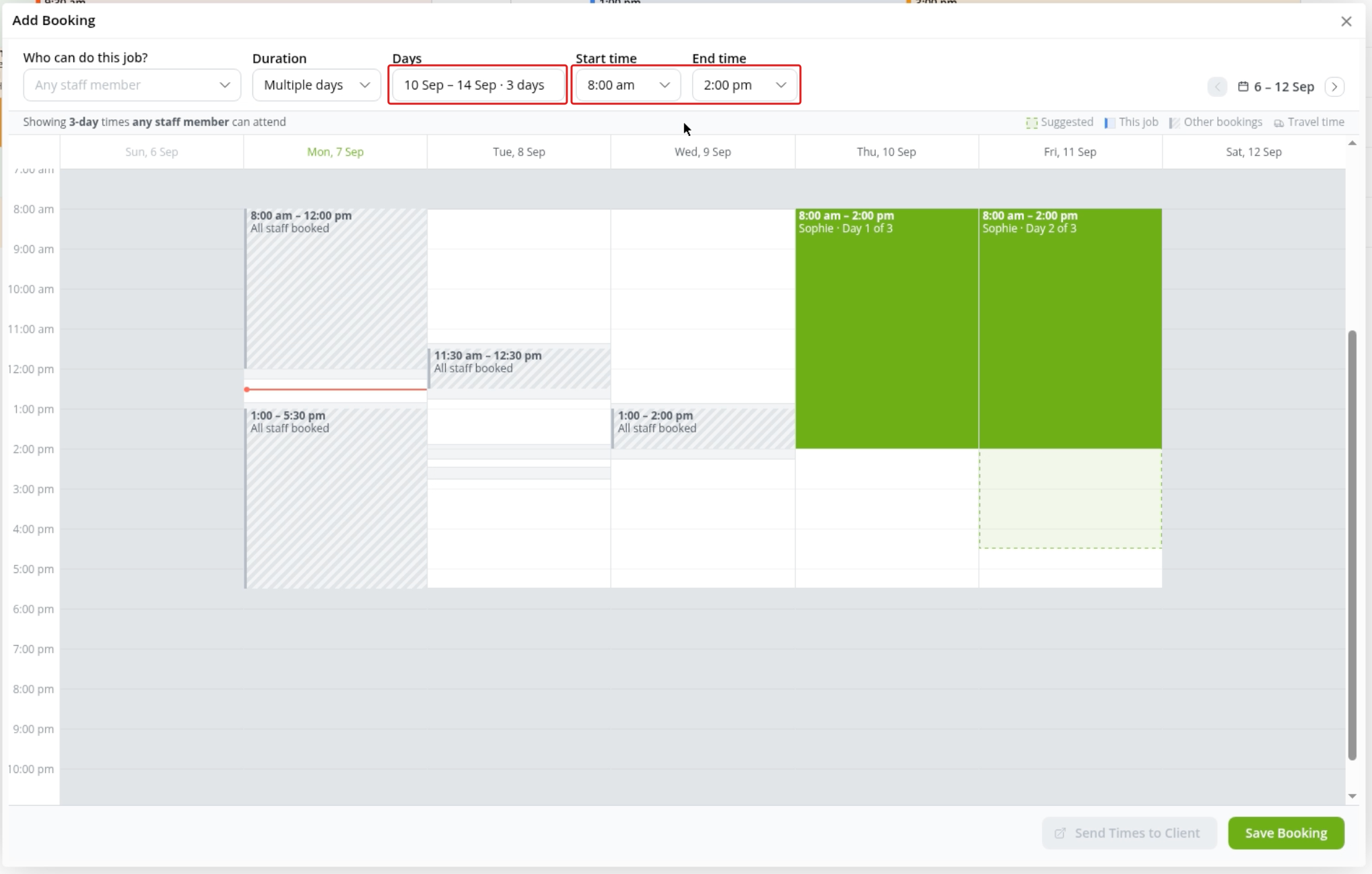
Under Duration, select Multiple days. Click Days and select each work date. The dates can be non-consecutive.
-
Set the daily Start time and End time. These times apply to every selected date.
-
Use the week arrows to review every visit. Check any warnings about staff availability before saving; saving despite a warning can still book staff who are unavailable on that date.
-
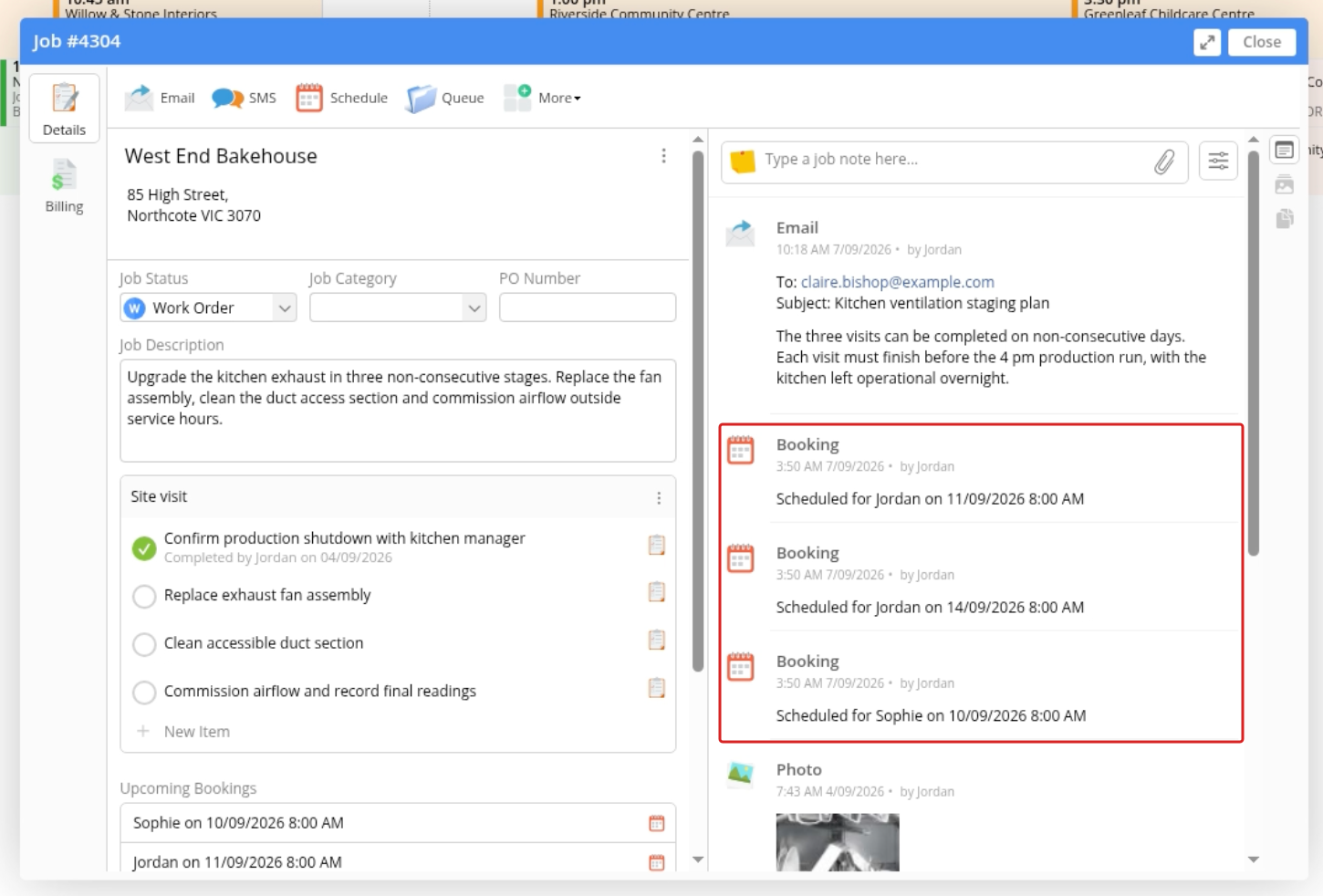
Click Save Booking. Each selected date becomes a separate booking on the same job. With Any staff member selected, different people may attend on different dates.
Send times to your client
For a single visit with one attending person, select Any staff member or one specific person, choose a duration, and leave Client’s preferred times set to Any time.
Click Send Times to Client, check the SMS message and recipient, then click Send. Your client can choose an available time using the booking link.
See How SMS Booking Links work for the client experience and how available times are determined.