

General FAQ
How to Find Which Job You're Checked In To
Learn how to find Which Job You're Checked In To in ServiceM8.
In the ServiceM8 mobile app, open the Jobs menu. If you’re checked in to a Job, you’ll see a blue or red timer at the top of the list of Jobs. Blue indicates that you are currently navigating to a Job, while red indicates that you have arrived at the Job and are checked in.
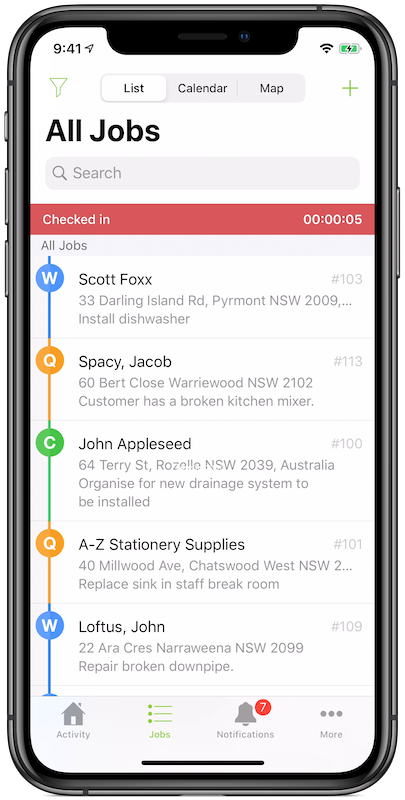
You can tap the check-in status bar to open the Job you’re currently checked in to.