Jobs and scheduling
How to schedule a job in the ServiceM8 app
Schedule a job from its Job card in the ServiceM8 app.
To schedule a job from the job card:
- Tap Jobs and find the job you would like to schedule. Tap the job to open its job card.
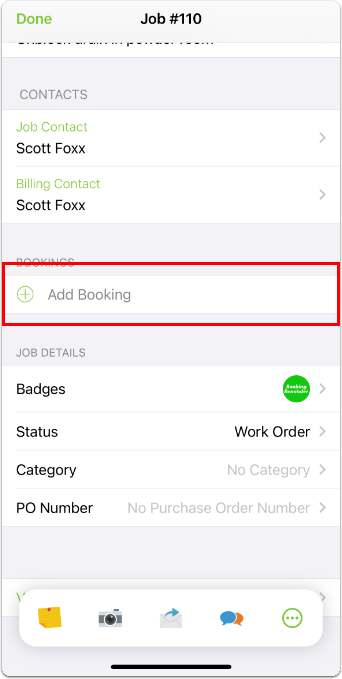
- Scroll down and tap Add Booking.
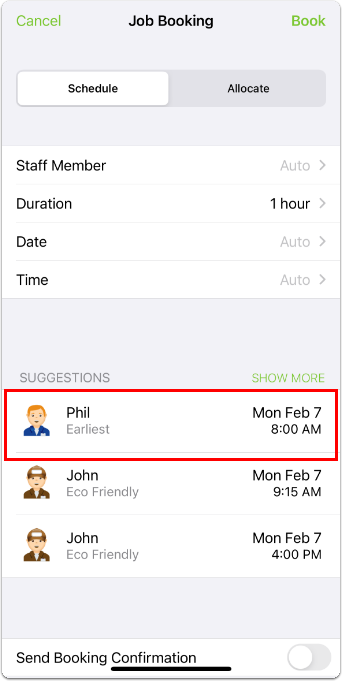
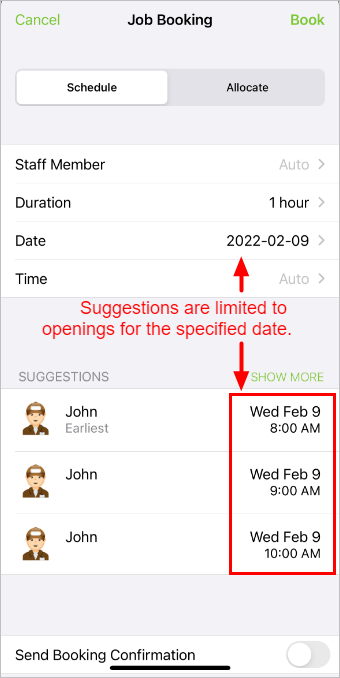
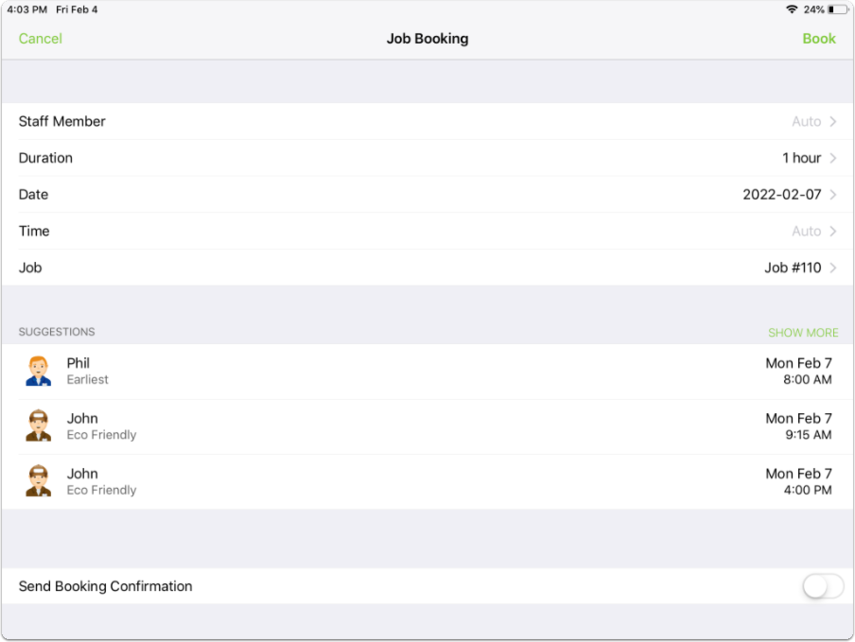
The Job Booking window will open. You can choose from the suggestions, or use the parameters to narrow suggestions to a specific staff member, time, or date.
To use a suggested time & staff member:
- Under Suggestions, tap your preference.
-
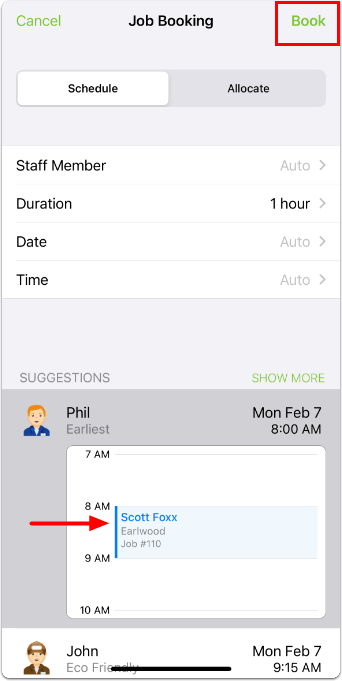
You will see the job against the staff member’s calendar. (You can tap it again if you want to expand the calendar view.)
-
If you are not satisfied, tap another suggestion.
-
If you are satisfied, tap Book.
-
If you or your client have a preferred staff member, time, or date:
-
Tap Date or Time and populate accordingly.
-
Under Suggestions, tap your preferred opening for an appropriate staff member.
-
You will see the job against the staff member’s calendar.
-
If you are not satisfied, tap another suggestion.
-
If you are satisfied, tap Book.
-
To schedule a job from the Schedule tab on iPad
The steps below show the iPad workflow. For the tablet Schedule view, see Use the Schedule on a tablet.
-
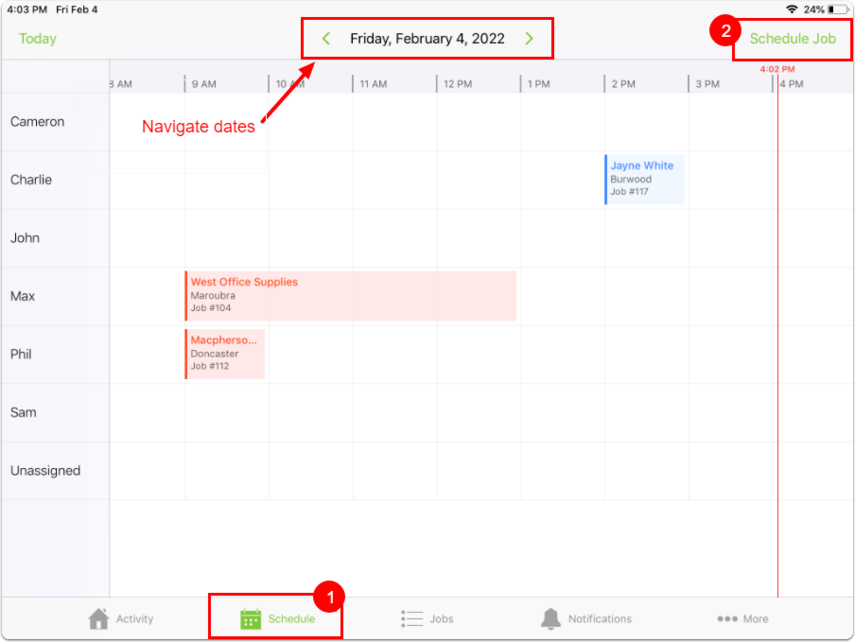
Tap Schedule.
- Navigate between days by swiping or by using the left and right arrows, or tap the date heading to bring up a calendar to jump to a date.
-
Tap Schedule Job.
-
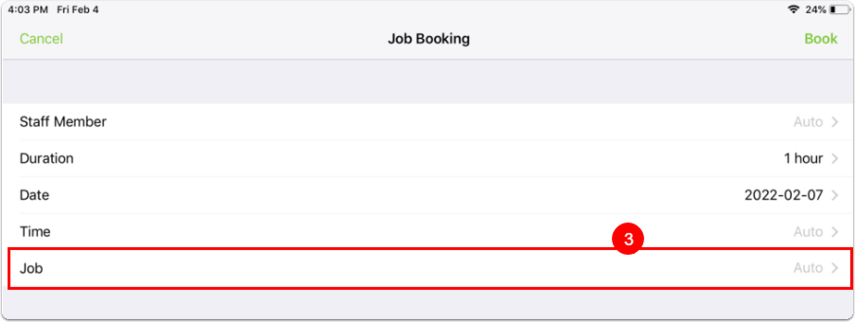
The Job Booking window will open. Tap Job.
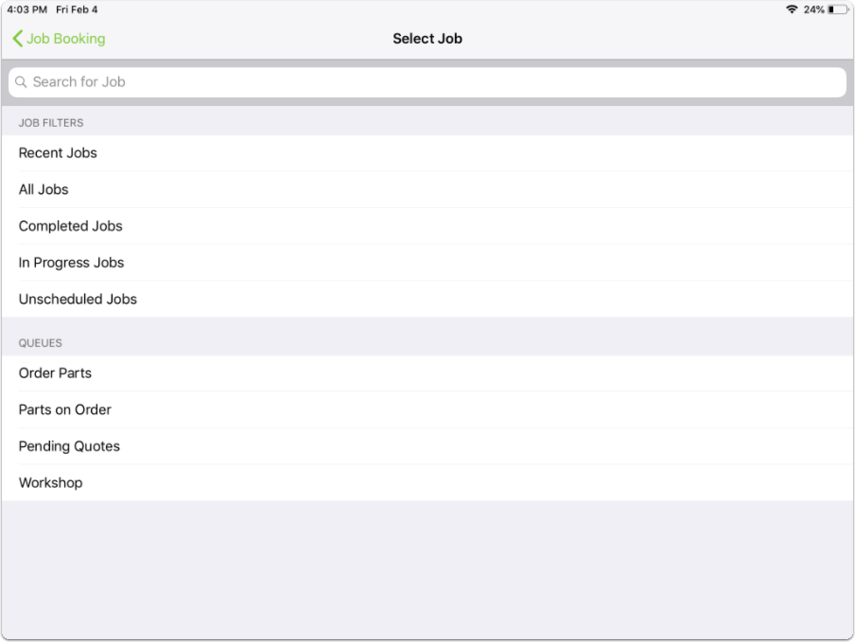
- You can search for a job, or select a job from a job filter or queue.
-
Find and tap the job you want to schedule.
- Use booking suggestions to book the job to the earliest available opening, or to a specific staff member, time, or date. When you are satisfied, tap a suggestion, then tap Book.
TIP: From the Schedules tab, you can also tap and hold on an available time for a staff member to open the Job Booking window for that time slot and staff member.
Allocating a job to a specific staff member
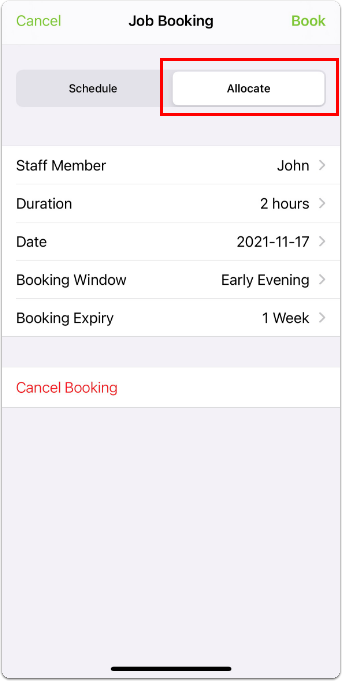
You can allocate a job by specifying a staff member and a booking window (for example, early evening). This option is best for jobs that don’t require a specific booking time or date - for example, it could be done at any time of day within the next week, or it must be done as soon as possible.
Note you can only allocate jobs if you have the Job Allocations add-on enabled. (From your Online Dashboard, go to Settings > ServiceM8 Add-ons > Job Allocations to enable it.)
To allocate a job within the app:
-
From the Job Booking window, tap Allocate.
-
Tap the desired fields to specify booking information.
-
Staff Member and Booking Window must be completed to allocate a job.
-
You can also specify estimated duration, date, and expiry date (if the job is not completed by the expiry date, the allocation disappears).
-
-
Tap Book.