

Quotes and invoicing
How to build and send your first quote
Learn how to build and send your first quote in ServiceM8.
This lesson will show you how to build a simple quote using the ServiceM8 Online Dashboard. You can add labour and materials, produce a professional PDF, and send it to your customer for review - all directly from the Job Card!
1. Open the job.
From the main menu , click Dispatch Board.


Find the job you want to quote on the Jobs List, and double-click to open its Job Card.
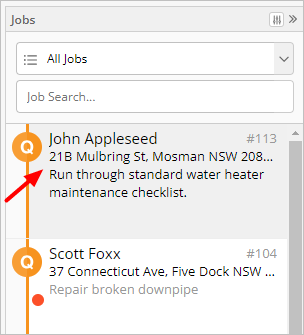

2. From the Job Card, click Billing.
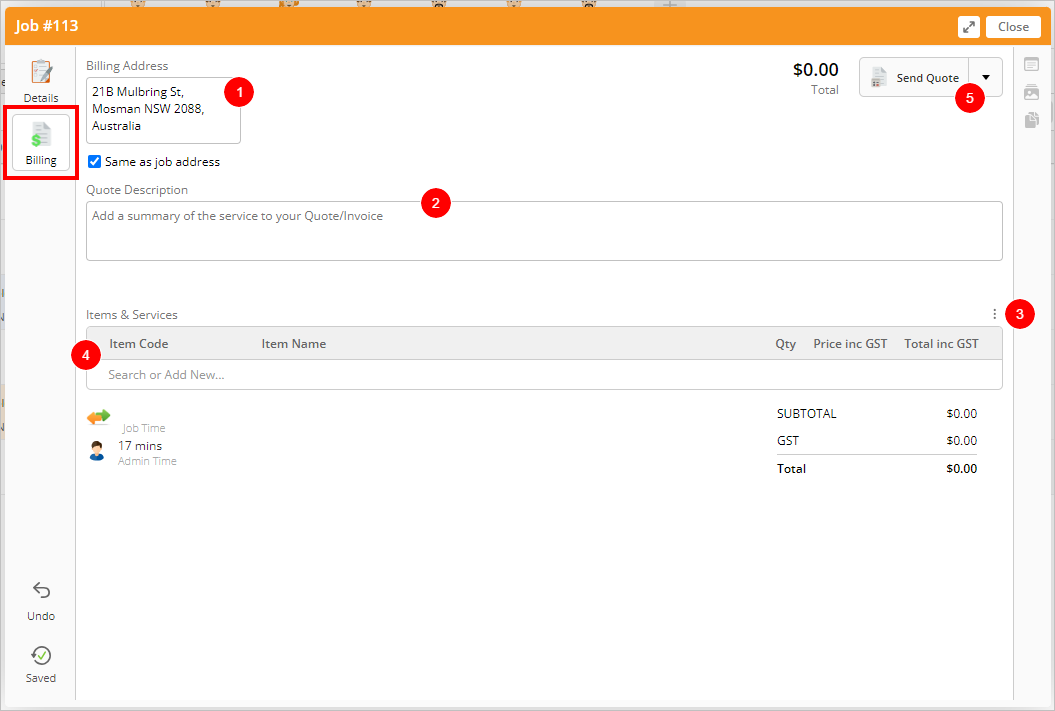

The Billing tab is the area of the Job Card where you can build a quote or invoice online, then send it to the customer. It contains the following elements:
- Billing Address: This is the address that will be used when generating an invoice. If the billing address is different from the job address, add it here.
- Quote Description: Enter a description of the work to be done for the client. This information will be included on the quote, unless you are using a quote template that does not contain the description field. (Tip: Take advantage of the Smart Writing Helper when populating this field!)
- Tax Setting: Clicking ⋮ displays your default tax settings for your account. Best practice is to set all of your jobs as either tax inclusive or tax exclusive, and then don’t change it. See this article for more information.
- Items & Services: This is the area where you add items, materials, and labour rates, or more general services you’ve created.
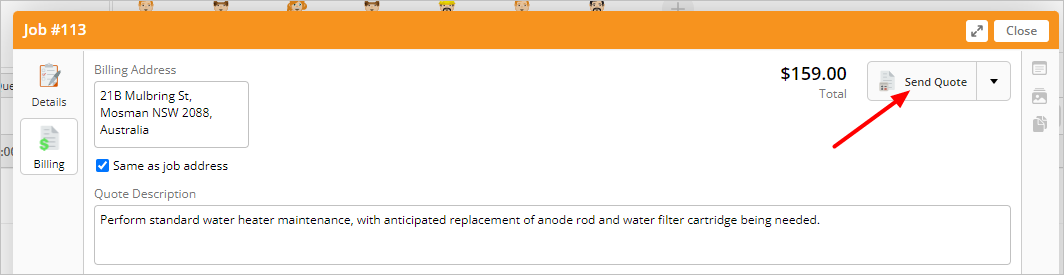
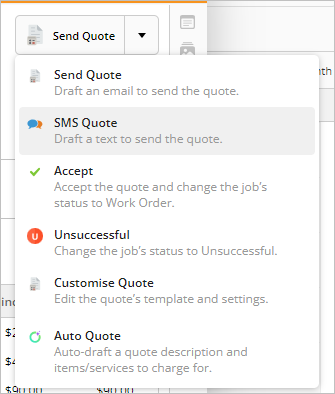
- Workflow Action: This dropdown contains the common actions associated with the current job status - in this case, Send Quote, which will automatically create a PDF of your quote and open a new email to send it to the customer. Click the dropdown to see other potential actions.
3. Enter the materials and services that will be included in the quote.
To add an item from your inventory, click in the Item Code field and search for it by typing the name or code. ServiceM8 will pull up suggestions as you type. When your item appears, click on it and then adjust the quantity as needed.
If needed, you can change an item’s name or price right within the quote. Whether price changes also update the saved item for future jobs depends on your Save As You Go item pricing preference.


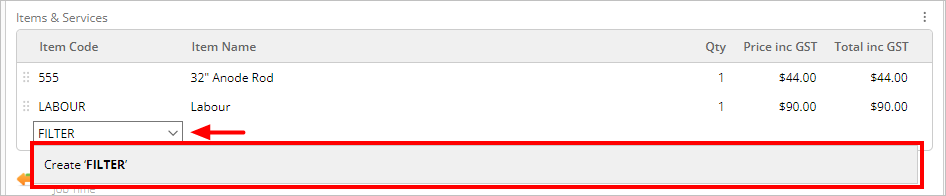
You can also create an item on the spot to add to the quote. New items you add in a job card are saved to your Items database.

You can change the order of the items in the quote by clicking the item, then dragging it to the desired location and dropping.
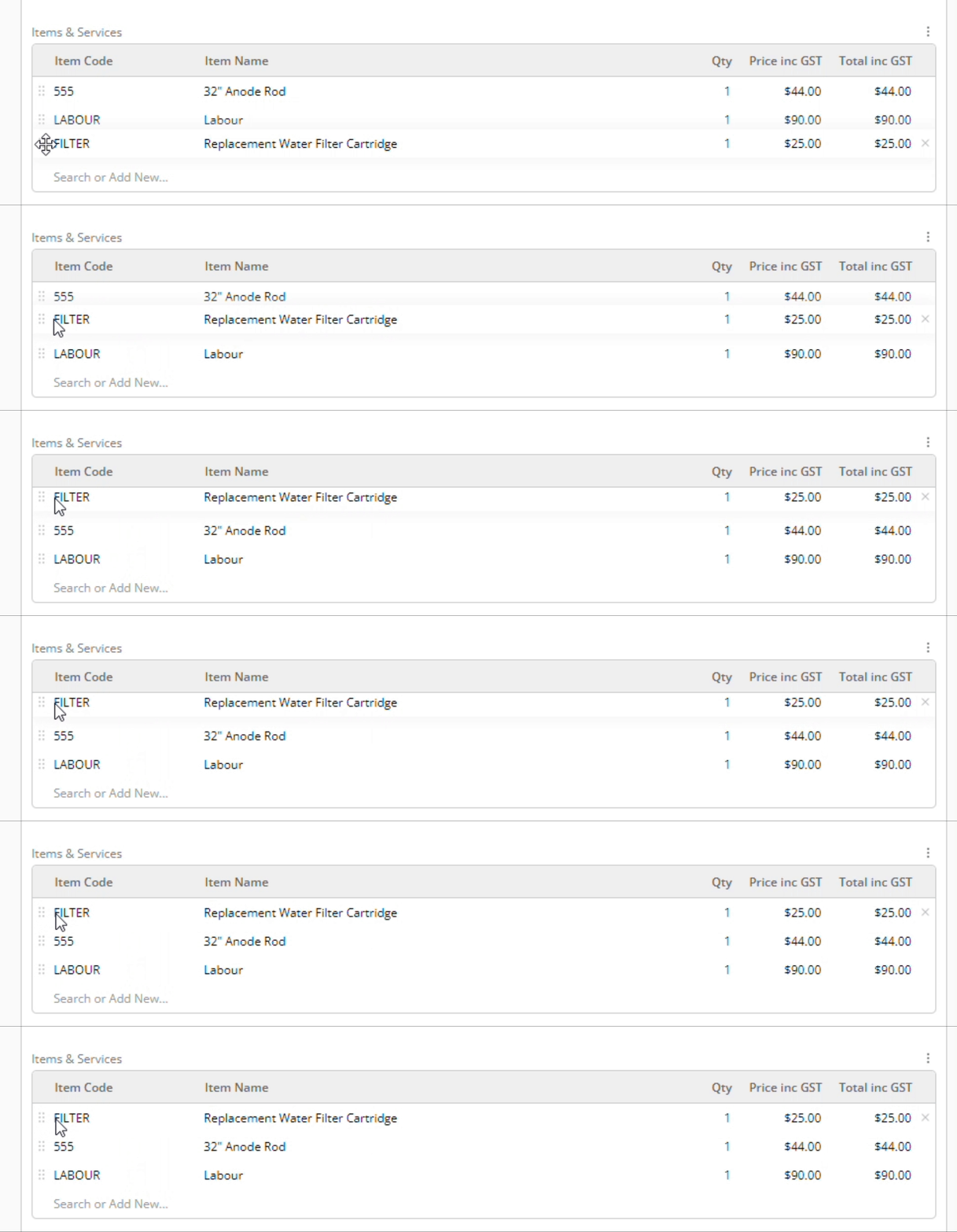

Note that with each new item you add to your quote, the total updates. The quote saves automatically as you work.
4. Send the quote to the customer.
When you are satisfied with your quote, it’s time to send it to the customer.
To send the quote via email, click Send Quote.

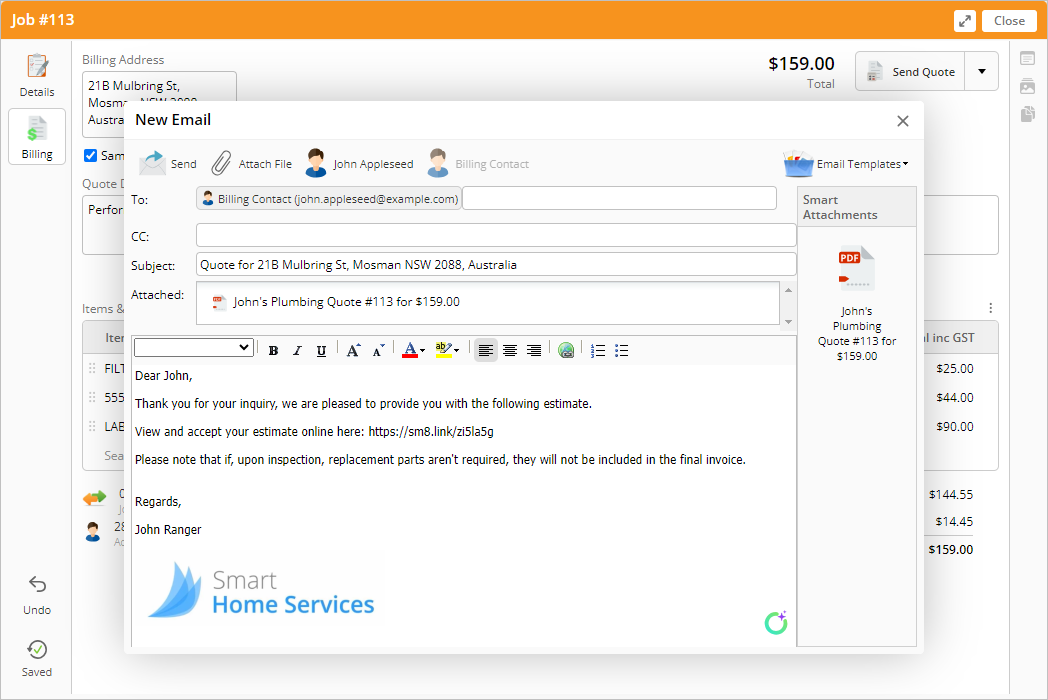
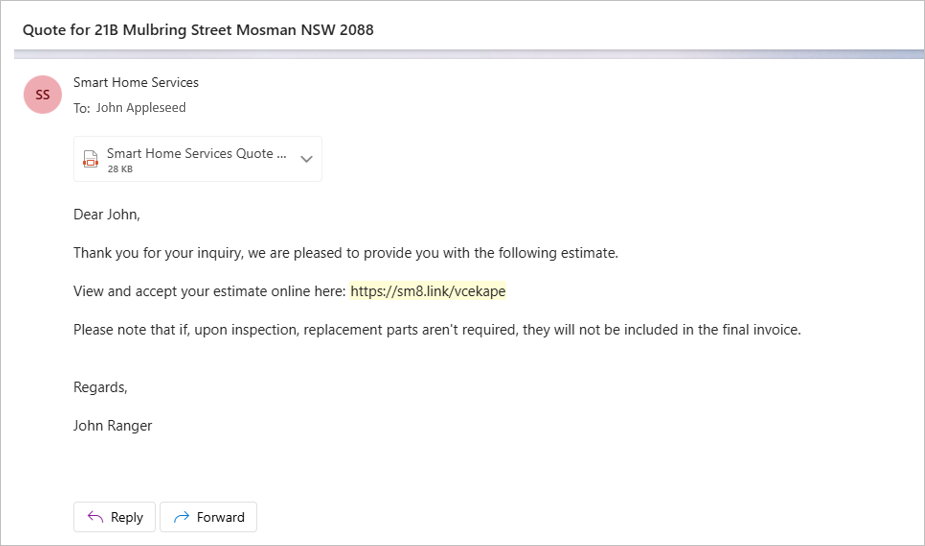
An email template will automatically open, addressed to the job’s Billing Contact, with the PDF of your quote attached. Adjust the body of the email if needed.

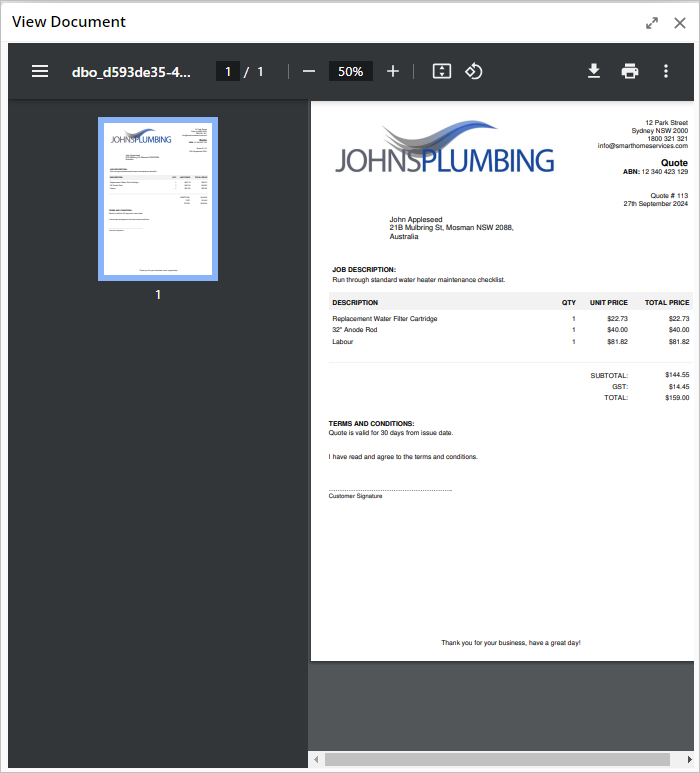
To preview your quote, click on the attachment.

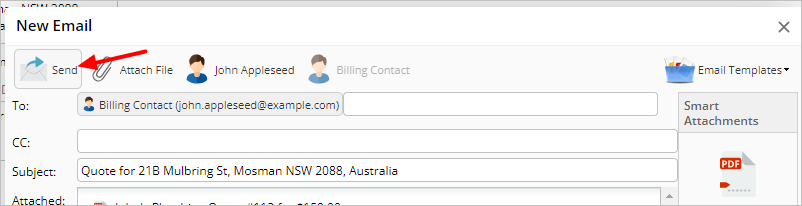
If you are happy with the quote, click Send. The email will be sent to the customer, and also saved to the job’s Diary.

TIP: If you would prefer to send the quote via SMS instead of email, click the dropdown next to Send Quote and select SMS Quote. The client will receive a text with your SMS Quote template, including the online link to the quote.

Congratulations - you have just sent your first quote to a customer!
5. Schedule the job upon customer acceptance.
When the customer receives the email with the PDF attachment, they will also find a link to view and accept the quote online.

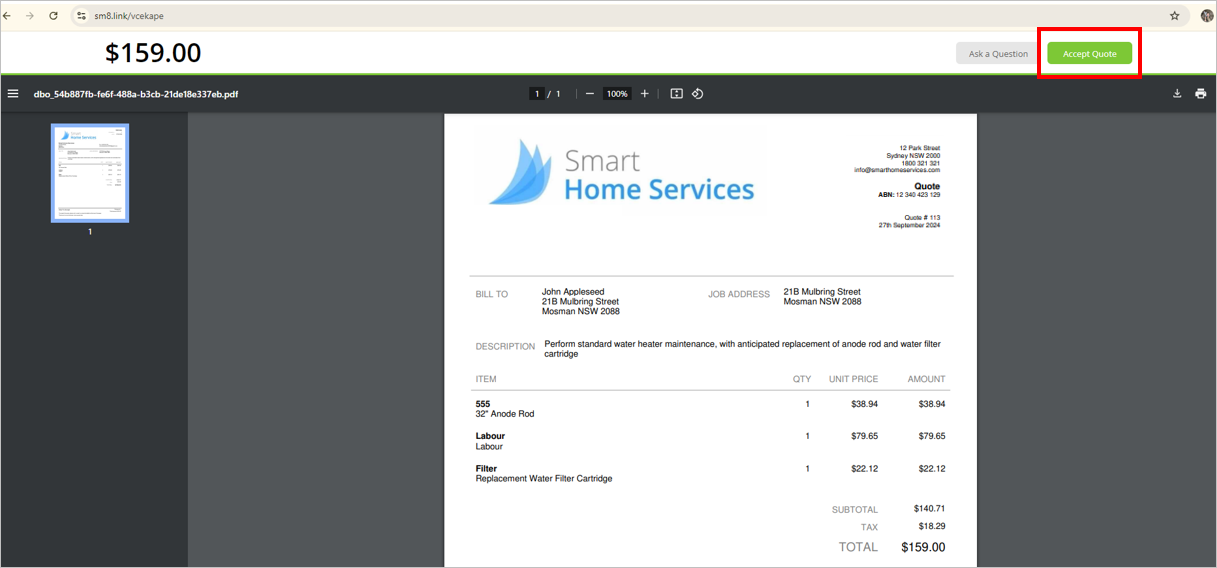
When the customer opens the link, if they are happy with the quote, they can click Accept Quote.

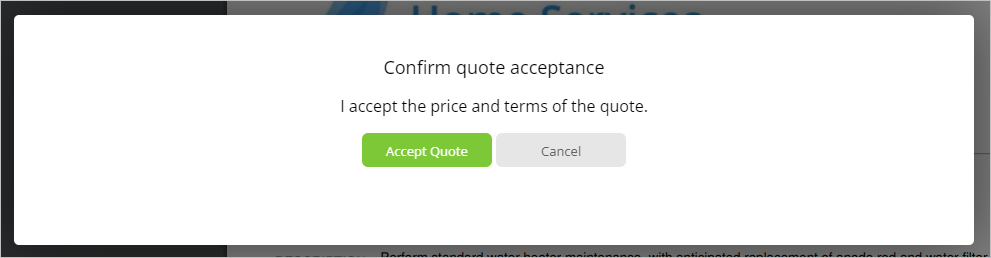
The customer will be prompted to confirm quote acceptance.

Upon confirmation, you will receive a notification via email and in ServiceM8. The job status automatically changes from Quote to Work Order and the job is added to the Action Required job list.
Your next step will be to schedule the job.
Related FAQs
Additional resources
- How to add a deposit requirement to a quote
- How to change your quote template
- How to add a quote follow-up automation
- Learn about Pending Quote job queues