The mobile app
Use ServiceM8 on a tablet
Navigate ServiceM8 on a tablet, customise your tab bar, and review Job details alongside the Diary.
Use the extra screen space on a tablet to move between views and review job information.
If you don’t see these options, try updating ServiceM8 and your device’s operating system to the latest versions available for your device.
Move between views
-
Tap the sidebar button at the left of the tab bar to open the side pane.
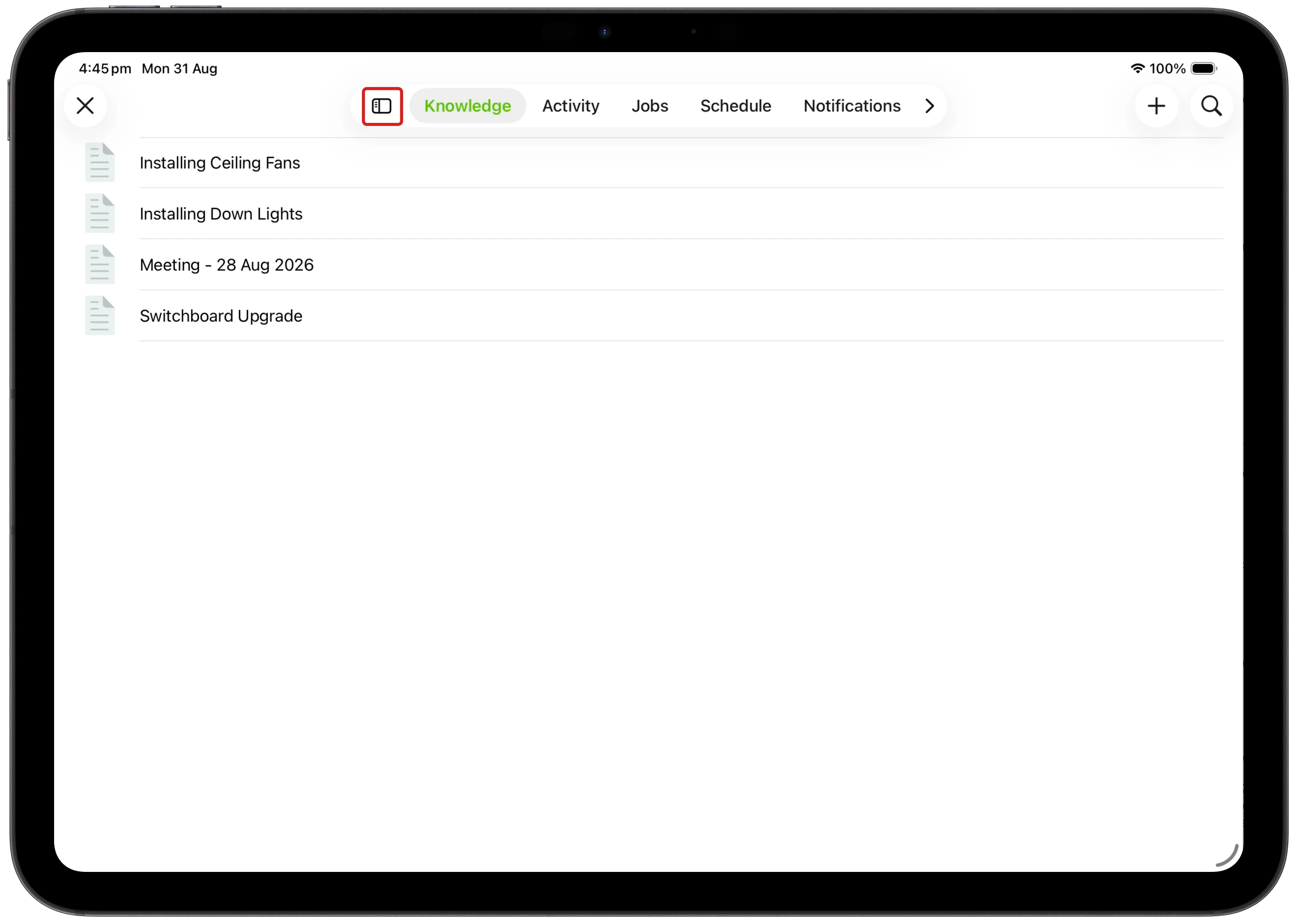
-
Tap a destination, such as Jobs, Schedule, Inbox, Notifications or Knowledge, to open it. The destinations you see depend on your available features and access.
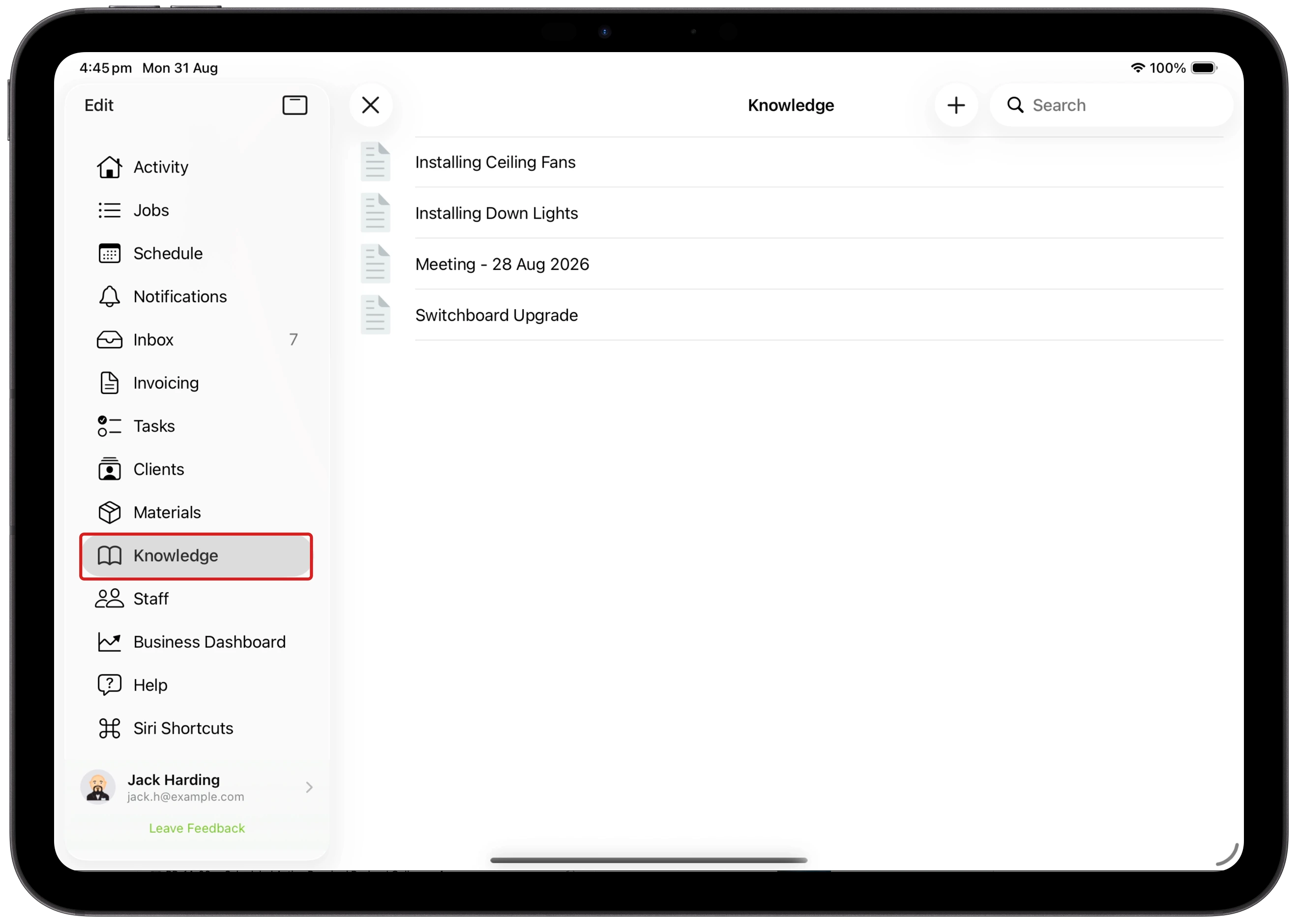
Tap the button at the top-right of the sidebar to switch back to the tab bar.
Customise your tab bar
-
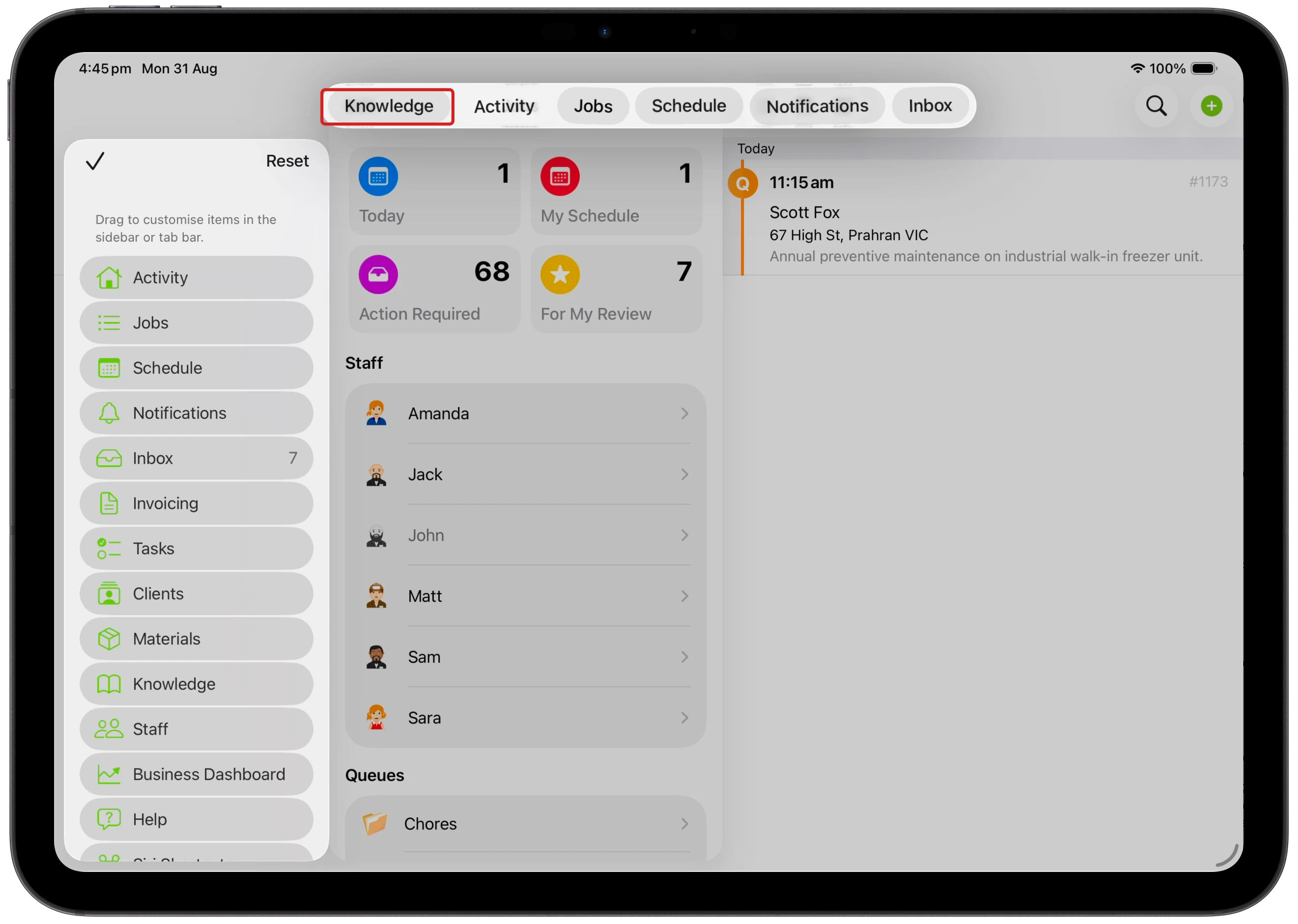
Tap Edit at the top of the sidebar.
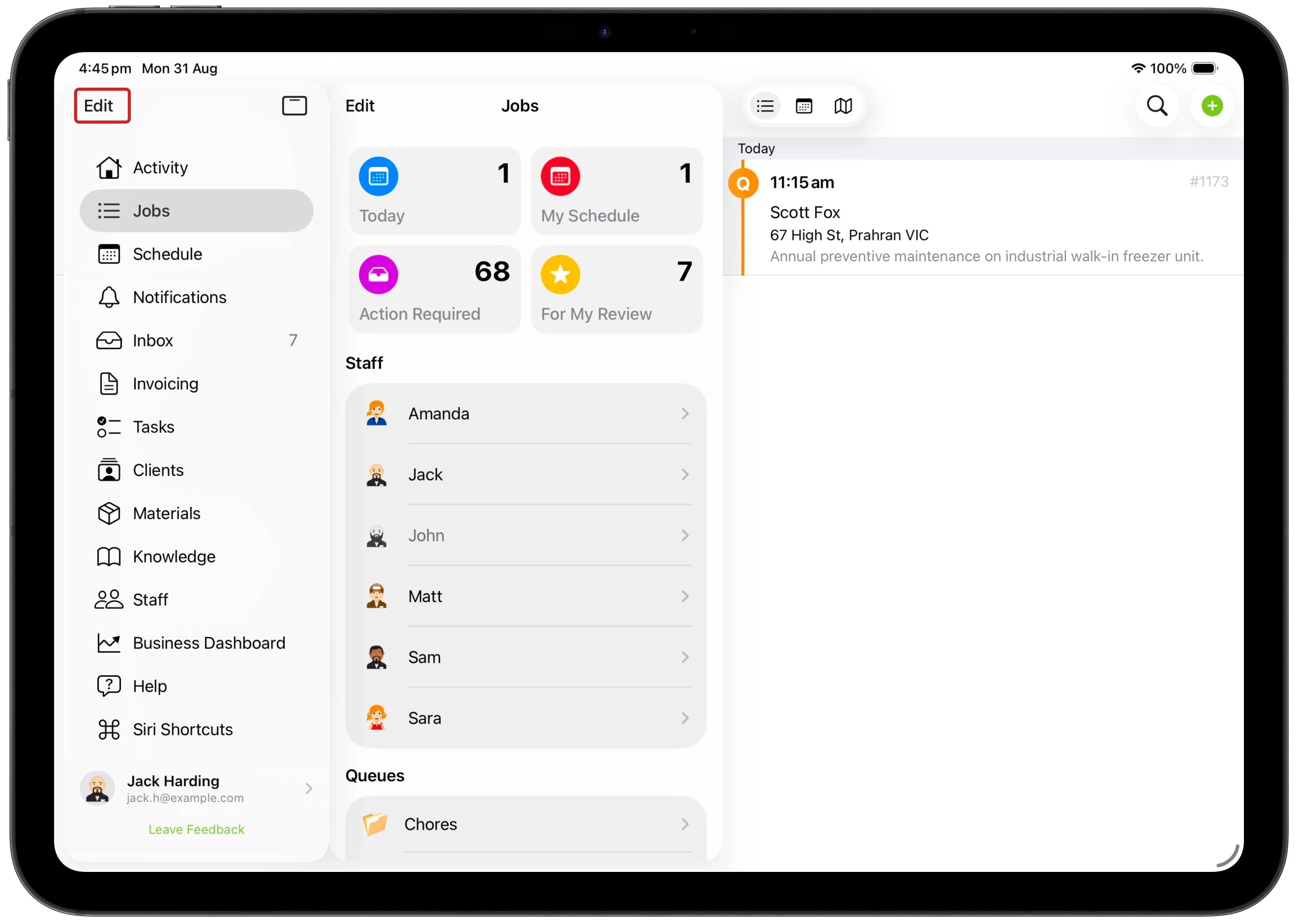
-
Drag a destination from the sidebar into the tab bar. Drag tabs along the bar to put them in your preferred order.
-
Tap the checkmark at the top of the sidebar to finish. Your tab arrangement is saved.
-
Tap an added tab to open it. To show the sidebar again, tap the sidebar button at the left of the tab bar.
View a Job card and Diary side by side
Tap Jobs, then open a job. With enough window width, the Job card appears on the left and its Diary on the right. Scroll either pane to review the job details and history.
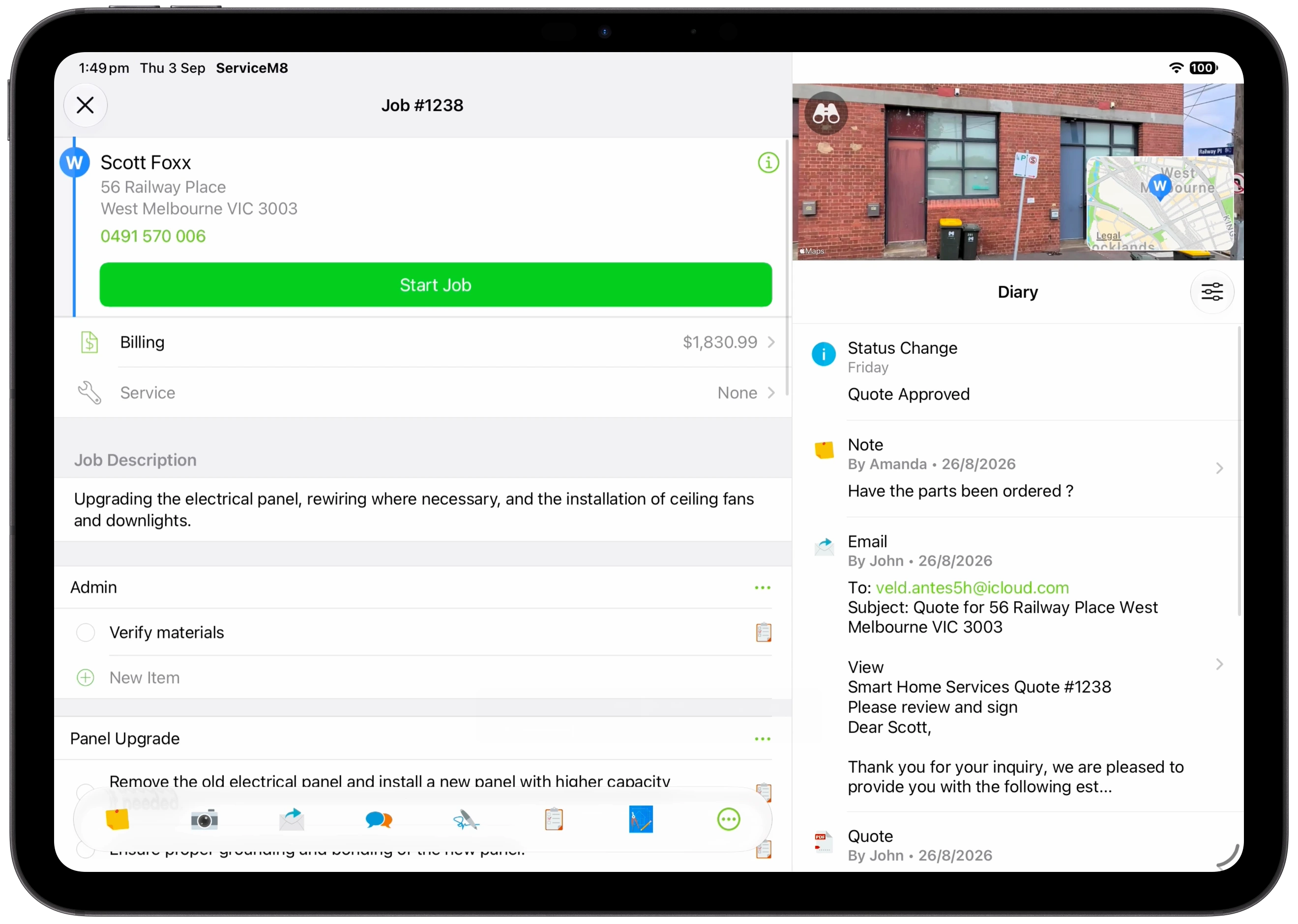
The layout switches automatically with the available window width; there is no separate toggle for side-by-side view. At narrower widths, the Job card returns to a single-column layout and you open the Diary separately.
View the job location on iPad
-
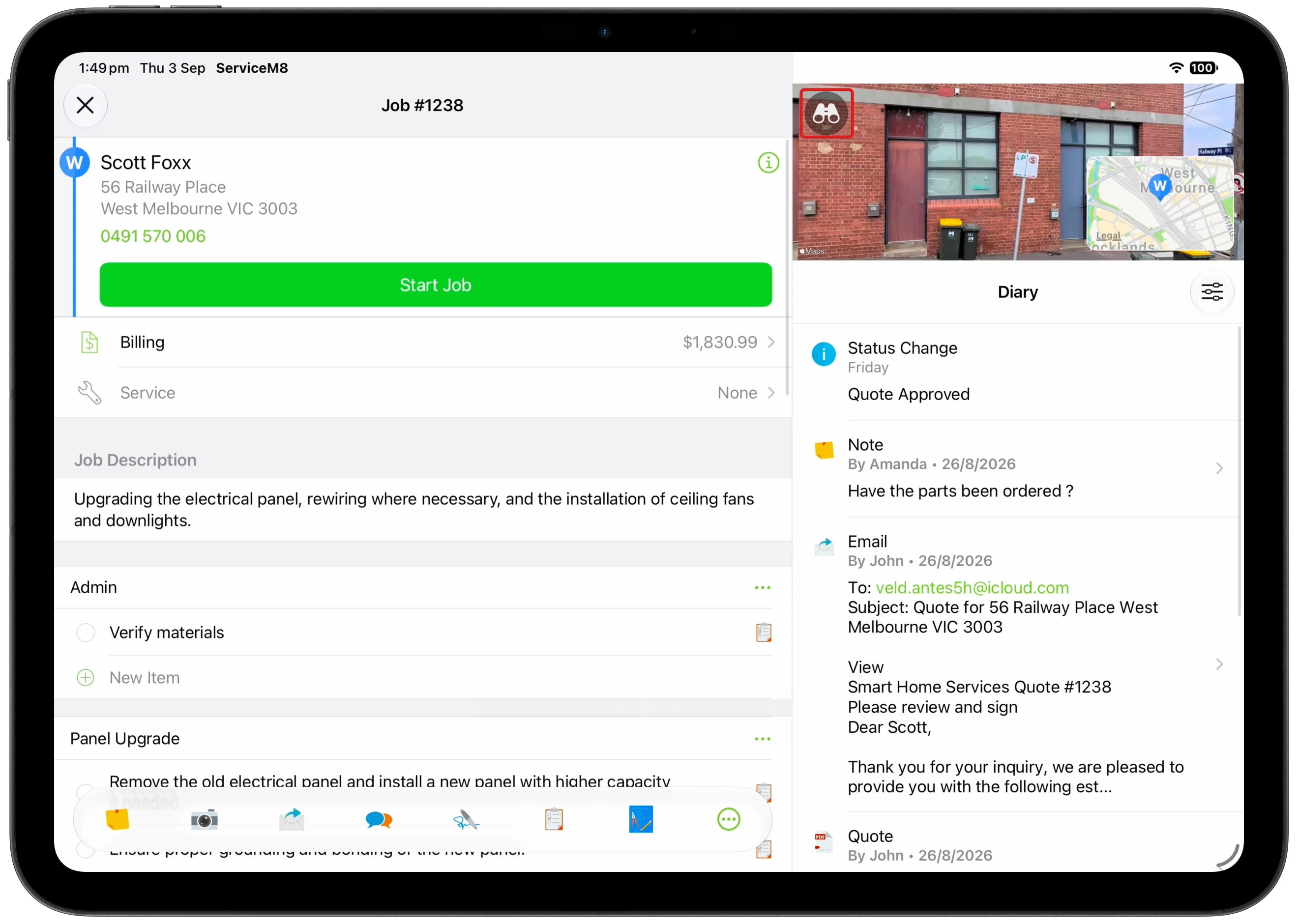
Tap the location preview with the binoculars icon above the Diary to open Look Around. The preview appears when the job has a recognised location and Apple has imagery available.
-
Explore the street-level view, then tap Close (×) to return to the job.