

The mobile app
How to switch between accounts in the ServiceM8 app
Add, switch between and remove saved accounts in the ServiceM8 app.
In the ServiceM8 app, save up to five accounts, then switch between them without signing out and entering your login details each time.
Before you start
Connect to the internet to add or switch accounts.
Open your profile
-
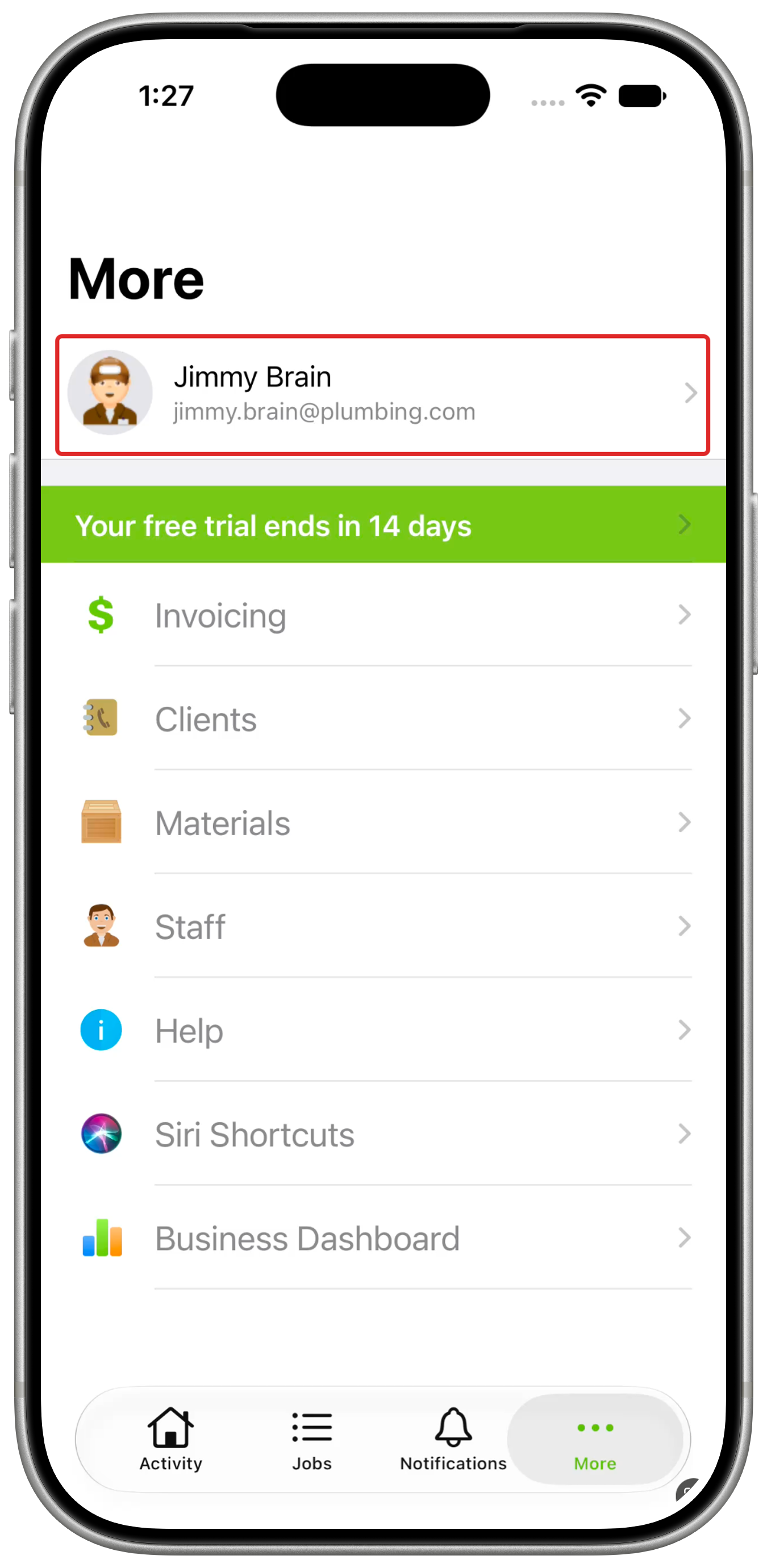
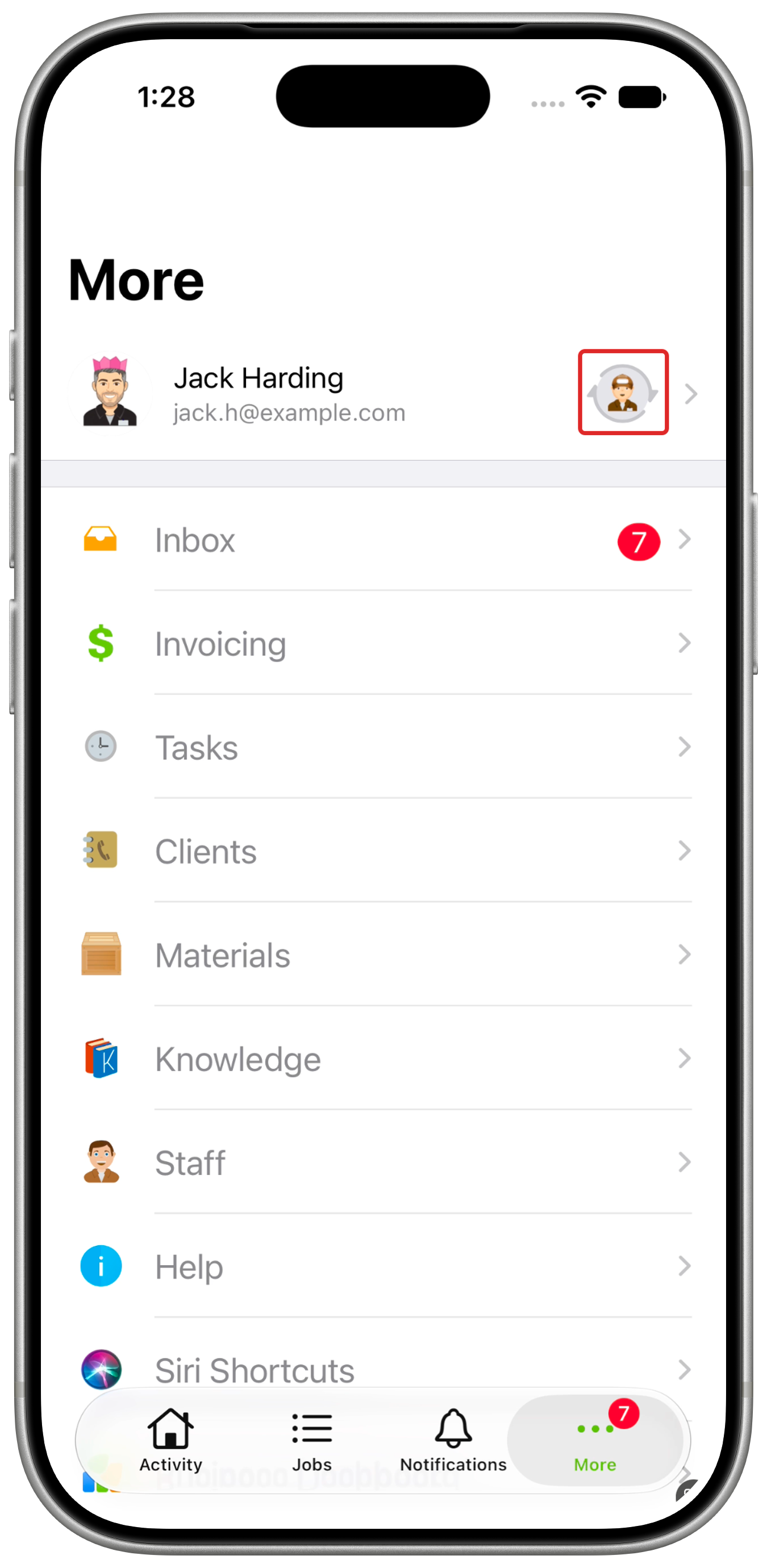
Tap More, then tap your name and avatar at the top of the screen to open Profile.
Add an account
-
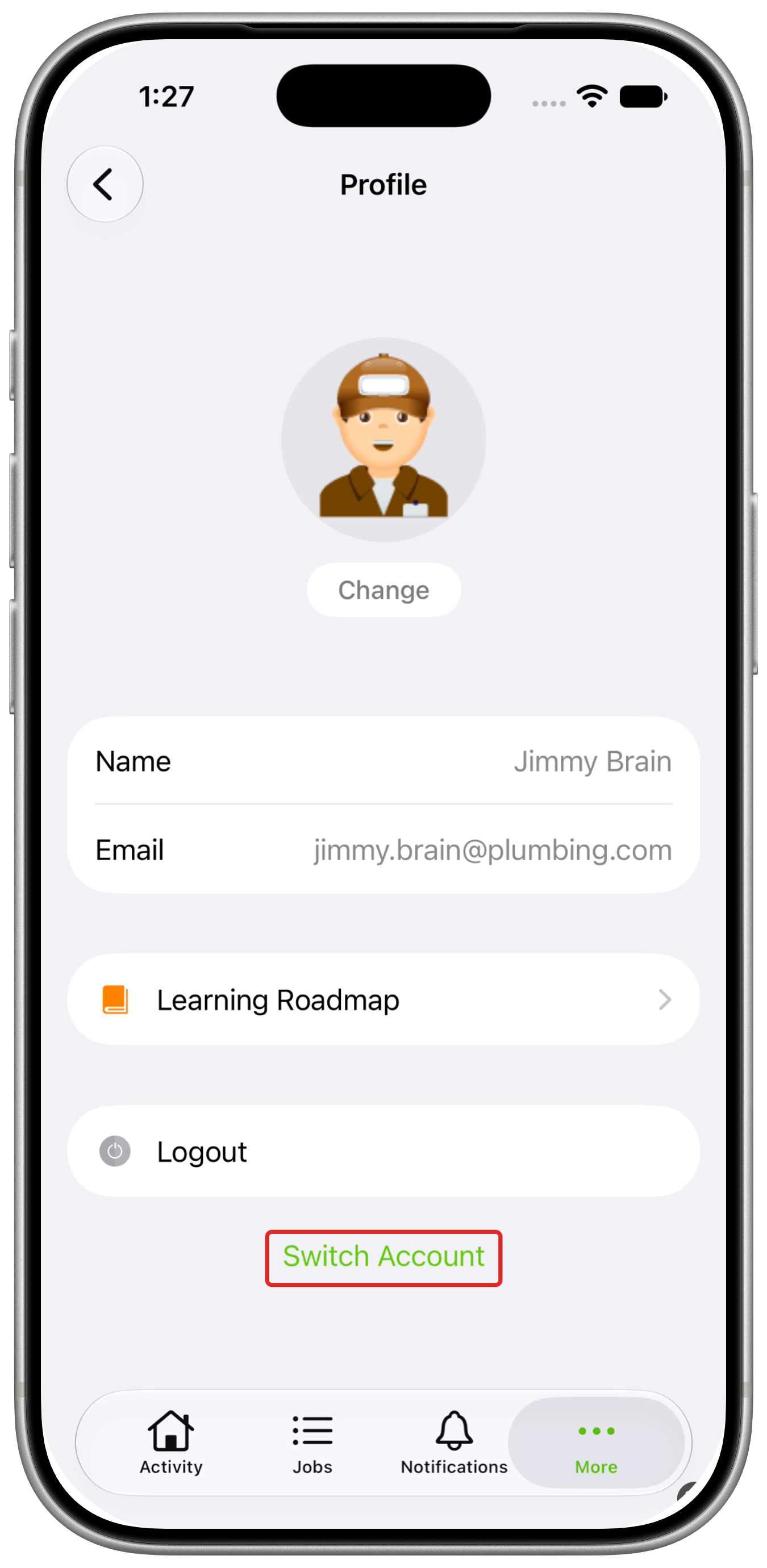
In Profile, tap Switch Account.
-
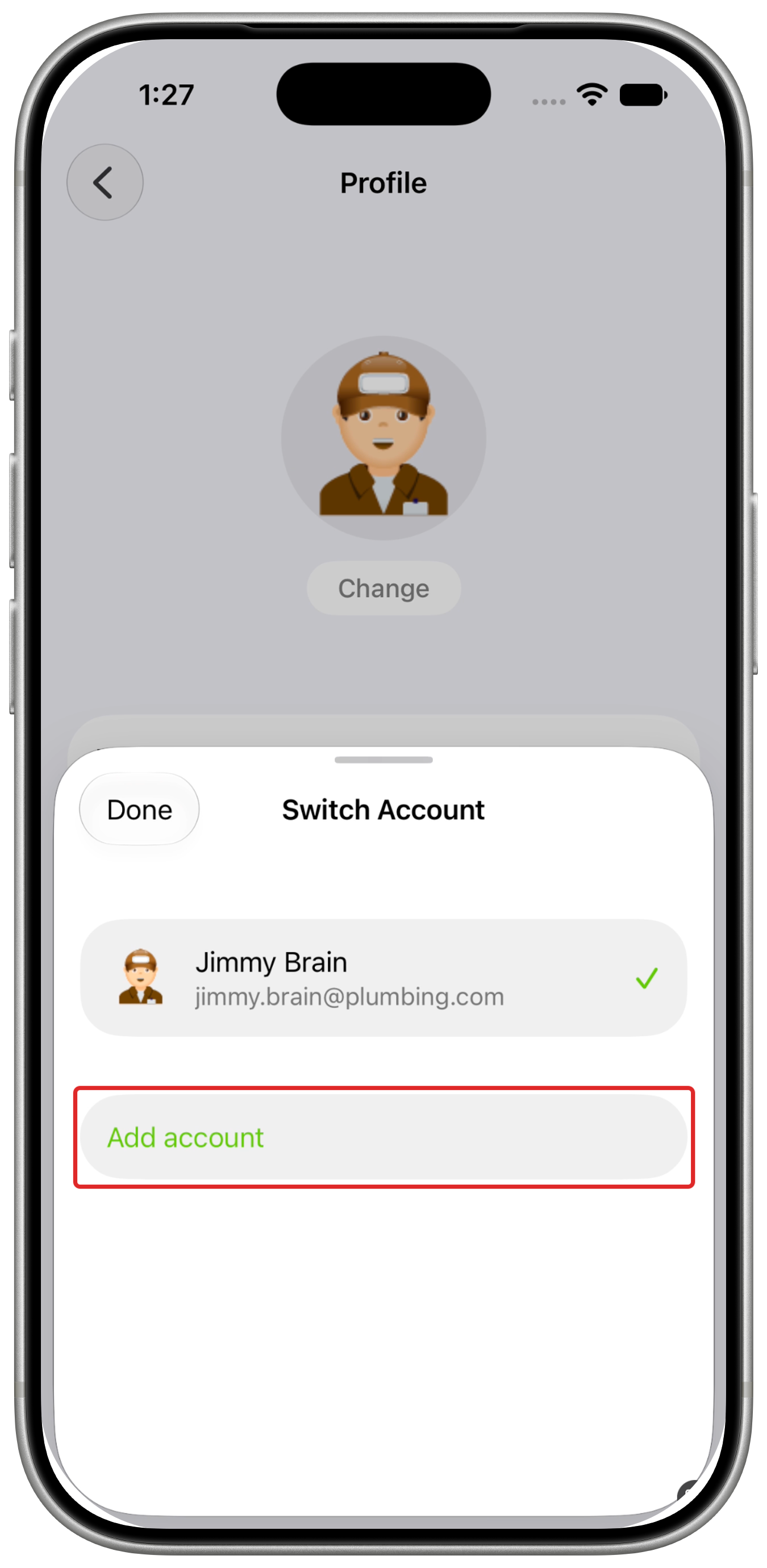
Tap Add account.
-
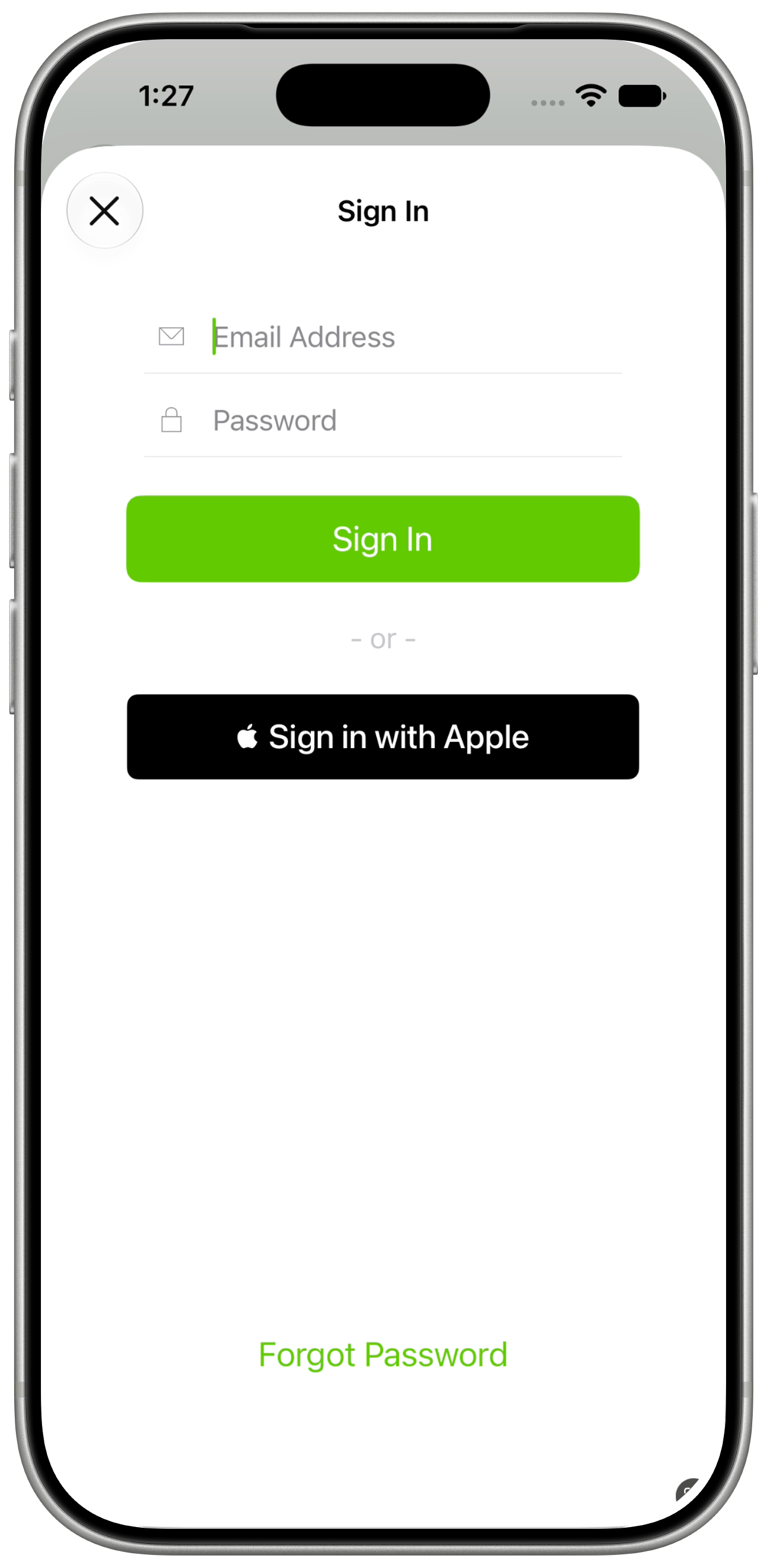
Sign in to the other ServiceM8 account and complete any requested authentication.
-
The added account becomes active. Tap More to check the name and email in the profile header before continuing work.
When you have exactly two saved accounts, tap the small avatar surrounded by arrows to switch to the other account.
Switch accounts
- Open Profile and tap Switch Account. A checkmark identifies the active account.
- Tap the saved account you want to use. Once the switch finishes, check your profile header before continuing work.
Switching accounts checks you out of any job and clocks you off in the account you leave, if applicable.
Remove a saved account
- Open Profile and tap Switch Account.
- Tap the trash button beside an inactive account.
- Tap Remove Account to remove that saved login from this device.
To sign out of the active account and remove its saved login from this device, tap Logout in Profile.