Jobs and scheduling
How to reschedule job bookings
Learn how to reschedule job bookings in ServiceM8.
You may need to change the time, date, duration, or staff member of a job booking. This article reviews the different ways to reschedule job bookings from the:
- Online Dashboard - Dispatch Board
- Online Dashboard - job card
- ServiceM8 mobile app - job card
- ServiceM8 mobile app - Calendar view
- ServiceM8 mobile app - Schedule tab on iPad
Rescheduling job bookings from the Dispatch Board
Note: This section references the Staff Schedules view, but you can reschedule and adjust bookings from the Calendar view as well.
To change a booking time or staff member:
- From the Dispatch Board, click Staff Schedules. You can display schedules by day, week, 2 weeks, or month.
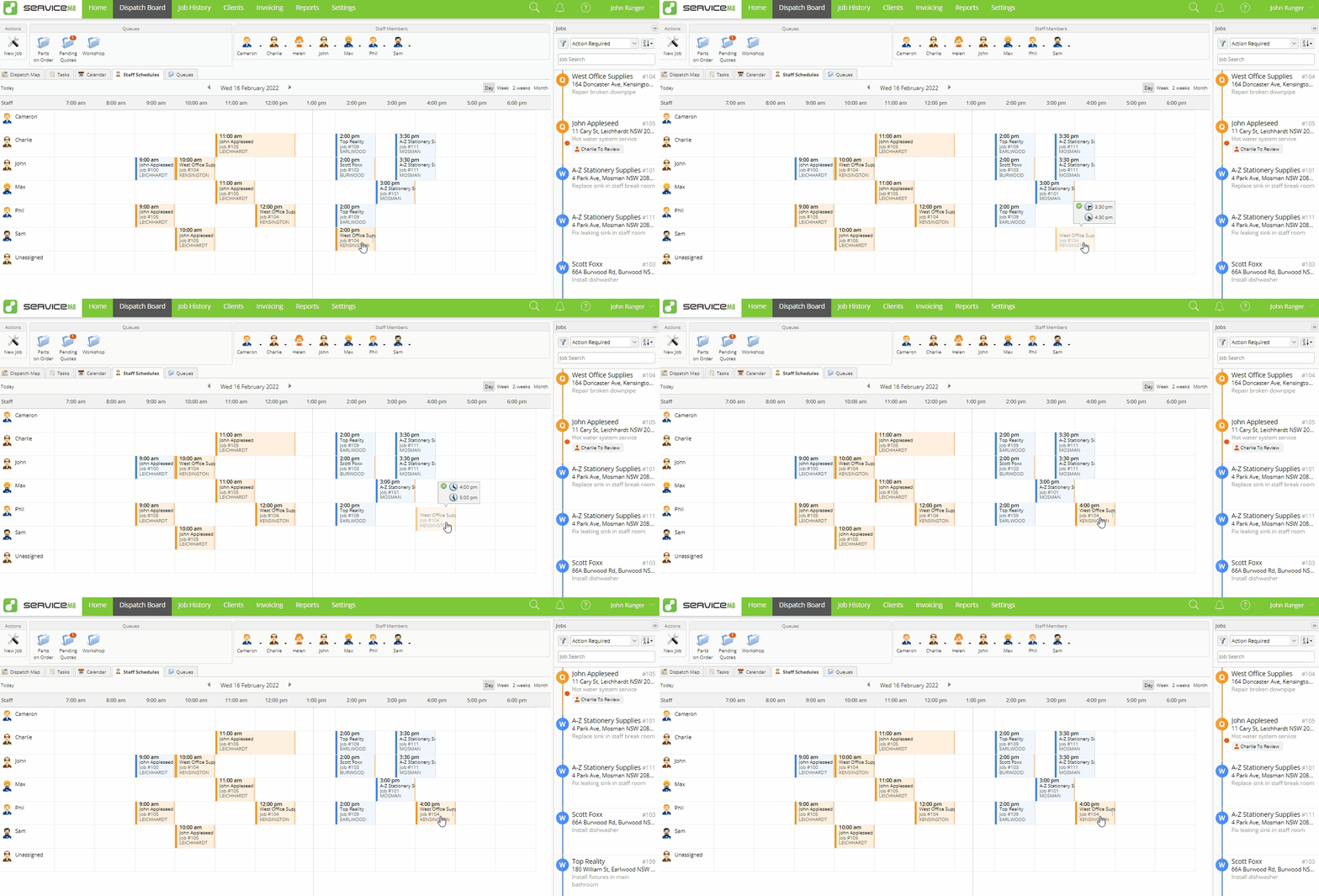
- Click and drag the job to the desired new slot on the schedule. (The example below moves the booking from Sam at 2:00 PM to Phil at 4:00 PM on the same day.)
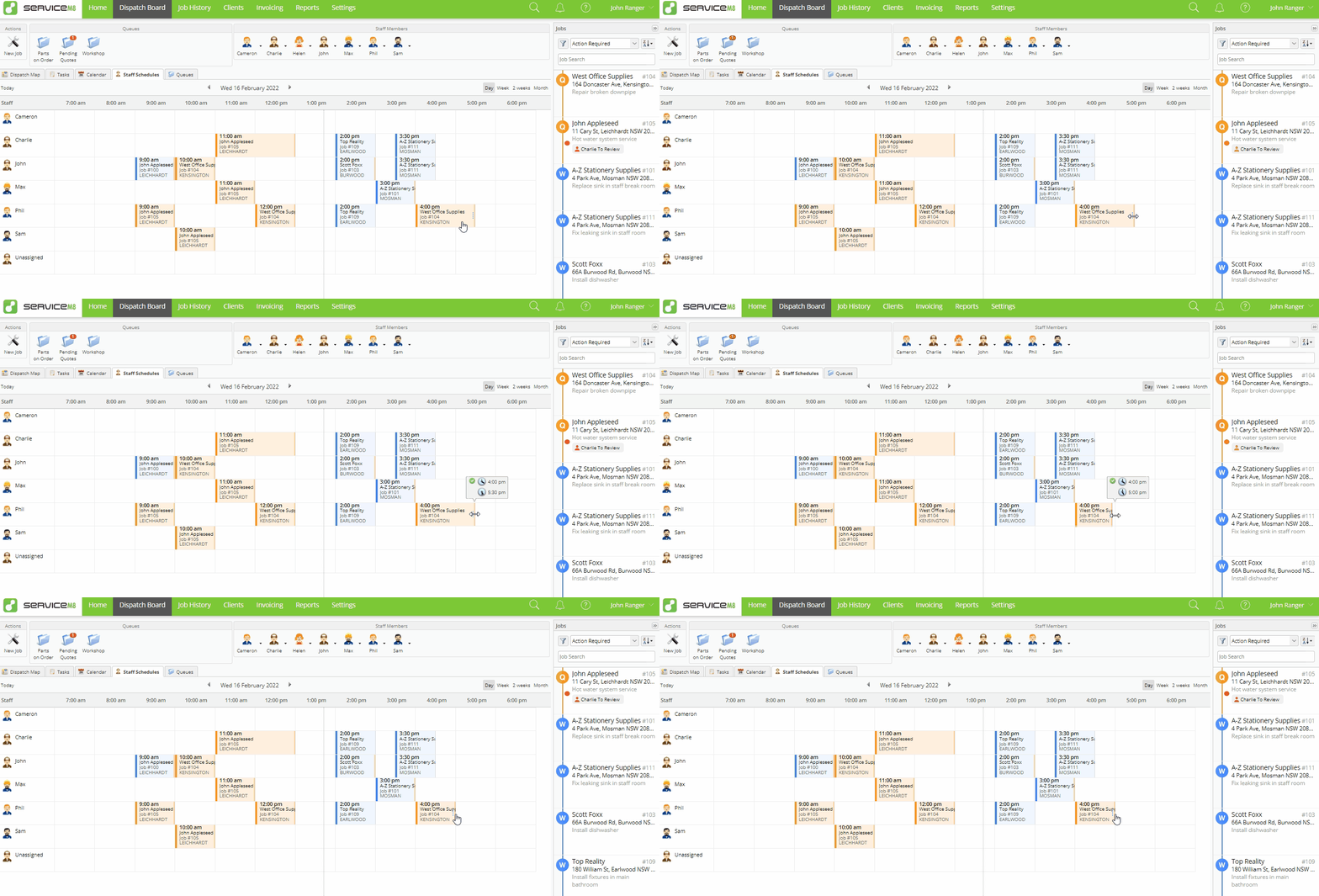
To lengthen or shorten the duration of a booking:
- Click and drag the booking end to lengthen or shorten the booking as desired.
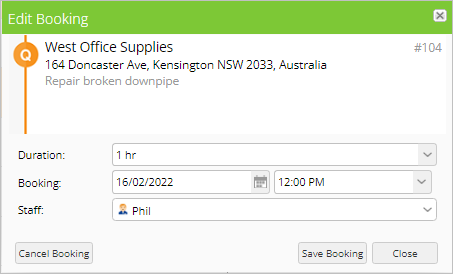
TIP: You can also double-click on a booking from the Staff Schedules view (or single-click from the Calendar view) to open the Edit Booking window. From there, you can edit a booking’s duration, date, time, and assigned staff.
Rescheduling job bookings from the job card in the Online Dashboard
- From the Jobs list, double-click the job to open the job card.
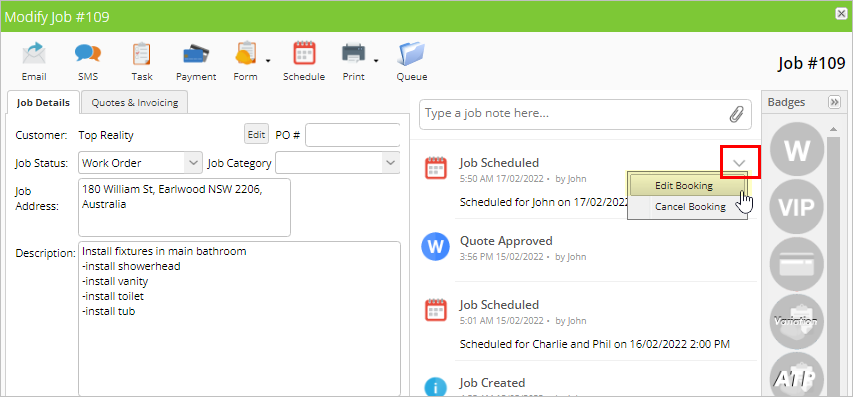
- Hover over the appropriate Job Scheduled entry in the job diary and click the arrow.
- Click Edit Booking.
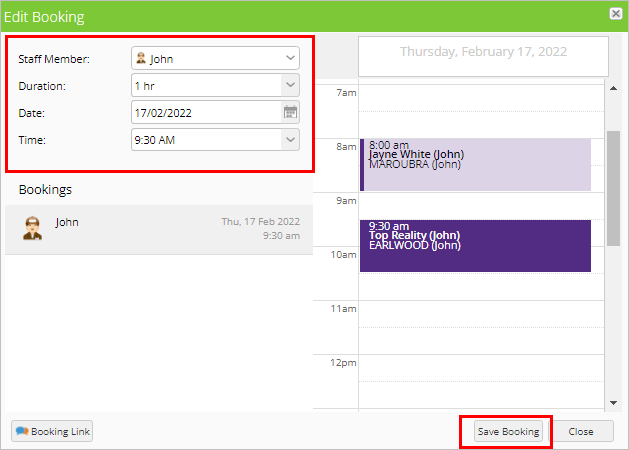
- The Edit Booking window will open. Adjust the staff member(s), duration, date, and time as needed. Current staff schedules will be displayed on the right to help you find a suitable time.
- Click Save Booking.
Rescheduling job bookings from the job card in the ServiceM8 mobile app
- From the Jobs view, find the job and tap to open.
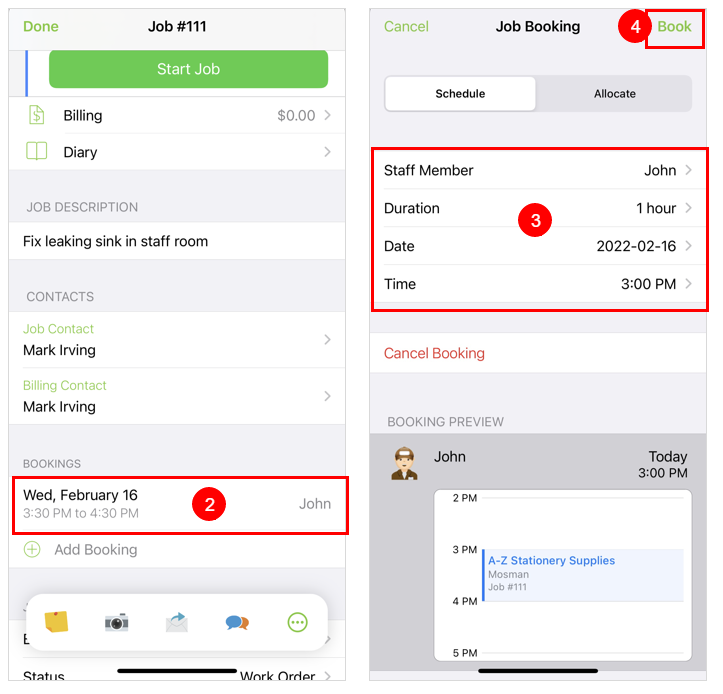
- Scroll down to Bookings and tap the booking you want to edit.
- Adjust the staff member, duration, date, and time as required.
- Tap the booking preview to see the new booking against the existing schedule.
- Tap Book.
Rescheduling job bookings from the Calendar view in the ServiceM8 mobile app
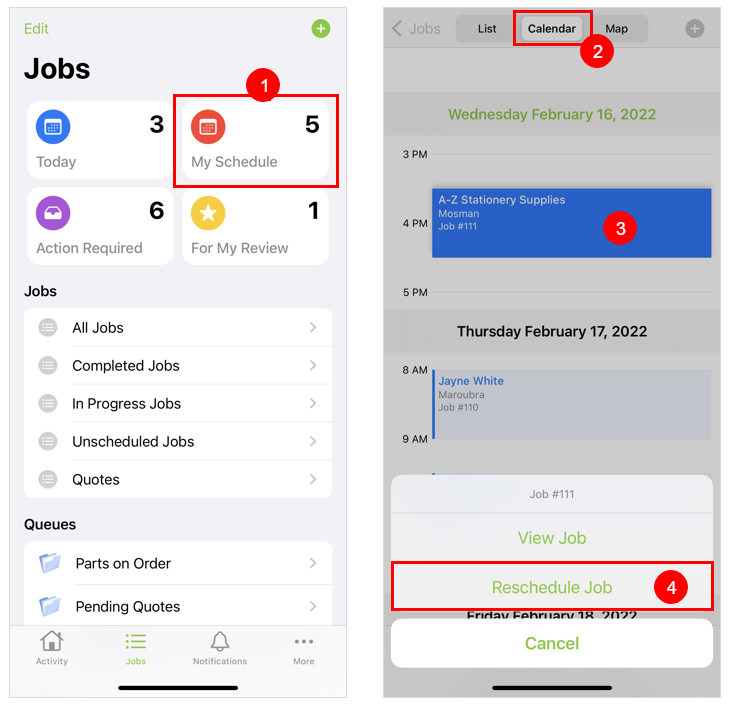
- From the Jobs view, tap My Schedule.
- Tap Calendar.
- Find and tap the job you want to reschedule.
- Tap Reschedule Job.
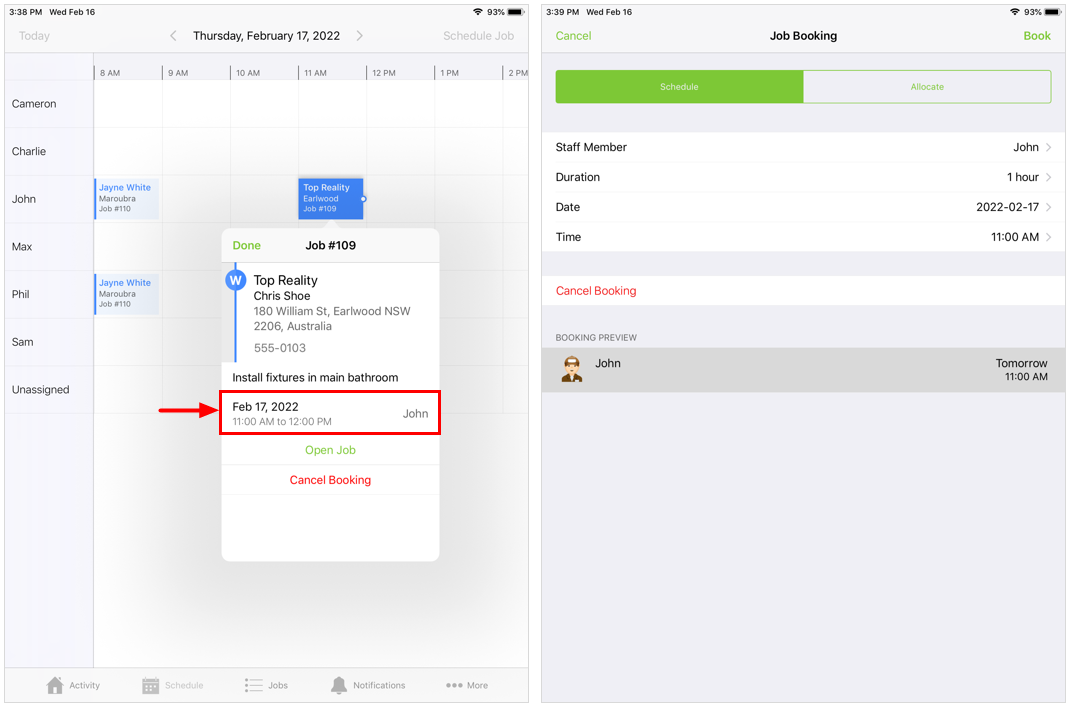
The Job Booking page (as shown in the previous section) will open.
Rescheduling job bookings using the Schedule tab on iPad
The steps below show how to reschedule bookings from the Schedule tab on iPad. For the tablet Schedule view, see Use the Schedule on a tablet.

To change a booking time or staff member:
- Tap and hold booking you would like to change.
- Drag the job to the desired new slot on the schedule and release.
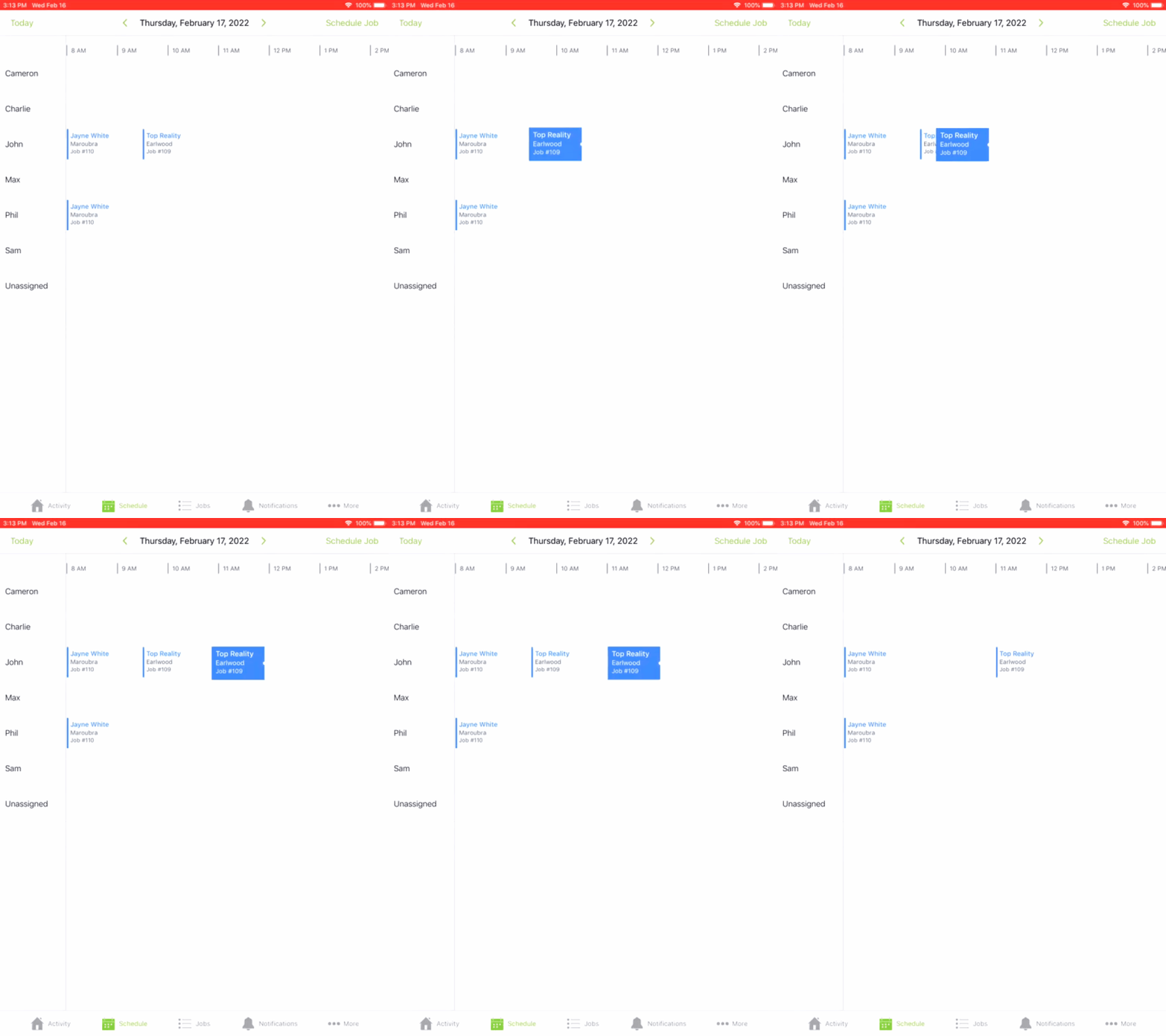
To lengthen or shorten the duration of a booking:
- Tap the booking.
- Drag the booking end to lengthen or shorten the booking as desired.
- Tap Done.
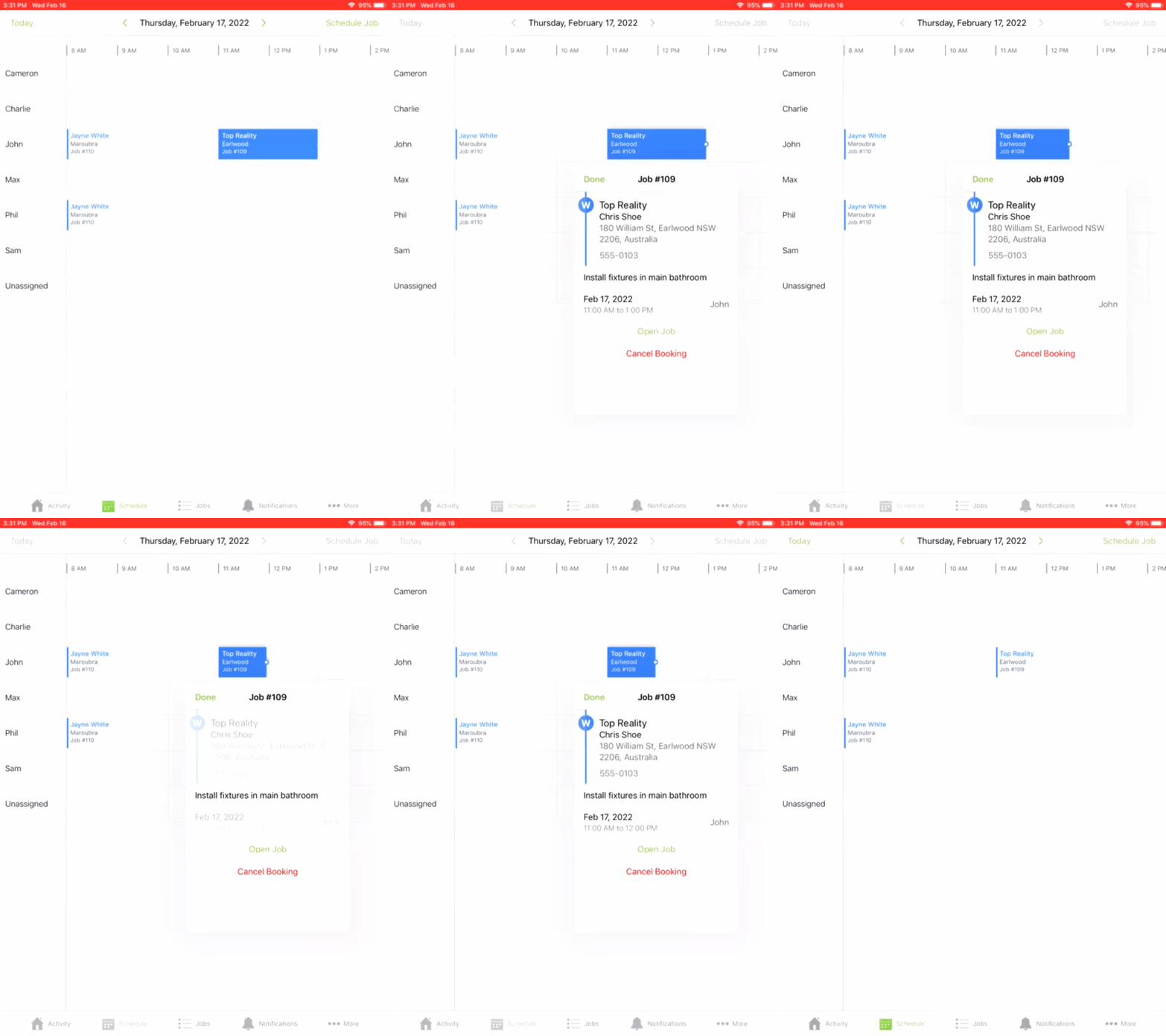
TIP: You can also tap a job, then the booking to open the Job Booking window. From there, you can edit a booking’s duration, date, time, and assigned staff.