

Quotes and invoicing
How to use a quote acceptance?
Learn how to use a quote acceptance in ServiceM8.
This tutorial will show you how to create and use a quote acceptance through a special link that you can include in Email or SMS message.
Go to Settings, click Email or SMS Templates.

To create a new email template, click Add Email Template.

Then add the code {document} into your Email message. Click Save Changes.

For SMS template, click Add SMS Template.
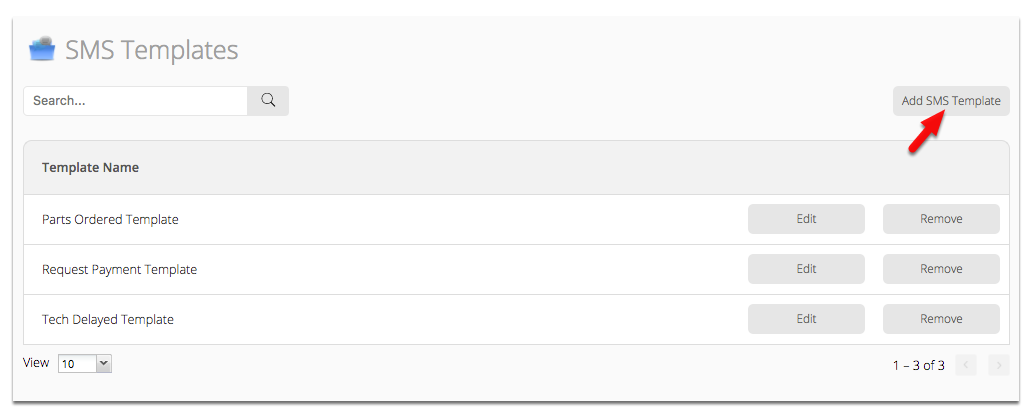
Then insert the code {document} into your SMS message and save it.

To test is out, open a job either from the app or online, in this example will use the ServiceM8 app.
Tap Job Actions ( + )

Note: The job status must be in Quote.
Tap Email or SMS

Select the Quote Acceptance Template and send

Your client will receive a message with the special link in it as shown below.

Here is the quote acceptance preview once the link is clicked or opened.

Here they can:
Accept Quote: Approve the quote and confirm.
Email: Forward or send in another email.
Save: Download a copy on their computer.
Once the online quote acceptance is approved it will then automatically change its job status to work order and a record in the diary.

