

Quotes and invoicing
How to increase Items & Services prices in bulk
Increase eligible saved Items & Services prices by a percentage, with a preview before you confirm.
Use Bulk Price Increase to raise all eligible saved Items & Services prices by the same percentage. You can review the affected count and sample prices before confirming the change.
Before you start
- You must activate ServiceM8 15 to use Bulk Price Increase.
- Sign in to the Online Dashboard using your own Business Owner login. The Account Owner can also use the wizard.
- You must have permission to manage Items & Services. If your role prevents this, ask the Account Owner to run the wizard or update your permissions.
Which prices change
The increase applies to all active, manually priced Items & Services with a saved price above zero. This includes eligible labour items as well as materials.
The following are excluded:
- Inactive items and prices of zero or less.
- Items using a Pricing Strategy.
- Service minimum charges and travel prices.
Prices already on existing jobs, including quotes, work orders and invoices, stay unchanged. The updated saved prices apply when you add items to jobs after the increase has been applied.
Enter the increase
- Open the Bulk Price Increase wizard.
- Check the business name and any message about the last price increase.
- In Price increase (%), enter a percentage above
0and up to100. The percentage is rounded to two decimal places. - Click Next.
Review and confirm
The Confirm step shows the business name, percentage and total number of eligible Items & Services. It also previews up to eight of your most used eligible items, showing each Item Number, Name, Current Price and New Price.
The preview is a sample: the increase applies to all eligible items in the count.
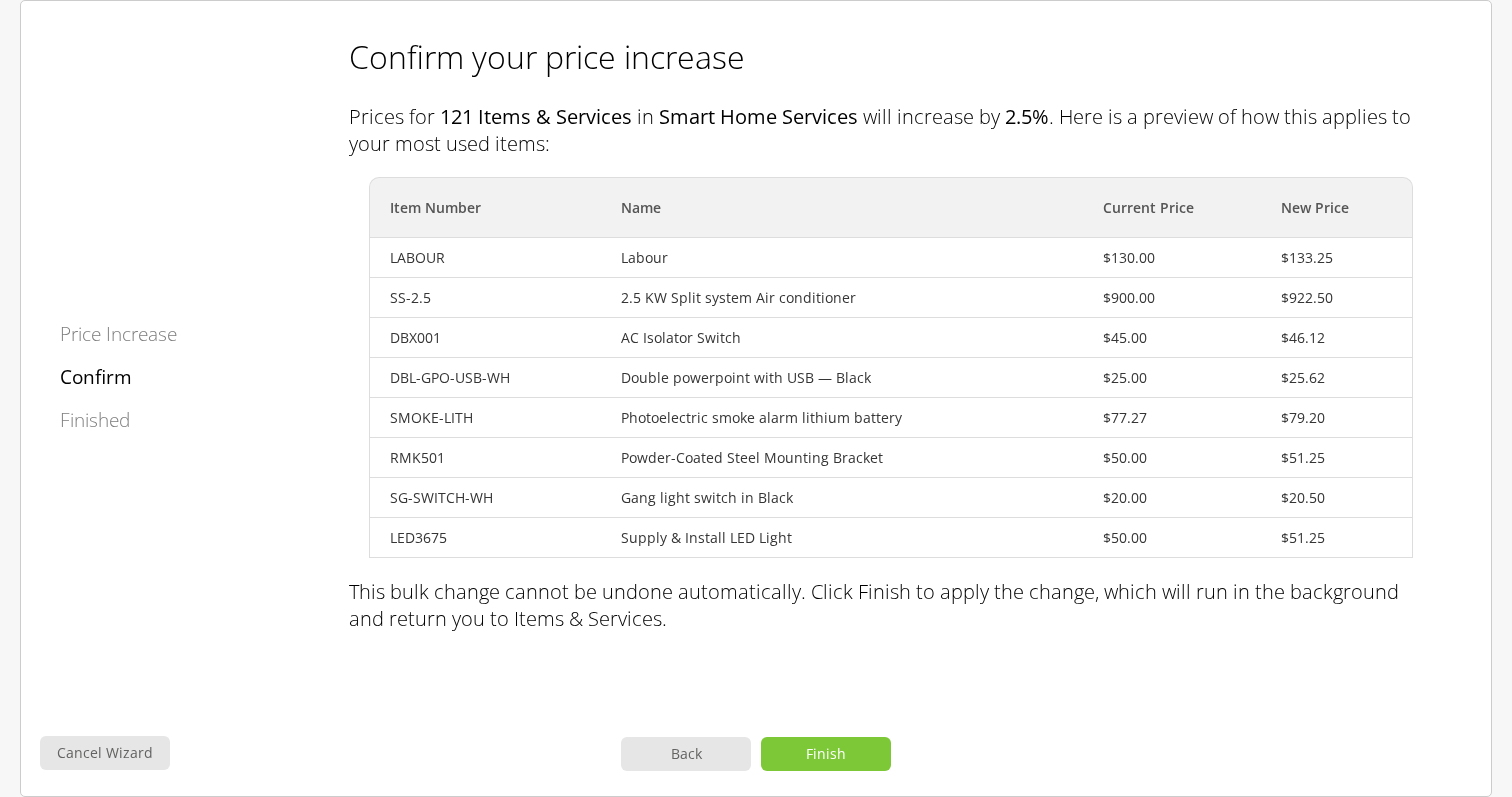
- Click Back to change the percentage, then click Next to review the updated preview.
- Click Cancel Wizard and confirm the cancellation to leave without applying an increase.
- Click Finish to confirm and start applying the increase in the background. You return to your Items & Services list.
No prices change before you click Finish. Prices are rounded to your account’s currency precision, preserving any higher precision already saved, up to four decimal places. If rounding leaves an item’s price unchanged, that price stays as it is.
Check the result
The update runs in the background, so returning to the list does not mean every price has finished updating. No notification email is sent when it completes.
Open the wizard again to check the last-run message. When a previous run is recorded, the first step shows its percentage, date and item count, with one of these outcomes:
| Outcome | What it means |
|---|---|
| Applied | The increase completed. A separate increase will compound on your current prices. |
| Still being applied | The update is pending or in progress. Wait for it to finish before starting another increase. |
| Did not complete | The update failed and some prices may already have changed. Check your current prices before another increase, and contact ServiceM8 Support if you need help. |
| Completion could not be confirmed | The outcome is unknown. Check your current prices before starting another increase. |
The last-run message can also reflect a price increase started through the separate ServiceM8 Pay surcharge preparation wizard.