

The mobile app
How do I use voice dictation in the ServiceM8 app?
Find out how to use voice dictation in the ServiceM8 app in ServiceM8.
Speech-to-text in ServiceM8
You can use your device keyboard’s voice typing to enter text in ServiceM8, such as job descriptions, notes and messages. The controls and supported languages depend on your keyboard.
Voice typing on Android
With Gboard, tap a text field in ServiceM8, then tap the keyboard’s Microphone icon and speak when prompted. Allow microphone access if requested. Other keyboards may use different controls. See Google’s voice typing guide.
Voice dictation on iPhone and iPad
Tap the microphone icon on your iPhone or iPad keyboard to dictate text:
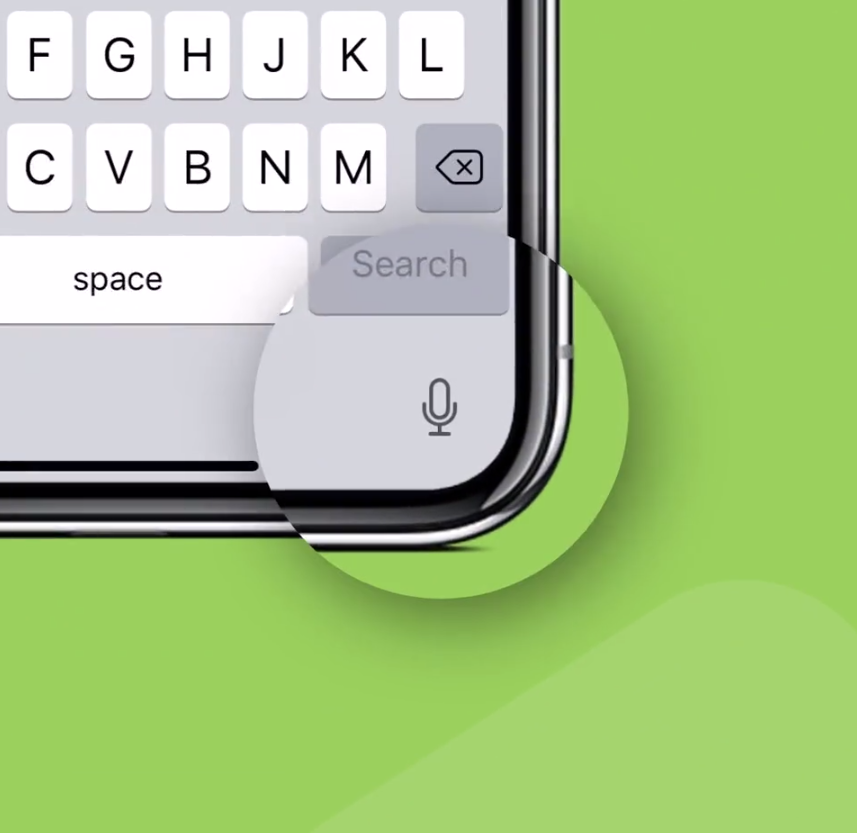
When walking around a site and generally on-the-move, using speech-to-text functionality like this can be a big time-saver when searching or entering information into ServiceM8, such as:
- Searching for a client or job in the Search field of the Jobs tab
- Entering a Job Description
- Entering Work Completed for a job
- Saving a Job Note or Client Note
- Posting to the Activity Feed
- Texting a client from their job card
- Creating a new Task
To enter text this way in the ServiceM8 app, when the keyboard pops up for text entry, tap the microphone icon then start speaking (keep it slow and clear). When you’re done, tap the keyboard icon to stop.
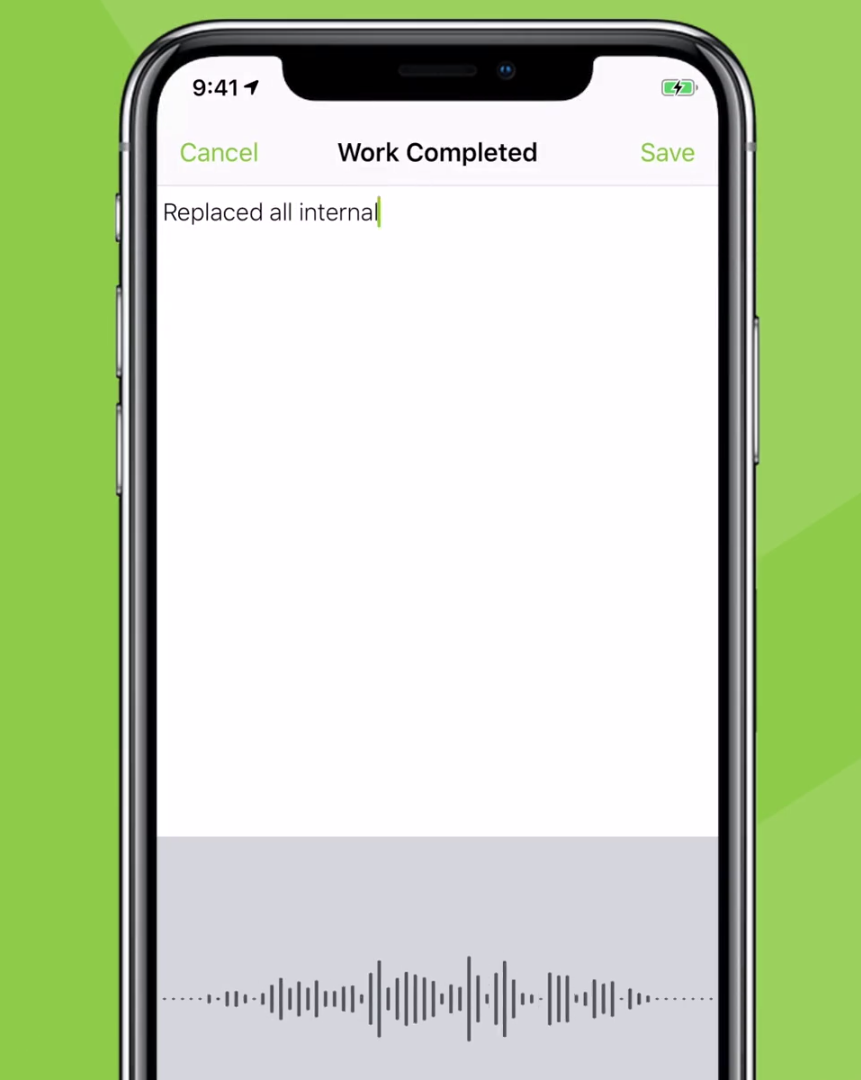
Keep in mind that you can also add punctuation and formatting by pronouncing it mid-sentence, where you want it to appear. You can use phrases like:
- “comma” to insert a comma (,)
- “full stop” to insert a full stop/period (.)
- “question mark” to insert a question mark (?)
- “new line” to return down to a new line
- “dash” to insert a dash (-)
- “new paragraph” to return down to a new paragraph
- “cap” to capitalise the first character of the next word
For example, if you want the text to appear as “Hi Greg, does 4pm work for you?”, you would tap the microphone icon and say “Hi Greg comma does 4pm work for you question mark”.
TIP: you can use some of the above phrases to help create checklist items for a job when entering a Job Description.
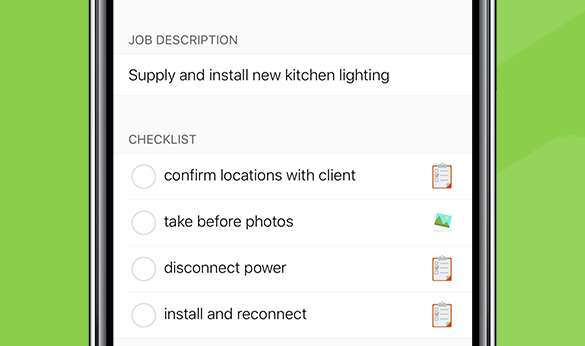
For example, to create the above job description and checklist, you would tap the microphone icon and say the following:
Supply and install new kitchen lighting new line
dash confirm locations with client new line
dash take before photos new line
dash disconnect power new line
dash install and reconnect
For more tips on how to use speech-to-text dictation with the iOS keyboard in ServiceM8 (and in general), check out this page.