

Account and billing
Using Sign in with Apple for ServiceM8
Learn how to use sign in with Apple for ServiceM8 in ServiceM8.
When you log in to the ServiceM8 mobile app on your Apple device, you have the option of either entering your email address and password, or tapping Sign in with Apple.

While both approaches are fine, using Sign in with Apple lets you use your Face ID, Touch ID, or device passcode to access your ServiceM8 account from your mobile device. It’s a quick and secure way to sign in when you’re on the go.
Enabling Sign in with Apple
Before you can enable Sign in with Apple, if you are an existing ServiceM8 user, you must:
-
Ensure that your ServiceM8 email address matches your Apple ID email address. For help changing your ServiceM8 email login, please refer to this article.
-
Once you have confirmed that your ServiceM8 email and your Apple ID email match, sign out of the ServiceM8 app before proceeding. To sign out, tap More > Logout.
To enable Sign in with Apple:
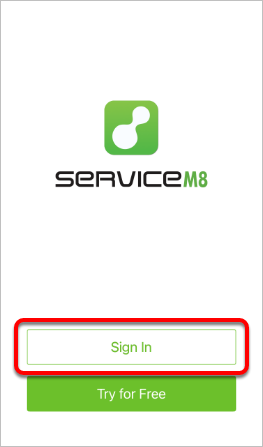
- Open your ServiceM8 mobile app and tap Sign In.
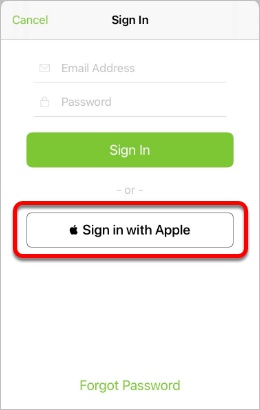
- Tap Sign in with Apple.
- You will be prompted to create an account for ServiceM8 using your Apple ID and asked to choose between:
- Share My Email, which shares your email address with ServiceM8
- Hide My Email, which creates a unique, random email address ending with @privaterelay.appleid.com
To use Sign in with Apple with an existing ServiceM8 account, you must select Share My Email.
- Continue as prompted using your Touch ID, Face ID, or passcode.
You have now enabled Sign in with Apple for ServiceM8.