

Automation
Quote Follow Up Automation
Learn about quote Follow Up Automation in ServiceM8.
Quote Follow Up Automation
Following up quotes you’ve sent is vital. A simple follow-up can be the difference between winning or losing the job. Sometimes clients just need a reminder, or a prompt to ask some questions that caused them to hesitate, before going ahead with the work.
With the Automation Add-on, you can set ServiceM8 to automatically email or text clients about a quote you’ve recently provided. This helps systematically win you more work, while saving you the time of doing this manually.
You can customise your follow-up messages, and send them via email, SMS, or both.
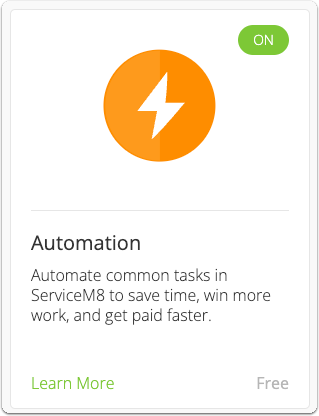
To get started, ensure the Automation Add-on is activated in Settings > ServiceM8 Add-ons:
To activate the Quote Follow Up automation, go to Settings > Automation, and next to Quote Follow Up, click Edit:

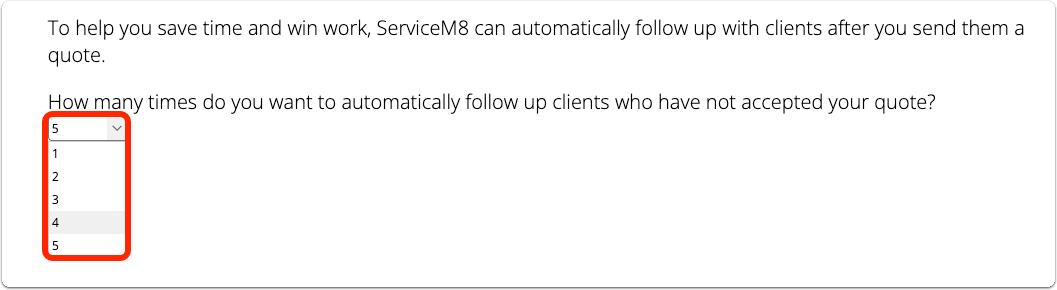
Decide how many times you want to follow up clients after providing a quote:
Set whether you want to email and/or SMS the client in each instance, and set when you want the follow up to send e.g. send SMS follow up 3 hours after quote sent, and Email follow up 3 days after quote sent:
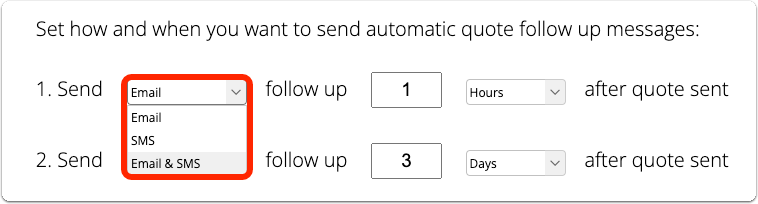
TIP: with a maximum of 5 follow ups, you can build a great sequence to ensure you stay top of mind with the client e.g. you could schedule a brief text a few hours after sending your quote, then an email a few days later, then further follow ups at 7 and 14 days, ending with a final follow up reminding the client your quote and prices validity will expire soon.
Select whether you want to automatically update the status of jobs with unaccepted quotes to Unsuccessful, and the timeframe for doing so. Making use of this feature is a great way to keep your quotes organised:

Note that:
- Quotes with outstanding replies from the customer wont be changed to Unsuccessful
- If a customer replies after the jobs been changed to Unsuccessful, it will automatically change back to a Quote status.
- A jobs status will not be automatically changed if its in a Queue, or its status has already been changed.
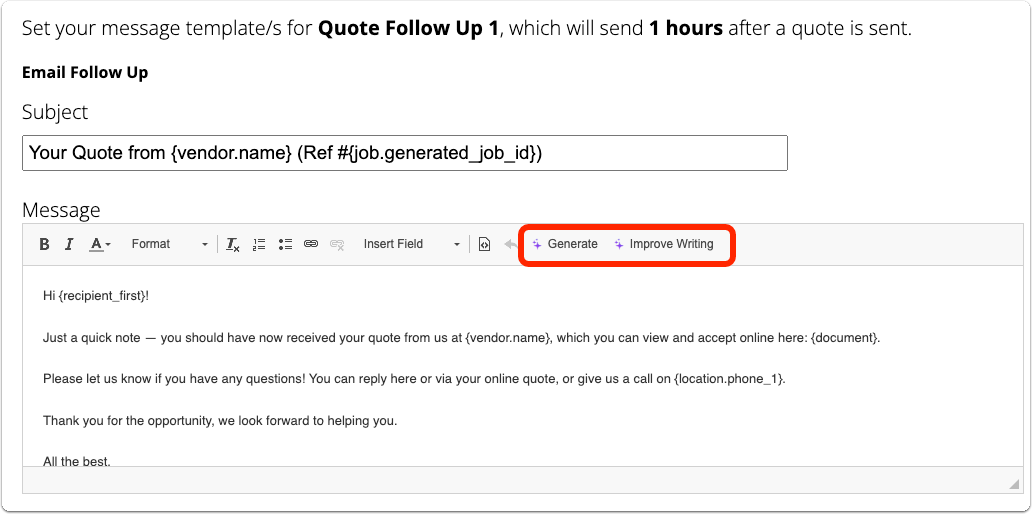
Set your templates for each follow up message. Note: you can make use of your Smart Assistant to help Generate a message, or improve the writing of a draft or existing template:
Once activated, your email and/or text message follow ups will be scheduled according to the timing set in the automation’s settings. Scheduled emails and text messages can be viewed in the job’s Diary.
Who will receive the Quote Follow Up messages?
- Your automated quote follow up messages will send to the same contact/s you sent the quote to.
- The email and/or phone number used must match those of a saved contact on the job in order to send.
Automatic & manual cancellation of Quote Follow Up messages
Scheduled follow up messages will be cancelled in the event of the following:
- The customer replies, and you don’t a) Respond; or b) Dismiss the reply. Responding to the customer or dismissing their reply will resume the automation.
- The customer accepts the quote online (which will change the jobs status to Work Order);
- The jobs status is manually changed to Work Order, Completed or Unsuccessful; or
- A team member manually cancels the automation by clicking the dropdown next to the automation in the jobs Diary online.
- You resend the quote to someone who is not a saved contact on the job.
NOTE: The Automation add-on is available on all ServiceM8 plans. Each SMS (text) sent will consume a text credit under your plan.