

Accounting integrations
How do I integrate ServiceM8 with MYOB?
Start the MYOB integration wizard and connect ServiceM8 with MYOB.
Use this guide to start the MYOB integration wizard and connect ServiceM8 to your MYOB account.
- In your Online Dashboard, click Settings.
- Click ServiceM8 Add-ons.
- Find MYOB Integration, then click Connect.
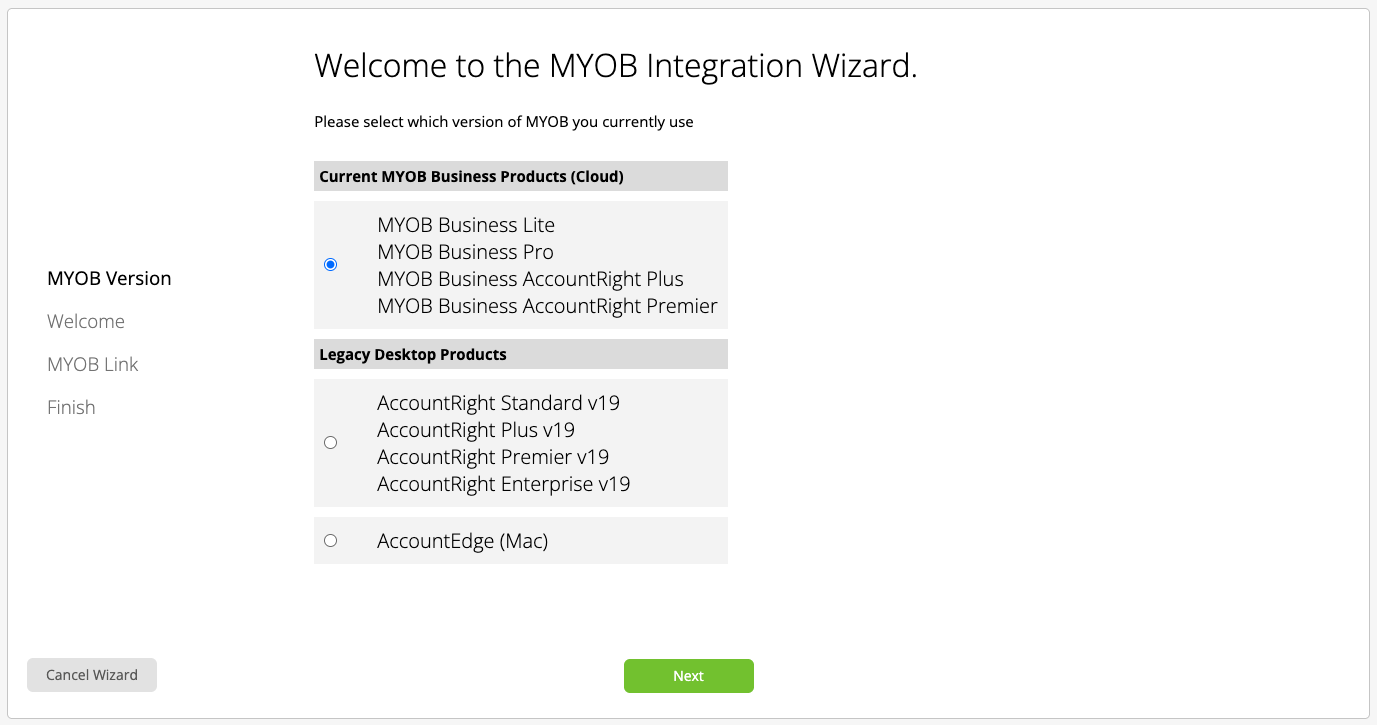
Select your MYOB version
Choose the option that matches your MYOB product.
ServiceM8’s MYOB integration supports the MYOB Business product and plan range, including MYOB Business Lite, MYOB Business Pro, MYOB Business AccountRight Plus, and MYOB Business AccountRight Premier. It also supports legacy MYOB Essentials and AccountRight products.
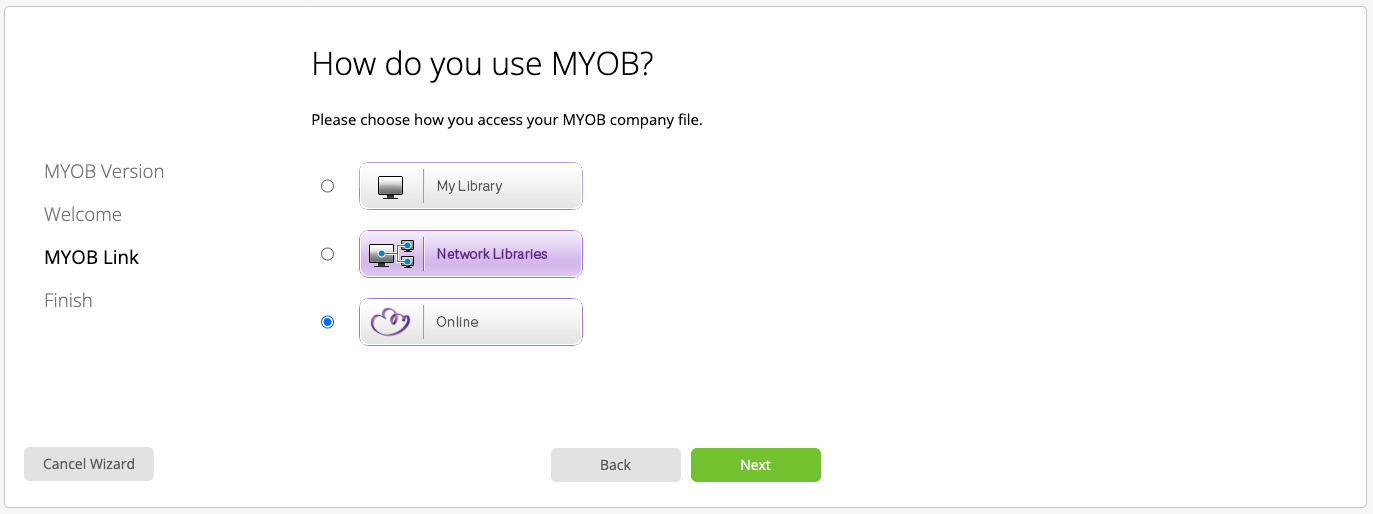
If you’re connecting a legacy MYOB Essentials account, select Current MYOB Business Products (Cloud). In the following step, select Online for how you access your MYOB company file.
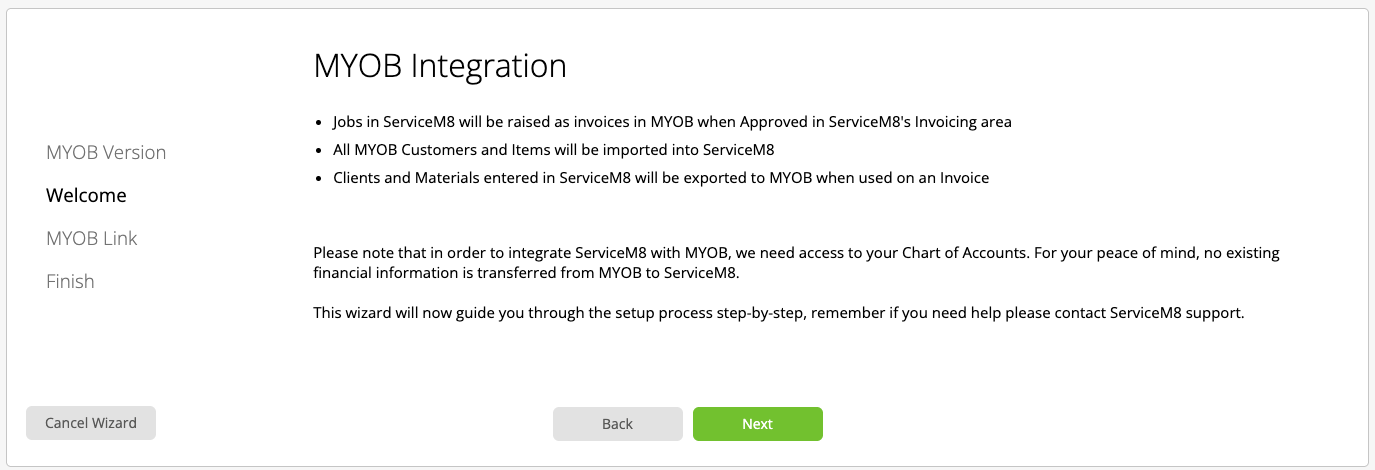
Review the welcome step
Read the summary, then click Next.
Choose how you access MYOB
Select Online, then click Next.
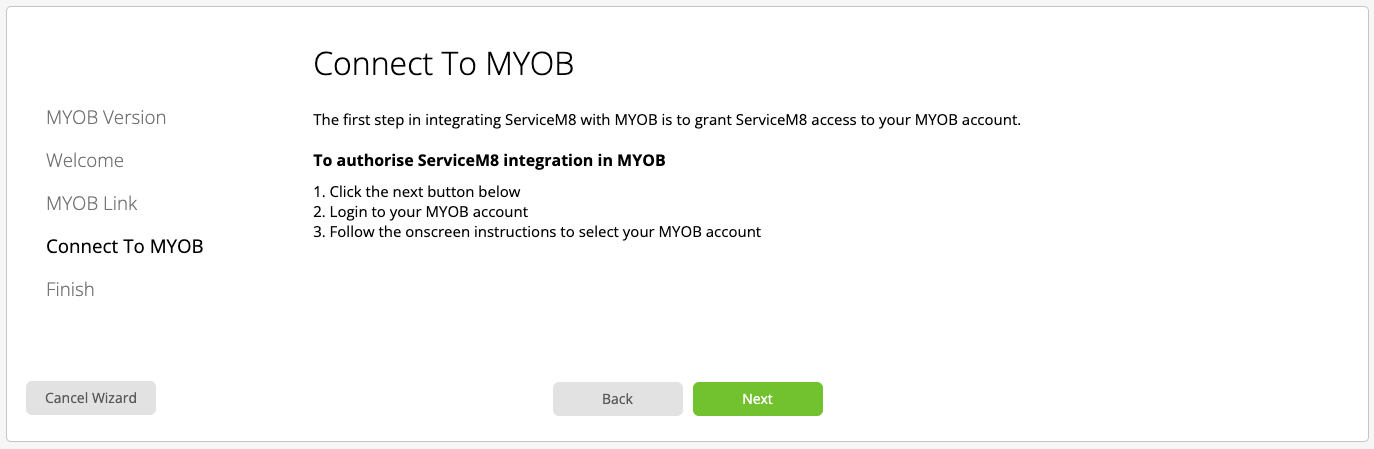
Start the MYOB connection
On Connect To MYOB, click Next.
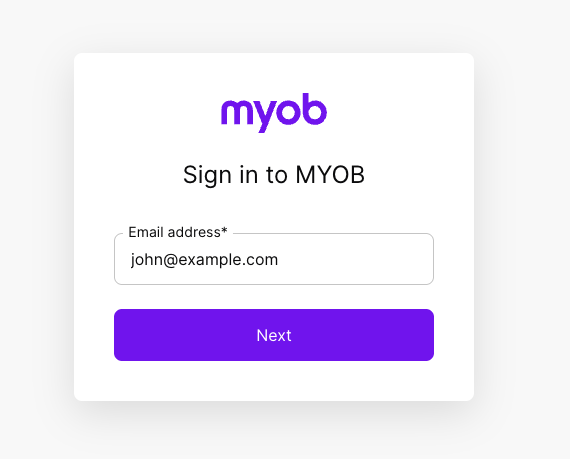
Sign in to MYOB
Enter your MYOB account details and continue.
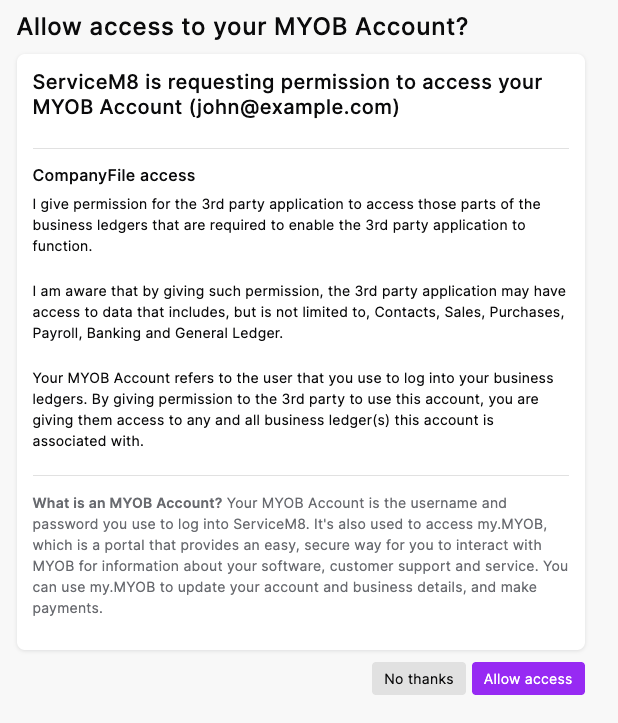
Allow ServiceM8 access
When prompted by MYOB, click Allow access.
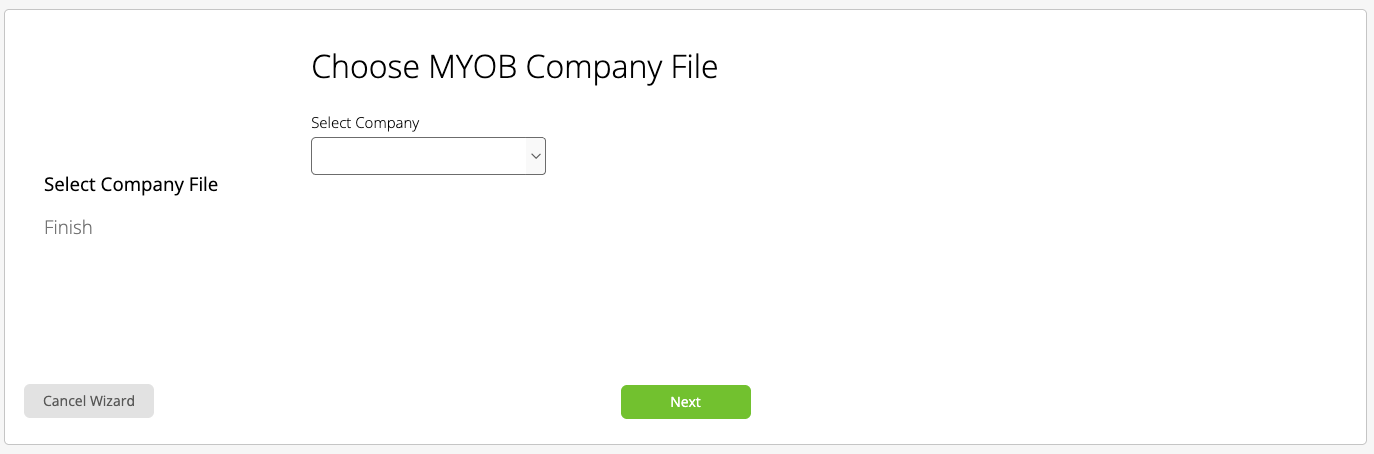
Choose your company file
Select your MYOB company file, then click Next to finish the setup.
For details on what syncs between MYOB and ServiceM8, see How the sync with MYOB works.