Job Templates
What are Job Templates?
Understand what Job Templates are and how it works in ServiceM8.
If you have a range of common services, and you’re constantly creating the same types of jobs (just for different clients), then check out the Job Templates add-on.
Job Templates can be used to quickly book new jobs with pre-filled job requirements, checklists, documentation & materials. They’re great for speeding up the job creation process, and instilling quality & consistency.
To get started, activate the add-on in Account > Features & Integrations > Job Templates.
Then, go to Account > Settings > Job Templates, and you’ll be able to create job card templates to auto-fill new job cards:

Be sure to give the Job Template a clear and concise name, then preset any aspects of the job card you want to pre-fill every time you create a new job based on this template:

Once created, Job Templates can be applied when creating a new job in the mobile app & online.
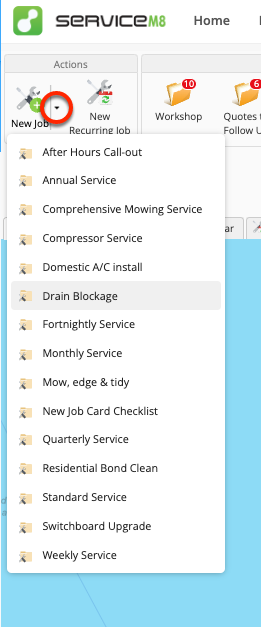
To apply a Job Template in the Online Dashboard, use the drop-down arrow next to the ‘New Job’ button when creating the job:
Use current prices in the Online Dashboard
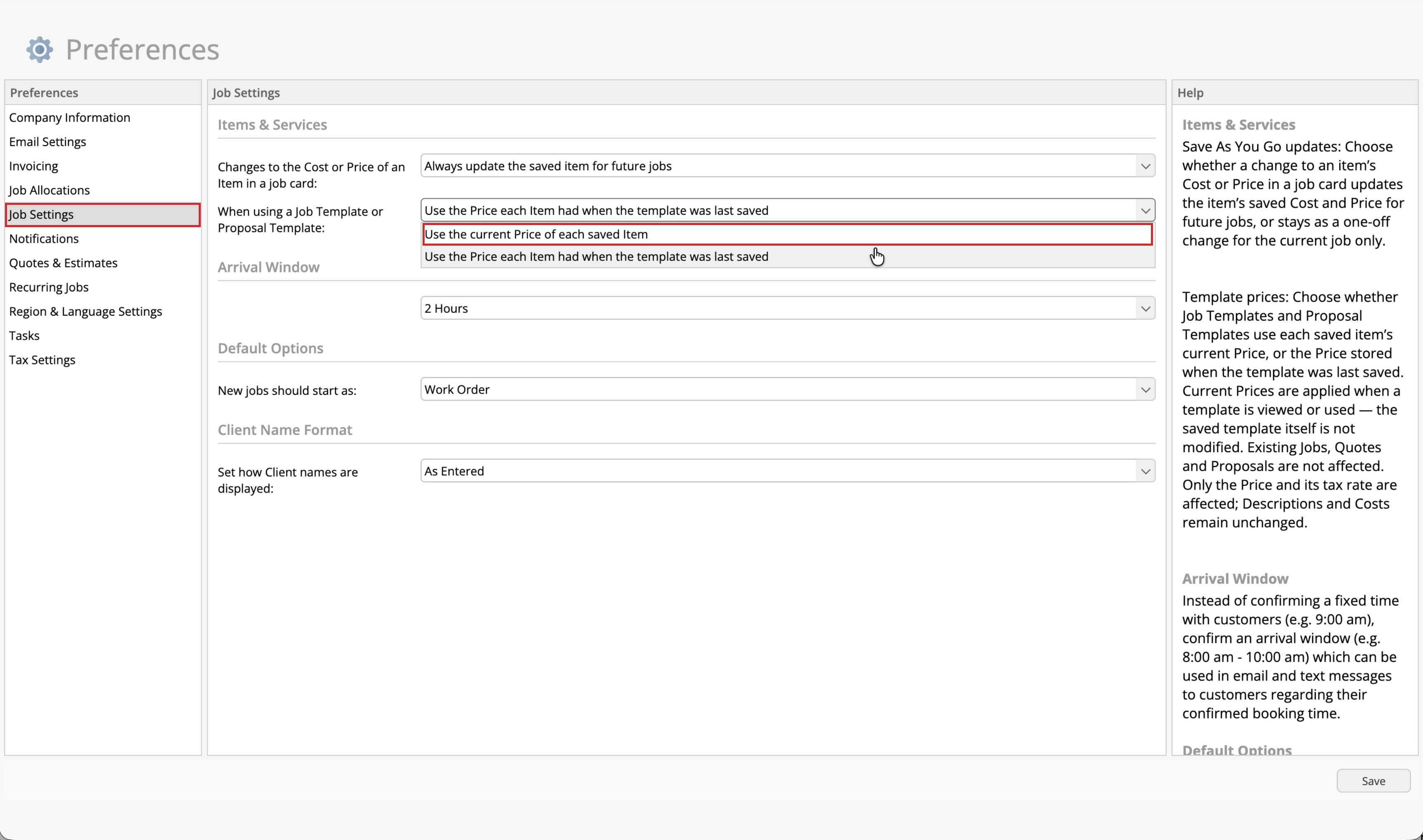
By default, templates use the prices saved with them. You can choose to use current catalogue prices instead. This setting applies to both Job Templates and Proposal Templates across your account.
-
In the Online Dashboard, go to Account > Settings > Preferences > Job Settings. Under When using a Job Template or Proposal Template, select Use the current Price of each saved Item.
-
Click Save.
-
Create a new Job from a Job Template using the New Job drop-down menu. Its matching items use their current catalogue prices.
Prices and tax rates refresh when a template is viewed or used. Costs and descriptions remain as saved. Current prices also replace custom template prices for matching catalogue items.
Changing this setting does not rewrite your stored templates or automatically update existing Jobs, Quotes or Proposals.
In the app
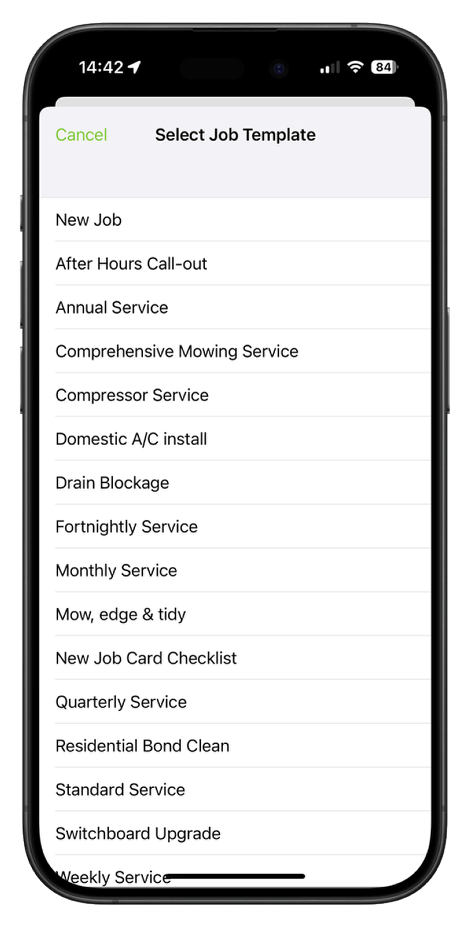
To apply a Job Template in the mobile app, in the Jobs tab, tap the plus (+) icon > New Job, and you’ll be presented with your list of Job Templates: