

When managing jobs in ServiceM8, your goal should be to keep unscheduled jobs out of the Action Required list. You can remove an unscheduled job from the Action Required list by scheduling it to a staff member, changing its status to Completed or Unsuccessful, or, if the job needs something to happen before work can progress, by placing it in a queue. (To learn more about job queues, see Queues - overview.)
This articles explains how to:
There is also an example of how queues can be used to manage jobs throughout various holds in a typical workflow, such as waiting for a quote to be accepted and waiting for a part to arrive.
Move jobs to queues
You can move jobs to queues from both the Online Dashboard and the ServiceM8 mobile app.- from the Online Dashboard
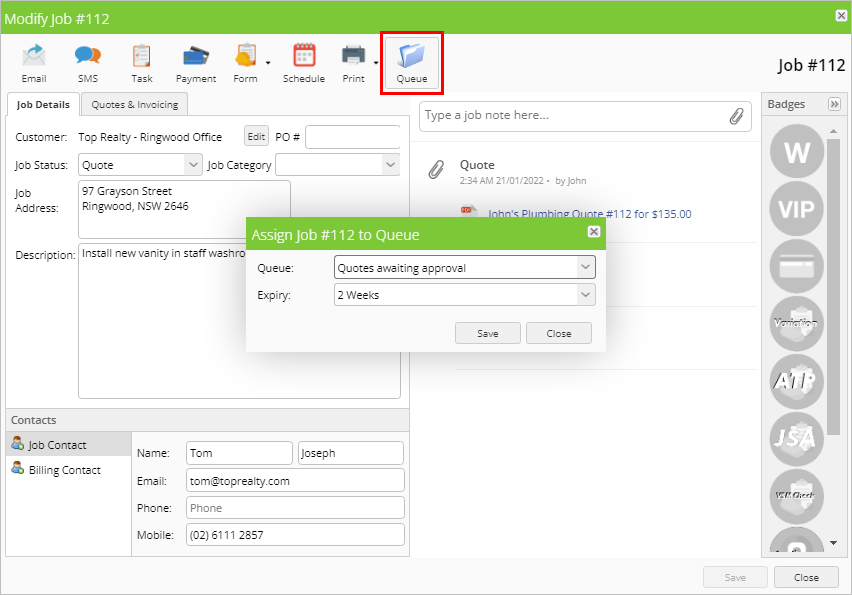
In the Online Dashboard, you can move a job to a queue directly from the job card or by dragging and dropping in the Dispatch Board. To move a job to a queue from the job card:- Find the job and double-click to open the job card.
- Click Queue.
- Select your desired queue and expiry time using the dropdown list.
- Click Save.
- From the Dispatch Board, click the Queues tab.
- Find the job in the relevant Jobs list (such as Action Required).
- Click the job and drag it to the appropriate queue column, then release. The default expiry date set for that queue will be assigned.
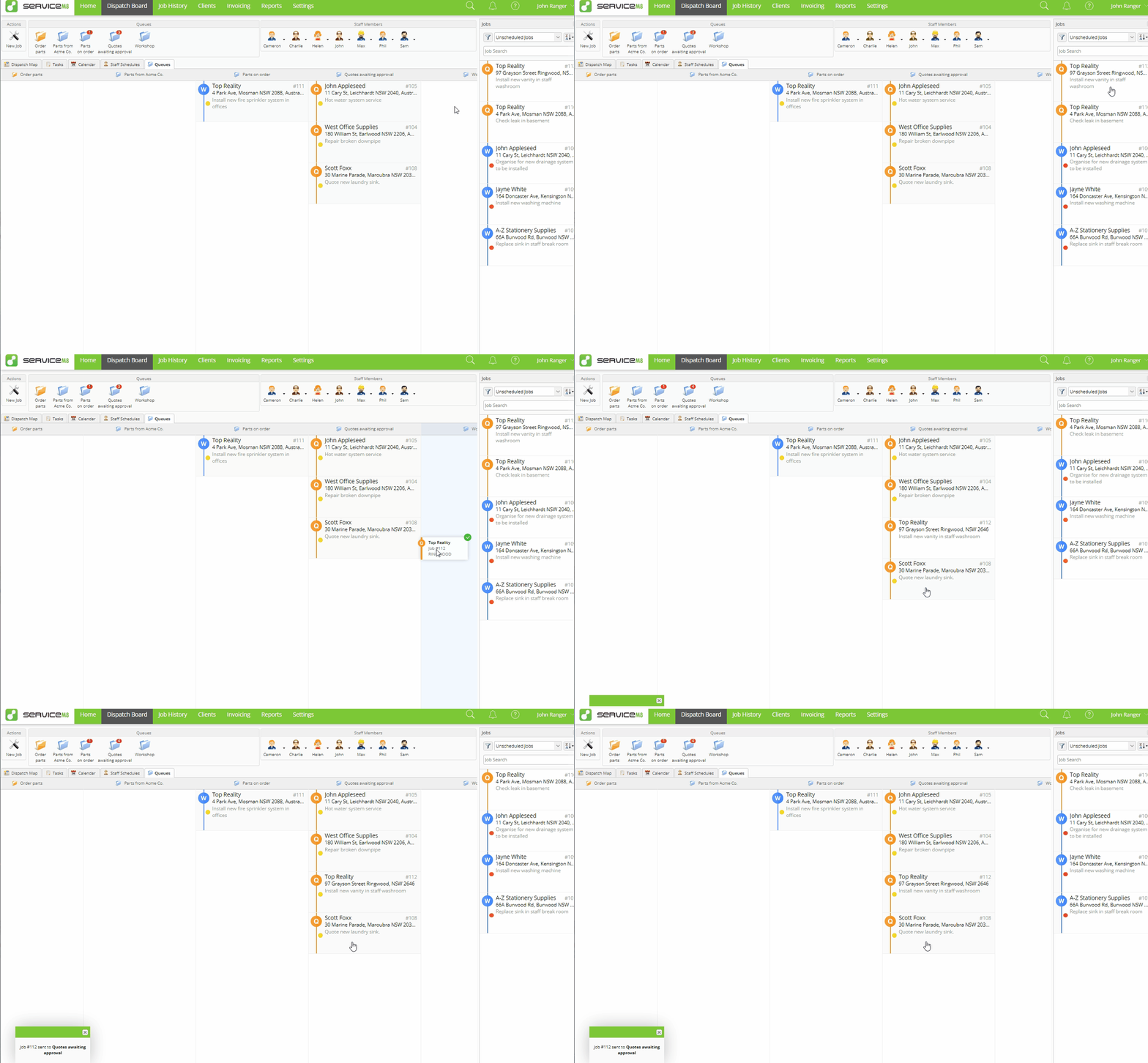
- Find the job in the relevant Jobs list (such as Action Required).
- Click the job and drag it to the appropriate queue folder.
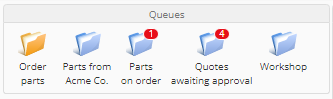
- Select your desired expiry time using the dropdown list.
- Click Save.
- from the ServiceM8 mobile app
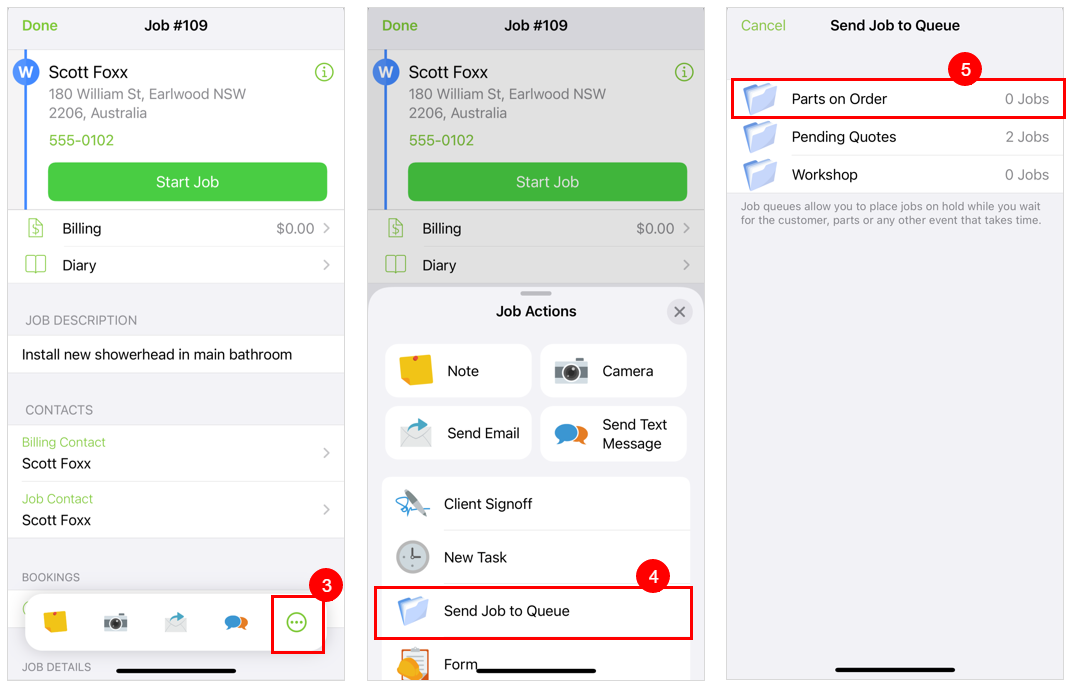
When you check out of a job, the checkout wizard will give you the option of moving the job to a queue (see the example below). You can also move a job to a queue from the job card using the Job Actions bar. To move a job to a queue from the job card:- Click Jobs.
- Find your job, either in a list or by searching, and tap to open.
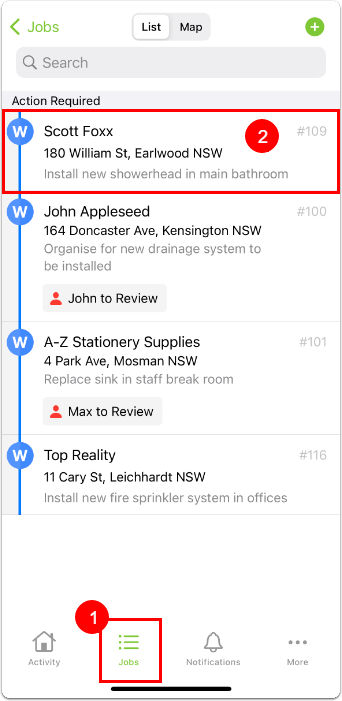
- On the Job Actions bar, tap More.
- Tap Send Job to Queue.
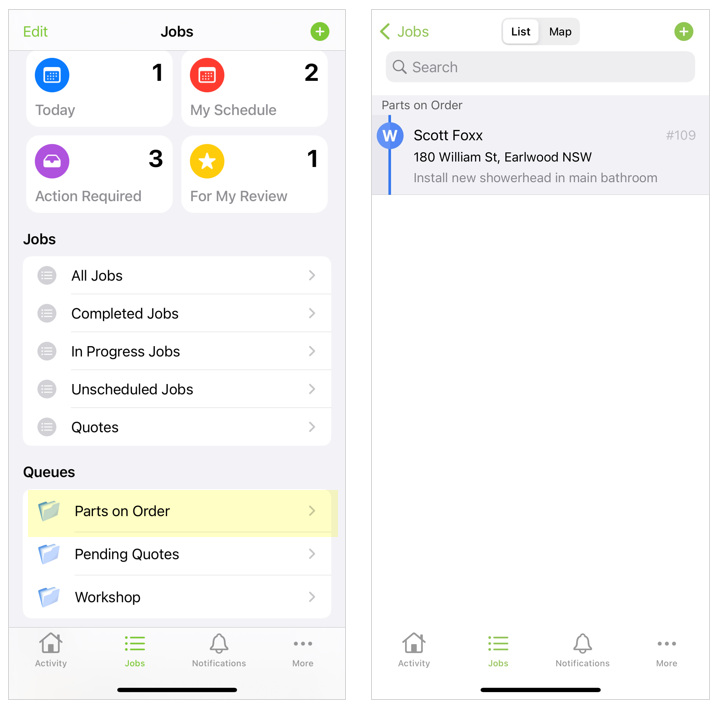
- Tap the desired queue.
- If you want to change the expiry window, tap Expiry and select a new time.
- Tap Done.

Assign a job in an assignable queue
Assignable queues let you manage key internal tasks that must be completed before a job can move forward, such as providing a quote or ordering a particular part. You move jobs to assignable queues in the same way as you would move them to regular job queues (per the previous section). However, when you move a job to an assignable queue, you will be prompted to assign it to a staff member before clicking Save. The staff member will be notified upon being assigned a job in an assignable queue. Note that assignable queue folders are a different colour than regular job queue folders.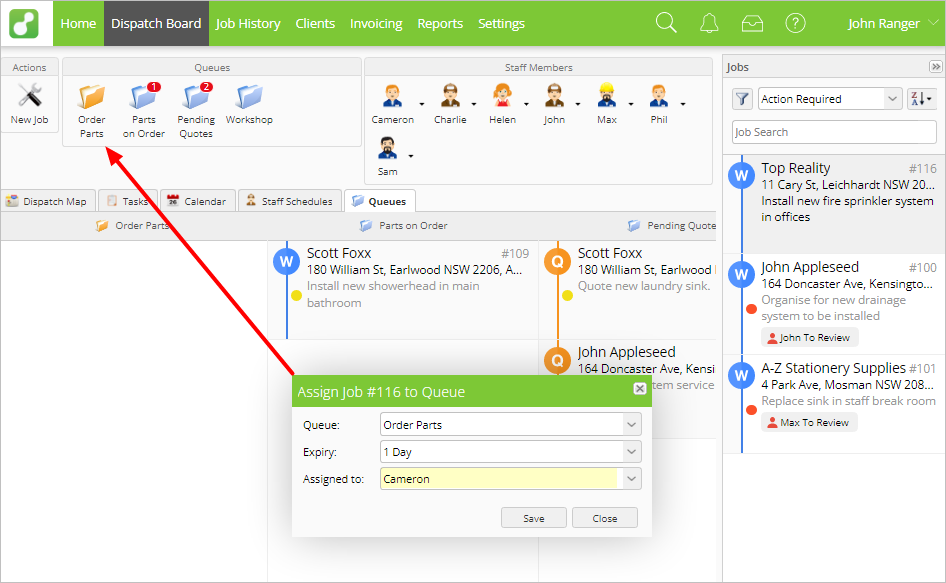
Remove jobs from queues
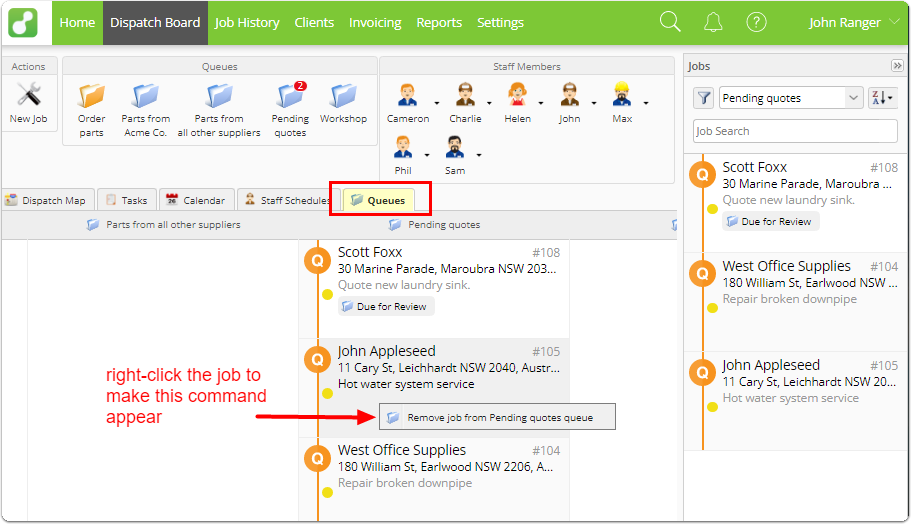
Jobs are automatically removed from queues if they are scheduled, or if their job status changes to Completed or Unsuccessful. However, if you need to manually remove a job from a queue, you can. This process applies to both regular job queues and assignable queues, and must be done from the Online Dashboard. To remove a job from a queue:- From the Online Dashboard, click Dispatch Board.
- Click the Queues tab.
- Find the job in the appropriate queue column, then right-click the job.
- Click Remove job from
<name>queue.
Example: Using queues to manage a job on hold
This example uses the ServiceM8 mobile app to manage the job, but it could be done just as easily from the Online Dashboard. PART 1 - WAITING FOR A QUOTE TO BE ACCEPTED You go to a potential job site and provide a quote to a client. The client advises they’re waiting on a couple other quotes and will let you know. To stay on top of the quote, when you check out of the job in the ServiceM8 mobile app, you send the job to the Quotes awaiting approval queue. If the client doesn’t approve it within two weeks (the default timeframe you set for that queue), the job will expire from the queue, prompting you to follow up with the client. (It also saves time for your administrative staff when you send a job to a queue - they can see at a glance what’s happening!)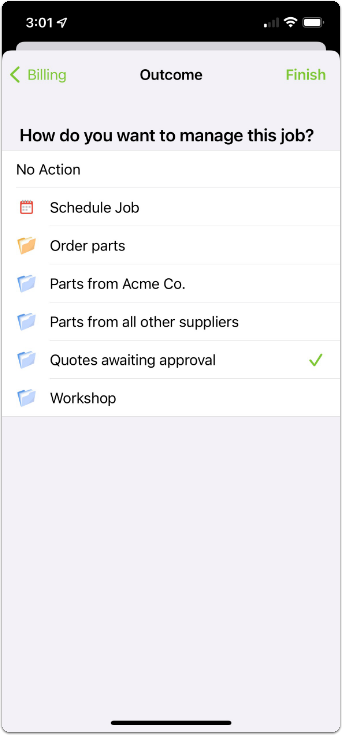
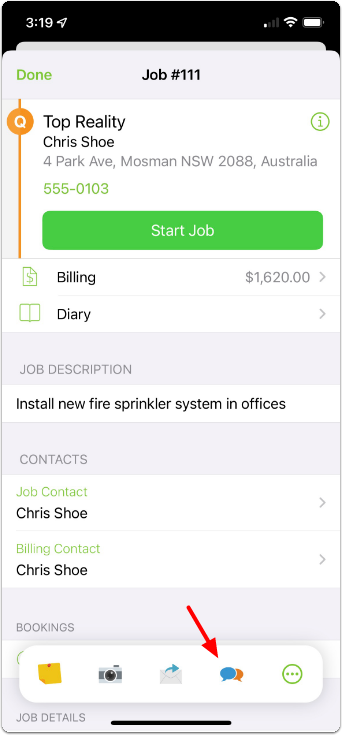
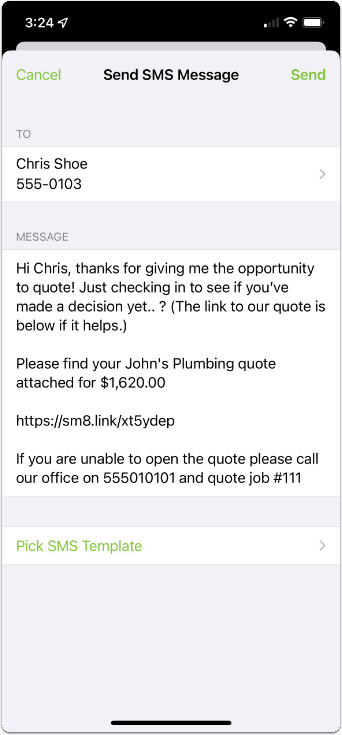
- If the client responds that they need more time, you can move the job back to the Quotes awaiting approval queue.
- If the client responds that they have gone with another vendor, you can change the job status to Unsuccessful to remove the job from your Jobs list. The job will be archived, so if the client changes their mind, you can easily find it again by searching by client name or job number.
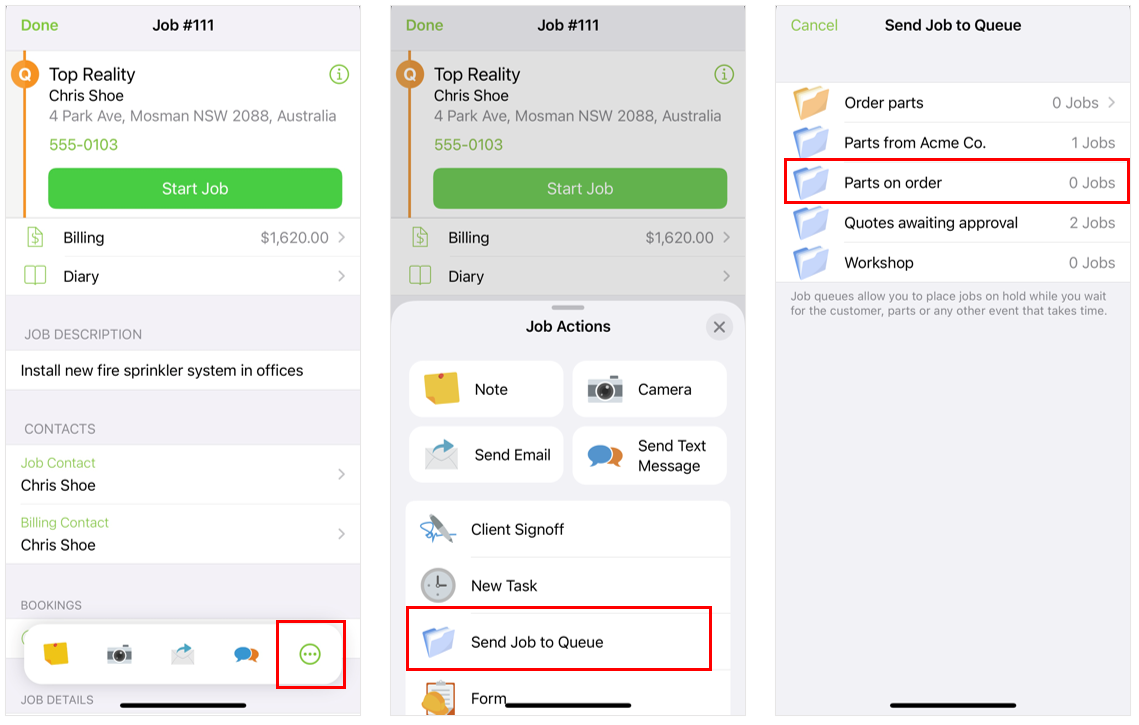 The part arrives on time. You schedule the job to a staff member for completion, which removes it from the Parts on order queue.
In both cases, you kept a job on hold out of your Action Required jobs list, but because you used queues, you never lost track of it in your workflow.
The part arrives on time. You schedule the job to a staff member for completion, which removes it from the Parts on order queue.
In both cases, you kept a job on hold out of your Action Required jobs list, but because you used queues, you never lost track of it in your workflow.