

- To learn more about the two types of job queues and how they work, see Queues - overview.
- To learn how to use queues in your daily workflow, see Manage jobs with queues.
To set up a new queue:
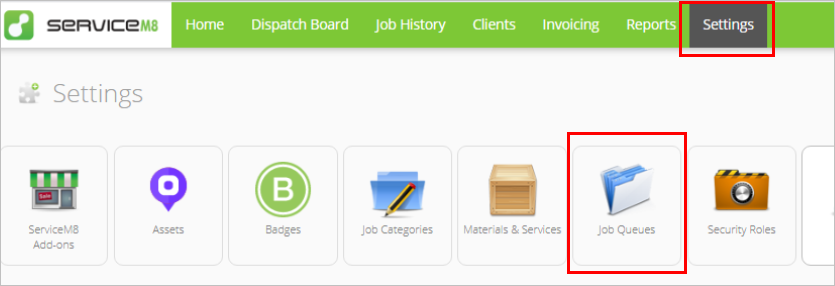
- From your Online Dashboard, go to Settings > Job Queues.
- Click Add Queue.

- Fill out the Job Queue fields.
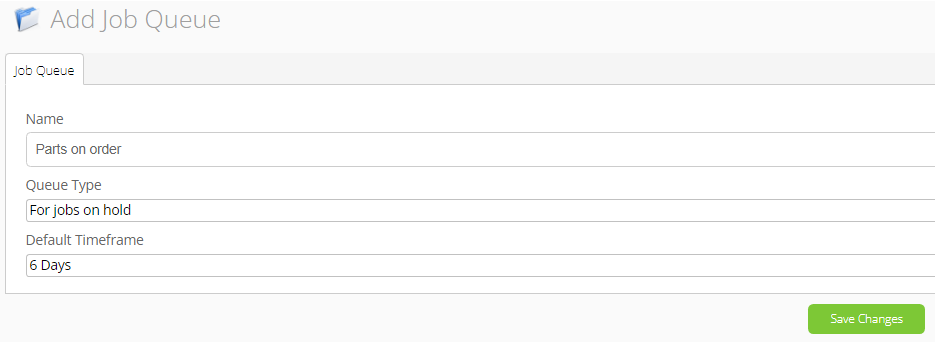
- If the new queue is a regular queue, which is for jobs waiting on an external action (for example, waiting for parts to arrive), fill out the fields as follows:
- Name: Input a queue name (best practice is to identify the reason for the hold, such as “Parts on order”, or “Quotes awaiting approval”)
- Queue Type: Select “For jobs on hold”
- Default Timeframe: Select the default time to act (this can always be changed when assigning the task in the queue)
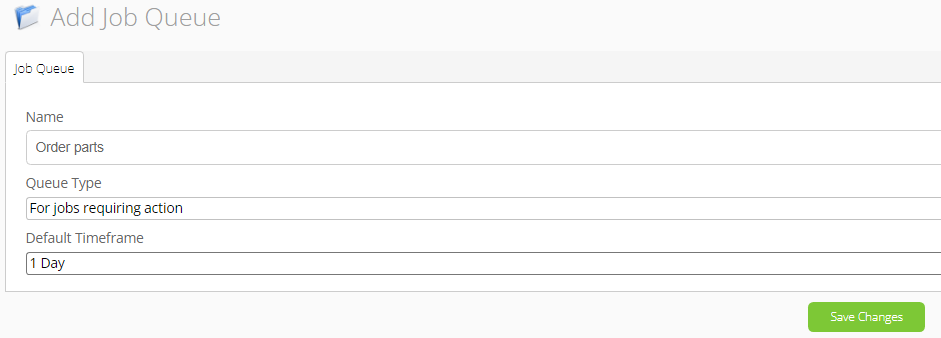
- If the new queue is an assignable queue, which is for jobs waiting on an internal action (for example, placing an order for parts), fill out the fields as follows:
- Name: Input a queue name (best practice is to identify what the assigned staff member must do, such as “Order parts”, or “Provide quote”)
- Queue Type: Select “For jobs requiring action”
- Default Timeframe: Select the default time to act (this can always be changed when assigning the task in the queue)
- Click Save Changes.

To edit a queue:
- From your Online Dashboard, go to Settings > Job Queues.
- Find the queue and click Edit.
- Make your desired changes to the queue settings (see previous section for more information about queue settings).
- Click Save Changes.

To remove a queue:
- From your Online Dashboard, go to Settings > Job Queues.
- Find the queue and click Remove.
- Click Yes to confirm removal (only if you’re sure you want to delete the queue from your workflow!).
